
Come riparare la scheda SD corrotta senza perdere i dati

A scheda SD danneggiata può rendere improvvisamente inaccessibili le tue foto, i tuoi video, i tuoi documenti o i file della fotocamera. Potresti visualizzare un messaggio di errore che indica che la scheda deve essere formattata, la scheda SD potrebbe non essere riconosciuta dal computer oppure alcuni file potrebbero scomparire senza preavviso. Quando ciò accade, la regola più importante è semplice: Non formattare subito la scheda SD. La formattazione potrebbe rendere nuovamente utilizzabile la scheda, ma potrebbe anche rendere più difficile recuperare i file persi sulla scheda SD. Se la scheda SD danneggiata contiene dati importanti, recupera o esegui prima il backup dei tuoi file, quindi prova a ricorrere a metodi di riparazione sicuri.
Questa guida spiega come riparare una scheda SD danneggiata e come recuperare i dati da una scheda SD danneggiata utilizzando un software dedicato al recupero dati come Magic Data Recovery.
Supporta Windows 7/8/10/11 e Windows Server
CONTENUTO DELLA PAGINA:
Risposta rapida: Da dove iniziare?
Se la scheda SD è danneggiata, segui questi passaggi in ordine:
- Interrompere immediatamente l'utilizzo della scheda SD.
- Non salvare nuovi file sulla scheda.
- Non formattare la scheda prima di aver recuperato i dati importanti.
- Prova con un altro lettore di schede, una porta USB o un altro dispositivo.
- Recupera i file dalla scheda SD danneggiata utilizzando un software di recupero dati.
- Una volta ripristinata, riparare la scheda utilizzando CHKDSK, Controllo errori di Windows, Primo soccorso di Utility Disco, riparazione dei driver o formattazione.
Se la scheda SD presenta danni fisici, è incrinata, piegata, bruciata, danneggiata dall'acqua o non viene rilevata da alcun dispositivo, interrompi il tentativo di riparazione fai da te e valuta di rivolgerti a un servizio professionale di recupero dati.
Segnali comuni di una scheda SD danneggiata
Una scheda SD potrebbe essere danneggiata se si riscontra uno o più dei seguenti sintomi:
Sintomo | Cosa significa | Primo passo consigliato |
La scheda SD richiede di essere formattata | Il file system potrebbe essere danneggiato | Recuperare prima i dati |
La scheda SD non viene rilevata | Problema di connessione, driver o scheda | Prova con un altro lettore o dispositivo |
I file scompaiono | Errore del file system o file nascosti | Scansiona la scheda e mostra i file nascosti |
La scheda SD diventa RAW | Il file system è illeggibile | Recuperare i dati prima della formattazione |
Non è possibile aprire foto o video | File danneggiati o settori difettosi | Ripristina e verifica l'integrità del file |
La scheda SD indica una capacità errata | Problema relativo alla partizione o al controller | Smettere di usare la carta |
Viene visualizzato un errore di lettura/scrittura | La scheda potrebbe essere bloccata, difettosa o danneggiata | Controllare l'interruttore di blocco e correggere eventuali errori |
La fotocamera visualizza il messaggio “Errore scheda” | Incompatibilità o danneggiamento del file system | Recupera i file, poi formatta la fotocamera |
Questi sintomi non indicano sempre che la scheda sia definitivamente danneggiata. In molti casi, una scheda SD danneggiata può ancora essere riparata, soprattutto se il problema è causato da errori del file system, rimozione non corretta, trasferimento interrotto, problemi con il driver o malware.
Cosa provoca il danneggiamento di una scheda SD?
Comprendere la causa può aiutarti a scegliere il metodo di riparazione più adatto. Tra le cause più comuni figurano:
1. Rimozione non corretta della scheda SD
Se si estrae la scheda SD mentre sono in corso operazioni di copia, eliminazione o salvataggio dei file, il file system potrebbe risultare incompleto o danneggiato. Ciò accade spesso quando si rimuove una scheda da una fotocamera, un telefono, un drone, una dash cam o un computer senza averla espulsa in modo sicuro.
2. Trasferimento file interrotto
Un'improvvisa interruzione di corrente, la batteria della fotocamera scarica, un arresto anomalo dell'app o il blocco del sistema durante il trasferimento dei file potrebbero causare uno stato instabile della scheda SD.
3. Errori del file system
La scheda SD utilizza un file system come FAT32 o exFAT per organizzare i file. Se il file system è danneggiato, il dispositivo potrebbe non essere più in grado di leggere correttamente i file.
4. Infezione da virus o malware
Se la scheda SD viene collegata a un computer infetto, il malware potrebbe nascondere, eliminare, crittografare o danneggiare i file.
5. Settori negativi
Dopo un uso prolungato, alcuni blocchi di memoria su una scheda SD potrebbero diventare inaffidabili. Ciò può causare errori di accesso ai file, rallentamenti nel caricamento o ripetuti danneggiamenti dei file.
6. Danni materiali
Piegature, crepe, esposizione all’acqua, calore, polvere o contatti metallici danneggiati possono impedire il corretto funzionamento della scheda SD.
7. Utilizzo della stessa carta su più dispositivi
L'utilizzo della stessa scheda SD su fotocamere, telefoni, droni, dash cam e computer può aumentare il rischio di errori di compatibilità, soprattutto se i diversi dispositivi utilizzano regole diverse relative al file system.
Prima di riparare una scheda SD danneggiata: importanti consigli di sicurezza
Prima di provare qualsiasi metodo di riparazione, segui queste norme di sicurezza per evitare la perdita definitiva dei dati.
Non formattare prima la scheda SD
Molti dispositivi visualizzeranno un messaggio del tipo:
- “È necessario formattare il disco prima di poterlo utilizzare”.”
- “La scheda SD è danneggiata. Prova a riformattarla.”
- “Errore della scheda.”
- “Il volume non contiene un file system riconosciuto”.”
Non fare clic su “Formatta” se la scheda contiene dati importanti. La formattazione può cancellare i record del file system e ridurre le possibilità di un recupero efficace.
Smetti di usare la scheda SD
Non scattare nuove foto, non registrare nuovi video, non scaricare nuovi file e non effettuare ripetuti tentativi di riparazione della scheda. I nuovi dati potrebbero sovrascrivere i file cancellati o inaccessibili.
Utilizzate un lettore di schede affidabile
A volte la scheda SD non è effettivamente danneggiata. Il problema potrebbe derivare da un lettore di schede, una porta USB, un adattatore o un cavo difettosi. Verifica sempre la scheda con un altro lettore prima di dare per scontato che sia danneggiata.
Recuperare prima i file importanti
Se i file sono importanti, recuperali prima di eseguire comandi di riparazione o di formattazione. Alcune operazioni di riparazione potrebbero modificare il file system, rendendo più difficile il recupero.
Come recuperare i dati da una scheda SD danneggiata
Se la scheda SD danneggiata viene ancora rilevata da Windows, puoi provare a recuperare i file con Magic Data Recovery prima di riparare o formattare la scheda.
Magic Data Recovery consente di recuperare file da schede SD, schede microSD, schede di memoria, chiavette USB, dischi esterni e altri dispositivi di archiviazione. È particolarmente utile quando i file vengono cancellati, vanno persi, risultano inaccessibili o mancanti a causa di danneggiamento, formattazione o errori del file system.
Importante: non installare il software di recupero sulla scheda SD danneggiata. Non salvare i file recuperati sulla stessa scheda SD. Salvare sempre i file recuperati su un’altra unità.
Passaggio 1: collegare la scheda SD danneggiata al computer
Inserisci la scheda SD in un lettore di schede e collegalo al tuo computer Windows. Se utilizzi una scheda microSD, usa un adattatore o un lettore di schede microSD affidabile.
Assicurati che Windows riesca a rilevare la scheda. Anche se la scheda non è accessibile in Esplora file, potrebbe comunque essere visibile in Gestione disco.
Passo 2: Scaricare e installare Magic Data Recovery
Scarica e installa Magic Data Recovery sul tuo computer. Installalo sul disco interno del computer, non sulla scheda SD danneggiata.
Supporta Windows 7/8/10/11 e Windows Server
Fase 3: Selezionare la scheda SD danneggiata
Avvia Magic Data Recovery. Nell'interfaccia principale, seleziona la scheda SD o la scheda di memoria danneggiata come unità di destinazione.

Fase 4: Eseguire la scansione della scheda SD
Avvia la scansione della scheda SD danneggiata. La durata della scansione dipende dalla capacità della scheda, dalla velocità di connessione, dalle condizioni della scheda e dal numero di file.
Ad esempio, una scheda SD da 32 GB potrebbe essere sottoposta a scansione più rapidamente rispetto a una da 256 GB. Se la scheda presenta molti settori danneggiati, la scansione potrebbe richiedere più tempo.

Passaggio 5: Anteprima e selezione dei file
Al termine della scansione, visualizza l'anteprima dei file recuperabili, se disponibili. Seleziona le foto, i video, i documenti, i file audio o altri dati che desideri recuperare.

Passo 6: Recuperare i file in un'altra unità
Fare clic su "Recupera" e scegliere una posizione sicura su un'altra unità. Non salvare i file recuperati sulla scheda SD danneggiata.

Come riparare una scheda SD danneggiata senza formattarla
Metodo 1: provare un altro lettore di schede, una porta USB o un altro dispositivo
Prima di eseguire i comandi di riparazione, assicurati che non ci siano problemi di connessione.
Quando utilizzare questo metodo
Utilizza questo metodo se:
- La scheda SD non viene rilevata.
- Il computer non rileva la scheda.
- La scheda SD si scollega in modo casuale.
- La scheda funziona su un dispositivo ma non su un altro.
Come fare
- Rimuovere la scheda SD dal dispositivo attuale.
- Inseriscila in un altro lettore di schede.
- Prova a collegarlo a un'altra porta USB.
- Provalo su un altro computer.
- Se si tratta della scheda SD di una fotocamera o di un telefono, reinseriscila nel dispositivo originale e verifica se viene rilevata.
Se la tessera funziona con un altro lettore, è possibile che il lettore o l'adattatore originale sia difettoso.
Metodo 2: Controllare l'interruttore di blocco della scheda SD
Le schede SD di dimensioni standard sono solitamente dotate di un piccolo interruttore di blocco sul lato. Se l'interruttore è in posizione di blocco, la scheda potrebbe diventare protetta da scrittura.
Quando utilizzare questo metodo
Utilizza questo metodo se:
- Non è possibile copiare file sulla scheda SD.
- Non è possibile eliminare i file dalla scheda SD.
- Windows segnala che il disco è protetto da scrittura.
- La formattazione non va a buon fine perché la scheda è bloccata.
Come fare
- Rimuovere la scheda SD.
- Controlla il piccolo interruttore sul lato.
- Farlo scorrere fino alla posizione di sblocco.
- Reinserisci la scheda nel computer.
- Prova ad accedere nuovamente ai file.
Se l'interruttore di blocco è allentato o rotto, prova a utilizzare un altro adattatore per schede microSD.
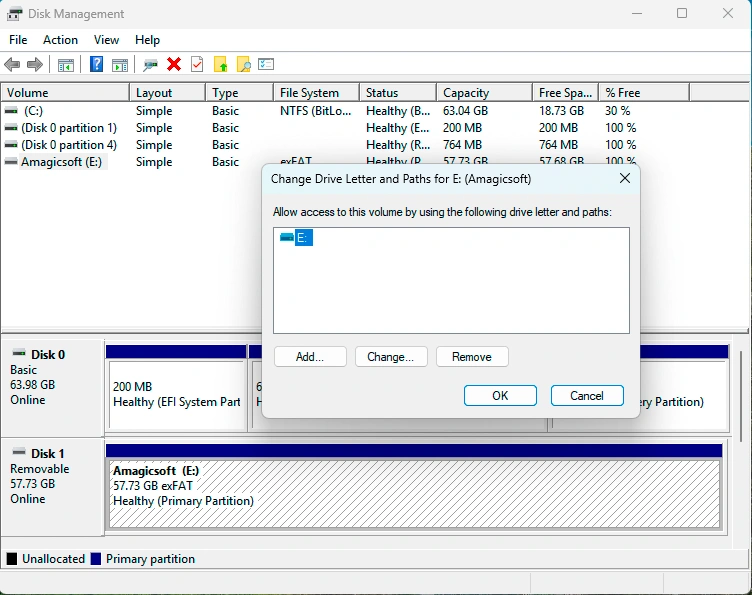
Metodo 3: Assegnare una nuova lettera di unità in Windows
A volte una scheda SD viene rilevata da Windows ma non compare in Esplora file perché non ha una lettera di unità o perché la lettera di unità assegnata è in conflitto con altre.
Quando utilizzare questo metodo
Utilizza questo metodo se:
- La scheda SD viene visualizzata in Gestione disco.
- La scheda SD non compare in Esplora file.
- Manca la lettera dell'unità.
- Un altro dispositivo utilizza la stessa lettera di unità.
Come assegnare una nuova lettera di unità
- Fai clic con il tasto destro del mouse su "Start".
- Selezionare "Gestione disco".
- Trova la tua scheda SD.
- Fare clic con il tasto destro del mouse sulla partizione della scheda SD.
- Selezionare "Modifica lettera di unità e percorsi".
- Fare clic su "Aggiungi" o "Modifica".
- Scegli una nuova lettera di unità.
- Fare clic su OK.
Dopo aver assegnato una nuova lettera di unità, apri Esplora file e verifica se è possibile accedere alla scheda SD.
Metodo 4: Utilizzare la funzione di controllo degli errori di Windows
Windows include uno strumento integrato per il controllo degli errori in grado di individuare e correggere gli errori del file system.
Quando utilizzare questo metodo
Utilizza questo metodo se:
- La scheda SD è visibile in Esplora file.
- È possibile fare clic con il tasto destro del mouse sulla scheda.
- Windows può accedere alle proprietà dell'unità.
- La scheda presenta alcuni errori minori nel file system.
Come utilizzare la funzione di controllo degli errori di Windows
- Collega la scheda SD al computer.
- Apri "Questo PC".
- Fai clic con il tasto destro del mouse sulla scheda SD.
- Selezionare Proprietà.
- Vai alla scheda "Strumenti".
- Nella sezione "Controllo errori", fare clic su "Verifica".
- Segui le istruzioni visualizzate sullo schermo per eseguire la scansione e riparare la scheda.
Se Windows rileva degli errori, consenti al sistema di correggerli. Al termine del processo, riapri la scheda SD e controlla i tuoi file.
Metodo 5: Riparare una scheda SD danneggiata con CHKDSK
CHKDSK è uno strumento da riga di comando di Windows che verifica la presenza di errori nel file system di un'unità e tenta di correggerli.
Avviso: CHKDSK potrebbe modificare il file system. Se la scheda SD contiene file importanti, eseguire prima il ripristino dei dati.
Quando utilizzare questo metodo
Utilizzare CHKDSK nei seguenti casi:
- La scheda SD presenta errori nel file system.
- Windows ti chiede di eseguire una scansione e riparare l'unità.
- Non è possibile accedere ai file o alle cartelle.
- La scheda viene rilevata ma non funziona correttamente.
Come eseguire CHKDSK
- Collega la scheda SD al computer.
- Prendi nota della lettera di unità della scheda SD, ad esempio E: o F:.
- Digita "cmd" nella barra di ricerca di Windows.
- Fai clic con il tasto destro del mouse su "Prompt dei comandi".
- Seleziona "Esegui come amministratore".
- Digitare il seguente comando:
chkdsk G: /f
Sostituisci "G:" con la lettera assegnata alla tua scheda SD.
- Premere Invio.
- Attendere il completamento del processo.
- Riapri la scheda SD e verifica se funziona.
È inoltre possibile utilizzare: chkdsk E: /f /r
Il /f Il parametro corregge gli errori del file system. Il /r Il parametro individua i settori danneggiati e tenta di recuperare le informazioni leggibili. Il /r la scansione potrebbe richiedere più tempo.

Metodo 6: Reinstallare o aggiornare il driver della scheda SD
Un driver danneggiato, obsoleto o instabile potrebbe impedire a Windows di leggere correttamente la scheda SD.
Quando utilizzare questo metodo
Utilizza questo metodo se:
- La scheda SD non viene rilevata.
- Gestione dispositivi segnala un errore.
- Il lettore di schede smette di funzionare dopo un aggiornamento del sistema.
- Gli altri dispositivi di archiviazione USB funzionano, ma la scheda SD no.
Come reinstallare il driver della scheda SD
- Fai clic con il tasto destro del mouse su "Start".
- Selezionare Gestione dispositivi.
- Espandi la voce "Unità disco" o "Controller USB".
- Trova la tua scheda SD o il tuo lettore di schede.
- Fai clic con il tasto destro del mouse e seleziona "Disinstalla dispositivo".
- Scollegare la scheda SD.
- Riavviare il computer.
- Ricollegare la scheda SD.
Windows reinstallerà automaticamente il driver. Successivamente, verifica se la scheda compare in Esplora file o in Gestione disco.
Metodo 7: Rimuovere la protezione da scrittura con DiskPart
Se la scheda SD è protetta da scrittura, potrebbe non essere possibile formattarla, eliminare i file o ripararla.
Quando utilizzare questo metodo
Utilizza questo metodo se:
- Windows segnala che il disco è protetto da scrittura.
- Non è possibile salvare i file sulla scheda SD.
- Non è possibile eliminare i file dalla scheda.
- L'interruttore fisico di blocco è già sbloccato.
Come rimuovere la protezione da scrittura
- Collega la scheda SD al computer.
- Aprire il Prompt dei comandi come amministratore.
- Tipo:
diskpart - Tipo:
elenco dischi - Identifica la tua scheda SD in base alla capacità.
- Tipo:
selezionare il disco X
Sostituisci X con il numero di disco della tua scheda SD.
- Tipo:
attributi disco clear readonly - Tipo:
uscita
Dopo aver disattivato la modalità di sola lettura, prova ad accedere nuovamente alla scheda SD o a ripararla.
Prestare attenzione quando si utilizza DiskPart. La selezione di un disco errato potrebbe influire su un’altra unità.
Metodo 8: Visualizzare i file nascosti sulla scheda SD
A volte i file non vanno persi, ma vengono nascosti dalle impostazioni di sistema, da malware o da modifiche agli attributi dei file.
Quando utilizzare questo metodo
Utilizza questo metodo se:
- La scheda SD si apre, ma mancano dei file.
- Lo spazio utilizzato indica che i file esistono ancora.
- Le cartelle sembrano vuote.
- I file sono scomparsi dopo il collegamento a un altro computer.
Come visualizzare i file nascosti su Windows
- Aprire Esplora file.
- Fai clic su Visualizza.
- Seleziona "Mostra".
- Abilita Elementi nascosti.
- Riapri la scheda SD.
È anche possibile utilizzare il Prompt dei comandi: attrib -h -r -s /s /d E:\*.*
Sostituisci "E:" con la lettera assegnata alla tua scheda SD.
Questo comando rimuove gli attributi "nascosto", "sola lettura" e "di sistema" dai file e dalle cartelle presenti sulla scheda SD.
Come riparare una scheda SD danneggiata tramite formattazione
Se nessuno dei metodi sopra indicati funziona, la formattazione potrebbe essere l'ultima opzione. Formattazione può ripristinare il file system e rendere nuovamente utilizzabile la scheda.
Tuttavia, la formattazione cancella i dati. Recupera i file importanti prima di procedere alla formattazione.
Formattare una scheda SD danneggiata su Windows
- Collega la scheda SD al computer.
- Apri "Questo PC".
- Fai clic con il tasto destro del mouse sulla scheda SD.
- Seleziona "Formato".
- Scegli un file system:
- FAT32 per schede di capacità ridotta e ampia compatibilità
- exFAT per schede SD di capacità maggiore e file di grandi dimensioni
- Deseleziona "Formattazione rapida" se desideri una formattazione più approfondita.
- Fare clic su Start.
Dopo la formattazione, verifica il funzionamento della scheda SD copiandovi dei file e provando a leggerli.
Formattare una scheda SD danneggiata su Mac
- Inserisci la scheda SD nel tuo Mac.
- Aprire Utility Disco.
- Seleziona la scheda SD.
- Fare clic su "Cancella".
- Scegli un formato:
- MS-DOS (FAT) per FAT32
- exFAT per schede di maggiore capacità
- Fare clic su "Cancella".
Una volta completata l'operazione, espelli la scheda e reinseriscila.
Formattare una scheda SD danneggiata in una fotocamera
Se la scheda SD viene utilizzata principalmente in una fotocamera, spesso è preferibile formattarla direttamente nella fotocamera dopo aver recuperato i dati.
- Inserisci la scheda SD nella fotocamera.
- Apri il menu della fotocamera.
- Cerca "Formatta scheda" o "Formatta scheda di memoria".
- Confermare l'operazione.
- Scatta qualche foto di prova.
- Trasferiscili sul tuo computer per verificare se la scheda funziona.
La formattazione effettuata direttamente sulla fotocamera può aiutare la scheda a utilizzare la struttura del file system preferita da quella fotocamera.
Quale file system scegliere: FAT32 o exFAT?
Il file system più adatto dipende dalla capacità della scheda SD e dal dispositivo che si utilizza.
Sistema di file | Il migliore per | Note |
Schede SD più piccole, dispositivi meno recenti | Buona compatibilità, ma limitata per i file di grandi dimensioni | |
Schede SD di maggiore capacità, fotocamere, video 4K | Ideale per file di grandi dimensioni e dispositivi moderni | |
Unità di Windows | Di solito non è l'ideale per fotocamere o dispositivi mobili |
Per la maggior parte delle schede SDXC e microSDXC moderne, si utilizza comunemente il formato exFAT. Per i dispositivi meno recenti, il formato FAT32 potrebbe risultare più compatibile.
Cosa succede se la scheda SD è danneggiata fisicamente?
Se la scheda SD presenta danni fisici, la riparazione tramite software potrebbe non essere efficace. Smetti di utilizzare la carta se noti:
- Crepe
- Corpo della carta piegato
- Segni di bruciatura
- Danni causati dall'acqua
- Contatti danneggiati
- Grave surriscaldamento
- La scheda non viene rilevata da nessun dispositivo
- Il dispositivo si blocca ogni volta che si inserisce la scheda
È possibile pulire delicatamente i contatti metallici con un panno asciutto e privo di pelucchi. Tuttavia, non raschiare, piegare, riscaldare o smontare la scheda SD. Se i dati sono importanti, rivolgersi a un servizio professionale di recupero dati. I tentativi di riparazione fai da te potrebbero aggravare i danni fisici.
Conclusione
Una scheda SD danneggiata non significa sempre che i tuoi file siano persi per sempre. In molti casi, i dati sono ancora recuperabili, soprattutto se smetti immediatamente di utilizzare la scheda ed eviti di formattarla troppo presto. La procedura più sicura è la seguente: smetti di utilizzare la scheda SD danneggiata — recupera i file importanti — prova a riparare o a formattare la scheda SD solo dopo aver messo al sicuro i tuoi dati.
Se avete bisogno di recuperare i file da una scheda SD danneggiata, Magic Data Recovery può aiutarti a eseguire una scansione della scheda e a recuperare foto, video, documenti e altri file persi prima di ripararla o formattarla.
Supporta Windows 7/8/10/11 e Windows Server
FAQ
Come posso riparare una scheda SD danneggiata senza formattarla?
Come posso recuperare i file da una scheda SD danneggiata?
Perché la mia scheda SD mi dice che deve essere formattata?
CHKDSK è in grado di riparare una scheda SD danneggiata?
CHKDSK cancellerà i file dalla mia scheda SD?
Come posso riparare una scheda microSD danneggiata?
Perché i file sulla mia scheda SD sono scomparsi, ma lo spazio di archiviazione risulta ancora occupato?
Posso riutilizzare una scheda SD danneggiata dopo averla riparata?
Quando dovrei smettere di provare a riparare la scheda SD da solo?

Erin Smith è riconosciuta come una delle scrittrici più professionali di Amagicsoft. Negli ultimi 10 anni ha continuamente affinato le sue capacità di scrittura e ha aiutato milioni di lettori a risolvere i loro problemi tecnologici.