
Cómo reparar una tarjeta SD dañada sin perder datos

A tarjeta SD dañada puede hacer que, de repente, no puedas acceder a tus fotos, vídeos, documentos o archivos de la cámara. Es posible que aparezca un mensaje de error indicando que hay que formatear la tarjeta, que la tarjeta SD no se detecte en el ordenador o que algunos archivos desaparezcan sin previo aviso. Cuando esto ocurra, la regla más importante es muy sencilla: No formatees la tarjeta SD inmediatamente.. El formateo puede hacer que la tarjeta vuelva a funcionar, pero también puede dificultar recuperar archivos perdidos de la tarjeta SD. Si la tarjeta SD dañada contiene datos importantes, recupera o haz una copia de seguridad de tus archivos primero y, a continuación, prueba métodos de reparación seguros.
En esta guía se explica cómo reparar una tarjeta SD dañada y cómo recuperar datos de una tarjeta SD dañada con un software específico de recuperación de datos como Magic Data Recovery.
Compatible con Windows 7/8/10/11 y Windows Server
CONTENIDO DE LA PÁGINA:
Respuesta rápida: ¿Qué debes hacer primero?
Si tu tarjeta SD está dañada, sigue estos pasos en el orden indicado:
- Deje de utilizar la tarjeta SD inmediatamente.
- No guardes archivos nuevos en la tarjeta.
- No formatees la tarjeta antes de recuperar los datos importantes.
- Prueba con otro lector de tarjetas, otro puerto USB u otro dispositivo.
- Recupera los archivos de la tarjeta SD dañada con un programa de recuperación de datos.
- Una vez recuperada, repara la tarjeta utilizando CHKDSK, la herramienta de comprobación de errores de Windows, la función «Primeros auxilios» de la Utilidad de disco, la reparación de controladores o el formateo.
Si la tarjeta SD presenta daños físicos, como grietas, deformaciones, quemaduras o daños por agua, o si ningún dispositivo la detecta, deja de intentar repararla por tu cuenta y plantéate recurrir a un servicio profesional de recuperación de datos.
Síntomas habituales de una tarjeta SD dañada
Una tarjeta SD puede estar dañada si observas uno o varios de los siguientes síntomas:
Síntoma | Qué significa | Primer paso recomendado |
La tarjeta SD pide que se formatee | Es posible que el sistema de archivos esté dañado | Recuperar datos primero |
No se detecta la tarjeta SD | Problema de conexión, controlador o tarjeta | Prueba con otro lector o dispositivo |
Los archivos desaparecen | Error del sistema de archivos o archivos ocultos | Escanear la tarjeta y mostrar los archivos ocultos |
La tarjeta SD se queda en formato RAW | El sistema de archivos no se puede leer | Recuperar datos antes de formatear |
No se pueden abrir las fotos ni los vídeos | Archivos dañados o sectores defectuosos | Recuperar y comprobar la integridad de los archivos |
La tarjeta SD muestra una capacidad incorrecta | Problema con la partición o con el controlador | Dejar de utilizar la tarjeta |
Aparece un error de lectura/escritura | Es posible que la tarjeta esté bloqueada, defectuosa o dañada. | Comprueba el interruptor de bloqueo y corrige los errores |
La cámara muestra el mensaje “Error de tarjeta”.” | Incompatibilidad o corrupción del sistema de archivos | Recupera los archivos y, a continuación, formatea la cámara |
Estos síntomas no siempre significan que la tarjeta esté averiada de forma permanente. En muchos casos, una tarjeta SD dañada aún puede repararse, sobre todo si el problema se debe a errores del sistema de archivos, una extracción incorrecta, una transferencia interrumpida, problemas con el controlador o malware.
¿Qué provoca que una tarjeta SD se dañe?
Conocer la causa puede ayudarte a elegir el método de reparación adecuado. Entre las causas más comunes se encuentran:
1. Extraer la tarjeta SD de forma incorrecta
Si extraes la tarjeta SD mientras se están copiando, eliminando o guardando archivos, el sistema de archivos podría quedar incompleto o dañado. Esto suele ocurrir al retirar una tarjeta de una cámara, un teléfono, un dron, una cámara de salpicadero o un ordenador sin expulsarla de forma segura.
2. Transferencia de archivos interrumpida
Un corte repentino de corriente, una batería de la cámara con poca carga, un fallo de la aplicación o un bloqueo del sistema durante la transferencia de archivos pueden dejar la tarjeta SD en un estado inestable.
3. Errores del sistema de archivos
La tarjeta SD utiliza un sistema de archivos como FAT32 o exFAT para organizar los archivos. Si el sistema de archivos resulta dañado, es posible que el dispositivo ya no pueda leer los archivos correctamente.
4. Infección por virus o malware
Si la tarjeta SD se conecta a un ordenador infectado, el malware podría ocultar, borrar, cifrar o dañar los archivos.
5. Sectores defectuosos
Tras un uso prolongado, algunos bloques de almacenamiento de una tarjeta SD pueden dejar de ser fiables. Esto puede provocar errores al acceder a los archivos, una carga lenta o daños recurrentes.
6. Daños materiales
Las deformaciones, las grietas, la exposición al agua, el calor, el polvo o los contactos metálicos dañados pueden impedir que la tarjeta SD funcione correctamente.
7. Utilizar la misma tarjeta en varios dispositivos
Utilizar la misma tarjeta SD en cámaras, teléfonos, drones, cámaras de salpicadero y ordenadores puede aumentar el riesgo de que se produzcan errores de compatibilidad, sobre todo si los distintos dispositivos utilizan normas de sistema de archivos diferentes.
Antes de reparar una tarjeta SD dañada: consejos importantes de seguridad
Antes de probar cualquier método de reparación, sigue estas normas de seguridad para evitar la pérdida definitiva de datos.
No formatees primero la tarjeta SD
Muchos dispositivos mostrarán un mensaje del tipo:
- “Tienes que formatear el disco antes de poder usarlo”.”
- “La tarjeta SD está dañada. Intenta formatearla de nuevo”.”
- “Error de tarjeta”.”
- “El volumen no contiene un sistema de archivos reconocido”.”
No hagas clic en «Formatear» si la tarjeta contiene datos importantes. El formateo puede borrar los registros del sistema de archivos y reducir las posibilidades de que la recuperación se realice con éxito.
Deja de usar la tarjeta SD
No hagas nuevas fotos, no grabes nuevos vídeos, no descargues nuevos archivos ni intentes reparar la tarjeta repetidamente. Los nuevos datos podrían sobrescribir los archivos borrados o inaccesibles.
Utilice un lector de tarjetas fiable
A veces, la tarjeta SD no está realmente dañada. El problema puede deberse a un lector de tarjetas, un puerto USB, un adaptador o un cable defectuosos. Comprueba siempre la tarjeta con otro lector antes de dar por hecho que está dañada.
Recupere primero los archivos importantes
Si los archivos son importantes, recupéralos antes de ejecutar comandos de reparación o formatear el disco. Algunas operaciones de reparación pueden modificar el sistema de archivos, lo que puede dificultar la recuperación.
Cómo recuperar datos de una tarjeta SD dañada
Si Windows sigue detectando tu tarjeta SD dañada, puedes intentar recuperar los archivos con Magic Data Recovery antes de reparar o formatear la tarjeta.
Magic Data Recovery puede ayudar a recuperar archivos de tarjetas SD, tarjetas microSD, tarjetas de memoria, memorias USB, discos duros externos y otros dispositivos de almacenamiento. Resulta especialmente útil cuando los archivos se han borrado, se han perdido, no se puede acceder a ellos o faltan debido a daños, formateo o errores del sistema de archivos.
Importante: No instales el software de recuperación en la tarjeta SD dañada. No guardes los archivos recuperados en la misma tarjeta SD. Guarda siempre los archivos recuperados en otra unidad.
Paso 1: Conecta la tarjeta SD dañada al ordenador
Inserta la tarjeta SD en un lector de tarjetas y conéctalo a tu ordenador con Windows. Si utilizas una tarjeta microSD, utiliza un adaptador o un lector de tarjetas microSD de confianza.
Asegúrate de que Windows pueda detectar la tarjeta. Aunque no se pueda acceder a la tarjeta desde el Explorador de archivos, es posible que aparezca en «Administración de discos».
Paso 2: Descargar e instalar Magic Data Recovery
Descarga e instala Magic Data Recovery en tu ordenador. Instálalo en el disco duro interno de tu ordenador, no en la tarjeta SD dañada.
Compatible con Windows 7/8/10/11 y Windows Server
Paso 3: Selecciona la tarjeta SD dañada
Inicia Magic Data Recovery. En la interfaz principal, selecciona la tarjeta SD o la tarjeta de memoria dañada como unidad de destino.

Paso 4: Escanea la tarjeta SD
Empieza a escanear la tarjeta SD dañada. La duración del escaneo depende de la capacidad de la tarjeta, la velocidad de conexión, el estado de la tarjeta y el número de archivos.
Por ejemplo, una tarjeta SD de 32 GB puede escanearse más rápido que una de 256 GB. Si la tarjeta tiene muchos sectores defectuosos, el escaneo puede tardar más tiempo.

Paso 5: Vista previa y selección de archivos
Una vez finalizado el análisis, previsualiza los archivos recuperables, si los hay. Selecciona las fotos, los vídeos, los documentos, los archivos de audio u otros datos que quieras recuperar.

Paso 6: Recuperar archivos en otra unidad
Haz clic en «Recuperar» y elige una ubicación segura en otra unidad. No guardes los archivos recuperados en la tarjeta SD dañada.

Cómo reparar una tarjeta SD dañada sin formatearla
Método 1: Prueba con otro lector de tarjetas, otro puerto USB u otro dispositivo
Antes de ejecutar los comandos de reparación, descarta cualquier problema de conexión.
Cuándo utilizar este método
Utiliza este método si:
- La tarjeta SD no aparece.
- El ordenador no detecta la tarjeta.
- La tarjeta SD se desconecta de forma aleatoria.
- La tarjeta funciona en un dispositivo, pero no en otro.
Cómo hacerlo
- Retira la tarjeta SD del dispositivo actual.
- Introdúcelo en otro lector de tarjetas.
- Prueba con otro puerto USB.
- Pruébalo en otro ordenador.
- Si se trata de una tarjeta SD de una cámara o de un teléfono, vuelve a insertarla en el dispositivo original y comprueba si se detecta.
Si la tarjeta funciona con otro lector, es posible que tu lector de tarjetas o adaptador original esté defectuoso.
Método 2: Comprueba el interruptor de bloqueo de la tarjeta SD
Las tarjetas SD de tamaño normal suelen tener un pequeño interruptor de bloqueo en el lateral. Si el interruptor está en la posición de bloqueo, es posible que la tarjeta quede protegida contra la escritura.
Cuándo utilizar este método
Utiliza este método si:
- No se pueden copiar archivos a la tarjeta SD.
- No se pueden borrar archivos de la tarjeta SD.
- Windows indica que el disco está protegido contra escritura.
- El formateo falla porque la tarjeta está bloqueada.
Cómo hacerlo
- Retira la tarjeta SD.
- Comprueba el pequeño interruptor que hay en el lateral.
- Deslízalo hasta la posición de desbloqueo.
- Vuelve a introducir la tarjeta en el ordenador.
- Intenta volver a acceder a los archivos.
Si el interruptor de bloqueo está suelto o roto, prueba a utilizar otro adaptador para tarjetas microSD.
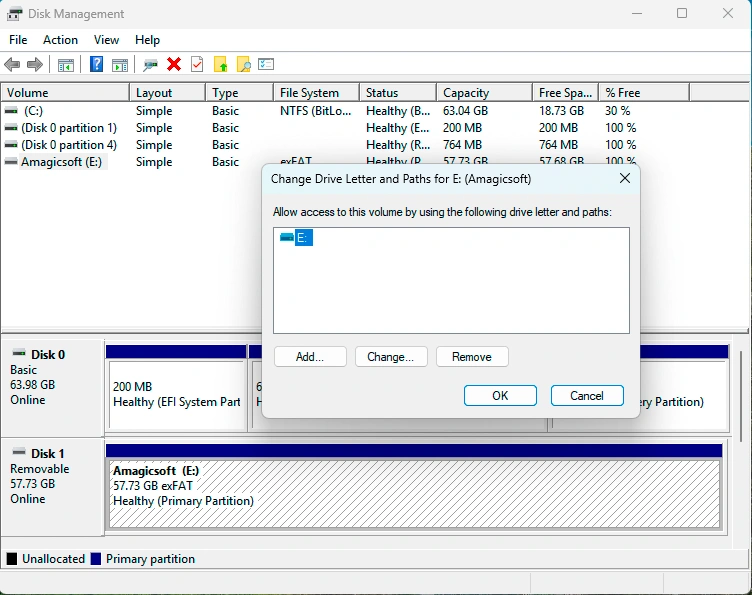
Método 3: Asignar una nueva letra de unidad en Windows
A veces, Windows detecta una tarjeta SD, pero esta no aparece en el Explorador de archivos porque no tiene letra de unidad o porque dicha letra entra en conflicto con otra.
Cuándo utilizar este método
Utiliza este método si:
- La tarjeta SD aparece en «Administración de discos».
- La tarjeta SD no aparece en el Explorador de archivos.
- Falta la letra de la unidad.
- Hay otro dispositivo que utiliza la misma letra de unidad.
Cómo asignar una nueva letra de unidad
- Haz clic con el botón derecho del ratón en «Inicio».
- Selecciona «Administración de discos».
- Busca tu tarjeta SD.
- Haz clic con el botón derecho del ratón en la partición de la tarjeta SD.
- Selecciona «Cambiar letra de unidad y rutas».
- Haz clic en «Añadir» o «Modificar».
- Elige una nueva letra de unidad.
- Haga clic en Aceptar.
Una vez asignada una nueva letra de unidad, abre el Explorador de archivos y comprueba si se puede acceder a la tarjeta SD.
Método 4: Utilizar la herramienta de comprobación de errores de Windows
Windows incluye una herramienta integrada de comprobación de errores que permite analizar y reparar los errores del sistema de archivos.
Cuándo utilizar este método
Utiliza este método si:
- La tarjeta SD aparece en el Explorador de archivos.
- Puedes hacer clic con el botón derecho del ratón sobre la tarjeta.
- Windows puede acceder a las propiedades de la unidad.
- La tarjeta presenta pequeños errores en el sistema de archivos.
Cómo utilizar la herramienta de comprobación de errores de Windows
- Conecta la tarjeta SD al ordenador.
- Abre «Este PC».
- Haz clic con el botón derecho del ratón en la tarjeta SD.
- Seleccione Propiedades.
- Ve a la pestaña «Herramientas».
- En «Comprobación de errores», haz clic en «Comprobar».
- Sigue las instrucciones que aparecen en pantalla para escanear y reparar la tarjeta.
Si Windows detecta errores, deja que los repare. Una vez finalizado el proceso, vuelve a abrir la tarjeta SD y comprueba tus archivos.
Método 5: Reparar una tarjeta SD dañada con CHKDSK
CHKDSK es una herramienta de línea de comandos de Windows que comprueba si hay errores en el sistema de archivos de una unidad e intenta repararlos.
Advertencia: CHKDSK puede modificar el sistema de archivos. Si la tarjeta SD contiene archivos importantes, haz una copia de seguridad de tus datos antes de continuar.
Cuándo utilizar este método
Utiliza CHKDSK si:
- La tarjeta SD presenta errores en el sistema de archivos.
- Windows te pide que analices y repares la unidad.
- No se puede acceder a los archivos ni a las carpetas.
- La tarjeta se ha detectado, pero no funciona correctamente.
Cómo ejecutar CHKDSK
- Conecta la tarjeta SD al ordenador.
- Anota la letra de la unidad de la tarjeta SD, como E: o F:.
- Escribe «cmd» en la barra de búsqueda de Windows.
- Haz clic con el botón derecho del ratón en «Símbolo del sistema».
- Selecciona «Ejecutar como administrador».
- Escribe el siguiente comando:
chkdsk G: /f
Sustituye «G:» por la letra de tu unidad de tarjeta SD.
- Pulsa Intro.
- Espera a que termine el proceso.
- Vuelve a insertar la tarjeta SD y comprueba si funciona.
También puedes utilizar: chkdsk E: /f /r
En /f El parámetro corrige los errores del sistema de archivos. El /r Este parámetro localiza los sectores defectuosos e intenta recuperar la información legible. El /r Es posible que el escaneo tarde más tiempo.

Método 6: Reinstalar o actualizar el controlador de la tarjeta SD
Un controlador dañado, obsoleto o inestable puede impedir que Windows lea correctamente tu tarjeta SD.
Cuándo utilizar este método
Utiliza este método si:
- No se detecta la tarjeta SD.
- El Administrador de dispositivos muestra un error.
- El lector de tarjetas deja de funcionar tras una actualización del sistema.
- Otros dispositivos de almacenamiento USB funcionan, pero la tarjeta SD no.
Cómo reinstalar el controlador de la tarjeta SD
- Haz clic con el botón derecho del ratón en «Inicio».
- Selecciona «Administrador de dispositivos».
- Despliega «Unidades de disco» o «Controladores de bus serie universal».
- Busca tu tarjeta SD o tu lector de tarjetas.
- Haz clic con el botón derecho del ratón sobre él y selecciona «Desinstalar dispositivo».
- Desconecta la tarjeta SD.
- Reinicia el ordenador.
- Vuelve a conectar la tarjeta SD.
Windows reinstalará el controlador automáticamente. A continuación, comprueba si la tarjeta aparece en el Explorador de archivos o en la Administración de discos.
Método 7: Eliminar la protección contra escritura con DiskPart
Si la tarjeta SD está protegida contra escritura, es posible que no puedas formatearla, borrar archivos ni repararla.
Cuándo utilizar este método
Utiliza este método si:
- Windows indica que el disco está protegido contra escritura.
- No se pueden guardar archivos en la tarjeta SD.
- No puedes borrar archivos de la tarjeta.
- El interruptor de bloqueo físico ya está desbloqueado.
Cómo desactivar la protección contra escritura
- Conecta la tarjeta SD al ordenador.
- Abra el símbolo del sistema como administrador.
- Tipo:
diskpart - Tipo:
disco de lista - Identifica tu tarjeta SD según su capacidad.
- Tipo:
seleccionar disco X
Sustituye X por el número de disco de tu tarjeta SD.
- Tipo:
atributos disk clear readonly - Tipo:
salida
Una vez que hayas desactivado el modo de solo lectura, intenta volver a acceder a la tarjeta SD o repararla.
Ten cuidado al utilizar DiskPart. Si seleccionas un disco equivocado, podrías afectar a otra unidad.
Método 8: Mostrar los archivos ocultos de la tarjeta SD
A veces, los archivos no se pierden, sino que quedan ocultos debido a la configuración del sistema, a programas maliciosos o a cambios en los atributos de los archivos.
Cuándo utilizar este método
Utiliza este método si:
- La tarjeta SD se abre, pero faltan archivos.
- El espacio utilizado indica que los archivos siguen existiendo.
- Las carpetas aparecen vacías.
- Los archivos han desaparecido tras conectarme a otro ordenador.
Cómo mostrar los archivos ocultos en Windows
- Abra el Explorador de archivos.
- Haga clic en Ver.
- Selecciona «Mostrar».
- Habilite Elementos ocultos.
- Vuelve a abrir la tarjeta SD.
También puedes utilizar la línea de comandos: attrib -h -r -s /s /d E:\*.*
Sustituye «E:» por la letra de tu tarjeta SD.
Este comando elimina los atributos de «oculto», «solo lectura» y «sistema» de los archivos y carpetas de la tarjeta SD.
Cómo reparar una tarjeta SD dañada mediante el formateo
Si ninguno de los métodos anteriores funciona, el formateo puede ser la última opción. Formato puede reconstruir el sistema de archivos y hacer que la tarjeta vuelva a funcionar.
Sin embargo, al formatear se borran los datos. Recupera los archivos importantes antes de formatear.
Formatear una tarjeta SD dañada en Windows
- Conecta la tarjeta SD al ordenador.
- Abre «Este PC».
- Haz clic con el botón derecho del ratón en la tarjeta SD.
- Selecciona «Formato».
- Elige un sistema de archivos:
- FAT32 para tarjetas de menor capacidad y una mayor compatibilidad
- exFAT para tarjetas SD de mayor capacidad y archivos de gran tamaño
- Desmarca la casilla «Formato rápido» si quieres realizar un formateo más completo.
- Haz clic en «Inicio».
Una vez formateada, comprueba el funcionamiento de la tarjeta SD copiando archivos en ella y volviéndolos a leer.
Formatear una tarjeta SD dañada en un Mac
- Inserta la tarjeta SD en tu Mac.
- Abra la Utilidad de Discos.
- Selecciona la tarjeta SD.
- Haz clic en «Borrar».
- Elige un formato:
- MS-DOS (FAT) para FAT32
- exFAT para tarjetas de mayor capacidad
- Haz clic en «Borrar».
Cuando haya finalizado el proceso, extrae la tarjeta y vuelve a insertarla.
Formatear una tarjeta SD dañada en una cámara
Si la tarjeta SD se utiliza principalmente en una cámara, suele ser mejor formatearla en la propia cámara tras recuperar los datos.
- Inserta la tarjeta SD en la cámara.
- Abre el menú de la cámara.
- Busca «Formatear tarjeta» o «Formatear tarjeta de memoria».
- Confirma la operación.
- Haz unas cuantas fotos de prueba.
- Pásalas al ordenador para comprobar si la tarjeta funciona.
El formateo en la cámara puede ayudar a que la tarjeta utilice la estructura del sistema de archivos que prefiere dicha cámara.
¿Qué sistema de archivos deberías elegir: FAT32 o exFAT?
El sistema de archivos adecuado depende de la capacidad de la tarjeta SD y del dispositivo que utilices.
Sistema de archivos | Lo mejor para | Notas |
Tarjetas SD más pequeñas, dispositivos más antiguos | Buena compatibilidad, aunque limitada en el caso de archivos de gran tamaño | |
Tarjetas SD de mayor capacidad, cámaras, vídeo 4K | Ideal para archivos grandes y dispositivos modernos | |
Unidades de Windows | Por lo general, no es lo más adecuado para cámaras o dispositivos móviles |
En la mayoría de las tarjetas SDXC y microSDXC modernas se suele utilizar el sistema de archivos exFAT. En el caso de los dispositivos más antiguos, es posible que FAT32 ofrezca una mayor compatibilidad.
¿Qué ocurre si la tarjeta SD está dañada físicamente?
Si la tarjeta SD presenta daños físicos, es posible que la reparación mediante software no sirva de nada. Deja de utilizar la tarjeta si observas que:
- Grietas
- Cuerpo de la tarjeta doblado
- Marcas de quemaduras
- Daños causados por el agua
- Contactos rotos
- Sobrecalentamiento grave
- Ningún dispositivo detecta la tarjeta
- El dispositivo se bloquea cada vez que se inserta la tarjeta
Puedes limpiar con cuidado los contactos metálicos con un paño seco que no suelte pelusa. Sin embargo, no rasques, dobles, calientes ni desmontes la tarjeta SD. Si los datos son importantes, ponte en contacto con un servicio profesional de recuperación de datos. Los intentos de reparación por tu cuenta pueden agravar los daños físicos.
Conclusión
Una tarjeta SD dañada no siempre significa que tus archivos se hayan perdido para siempre. En muchos casos, los datos aún se pueden recuperar, sobre todo si dejas de utilizar la tarjeta inmediatamente y evitas formatearla demasiado pronto. El procedimiento más seguro es el siguiente: deja de utilizar la tarjeta SD dañada — recupera los archivos importantes — intenta reparar o formatear la tarjeta SD solo después de que tus datos estén a salvo.
Si necesita recuperar archivos de una tarjeta SD dañada, Magic Data Recovery puede ayudarte a escanear la tarjeta y recuperar fotos, vídeos, documentos y otros archivos perdidos antes de repararla o formatearla.
Compatible con Windows 7/8/10/11 y Windows Server
PREGUNTAS FRECUENTES
¿Cómo puedo reparar una tarjeta SD dañada sin formatearla?
¿Cómo puedo recuperar archivos de una tarjeta SD dañada?
¿Por qué me dice que tengo que formatear mi tarjeta SD?
¿Puede CHKDSK reparar una tarjeta SD dañada?
¿CHKDSK borrará archivos de mi tarjeta SD?
¿Cómo puedo reparar una tarjeta microSD dañada?
¿Por qué han desaparecido los archivos de mi tarjeta SD, pero sigue apareciendo que se ha utilizado espacio de almacenamiento?
¿Puedo volver a utilizar una tarjeta SD dañada después de repararla?
¿Cuándo debería dejar de intentar arreglar la tarjeta SD por mi cuenta?

Erin Smith es reconocida como una de las redactoras más profesionales de Amagicsoft. Ha perfeccionado continuamente sus habilidades de escritura durante los últimos 10 años y ha ayudado a millones de lectores a resolver sus problemas tecnológicos.