Skip to content
amagicsoft logo icon
  • Home
  • Products
    • Magic Data Recovery
    • Magic Recovery Key
  • Store
  • Blog
  • More
    • About Amagicsoft
    • Contact US
    • Privacy Policy
    • Terms
    • License Agreement
    • Refund Policy
  • English
    • 日本語
    • 한국어
    • Deutsch
    • Français
    • 繁體中文
Password Recovery

How to Find Passwords on Chrome: Complete Guide
05.12.2025 Smith, Erin Comments Off on How to Find Passwords on Chrome: Complete Guide
How to Find Passwords on Chrome: Complete Guide
For many users, forgetting a saved password happens at the worst possible moment—when you urgently need to log in or share an account. The good news is that Chrome stores credentials securely, and learning how to find passwords on Chrome or how to see saved passwords on Chrome is straightforward if you use the right methods. This guide covers built-in solutions and a professional recovery tool. We recommend using Magic Recovery Key software to find your passwords on Chrome.
Download Magic Recovery Key

Supports Windows 7/8/10/11 and Windows Server

Table of Contents

Why Chrome Passwords Become Hard to Retrieve

Several situations can prevent users from viewing a saved password:

① You enabled Chrome Sync but changed your Google account credentials

② The computer was reset or the Chrome profile was deleted

③ The password was saved to Windows Credential Manager instead of Chrome

④ The browser does not show the password because the local profile is corrupted

Understanding the cause helps determine the best recovery path—whether through Chrome Settings or a professional password recovery tool.

Method 1: Use Chrome’s Built-In Password Manager
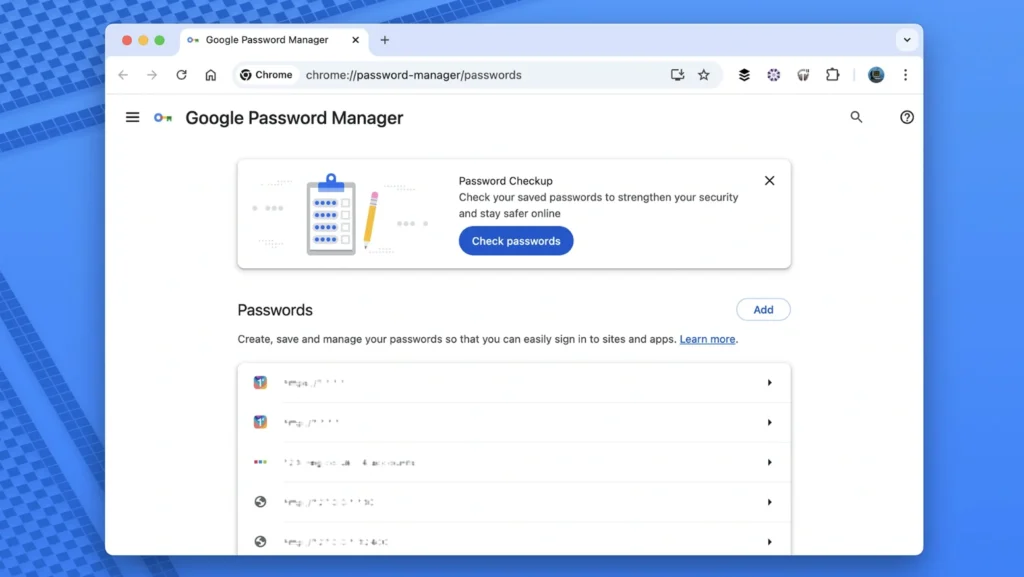
Use Chrome’s Built-In Password Manager

If Chrome is still installed and your profile is intact, this is the quickest and safest way.

Steps to view saved passwords on Chrome

① Open Google Chrome.

② Click the three-dot menu in the top-right corner.

③ Select Settings.

④ Navigate to Autofill → Password Manager.

⑤ Under Saved Passwords, locate the website entry.

⑥ Click the eye icon beside the password.

⑦ Authenticate using your Windows or macOS login to reveal the password.

Chrome stores data inside an encrypted local database. As long as the profile still exists and your system password is correct, this method works reliably.

Method 2: Use Google Passwords

If you previously turned on Sync, the password is also available through Google Password Manager.

Steps

① Visit passwords.google.com.

② Sign in with your Google Account.

③ Select the website and click Show Password.

This method is helpful when switching to a new device or recovering a lost password that is synced across multiple platforms.

Method 3: Recover Chrome Passwords with Magic Recovery Key

Magic Recovery Key offers a professional method to retrieve Chrome passwords from damaged, deleted, or inaccessible user profiles. It scans the browser’s encrypted database and extracts recoverable credentials without modifying your files. It can also help anyone searching how to find saved passwords on Chrome or how to know password saved in Chrome.

Steps to recover Chrome passwords with Magic Recovery Key

① Download and install Magic Recovery Key.

Download Magic Recovery Key

Supports Windows 7/8/10/11 and Windows Server

② Launch the program and select Web Browser PassView.
Steps to recover Chrome passwords with Magic Recovery Key
③ View a list of recoverable passwords and export them securely.

Why this method works:

Chrome stores credentials inside an SQLite database with OS-level encryption. Magic Recovery Key reads the file directly—even if Chrome no longer opens—and reconstructs recoverable entries in a read-only environment.

This is the most effective solution for users who reformatted their system, lost access to their Chrome profile, or need professional-grade recovery.

Conclusion

Forgetting a saved login is frustrating, but recovering it is achievable once you understand how to find passwords on Chrome. Start with Chrome’s built-in Password Manager or Google Passwords—both free and efficient for intact profiles. If the browser is inaccessible or the data file is damaged, a professional tool provides the safest path to retrieve lost credentials.

If you cannot locate your Chrome passwords using built-in options, consider using Magic Recovery Key to safely scan and recover encrypted browser credentials. Downloading it now ensures you don’t lose important login information.

Download Magic Recovery Key

Supports Windows 7/8/10/11 and Windows Server

Find Passwords on Chrome FAQs

1. How do I find my stored passwords in Chrome?

Open Chrome → Settings → Autofill → Password Manager. Under Saved Passwords, choose the entry and click the eye icon, then authenticate. This is the quickest way to view stored Chrome passwords.

2. Where can I see my saved passwords?

Saved passwords appear inside Chrome’s Password Manager or online at passwords.google.com if Sync is enabled. Authenticate with your system login to reveal any stored password.

3. How do I see hidden passwords in Chrome?

Open Password Manager, select a saved login, and click the eye icon. Enter your device password to display the characters. Hidden passwords require system authentication for security.

4. How do I see my password on Google?

Visit passwords.google.com and sign in. Choose the website entry and click Show Password. This works on any device using the same Google account with Sync turned on.

5. How do I see all my saved passwords?

Go to Chrome Settings → Autofill → Password Manager. All saved credentials appear under Saved Passwords. Use the eye icon to reveal each one after confirming device authentication.

6. How to find passwords on Google Chrome?

Open Chrome → Settings → Autofill → Password Manager to view stored logins. If the profile is deleted or corrupted, Magic Recovery Key can scan Chrome’s encrypted “Login Data” file to recover entries.

7. Where can I find my saved passwords in Google?

Passwords synced with your Google Account are available at passwords.google.com. After signing in, select the target website and choose Show Password to reveal stored credentials.

8. Where are Chrome passwords stored?

Chrome saves passwords in an encrypted SQLite database called “Login Data” inside the user profile folder. They can be viewed through Password Manager or extracted with a recovery tool if the profile is damaged.
  • How to
  • Magic Recovery Key
Smith, Erin

Erin Smith is recognized as one of the most professional writers at Amagicsoft. She has continually honed her writing skills over the past 10 years and helped millions of readers solve their tech problems.

文章导航

Previous
Next

Search

Categories

  • Bitlocker Recovery
  • Deleted File Recovery
  • Format File Recovery
  • Hard Drive Recovery
  • License Key Recovery
  • Lost File Recovery
  • Memory Card Recovery
  • News
  • Password Recovery
  • Photo Recovery
  • SSD Recovery
  • USB Drive Recovery
  • User Guide
  • Video Recovery
  • Wiki

Recent posts

  • Is There a Way to Recover Lost Videos
    Is There a Way to Recover Lost Videos?
  • How to Restore Windows Factory Settings
    How to Restore Windows Factory Settings
  • How to Remove a Windows Password Safely
    How to Remove a Windows Password Safely

Tags

How to Magic Data Recovery Magic Recovery Key WiKi

Related posts

Is There a Way to Recover Lost Videos
Video Recovery

Is There a Way to Recover Lost Videos?

08.12.2025 Vasilii No comments yet

Losing precious videos can feel devastating — whether they were family memories, travel clips, or important work footage. A mistaken deletion, accidental formatting, a corrupted storage device, or even a system crash can make those irreplaceable files disappear in seconds. The good news? In many cases, lost videos are not permanently gone. With the right […]

How to Restore Windows Factory Settings
License Key Recovery

How to Restore Windows Factory Settings

08.12.2025 Vasilii No comments yet

Restoring Windows factory settings is one of the most effective ways to fix a slow, unstable, corrupted, or virus-infected system. Whether you’re using Windows XP, 7, 10, or 11, a factory reset can bring your PC back to its original condition and eliminate persistent issues that normal troubleshooting can’t solve. This guide explains safe and […]

How to Remove a Windows Password Safely
Password Recovery

How to Remove a Windows Password Safely

08.12.2025 Smith, Erin No comments yet

Forgetting your login credentials or simply wanting faster access to your computer can make you wonder how to remove a Windows password safely. Many users want to remove the password to enable quick startup, simplify home-office workflows, or prepare a device for trusted family use. Fortunately, Windows provides several built-in, secure ways to disable password […]

amagicsoft logo icon

Our vision is to become a globally renowned software brand and service provider, delivering top-tier products and services to our users.

Products
  • Magic Data Recovery
  • Magic Recovery Key
Policy
  • Terms
  • Privacy Policy
  • Refund Policy
  • License Agreement
Company
  • About Amagicsoft
  • Contact US
  • Store
Follow Us

Copyright © 2025 Amagicsoft. All Rights Reserved.

  • Terms
  • Privacy Policy
