コンテンツへスキップ
amagicsoftロゴアイコン
  • ホーム
  • 製品紹介
    • Magic Data Recovery
    • Magic Recovery Key
  • 店舗
  • ブログ
  • もっと見る
    • Amagicsoftについて
    • お問い合わせ
    • プライバシーポリシー
    • 利用規約
    • ライセンス契約
    • 返金ポリシー
  • 日本語
    • English
    • 한국어
    • Deutsch
    • Français
    • 繁體中文
ウィキ

フラッシュメモリー

2025年11月27日 エディ Flash Memory はコメントを受け付けていません
フラッシュメモリー

目次

Flash Memory in Everyday Storage

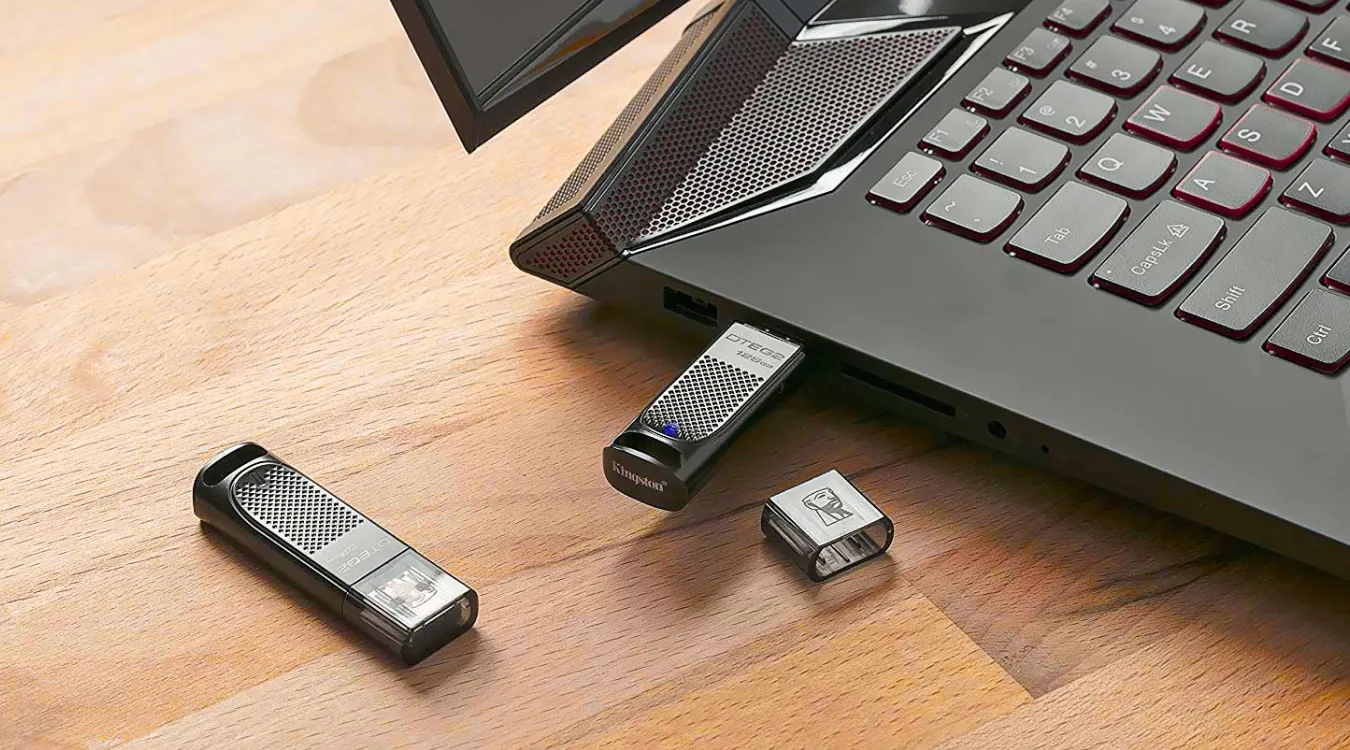
USB flash drives, SD cards, SSDs, and many embedded devices all rely on flash memory.
When these devices fail, users often believe the data disappeared forever.

In reality, flash chips often still contain user data after deletion, formatting, or file system errors.
With the right workflow, many files on flash-based storage still leave room for safe recovery.

what is Flash Memory

How Flash Memory Stores Data Electronically

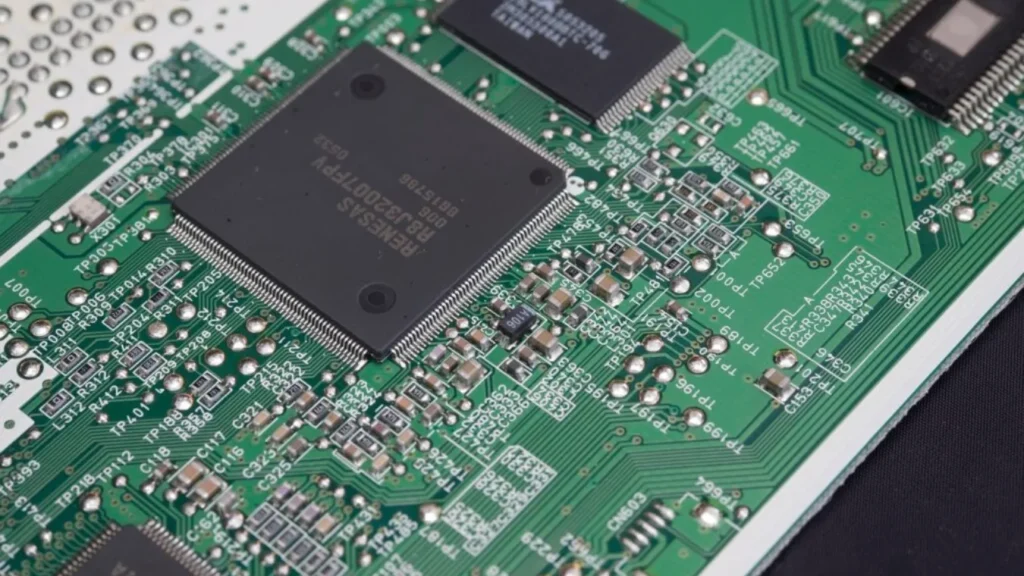
Flash memory uses arrays of floating-gate transistors.
Each cell holds electrons inside an insulated gate and represents a bit or multiple bits.

Key concepts:

  • Cells and pages: The controller reads and writes data by page.

  • Blocks: The controller erases data by block, not by individual page.

  • Program/erase cycles: Each cell tolerates only a limited number of erase cycles.

The memory controller translates logical block addresses from the operating system into physical locations on the chip.
This translation layer enables wear-leveling and bad-block management.

Types of Flash Memory and Where They Appear

Different flash technologies trade speed, cost, and endurance.

タイプBits per Cell代表的な使用例強み制限事項
SLC1Industrial, enterprise cacheHigh endurance, fast writesHigh cost per GB
MLC2Consumer SSDs, pro USB drivesGood balance of cost and lifeModerate endurance
TLC3Most consumer SSDs, SD cardsLow cost, high capacitiesLower endurance, slower writes
QLC4High-capacity SSDs, archivesVery low cost per GBReduced write endurance

Many consumer flash devices use TLC or QLC and rely heavily on controller algorithms to maintain acceptable performance and lifespan.

Flash Memory vs. RAM and SSDs

Flash memory often creates confusion because users see similar terms across products.

Flash Memory vs. RAM

Random access memory (RAM) holds data only while power stays on.
Flash memory retains data without power, so devices can store files and firmware.

RAM focuses on speed and supports frequent reads and writes.
Flash focuses on non-volatile storage and handles slower write and erase cycles with more care.

Flash Memory vs. SSD

An SSD uses flash memory plus a dedicated controller, firmware, cache, and interface logic.
In other words, an SSD behaves like a complete storage device, not just raw memory.

USB drives and SD cards also wrap flash chips with controllers, but they target removable, lower-cost storage.
SSDs focus on higher performance, stronger error correction, and more advanced wear-leveling.

Why Data Still Exists After Deletion or Formatting

When you delete files on flash-based storage, the system usually marks clusters as free.
The controller and file system still retain the underlying data until new writes reuse those locations.

Quick formats often recreate file system structures and leave most content untouched.
Only secure erase operations or heavy new writes actually overwrite most of the old data.

Because of this behavior, データ復旧ソフト can still scan raw space, read file system metadata, and rebuild many files.

Typical Data Loss Scenarios with Flash Memory

Flash devices fail in recognizable ways.
Understanding the pattern helps users choose an appropriate recovery strategy.

Common scenarios include:

  • Accidental deletion of files and folders

  • Quick format of a USB drive or SD card

  • File system corruption after unsafe removal

  • “Please format the disk” prompts in Windows

  • RAW file system status in Disk Management

  • Controller failures that cause random errors or no detection

Logical problems (deletion, format, file system damage) often allow software-based recovery.
Severe controller or chip damage requires hardware-level work in a specialized lab.

Advanced View: Controller Behavior, Wear-Leveling, and TRIM

Flash controllers constantly move data around.
They do this to spread wear across blocks and to avoid repeated writes to the same cells.

Important mechanisms:

  • Wear-leveling: Evenly distributes program/erase cycles across blocks.

  • Garbage collection: Consolidates valid pages and frees entire blocks for erasure.

  • Error correction (ECC): Detects and corrects bit errors that arise over time.

  • トリム: The operating system signals which blocks no longer hold live data.

These mechanisms improve performance and lifetime but also complicate recovery.
Raw images from flash devices do not always match the logical layout that the operating system sees.

Safe Strategy Before Flash Recovery

Users should prepare flash devices carefully before scanning.

  1. Stop writing to the device immediately.

  2. Avoid running file system repair tools such as quick format or generic “fix” utilities.

  3. Connect the flash drive, SD card, or SSD to a stable computer.

  4. Verify that Windows detects the device in Disk Management.

If the device drops in and out, or the system reports repeated I/O errors, recovery attempts must proceed carefully.
In critical cases, experienced technicians often image the device first and then analyze the image.

Software-Based Flash Recovery with Amagicsoft

For many logical failures on USB drives, SD cards, and SSDs, software offers a practical solution.
Amagicsoftデータ復旧 helps general users scan flash-based storage in a read-only manner and copy recoverable files to a safe destination.

You should always recover data to another disk or partition.
This approach avoids further overwrites on the failing device.

Step-by-Step: Recovering Lost Files from Flash Media

Follow this process when Windows still detects the flash device.

1. Prepare the Environment

  1. Use a healthy computer with enough free storage for recovered files.

  2. Connect the flash drive, SD card (through a reader), or SSD.

  3. Confirm that the drive appears, even if Windows marks it as RAW or unformatted.

2. Install and Start Amagicsoft Data Recovery

  1. ダウンロード Amagicsoftデータ復旧 and install it on a system drive or another healthy disk.

  2. 打ち上げ Amagicsoftデータ復旧.

  3. Wait for the software to list all available storage devices.

3. Choose the Flash Device and Scan

  1. Select the problematic flash device as the scan source.

  2. Use a クイックスキャン when you deleted files recently.

  3. 選ぶ ディープ・スキャン when formats, RAW file systems, or severe corruption appear.

  4. Start the scan and allow it to complete.

4. Review, Filter, and Preview Files

  1. Filter results by type, such as documents, photos, or videos.

  2. Browse reconstructed folders and check familiar paths like DCIM on SD cards or 書類 on USB drives.

  3. Use the preview feature to verify that important files still contain valid content.

5. Recover to a Safe Target

  1. Select the files and folders you want to restore.

  2. Choose a different physical drive as the recovery destination.

  3. Start the recovery process.

  4. Open several recovered files and confirm that they work as expected.

After you secure the data, you can reformat or replace the flash device based on its health and age.
Amagicsoftデータ復旧 supports Windows 7/8/10/11 and Windows Server.

Magic Data Recoveryをダウンロード

Windows 7/8/10/11およびWindows Serverをサポート

Practical Tips to Extend Flash Memory Life

Flash memory does not last forever, but good habits extend its usable lifespan.

  • Eject flash drives safely before removal.

  • Avoid full-capacity operation for long periods.

  • Keep only one or two active write-heavy workloads on a flash device.

  • Maintain regular backups to another drive or cloud service.

  • Replace aging USB drives and memory cards before they fail during critical work.


まとめ

Flash memory enables compact, silent, and efficient storage across many devices.
It stores data electronically in cells and depends on complex controller logic to manage wear and integrity.

When data loss occurs, users should stop writes, connect the device to a stable system, and rely on specialized tools.
Amagicsoftデータ復旧 offers a controlled, step-by-step way to recover files from flash-based storage without unnecessary risk.

With the right workflow, many “lost” files on flash media still remain within reach.


よくある質問


What do you mean by flash memory?

Flash memory stores data electronically in non-volatile cells, so it keeps information without power. Devices such as USB drives, SD cards, and SSDs all rely on flash chips. A controller manages pages and blocks, performs wear-leveling, and applies error correction to maintain speed and data integrity over time.

Is flash memory the same as RAM?

Flash memory and RAM both store digital data, but they serve different roles. RAM holds working data temporarily and loses content when you power off the system. Flash memory retains data without power and suits long-term file storage, though it runs slower and tolerates fewer write cycles than RAM.

What is flash memory vs SSD?

Flash memory refers to the underlying non-volatile storage cells. An SSD uses flash chips plus a controller, firmware, cache, and interface electronics to act like a full disk drive. USB drives and SD cards also use flash but target removable, lower-cost storage with different performance and durability profiles.

How long will data stay on a flash drive?

Data on a flash drive typically remains readable for several years under normal conditions. Temperature, write history, and chip quality influence retention. For long-term storage, you should refresh important files periodically, keep at least one additional backup copy, and avoid exposing flash drives to extreme heat or moisture.

Can flash memory be recovered?

Yes, many flash memory failures still allow recovery. Deleted files, quick formats, and file system corruption often leave underlying data intact. Tools such as Amagicsoft Data Recovery can scan the device and restore files to another disk, as long as the controller and memory chips still respond reliably.

What is the lifespan of a flash memory?

Each flash cell endures a limited number of program/erase cycles, depending on type. SLC offers the highest endurance, while TLC and QLC trade some endurance for lower cost. Modern controllers use wear-leveling and error correction to extend practical life, but you should still treat flash as consumable and maintain backups.

Can flash memory be erased?

You can erase flash memory at the block level. Typical operations such as deletion and quick format only mark areas as free, while secure erase or full overwrites actively remove stored charge. For sensitive data, use dedicated secure erase tools or recovery-safe overwrites instead of simple deletion or basic formatting.

How do I fix my flash memory?

Start with basic checks. Test the flash device on another USB port or computer, and avoid further writes. If Windows reports file system errors or RAW status, run data recovery with a tool like Amagicsoft Data Recovery, copy important files to a safe drive, then reformat or replace the device based on its behavior.
  • WiKi
エディ

エディは、コンピューター業界の有名企業数社で10年以上の経験を持つITスペシャリストです。深い技術的知識と実践的な問題解決能力をすべてのプロジェクトに提供しています。.

投稿ナビゲーション

前へ
次のページ

検索

カテゴリー

  • ビットロッカーのリカバリ
  • 削除されたファイルの復元
  • フォーマットファイルの復元
  • ハードディスク・ドライブ復旧
  • ライセンスキーの回復
  • 紛失ファイルの復元
  • メモリーカード復元
  • ニュース
  • フォトリカバリー
  • SSDリカバリー
  • 未分類
  • USBドライブ復元
  • ユーザーガイド
  • ウィキ

最近の投稿

  • 外付けハードドライブとしてのSSDの長所と短所
    外付けハードドライブとしてのSSDの長所と短所
  • Macでターゲットディスクモードと共有モードを使用する方法
    Macでターゲットディスクモードとシェアモードを使う方法:完全ガイド
  • 重複ファイルファインダー
    重複ファイルファインダー

タグ

どのように Magic Data Recovery Magic Recovery Key WiKi

関連記事

重複ファイルファインダー
ウィキ

重複ファイルファインダー

2025年12月2日 エディ コメントはまだない

目次 重複ファイルは本当のバックアップではない 多くのユーザーは、新しいフォルダや外付けドライブにドラッグすることで、ドキュメントの「特別な安全」コピーを保持しています。重複ファイルは、ストレージを浪費し、バックアップを遅くし、データ復旧をより混乱させます。重複ファイルファインダーは、冗長なコピーを識別するのに役立ちますので、安全にスペースを解放しながら、1つのクリーンなマスターを維持します。重複ファイルが通常どのように現れるか ツールを使う前に、重複ファイルがどこから来るのかを知っておくと便利です。よくある発生源は以下の通りです:同じインストーラやアーカイブを繰り返しダウンロードすること 手動「バックアップ」時のコピーペースト操作 携帯電話から複数のフォルダに写真をエクスポートすること クラウド同期の競合により「ファイル名 [...] 」が作成されること

コンテキスト・スイッチ
ウィキ

コンテキスト・スイッチ

2025年12月2日 エディ コメントはまだない

最近のオペレーティングシステムは、何十、何百ものアクティブなスレッドを操っている。コンテキストスイッチによって、スケジューラは実行中のスレッドを一時停止させ、別のスレッドを再開させることができる。この迅速な切り替えによって、並列実行の錯覚が生じ、後にクラッシュダンプの中で目にするものも形作られる。スレッドの実行コンテキストの内部 各スレッドはコードとデータ以上のものを運んでいる。そのコンテキストには以下が含まれます:汎用CPUレジスタとフラグ 命令ポインタとスタックポインタ セグメントレジスタと制御 [...]...

データ収集
ウィキ

データ収集

2025年12月2日 エディ コメントはまだない

目次 インシデントの現場:予定外のクリック、ルート・ログイン、ファイル・コピーによって、タイムスタンプ、ログ、未割り当て領域が、クリーンな状態を記録する前に変更される可能性があります。データ収集は、この問題を解決するものである。データ収集は、制御された方法でデータを収集することに重点を置き、最初のアクション以降、証拠としての完全性を維持する。フォレンジックの文脈におけるデータ収集とは、単にファイルをコピーするだけではありません。データを収集し、それを変更から保護し、裁判所または内部レビューにすべてのステップをどのように処理したかを示す、文書化されたプロセスを定義します。主な目的変更を最小限に抑える。

amagicsoftロゴアイコン

当社のビジョンは、世界的に有名なソフトウェア ブランドおよびサービス プロバイダーとなり、一流の製品とサービスをユーザーに提供することです。

製品紹介
  • Magic Data Recovery
  • Magic Recovery Key
ポリシー
  • 利用規約
  • プライバシーポリシー
  • 返金ポリシー
  • ライセンス契約
会社概要
  • Amagicsoftについて
  • お問い合わせ
  • 店舗
フォローする

著作権©2025 Amagicsoft。無断複写転載を禁じます。

  • 利用規約
  • プライバシーポリシー