
What Is Flash Memory? Types, How It Works, Examples and Data Recovery
What Is Flash Memory?
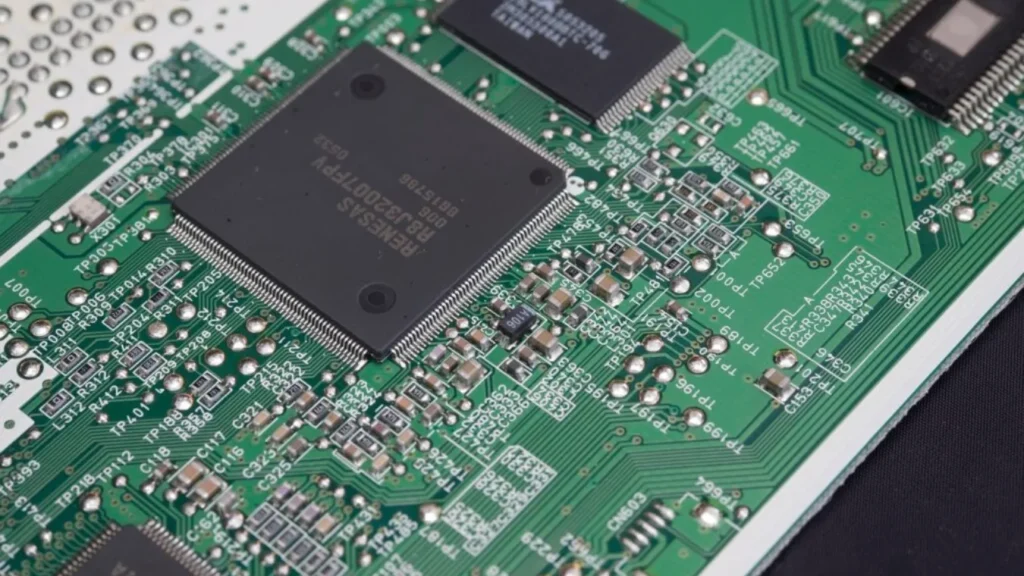
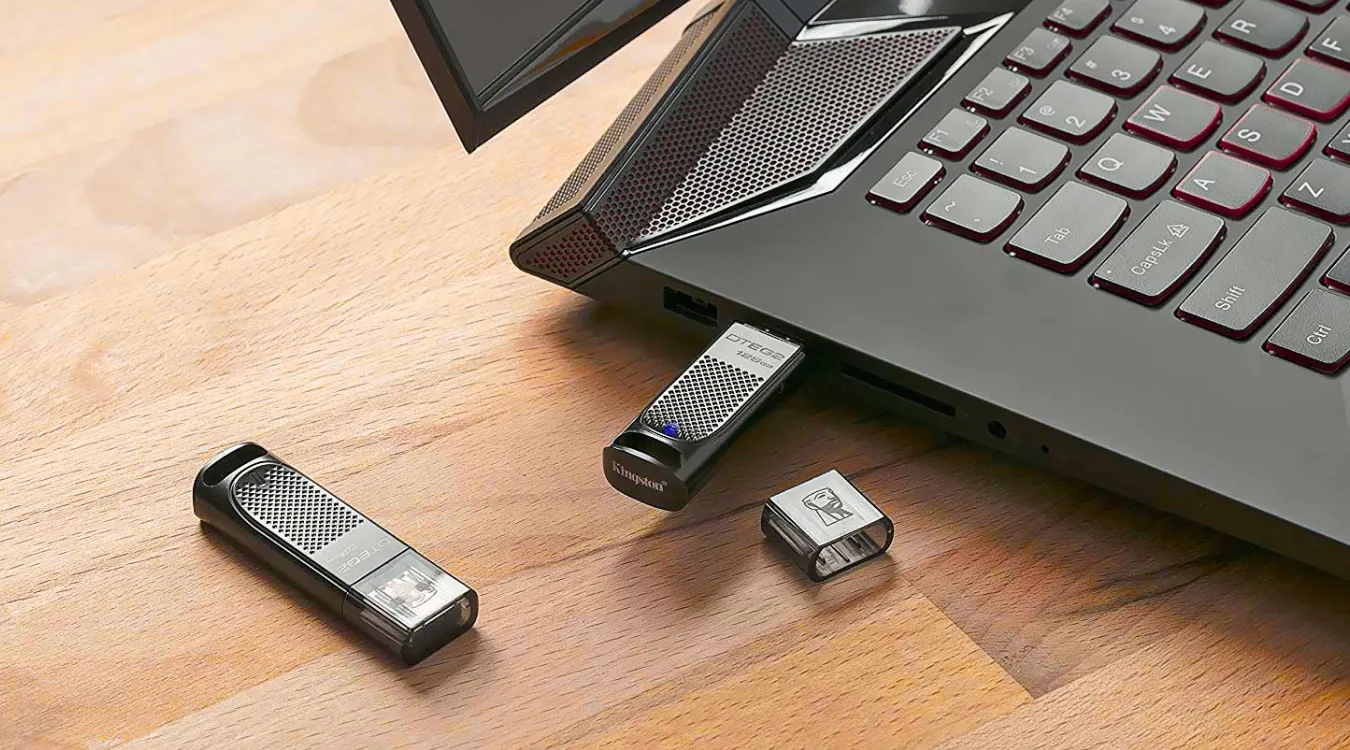
Flash memory is a type of non-volatile electronic storage that keeps data even when the power is off. It is widely used in USB flash drives, SD cards, solid-state drives (SSDs), smartphones, cameras, and many embedded devices.
Unlike RAM, flash memory does not lose its contents when a device shuts down. It stores information in memory cells and can be electrically erased and rewritten, which makes it practical for both portable storage and long-term data retention.
In this guide, you will learn how flash memory works, the main types of flash memory, where it is used, how it compares with RAM and SSDs, and how to recover lost data from flash-based devices.
How Does Flash Memory Work?
Flash memory stores data in memory cells built with floating-gate transistors. Each cell traps or releases electrons to represent binary information. Because the charge remains inside the cell even without power, flash memory can preserve data after shutdown.
Flash storage works in three basic units:
Pages: the smallest unit typically used for reading and writing
Blocks: the unit used for erasing data
Cells: the physical locations that hold the electrical charge
A flash controller manages how data is written and moved across the chip. It translates logical addresses from the operating system into physical locations, balances wear across the memory, and uses error correction to reduce data corruption.
Types of Flash Memory and Where They Appear
Main Types of Flash Memory
Flash memory is commonly grouped in two ways: by architecture and by how many bits each cell stores.
NAND Flash vs NOR Flash
The two main architectures are NAND flash and NOR flash.
NAND flash is the most common type for mass storage. It is used in USB flash drives, SD cards, microSD cards, SSDs, smartphones, and tablets because it offers high capacity and lower cost per gigabyte.
NOR flash is typically used for firmware, BIOS chips, and embedded systems. It provides faster random reads and is better suited for code storage, but it is more expensive and less practical for large-capacity consumer storage.
In short, NAND flash is mainly used for storing large amounts of user data, while NOR flash is often used for storing firmware and system code.
SLC vs MLC vs TLC vs QLC
Another way to classify flash memory is by how many bits each cell stores.
SLC stores 1 bit per cell. It offers the best speed, accuracy, and endurance, but it is also the most expensive type of flash memory. It is often used in industrial and enterprise environments.
MLC stores 2 bits per cell. It balances performance, endurance, and cost better than SLC, but it is still more expensive than most consumer-grade storage.
TLC stores 3 bits per cell. It is widely used in consumer SSDs, USB drives, and memory cards because it offers a good balance between cost and capacity.
QLC stores 4 bits per cell. It delivers high capacity at a lower cost per gigabyte, but it usually has lower write endurance and is better suited for lighter workloads or archive-style storage.
Most consumer flash storage today relies on TLC or QLC memory, with performance and lifespan heavily supported by the controller, wear-leveling, and error correction.
Common Examples of Flash Memory Devices
Flash memory appears in many consumer and professional devices, including USB flash drives, SD cards, microSD cards, solid-state drives, smartphones, tablets, digital cameras, drones, game consoles, and embedded electronics.
When people ask what devices use flash memory, these are the most common examples. In everyday use, NAND flash is the dominant technology behind portable and solid-state storage.
Advantages and Disadvantages of Flash Memory
Flash memory is popular because it offers several important benefits. It is non-volatile, reads data quickly compared with mechanical hard drives, has no moving parts, uses less power in many mobile devices, and fits easily into compact storage products.
However, flash memory also has limitations. It has a limited number of program and erase cycles, performance may decline under heavy write workloads, and data recovery can be more complex than with traditional hard drives. Lower-endurance flash types such as TLC and QLC may also wear out faster under constant use.
Flash Memory vs. RAM and SSDs
Flash memory often creates confusion because users see similar terms across products.
Flash Memory vs. RAM
Random access memory (RAM) holds data only while power stays on.
Flash memory retains data without power, so devices can store files and firmware.
RAM focuses on speed and supports frequent reads and writes.
Flash focuses on non-volatile storage and handles slower write and erase cycles with more care.
Flash Memory vs. SSD
An SSD uses flash memory plus a dedicated controller, firmware, cache, and interface logic.
In other words, an SSD behaves like a complete storage device, not just raw memory.
USB drives and SD cards also wrap flash chips with controllers, but they target removable, lower-cost storage.
SSDs focus on higher performance, stronger error correction, and more advanced wear-leveling.
Why Data Still Exists After Deletion or Formatting
When you delete files on flash-based storage, the system usually marks clusters as free.
The controller and file system still retain the underlying data until new writes reuse those locations.
Quick formats often recreate file system structures and leave most content untouched.
Only secure erase operations or heavy new writes actually overwrite most of the old data.
Because of this behavior, data recovery software can still scan raw space, read file system metadata, and rebuild many files.
Why Flash Memory Data Can Be Lost
Although flash memory is reliable for daily use, data loss still happens for several common reasons. These include accidental deletion, quick formatting of a USB drive or memory card, file system corruption after unsafe removal, power loss during a write operation, RAW file system errors, malware, software crashes, controller malfunction, and bad blocks.
Logical problems such as deletion, formatting, or file system corruption often leave the underlying data partially intact. In these cases, software-based recovery may still work.
Physical damage or severe controller failure is more serious. If the device is no longer detected correctly, disconnects repeatedly, or reports constant input/output errors, professional recovery may be required.
Advanced View: Controller Behavior, Wear-Leveling, and TRIM
Flash controllers constantly move data around.
They do this to spread wear across blocks and to avoid repeated writes to the same cells.
Important mechanisms:
Wear-leveling: Evenly distributes program/erase cycles across blocks.
Garbage collection: Consolidates valid pages and frees entire blocks for erasure.
Error correction (ECC): Detects and corrects bit errors that arise over time.
TRIM: The operating system signals which blocks no longer hold live data.
These mechanisms improve performance and lifetime but also complicate recovery.
Raw images from flash devices do not always match the logical layout that the operating system sees.
Safe Strategy Before Flash Recovery
Users should prepare flash devices carefully before scanning.
Stop writing to the device immediately.
Avoid running file system repair tools such as quick format or generic “fix” utilities.
Connect the flash drive, SD card, or SSD to a stable computer.
Verify that Windows detects the device in Disk Management.
If the device drops in and out, or the system reports repeated I/O errors, recovery attempts must proceed carefully.
In critical cases, experienced technicians often image the device first and then analyze the image.
Can Data Be Recovered From Flash Memory?
Yes, in many cases flash memory data can be recovered, especially when the loss is caused by deletion, quick formatting, file system corruption, or RAW partition errors.
Recovery is usually more successful when you stop using the device immediately, avoid writing new data, and the device is still detected by the operating system.
Recovery becomes harder when TRIM, garbage collection, controller failure, or severe chip damage has already changed the original data layout. That is why the safest first step is to stop using the device and scan it in a read-only workflow.
How to Recover Data From a Flash Memory Device
If Windows still detects the flash device, software recovery is often the safest first option for logical data loss.
Magic Data Recovery can scan USB flash drives, SD cards, memory cards, and SSDs in a read-only workflow and copy recoverable files to a different storage location.
Step 1: Stop Using the Device
Do not save new files to the affected flash drive, SD card, or SSD. New writes may overwrite recoverable data.
Step 2: Connect the Device Safely
Attach the device to a stable Windows computer. If you are recovering data from a memory card, use a reliable card reader.

