
Como recuperar arquivos excluídos da unidade flash - 4 maneiras

Apagar acidentalmente fotos, documentos, vídeos ou arquivos de trabalho importantes de um pen drive pode ser estressante. Em muitos casos, porém, ainda é possível recuperar arquivos excluídos de um pen drive se os novos dados não tiverem sobrescrito os arquivos originais.
O passo mais importante é parar de usar o pen drive imediatamente. Não copie novos arquivos para ele, não o formate nem execute comandos de reparo antes de recuperar seus dados. Qualquer nova operação de gravação pode sobrescrever os arquivos perdidos e reduzir as chances de sucesso recuperação de arquivos excluídos.
Este guia explica quatro maneiras práticas de recuperar arquivos excluídos de um pen drive no Windows. Você aprenderá a verificar backups, exibir arquivos ocultos, usar o Recuperação de Arquivos do Windows e fazer uma varredura na unidade com Magic Data Recovery.
Compatível com Windows 7/8/10/11 e Windows Server
CONTEÚDO DA PÁGINA:
Você consegue? Recuperar arquivos excluídos de um pen drive?
Sim, muitas vezes é possível recuperar arquivos excluídos de um pen drive. No entanto, o resultado depende do estado do pen drive e do que aconteceu depois que os arquivos foram excluídos.
Quando você exclui um arquivo, o sistema operacional geralmente remove sua entrada do sistema de arquivos. Os dados propriamente ditos podem permanecer na memória flash até que outro arquivo sobrescreva a mesma área de armazenamento.
Por exemplo, imagine que você apague acidentalmente uma pasta contendo 200 fotos de viagem. Se você desconectar imediatamente o pen drive, um software de recuperação ainda poderá recuperar a maioria dessas imagens. Por outro lado, se você continuar copiando vídeos para o pen drive, os novos dados poderão sobrescrever algumas das fotos apagadas.
Suas chances de recuperação costumam ser maiores quando:
- Você deve parar de usar o pen drive imediatamente.
- O computador ainda consegue reconhecer o dispositivo.
- Você não formatou a unidade novamente.
- Você não copiou novos arquivos para lá.
- O pen drive não apresenta danos físicos.
Por outro lado, a recuperação se torna mais difícil após uma formatação completa, intensa atividade de gravação, falha no controlador ou dano físico.
O que fazer antes da recuperação de dados de um pen drive
Antes de tentar recuperar arquivos excluídos de um pen drive, proteja o dispositivo original. Essa etapa é tão importante quanto escolher o método de recuperação correto.
Siga estas precauções:
- Pare de usar o pen drive.
- Não formate o disco, mesmo que o Windows peça para você fazer isso.
- Não execute o CHKDSK antes de recuperar dados importantes.
- Não instale nenhum software de recuperação na unidade USB afetada.
- Não salve os arquivos recuperados no mesmo dispositivo.
- Desconecte a unidade caso ela fique quente ou perca a conexão repetidamente.
Essas precauções ajudam a evitar a sobrescrita de dados e outras alterações no sistema de arquivos.
Método 1: Verificar backups e outras cópias de arquivos
A maneira mais fácil de recuperar arquivos excluídos de um pen drive é encontrar outra cópia dos arquivos perdidos.
Antes de usar um software de recuperação, verifique os seguintes locais:
- OneDrive
- Google Drive
- Dropbox
- Anexos de e-mail
- Histórico de arquivos do Windows
- Versões anteriores
- Outro computador
- Um segundo disco rígido externo
- Aplicativos de mensagens nos quais você compartilhou os arquivos
Por exemplo, talvez você tenha enviado um documento de trabalho para um colega por e-mail. Mesmo que o arquivo original tenha desaparecido do pen drive, o anexo ainda pode estar na sua pasta “Enviados”.
Os arquivos apagados do USB ficam na Lixeira?
Os arquivos excluídos da maioria das unidades USB removíveis no Windows normalmente não são movidos para a Lixeira da área de trabalho. Em vez disso, o Windows costuma excluí-los diretamente.
Portanto, verificar a Lixeira pode não adiantar quando você exclui arquivos de um pen drive. No entanto, ainda faz sentido verificar o armazenamento em nuvem, os backups e outros dispositivos antes de iniciar uma verificação completa de recuperação do pen drive.
Os usuários de Mac também devem verificar a Lixeira. Em alguns casos, o macOS armazena arquivos excluídos de um dispositivo externo em uma pasta oculta chamada Lixeira.
Quando esse método funciona melhor
Esse método funciona quando:
- Você já havia feito o backup dos arquivos.
- A sincronização na nuvem foi ativada.
- Você compartilhou os arquivos por e-mail ou por aplicativos de mensagens.
- Outro computador contém uma cópia mais antiga.
Se não houver nenhum backup ou cópia, prossiga com o próximo método de recuperação.
Método 2: Exibir arquivos ocultos com o CMD
Às vezes, os arquivos parecem ter sido excluídos, mas, na verdade, estão apenas ocultos. Malware, atributos de arquivo incorretos ou erros no sistema de arquivos podem impedir que o Windows os exiba.
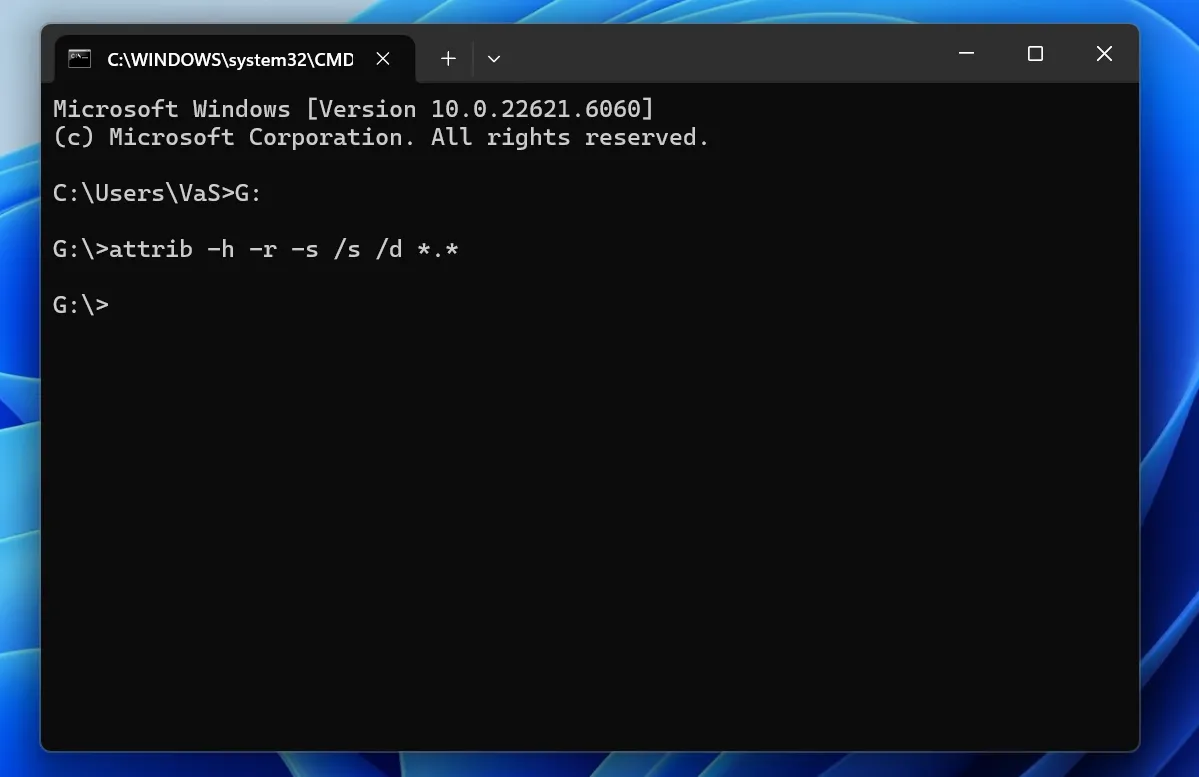
Nessa situação, o comando `attrib` pode ajudar.
Como exibir arquivos ocultos em um pen drive
- Conecte o pen drive ao computador.
- Anote a letra da unidade, como E: ou F:.
- Procure por “Prompt de Comando”.
- Selecione “Executar como administrador”.
- Digite o seguinte comando:
attrib -h -r -s /s /d E:\*.*
Substituir E: com a letra de unidade real do seu pen drive.
O comando remove os atributos “oculto”, “somente leitura” e “sistema” de arquivos e pastas. Após a conclusão do comando, abra a unidade USB e verifique se os arquivos que estavam faltando aparecem.
Limitação importante do comando `Attrib`
O Atribuir o comando não é realmente recuperar arquivos excluídos de um pen drive. Isso apenas torna os arquivos ocultos visíveis novamente.
Muitos guias on-line descrevem esse comando como uma solução para recuperação de arquivos excluídos. No entanto, ele não consegue fazer varredura no espaço de armazenamento não utilizado nem reconstruir arquivos que o Windows já tenha excluído.
Use esse método quando:
- O pen drive exibe o espaço de armazenamento utilizado.
- A pasta parece estar vazia.
- Os arquivos desapareceram após uma infecção por malware.
- Você suspeita que o Windows tenha alterado os atributos do arquivo.
Se os arquivos tiverem sido realmente excluídos, use o Recuperação de Arquivos do Windows ou um software profissional de recuperação de USB.
Método 3: Usar a recuperação de arquivos do Windows
Recuperação de arquivos do Windows é uma ferramenta de linha de comando da Microsoft. Ela pode ajudar os usuários recuperar arquivos excluídos de um pen drive, unidades internas e dispositivos de armazenamento externos.
A ferramenta funciona nas versões compatíveis do Windows 10 e do Windows 11. Ao contrário do Atribuir Ao executar o comando, o Windows File Recovery verifica o dispositivo de armazenamento em busca de dados excluídos.
Como funciona a recuperação de arquivos do Windows
O formato básico do comando é:
winfr unidade-de-origem: unidade-de-destino: /modo /opções
A unidade de origem contém os arquivos excluídos. A unidade de destino armazena os arquivos recuperados.
Por exemplo, suponha que seu pen drive seja a unidade E: e você queira salvar os arquivos recuperados na unidade D:. Você pode usar:
winfr E: D: /extensive /n *.jpg /n *.png /n *.docx
Este comando procura arquivos JPG, PNG e DOCX na unidade USB.
Passos para recuperar arquivos apagados de um pen drive
- Instale o Windows File Recovery na Microsoft Store.
- Conecte o pen drive.
- Verifique a letra da unidade USB.
- Abra o Windows File Recovery como administrador.
- Digite o comando de recuperação adequado.
- Confirme a digitalização.
- Verifique a pasta de recuperação na unidade de destino.
Sempre escolha uma unidade de destino diferente da unidade de origem. Por exemplo, não recupere arquivos da unidade E: de volta para a unidade E:.
Vantagens e limitações
O Windows File Recovery é gratuito. Ele também oferece suporte a vários sistemas de arquivos e modos de recuperação.
No entanto, ele apresenta várias limitações:
- Isso exige conhecimento de linha de comando.
- Ele não oferece uma interface gráfica padrão.
- Pode ser que os nomes originais dos arquivos não sejam restaurados.
- Isso pode gerar muitos arquivos não identificados.
- Não oferece uma visualização prévia fácil.
- Escolher o comando correto pode confundir os iniciantes.
Portanto, o Windows File Recovery é indicado para usuários que compreendem a sintaxe dos comandos e sabem quais tipos de arquivos precisam.
Método 4: Use o Magic Data Recovery
Por que escolher o Magic Data Recovery?
Como recuperar arquivos excluídos de uma unidade flash usando o Magic Data Recovery
Compatível com Windows 7/8/10/11 e Windows Server
2. Conecte sua unidade flash: Conecte a unidade flash ao computador.





Conclusão
Muitas vezes, você pode recuperar arquivos excluídos de um pen drive quando você age rapidamente e evita sobrescrever o dispositivo.
Primeiro, verifique os backups, o armazenamento em nuvem, os anexos de e-mail e outras cópias dos arquivos. Em seguida, use o Atribuir comando apenas quando os arquivos aparecem como ocultos. O Windows File Recovery oferece uma opção gratuita para usuários que têm conhecimento de ferramentas de linha de comando.
Para casos de exclusão acidental, formatação rápida, unidades no formato RAW e situações que exijam a visualização de arquivos, Magic Data Recovery oferece uma solução mais clara. Permite que os usuários identifiquem a unidade USB correta, filtrem os resultados, visualizem os arquivos compatíveis e salvem os dados selecionados em outro local.
O Magic Data Recovery não se baseia em promessas irrealistas de recuperação. Em vez disso, oferece aos usuários ferramentas práticas para examinar os dados disponíveis antes da recuperação. Isso o torna mais adequado do que o CMD para usuários que preferem um processo visual e controlado.
Se você precisa de uma maneira eficiente de recuperar arquivos excluídos, considere fazer uma verificação no dispositivo com o Magic Data Recovery antes de formatá-lo ou repará-lo.
Compatível com Windows 7/8/10/11 e Windows Server
PERGUNTAS FREQUENTES:
É possível recuperar arquivos excluídos permanentemente de um pen drive?
É possível recuperar arquivos excluídos de um pen drive sem usar nenhum software?
Por que os arquivos excluídos do USB não aparecem na Lixeira?
O CMD consegue recuperar arquivos excluídos de um pen drive?
É possível recuperar arquivos de um pen drive formatado?
O que devo fazer se meu pen drive aparecer como RAW?
Onde devo salvar os arquivos recuperados?

Erin Smith é reconhecida como uma das redatoras mais profissionais do Amagicsoft. Ela aprimorou continuamente suas habilidades de redação nos últimos 10 anos e ajudou milhões de leitores a resolver seus problemas de tecnologia.