
How to Recover Deleted Files from Flash Drive | 4 Ways

Accidentally deleting important photos, documents, videos, or work files from a USB drive can be stressful. In many cases, however, you can still recover deleted files from flash drive if new data has not overwritten the original files.
The most important step is to stop using the USB drive immediately. Do not copy new files to it, format it, or run repair commands before recovering your data. Any new write operation may overwrite the lost files and reduce the chance of successful deleted file recovery.
This guide explains four practical ways to recover deleted files from flash drive on Windows. You will learn how to check backups, reveal hidden files, use Windows File Recovery, and scan the drive with Magic Data Recovery.
Supports Windows 7/8/10/11 and Windows Server
PAGE CONTENT:
Can You Recover Deleted Files from Flash Drive?
Yes, it is often possible to recover deleted files from flash drive. However, the result depends on the condition of the USB drive and what happened after the files were deleted.
When you delete a file, the operating system usually removes its entry from the file system. The actual data may remain on the flash memory until another file overwrites the same storage area.
For example, imagine that you accidentally delete a folder containing 200 travel photos. If you immediately disconnect the USB drive, recovery software may still find most of those images. On the other hand, if you continue copying videos to the drive, the new data may overwrite some of the deleted photos.
Your recovery chances are usually higher when:
- You stop using the USB drive immediately.
- The computer can still recognize the device.
- You have not formatted the drive again.
- You have not copied new files to it.
- The USB drive has no physical damage.
In contrast, recovery becomes more difficult after a full format, heavy write activity, controller failure, or physical damage.
What to Do Before Flash Drive Data Recovery
Before trying to recover deleted files from flash drive, protect the original device. This step is just as important as choosing the right recovery method.
Follow these precautions:
- Stop using the USB drive.
- Do not format it, even if Windows asks you to.
- Do not run CHKDSK before recovering important data.
- Do not install recovery software on the affected USB drive.
- Do not save recovered files back to the same device.
- Disconnect the drive if it becomes hot or repeatedly loses connection.
These precautions help prevent data overwriting and further file system changes.
Method 1: Check Backups and Other File Copies
The easiest way to recover deleted files from flash drive is to find another copy of the missing files.
Before using recovery software, check the following locations:
- OneDrive
- Google Drive
- Dropbox
- Email attachments
- Windows File History
- Previous Versions
- Another computer
- A second external drive
- Messaging apps where you shared the files
For example, you may have sent a work document to a colleague by email. Even if the original file disappeared from the USB drive, the attachment may still exist in your Sent folder.
Are Deleted USB Files in the Recycle Bin?
Files deleted from most removable USB drives on Windows do not normally move to the desktop Recycle Bin. Instead, Windows often removes them directly.
Therefore, checking the Recycle Bin may not help when you delete files from a flash drive. However, it still makes sense to check cloud storage, backups, and other devices before starting a full USB flash drive recovery scan.
Mac users should also check Trash. In some cases, macOS stores deleted files from an external device in a hidden Trash folder.
When This Method Works Best
This method works when:
- You previously backed up the files.
- Cloud synchronization was enabled.
- You shared the files through email or messaging apps.
- Another computer contains an older copy.
If no backup or copy exists, continue with the next recovery method.
Method 2: Show Hidden Files with CMD
Sometimes files seem deleted, but they are only hidden. Malware, incorrect file attributes, or file system errors may prevent Windows from displaying them.
In this situation, the attrib command may help.
How to Show Hidden Files on a Flash Drive
- Connect the USB drive to the computer.
- Note its drive letter, such as E: or F:.
- Search for Command Prompt.
- Select Run as administrator.
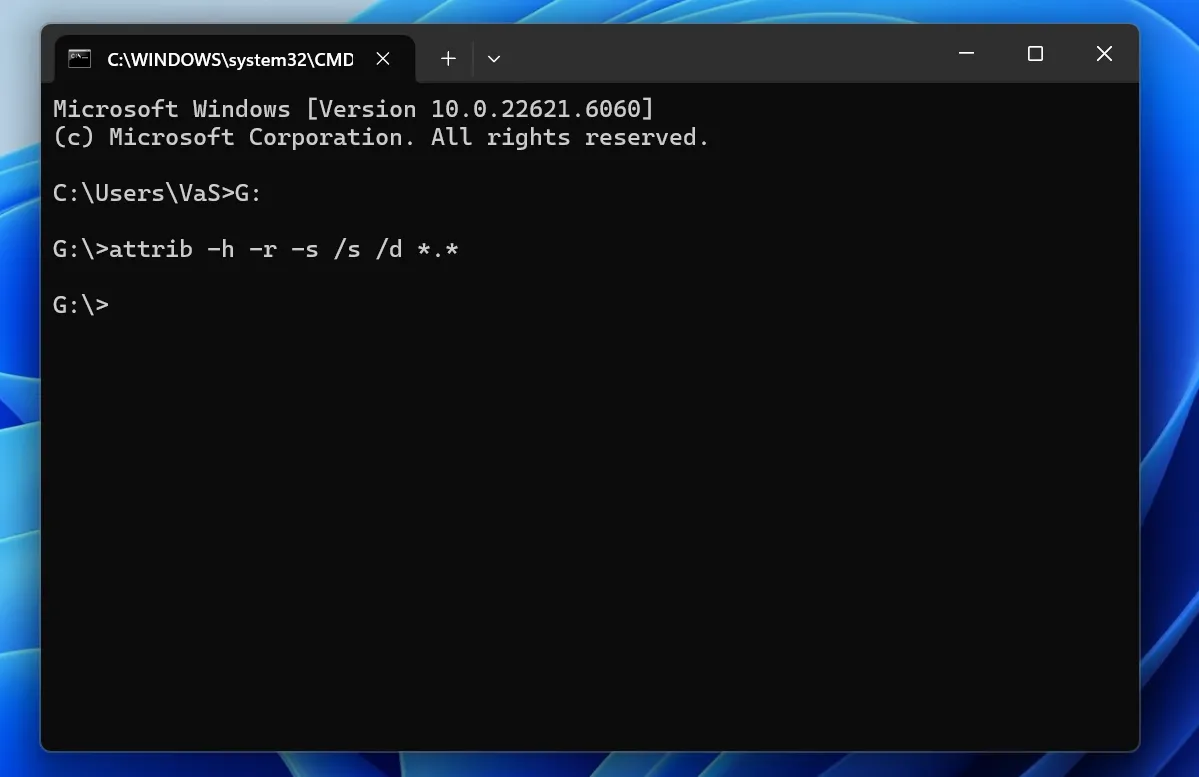
- Enter the following command:
attrib -h -r -s /s /d E:\*.*
Replace E: with the actual letter of your flash drive.
The command removes hidden, read-only, and system attributes from files and folders. After the command finishes, open the USB drive and check whether the missing files appear.
Important Limitation of the Attrib Command
The attrib command does not truly recover deleted files from flash drive. It only makes hidden files visible again.
Many online guides describe this command as a deleted file recovery solution. However, it cannot scan unused storage space or reconstruct files that Windows has already deleted.
Use this method when:
- The USB drive shows used storage space.
- The folder appears empty.
- Files disappeared after a malware infection.
- You suspect that Windows changed the file attributes.
If the files were actually deleted, use Windows File Recovery or professional USB recovery software.
Method 3: Use Windows File Recovery
Windows File Recovery is a command-line tool from Microsoft. It can help users recover deleted files from flash drive, internal drives, and external storage devices.
The tool works on supported versions of Windows 10 and Windows 11. Unlike the attrib command, Windows File Recovery scans the storage device for deleted data.
How Windows File Recovery Works
The basic command format is:
winfr source-drive: destination-drive: /mode /switches
The source drive contains the deleted files. The destination drive stores the recovered files.
For example, suppose your flash drive is E: and you want to save recovered files to D:. You can use:
winfr E: D: /extensive /n *.jpg /n *.png /n *.docx
This command searches the USB drive for JPG, PNG, and DOCX files.
Steps to Recover Deleted USB Files
- Install Windows File Recovery from the Microsoft Store.
- Connect the USB drive.
- Check the USB drive letter.
- Open Windows File Recovery as an administrator.
- Enter the appropriate recovery command.
- Confirm the scan.
- Check the recovery folder on the destination drive.
Always choose a destination drive that differs from the source drive. For example, do not recover files from E: back to E:.
Advantages and Limitations
Windows File Recovery is free. It also supports several file systems and recovery modes.
However, it has several limitations:
- It requires command-line knowledge.
- It does not provide a normal graphical interface.
- It may not restore original file names.
- It may produce many unidentified files.
- It does not offer an easy visual preview.
- Selecting the correct command can confuse beginners.
Therefore, Windows File Recovery suits users who understand command syntax and know which file types they need.
Method 4: Use Magic Data Recovery
Why Choose Magic Data Recovery?
How to Recover Deleted Files from Flash Drive Use Magic Data Recovery
Supports Windows 7/8/10/11 and Windows Server
2. Connect Your Flash Drive: Plug your flash drive into the computer.





Conclusion
You can often recover deleted files from flash drive when you act quickly and avoid overwriting the device.
First, check backups, cloud storage, email attachments, and other file copies. Next, use the attrib command only when files appear hidden. Windows File Recovery offers a free option for users who understand command-line tools.
For accidental deletion, quick formatting, RAW drives, and situations that require file previews, Magic Data Recovery provides a clearer solution. It allows users to scan the correct USB drive, filter the results, preview supported files, and save selected data to another location.
Magic Data Recovery does not rely on unrealistic recovery promises. Instead, it gives users practical tools to inspect available data before recovery. This makes it more suitable than CMD for users who prefer a visual and controlled process.
If you need an efficient way to recover deleted files, consider scanning the device with Magic Data Recovery before formatting or repairing it.
Supports Windows 7/8/10/11 and Windows Server
FAQ:
Can I Recover Permanently Deleted Files from a Flash Drive?
Can I Recover Deleted Files from a Flash Drive Without Software?
Why Are Deleted USB Files Not in the Recycle Bin?
Can CMD Recover Deleted Files from a USB Drive?
Can I Recover Files from a Formatted Flash Drive?
What Should I Do If My USB Drive Shows as RAW?
Where Should I Save Recovered Files?

Erin Smith is recognized as one of the most professional writers at Amagicsoft. She has continually honed her writing skills over the past 10 years and helped millions of readers solve their tech problems.