
Como corrigir uma unidade USB não reconhecida no Windows 10
Quando um Pen drive não reconhecido no Windows 10 Quando esse problema surge, a primeira preocupação geralmente são os seus arquivos. O Windows pode não exibir uma unidade USB no Explorador de Arquivos, mesmo que Gerenciamento de disco ou o Gerenciador de Dispositivos ainda consiga detectá-lo. No entanto, a solução correta depende do que o Windows consegue identificar. A falta de uma letra de unidade requer uma solução diferente daquela para uma partição RAW, um dispositivo USB não alocado ou um dispositivo que exiba a mensagem “Sem mídia”.”
Este guia explica como consertar um Pen drive não reconhecido no Windows 10 resolver o problema sem agravar a perda de dados. Você aprenderá quando verificar primeiro o hardware, os drivers, as configurações de energia, o CHKDSK ou recuperar os arquivos. Se o Windows ainda detectar o dispositivo USB, mas seus arquivos estiverem inacessíveis, Magic Data Recovery pode oferecer uma solução prática Recuperação de dados USB opção.
Índice
Pen drive não reconhecido no Windows 10: identifique primeiro o problema
Antes de tentar soluções aleatórias, verifique onde o USB aparece.
O que você vê | Causa provável | O melhor próximo passo |
Não aparece no Explorador de Arquivos, mas está visível no Gerenciamento de Discos | Letra de unidade ausente | Atribuir uma letra de unidade |
Mostra RAW | Corrupção do sistema de arquivos | Recupere os arquivos primeiro |
Programas não alocados | Partição perdida ou danificada | Recupere os dados antes de criar um volume |
Aparece apenas no Gerenciador de Dispositivos | Problema com o driver/controlador | Reinstale o dispositivo |
Exibe “Sem mídia” ou 0 bytes | Falha no nível do hardware | Pare de fazer reparos por conta própria |
Desaparecido em todos os lugares | Falha na porta, na conexão ou de natureza física | Teste outra porta e outro computador |
A Pen drive não reconhecido no Windows 10 Um erro é um sintoma, não uma falha em si. Portanto, adapte a solução à condição do dispositivo.
Por que meu pen drive não é reconhecido no Windows 10?
As causas mais comuns incluem uma porta com defeito, ausência da letra da unidade, driver corrompido, configurações de economia de energia do USB, corrupção do sistema de arquivos, perda de uma partição ou falha no hardware do pen drive.
Por exemplo, uma unidade USB pode desaparecer do Explorador de Arquivos após uma remoção insegura, enquanto o Gerenciamento de Discos ainda a exibe como RAW. Os arquivos podem ainda existir, mas o Windows não consegue mais ler o sistema de arquivos. Portanto, proteja os dados importantes antes de realizar correções destrutivas.
Antes de resolver o problema de uma unidade USB não ser reconhecida no Windows 10
Utilize um fluxo de trabalho que priorize a recuperação: interrompa a gravação de novos dados, verifique o Gerenciamento de Discos e recupere os arquivos importantes antes de formatar o disco como RAW ou não alocado espaço. Salve os arquivos recuperados em outra unidade física.
Além disso, evite repetir CHKDSK Tentativas em um dispositivo USB instável. Não crie um novo volume sobre o espaço não alocado se precisar dos arquivos antigos. Se o dispositivo mostrar 0 bytes, “Sem mídia” ou desconectares-se constantemente, interrompa o reparo por conta própria.
Resumindo, siga uma regra sempre que se tratar de arquivos importantes: primeiro, recuperar; depois, reparar.
Solução 1: Verifique a porta USB e outro computador
Primeiro, comece pela possibilidade mais simples.
- Desconecte o pen drive.
- Conecte-o a outra porta USB.
- Evite usar hubs USB durante os testes.
- Se possível, tente usar outro computador com Windows.
Se o dispositivo USB funcionar em outro lugar, é provável que o computador original tenha algum problema com a porta, o driver ou a alimentação. No entanto, se ele não funcionar em vários computadores, prossiga com o Gerenciamento de Discos.
Solução 2: Verifique a unidade USB no Gerenciamento de Discos
Em seguida, abra o Gerenciamento de Discos. Essa é uma das melhores ferramentas para diagnosticar um Pen drive não reconhecido no Windows 10 problema, pois pode exibir dispositivos que o Explorador de Arquivos oculta.
- Imprensa Windows + X.
- Selecione Gerenciamento de disco.
- Encontre o dispositivo USB pela capacidade.
- Verifique se ele aparece como “São”, “RAW”, “Não alocado” ou “Sem mídia”.
Se a partição estiver íntegra, mas não tiver uma letra de unidade, prossiga para a Solução 3. Se ela aparecer como RAW ou Não alocada, recupere os arquivos primeiro. Por outro lado, se aparecer como “Sem mídia”, pule para a seção de hardware.
Solução 3: Atribuir uma nova letra de unidade
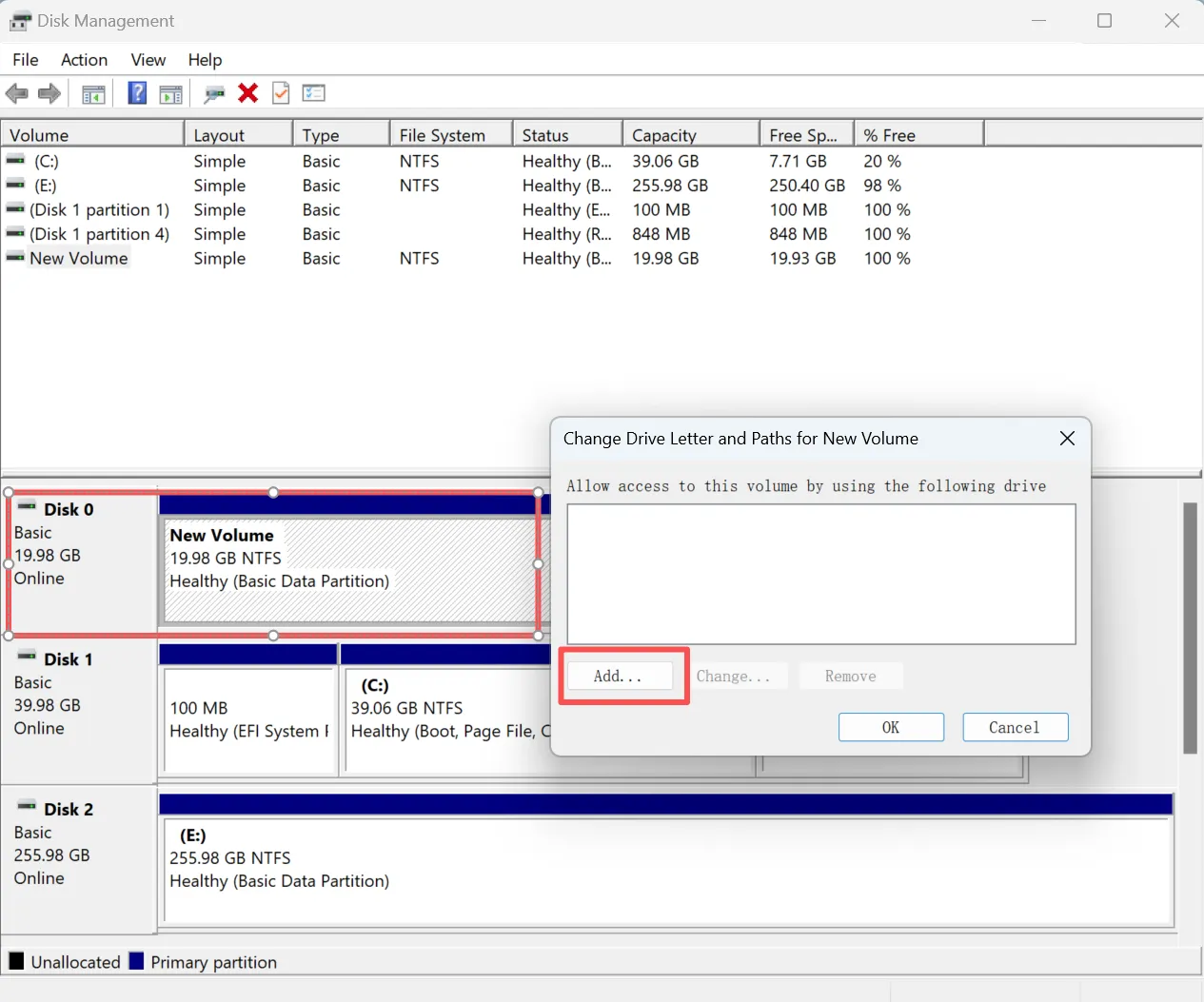
A ausência ou um conflito na letra da unidade pode fazer com que um dispositivo USB em perfeito estado desapareça do Explorador de Arquivos.
- Aberto Gerenciamento de disco.
- Clique com o botão direito do mouse na partição USB.
- Escolha Alterar a letra da unidade e os caminhos.
- Clique em Adicionar ou Mudança.
- Selecione uma letra não utilizada e clique OK.
Em seguida, reabra o Explorador de Arquivos. Se a unidade aparecer, você resolveu o Pen drive não reconhecido no Windows 10 resolver o problema sem alterar seu sistema de arquivos.
Esse método é especialmente útil quando o Gerenciamento de Discos exibe uma partição NTFS, FAT32 ou exFAT normal, mas o Explorador de Arquivos não exibe o dispositivo.
Solução 4: Atualize ou reinstale o driver USB
Às vezes, o Windows detecta o hardware incorretamente porque o driver USB ou a configuração do dispositivo armazenada ficou corrompida.
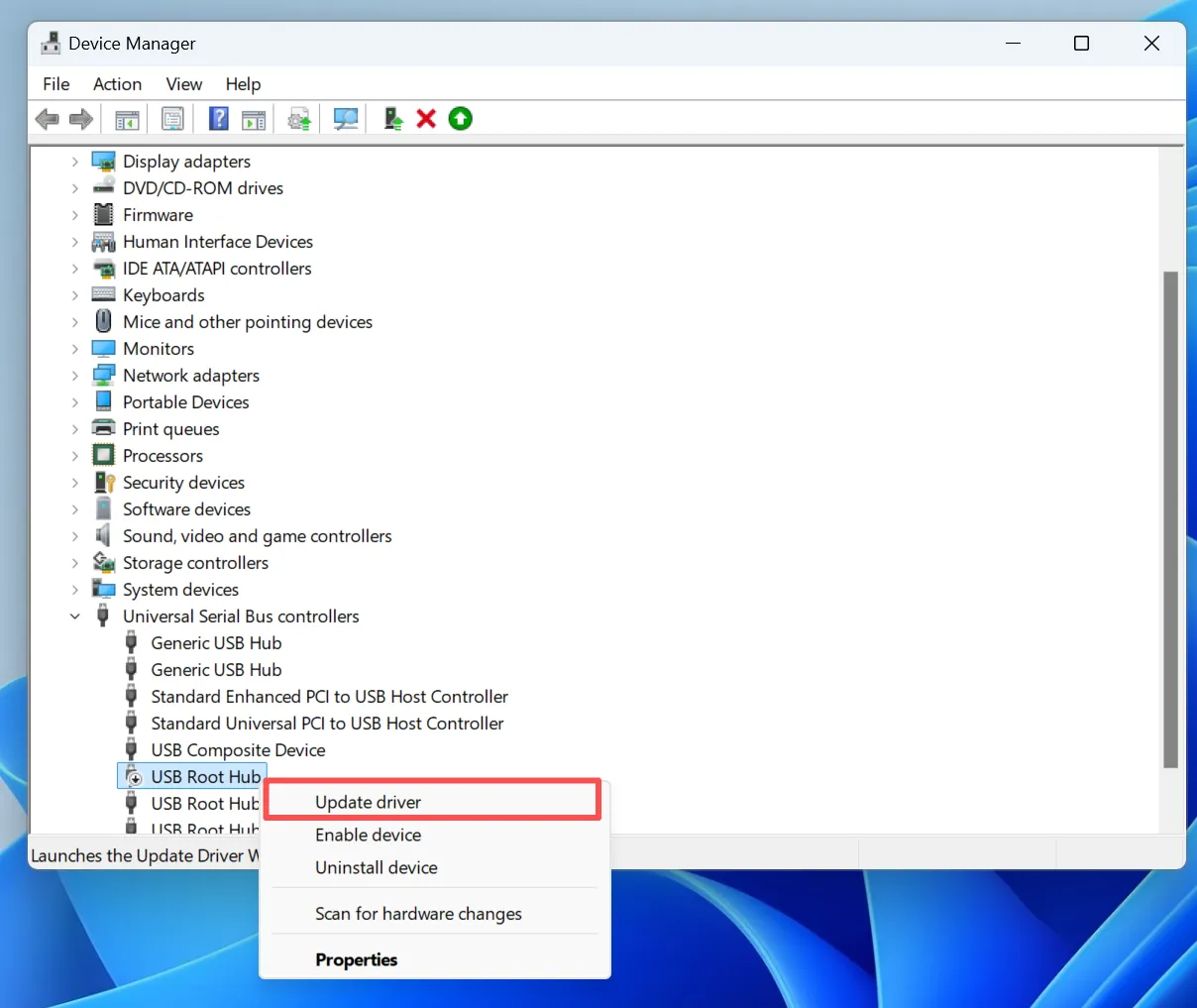
Primeiro, abra Gerenciador de dispositivos, expandir Unidades de disco ou Controladores de barramento serial universal, clique com o botão direito do mouse no dispositivo afetado e selecione Atualizar o driver.
Se isso não der certo, escolha Desinstalar o dispositivo, desconecte o cabo USB, reinicie o Windows e reconecte-o. O Windows deve detectar o dispositivo novamente com uma nova configuração.
É importante ressaltar, Atualizar o driver e Desinstalar o dispositivo fazem coisas diferentes. Portanto, reinstalar o dispositivo pode ajudar mesmo quando o Windows informa que o melhor driver já está instalado.
Solução 5: Desativar a economia de energia do USB
O gerenciamento de energia pode fazer com que um dispositivo USB se desconecte ou não consiga sair do modo de suspensão.
Em Gerenciador de Dispositivos > Controladores de barramento serial universal, abrir Hub de raiz USB ou Hub USB genérico propriedades e limpar Permita que o computador desligue este dispositivo para economizar energia.
Em seguida, desative Suspensão seletiva de USB em:
Painel de Controle > Opções de energia > Alterar configurações avançadas de energia > Configurações de USB
Em seguida, reconecte a unidade e verifique se o Pen drive não reconhecido no Windows 10 O problema foi resolvido.
Essa solução é particularmente útil quando um dispositivo USB funciona após a inicialização, mas desaparece depois que o PC sai do modo de suspensão.
Solução 6: Verificar alterações de hardware
Um erro temporário no driver pode exigir apenas que o Windows atualize o hardware conectado.
- Aberto Gerenciador de dispositivos.
- Clique em Ação.
- Selecione Verificar se há alterações no hardware.
- Aguarde até que a lista de dispositivos seja atualizada.
Após a verificação, verifique o Explorador de Arquivos e o Gerenciamento de Discos novamente.
Se o USB voltar a funcionar, é provável que o Windows tenha perdido temporariamente a conexão com o dispositivo, em vez de ter ocorrido algum dano no sistema de arquivos.
Solução 7: Recuperar dados antes de reparar um dispositivo USB no formato RAW ou não alocado
Se o Gerenciamento de Discos detectar o dispositivo USB, mas exibir “RAW”, “Não alocado”, uma partição ausente ou uma solicitação de formatação, recupere os arquivos antes de realizar o reparo.
É aqui que Magic Data Recovery torna-se útil. Em vez de alterar primeiro o sistema de arquivos danificado, ele verifica um dispositivo de armazenamento detectável em busca de arquivos recuperáveis e permite que você os salve em outro local.
Portanto, o Magic Data Recovery é adequado para situações em que o principal problema é a falta de acesso aos dados, e não um simples problema com o driver do Windows.
Os cenários típicos incluem:
- O dispositivo USB aparece como RAW.
- O Windows solicita que você formate o pen drive.
- A partição original passa a ficar como “Não alocada”.
- Os arquivos desaparecem após serem excluídos ou devido a uma corrupção no sistema de arquivos.
- O Windows reconhece a unidade, mas as pastas não abrem mais normalmente.

Solução 8: Execute o CHKDSK depois que os arquivos importantes estiverem em segurança
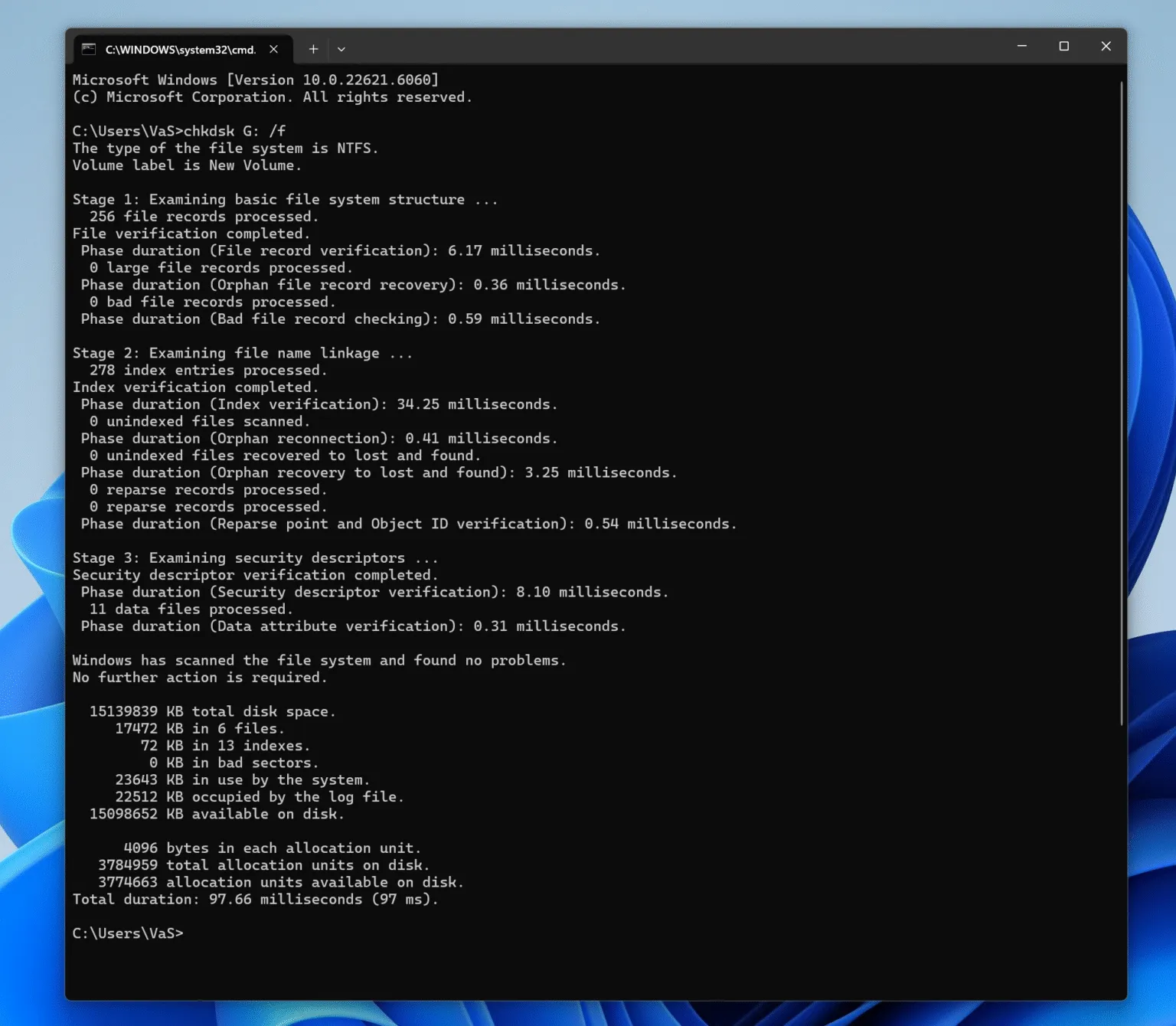
O CHKDSK pode reparar alguns erros do sistema de arquivos, mas use-o somente quando o Windows ainda atribuir uma letra de unidade, o dispositivo USB permanecer estável e os arquivos importantes já tiverem sido copiados para backup ou recuperados.
Abra o Prompt de Comando como administrador e execute-o:
chkdsk X: /f
Substituir X: com a letra de unidade correta.
O /f Essa opção instrui o CHKDSK a reparar os erros detectados no sistema de arquivos. No entanto, o CHKDSK pode alterar os metadados do sistema de arquivos durante o reparo do volume.
Portanto, evite executá-lo primeiro em um dispositivo USB no formato RAW, gravemente corrompido ou instável. Se ainda houver arquivos importantes faltando, recupere-os antes de usar o CHKDSK.
E se o dispositivo USB não aparecer no Gerenciamento de Discos?
Se um Pen drive não reconhecido no Windows 10 Se o dispositivo não aparecer no Gerenciamento de Discos, verifique o Gerenciador de Dispositivos em seguida.
Se o Gerenciador de Dispositivos detectá-lo, reinstale o dispositivo, verifique se há alterações de hardware e teste outra porta USB.
No entanto, se nem o Gerenciamento de Discos nem o Gerenciador de Dispositivos conseguirem detectar o dispositivo USB em vários computadores, a falha pode ser física. Nesse caso, o software de recuperação não consegue fazer a varredura de um dispositivo de armazenamento ao qual o Windows não tem acesso.
Portanto, é improvável que o uso repetido de ferramentas de formatação, comandos CHKDSK ou alterações de drivers ajudem.
Dicas para evitar problemas de reconhecimento de dispositivos USB
Uso Remover o hardware com segurança antes de desconectar uma unidade. Além disso, evite desconectar o cabo USB durante a transferência de arquivos e mantenha outro backup dos arquivos importantes.
Você também deve substituir os pen drives que se desconectam com frequência ou apresentam erros. Embora esses hábitos não possam evitar todos os Pen drive não reconhecido no Windows 10 erro, elas podem reduzir danos evitáveis ao sistema de arquivos.
Conclusão
A Pen drive não reconhecido no Windows 10 O problema deve ser diagnosticado antes do reparo. Primeiro, verifique outra porta e outro computador. Em seguida, use o Gerenciamento de Discos para identificar se a unidade USB está em boas condições, no formato RAW, não alocada ou exibindo a mensagem “Sem mídia”. Correções relacionadas à letra da unidade, ao driver e à alimentação podem resolver muitos problemas lógicos.
No entanto, se o dispositivo USB aparecer como “RAW”, “Não alocado” ou exibir uma solicitação de formatação, recupere os dados importantes antes de executar o CHKDSK, formatar ou criar uma partição.
Recomenda-se o uso do Magic Data Recovery nessa situação, pois ele atende à verdadeira prioridade: recuperar os arquivos antes que o reparo altere a estrutura de armazenamento. Não se trata de uma solução para memórias flash fisicamente danificadas. Em vez disso, é uma solução prática Recuperação de unidade USB opção para quando o Windows ainda detecta o dispositivo, mas os arquivos ficaram inacessíveis.
Se você está procurando uma solução de recuperação mais eficiente antes de consertar o USB, tente Magic Data Recovery.
Compatível com Windows 7/8/10/11 e Windows Server
Unidade USB não reconhecida no Windows 10 - Perguntas frequentes
Por que meu pen drive não é reconhecido no Windows 10?
Como faço para corrigir um erro de dispositivo USB não reconhecido no Windows 10?
Por que meu USB aparece no Gerenciamento de disco, mas não no Explorador de arquivos?
O que devo fazer se meu dispositivo USB aparecer como “RAW” no Windows 10?
Por que meu dispositivo USB está exibindo “Sem mídia” ou “0 bytes”?
O CHKDSK consegue consertar uma unidade USB não reconhecida?
É possível recuperar arquivos de um pen drive que o Windows 10 não reconhece?
Como reparar uma unidade flash não detectada?

Vasilii é um especialista em recuperação de dados com cerca de 10 anos de experiência prática na área. Ao longo de sua carreira, ele resolveu com sucesso milhares de casos complexos envolvendo arquivos excluídos, unidades formatadas, partições perdidas e sistemas de arquivos RAW. Sua experiência abrange métodos de recuperação manual usando ferramentas profissionais, como editores hexadecimais, e soluções automatizadas avançadas com software de recuperação. A missão do Vasilii é tornar o conhecimento confiável sobre recuperação de dados acessível tanto para profissionais de TI quanto para usuários comuns, ajudando-os a proteger seus valiosos ativos digitais.