
O que é o TiWorker.exe? É seguro? Como resolver o problema do alto consumo de CPU
TiWorker.exe, exibido no Gerenciador de Tarefas como Trabalhador do instalador de módulos do Windows, é normalmente um processo legítimo do Windows que auxilia na instalação de atualizações e na manutenção dos componentes do sistema. Muitas vezes, chama a atenção quando utiliza temporariamente uma grande quantidade de CPU ou espaço em disco.
Pequenos períodos de alto consumo de recursos costumam ser normais enquanto o Windows está baixando, instalando ou limpando atualizações. No entanto, se o TiWorker.exe continuar consumindo muita CPU após uma reinicialização, aparecer quando o Windows Update não mostrar progresso ou for executado a partir de uma pasta suspeita, será necessário realizar uma análise mais aprofundada do problema.
Este guia explica o que o TiWorker.exe faz, como determinar se ele é seguro e como corrigir o uso elevado e persistente da CPU ou do disco pelo TiWorker.exe no Windows 11 e no Windows 10.
Índice
O que é o TiWorker.exe?
O TiWorker.exe é o executável responsável pelo Windows Modules Installer Worker, um componente do Windows responsável pela instalação, modificação e manutenção de atualizações do sistema e recursos opcionais do Windows.
Durante uma atualização, o Windows pode precisar avaliar pacotes, substituir arquivos protegidos, limpar componentes antigos ou reparar o repositório de componentes. Essas operações podem exigir recursos significativos da CPU e do disco, e é por isso que o TiWorker.exe às vezes aparece entre os primeiros itens do Gerenciador de Tarefas.
O TiWorker.exe funciona em conjunto com outros componentes de manutenção do Windows, incluindo o TrustedInstaller.exe. Não se trata de um aplicativo comum de terceiros, e excluí-lo pode impedir que o Windows instale atualizações ou repare componentes do sistema.
| Item | Resposta |
|---|---|
| Nome do processo | TiWorker.exe |
| Nome do Gerenciador de Tarefas | Trabalhador do instalador de módulos do Windows |
| Editora | Microsoft |
| Função principal | Instala e mantém as atualizações e os componentes do Windows |
| Isso costuma ser seguro? | Sim, se estiver assinado pela Microsoft e estiver localizado em uma pasta de manutenção do Windows |
| Isso pode consumir muitos recursos da CPU ou do disco? | Sim, principalmente durante as atualizações |
| Deve ser excluído? | Não |
O TiWorker.exe é seguro ou é um vírus?
O arquivo TiWorker.exe original é um componente seguro do Microsoft Windows. No entanto, programas maliciosos podem usar o mesmo nome de arquivo para parecerem confiáveis; portanto, o nome do arquivo por si só não é suficiente para confirmar se uma cópia em execução é legítima.
Verifique a localização do arquivo, a assinatura digital, a atividade do Windows Update e os resultados da verificação de segurança em conjunto. O alto uso da CPU, por si só, não significa que o TiWorker.exe esteja infectado.
Verifique a localização do arquivo TiWorker.exe
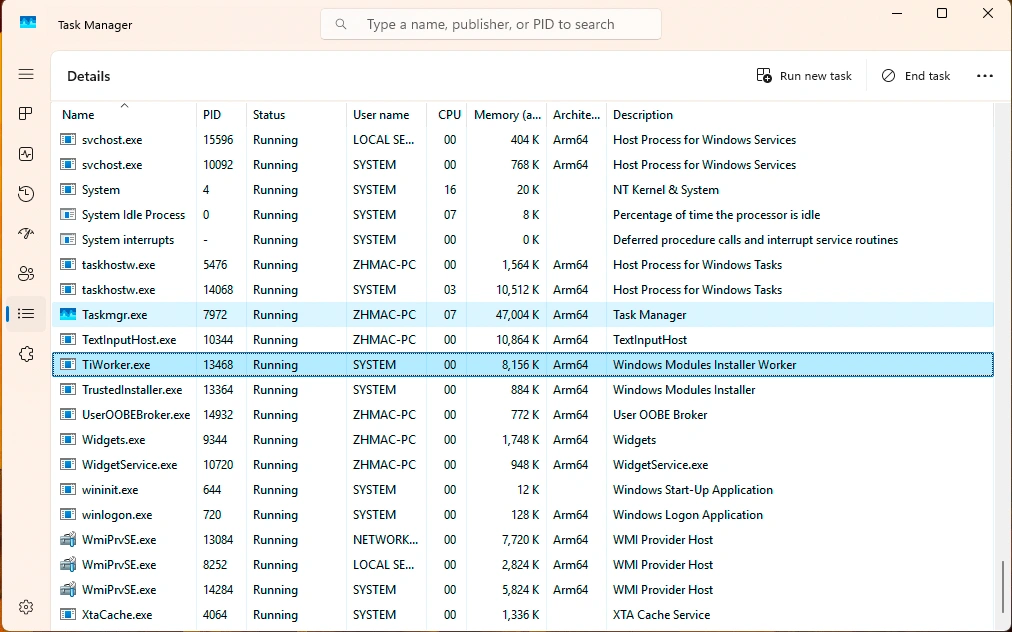
- Imprensa Ctrl + Shift + Esc para abrir o Gerenciador de Tarefas.
- Selecione o Detalhes guia.
- Clique com o botão direito do mouse TiWorker.exe.
- Selecione Abrir localização do arquivo.
Uma cópia ativa e legítima é normalmente armazenada em uma pasta de manutenção do Windows com controle de versões, no seguinte caminho:
C:\Windows\WinSxS\A pasta exata pode variar entre as versões do Windows e as atualizações da pilha de manutenção. Um arquivo TiWorker.exe armazenado em AppData, Temp, Downloads, Startup ou em uma pasta de aplicativo não relacionada deve ser investigado.
Verifique a assinatura digital
Clique com o botão direito do mouse no arquivo e selecione Propriedades, e abra o Assinaturas digitais guia. A assinatura deve ser válida e identificar a Microsoft como signatária.
Você também pode verificar a assinatura no PowerShell:
$path = (Get-Process TiWorker -Ação em caso de erro Pare).Caminho
Get-AuthenticodeSignature -CaminhoLiteral $path |
Lista de formatos Status, Certificado do Signatário
Uma assinatura válida da Microsoft corrobora a conclusão de que o arquivo é legítimo. A Microsoft documenta o comando de verificação de assinatura em seu Documentação do Get-AuthenticodeSignature.
Verifique as cópias suspeitas
Se o arquivo estiver armazenado fora de uma pasta de manutenção padrão do Windows, não tiver uma assinatura válida da Microsoft ou tiver surgido após um download de origem não confiável, execute uma verificação completa com o Windows Security.
Aberto Segurança do Windows > Proteção contra vírus e ameaças > Opções de verificação, e selecione Verificação completa ou Verificação do Microsoft Defender Offline. Não exclua manualmente o arquivo antes de confirmar se ele é malicioso.
Por que o TiWorker.exe consome tanto da CPU ou do disco?
TiWorker.exe pode consumir uma quantidade significativa de recursos da CPU ou do disco enquanto o Windows avalia, baixa, instala, substitui ou limpa componentes do sistema. Um pico temporário costuma ser normal quando o Windows Update está em andamento.
O uso contínuo tem maior probabilidade de indicar um problema quando:
- O Windows Update permanece na mesma porcentagem por um longo tempo.
- A mesma atualização falha repetidamente.
- A alta taxa de uso retorna após cada reinicialização.
- O TiWorker.exe permanece ativo quando o Windows Update não apresenta nenhuma atividade de manutenção.
- A unidade do sistema tem muito pouco espaço livre.
- O DISM ou o SFC indicam que há arquivos de componentes ou do sistema corrompidos.
- O arquivo executável está em um local inesperado ou possui uma assinatura inválida.
| O que você vê | Significado provável | Ação recomendada |
|---|---|---|
| O andamento do Windows Update está mudando | Atividade normal de atualização | Deixe terminar |
| O Windows solicita uma reinicialização | A atualização está aguardando conclusão | Salvar o trabalho e reiniciar |
| A utilização da CPU ou do disco permanece alta, sem que haja progresso | A atualização ou o reparo de um componente podem estar travados | Execute o solucionador de problemas |
| O uso intenso retorna após cada inicialização | Possível corrupção do armazenamento de componentes | Execute o DISM e o SFC |
| A localização ou a assinatura do arquivo é suspeita | Possível suplantação de identidade por malware | Execute uma verificação completa de segurança |
Como verificar se o TiWorker.exe é normal ou suspeito
Antes de aplicar as correções, faça uma verificação rápida.
Abrir o Gerenciador de Tarefas
Pressione Ctrl + Shift + Esc e, em seguida, localize TiWorker.exe ou Trabalhador do instalador de módulos do Windows.
Observe o momento
Se o uso da CPU aumentar enquanto o Windows estiver baixando, instalando ou finalizando atualizações, o processo pode estar se comportando normalmente. O uso elevado que volta a cair depois de algum tempo é menos preocupante.
Veja a duração
Se ele permanecer anormalmente alto por uma hora ou mais, se repetir a cada inicialização ou se levar o sistema quase a congelar, trate-o como um problema de solução de problemas em vez de manutenção normal. Esse padrão é comumente destacado em guias orientados a correções e casos de perguntas e respostas da Microsoft.
Executar uma varredura de segurança, se necessário
Se o comportamento parecer inconsistente com a atividade de atualização, examine o sistema com o Windows Security ou outra ferramenta antivírus confiável. Essa é uma etapa de verificação razoável, não porque TiWorker.exe normalmente é malware, mas porque nomes de processos copiados acontecem.
Como corrigir o alto consumo de CPU e disco pelo TiWorker.exe
Solução 1: Verifique o andamento do Windows Update
Aberto Configurações > Windows Update e verifique se uma atualização está sendo baixada, instalada, sendo tentada novamente ou aguardando uma reinicialização. Abra também Histórico de atualizações e anote qualquer código de erro que se repetir.
Se a porcentagem estiver mudando, mantenha o computador conectado à tomada e aguarde até que a atualização seja concluída. Encerrar repetidamente o TiWorker.exe pode fazer com que o Windows reinicie o mesmo processo de manutenção.
Solução 2: Reinicie o Windows
Se o Windows Update solicitar uma reinicialização, salve seu trabalho e reinicie normalmente. A reinicialização permite concluir as operações de atualização pendentes e limpar um estado temporário de manutenção.
Depois que o Windows reiniciar, volte para Configurações > Windows Update e verifique se a atualização foi concluída com sucesso.
Solução 3: Liberar espaço na unidade do sistema
O Windows precisa de espaço livre para baixar, descompactar e preparar as atualizações. Acesse Configurações > Sistema > Armazenamento > Recomendações de limpeza e exclua os arquivos dos quais você não precisa mais.
Não exclua manualmente arquivos da pasta WinSxS. O Windows gerencia esse repositório de componentes, e a exclusão de arquivos dele pode prejudicar as atualizações e as funções de reparo do sistema.
Solução 4: Execute o Solucionador de Problemas do Windows Update
No Windows 11:
- Aberto Configurações.
- Selecione Sistema > Solução de problemas > Outros guias de solução de problemas.
- Localizar Windows Update e selecione Executar.
- Reinicie o computador assim que o solucionador de problemas terminar.
- Verifique se há atualizações novamente.
O solucionador de problemas pode identificar problemas comuns relacionados ao serviço de atualização, ao download e à instalação que mantêm o Windows Modules Installer Worker ativo.
Solução 5: Reparar o Windows com o DISM e o SFC
Se o alto consumo de CPU pelo TiWorker.exe persistir, acompanhado de falhas nas atualizações ou erros do sistema, repare o armazenamento de componentes do Windows e os arquivos protegidos do sistema.
Aberto Terminal (Admin) ou Prompt de comando (Admin) e execute:
DISM.exe /Online /Cleanup-Image /RestoreHealthAguarde até que o DISM termine. Em seguida, execute:
sfc /scannowNão feche a janela antes que qualquer uma das operações seja concluída. Reinicie o Windows em seguida e verifique o Windows Update novamente.
Solução 6: Reinstalar o Windows por meio do Windows Update
Se os métodos anteriores não funcionarem, o Windows 11 pode oferecer uma opção de reinstalação com reparo:
- Aberto Configurações > Sistema > Recuperação.
- Localizar Corrija problemas usando o Windows Update.
- Selecione Reinstalar agora.
- Mantenha o computador conectado à tomada e siga as instruções na tela.
Essa opção reinstala a versão atual do Windows e repara os componentes do sistema, preservando os aplicativos instalados, os arquivos pessoais e as configurações. Faça backup dos arquivos importantes antes de iniciar qualquer reparo significativo no sistema.
Observação sobre o Windows 10: A Microsoft encerrou o suporte padrão ao Windows 10 em 14 de outubro de 2025. Esses métodos de solução de problemas ainda podem funcionar, mas os usuários devem considerar a migração para uma versão do Windows que ainda receba suporte.
É recomendável desativar ou excluir o TiWorker.exe?
Não. Você não deve desativar permanentemente o Instalador de Módulos do Windows, excluir o arquivo TiWorker.exe nem baixar um executável substituto de um site de terceiros.
O TiWorker.exe é necessário para a manutenção dos componentes do Windows. Removê-lo ou desativar permanentemente os serviços relacionados pode impedir que as atualizações de segurança, os recursos opcionais e os reparos do sistema funcionem corretamente.
Evite essas ações:
- Não exclua o arquivo TiWorker.exe.
- Não desative permanentemente o Windows Update.
- Não baixe um arquivo TiWorker.exe substituto.
- Não exclua manualmente arquivos da pasta WinSxS.
- Não limpe rotineiramente a pasta SoftwareDistribution como primeira medida.
- Não presuma que um alto consumo de CPU, por si só, signifique a presença de malware.
Resolva o problema da atualização com falha ou do armazenamento de componentes corrompido, em vez de remover o processo necessário ao Windows.
E se o computador congelar completamente?
Esse é o cenário do mundo real que muitos artigos ignoram.
Às vezes TiWorker.exe A carga relacionada torna-se grave o suficiente para que o mouse pare de responder, os aplicativos travem e o sistema não seja desligado normalmente. Se o computador estiver completamente congelado e você não puder iniciar a solução normal de problemas, talvez não haja outra opção prática a não ser a reinicialização manual.
Isso significa manter pressionado o botão liga/desliga para forçar o desligamento do computador e, em seguida, ligá-lo novamente.
Esse deve ser o último recurso. Uma reinicialização forçada durante atualizações ou atividade intensa do disco pode interromper o trabalho não salvo ou deixar os arquivos em um estado incompleto. As orientações de reparo da Microsoft também observam que a instabilidade do Windows, as falhas de atualização e a corrupção de arquivos geralmente andam juntas, e é por isso que as verificações de arquivos e as verificações de recuperação fazem sentido depois que o sistema volta a funcionar.
E se o travamento do TiWorker.exe causar perda de arquivos?
O TiWorker.exe normalmente não exclui arquivos pessoais. No entanto, se o computador deixar de responder completamente e você forçar o desligamento, o Windows poderá interromper uma operação ativa de gravação de arquivo, salvamento de documento ou transferência.
Após reiniciar o computador, verifique primeiro o recurso de Recuperação Automática do aplicativo afetado, os Arquivos Recentes, a Lixeira, o Histórico de Arquivos, o OneDrive e quaisquer backups disponíveis. Lembre-se de que os softwares de recuperação de dados não conseguem recriar trabalhos que existiam apenas na memória e nunca foram salvos no disco.
Se um arquivo que havia sido salvo anteriormente tiver sido excluído, desaparecido da pasta em que estava ou se tornado inacessível devido a um erro no sistema de arquivos, pare de gravar novos dados na unidade afetada. Novas atividades podem sobrescrever informações recuperáveis.
Nessa situação, Magic Data Recovery pode verificar a unidade afetada em busca de arquivos perdidos devido a exclusão, formatação ou problemas lógicos no sistema de arquivos. Instale o software em uma unidade diferente, se possível, e salve os arquivos recuperados em outro local de armazenamento.

Conclusão
O TiWorker.exe é, normalmente, um componente legítimo do Windows responsável pela instalação e manutenção de atualizações. É normal que haja um pico temporário no uso da CPU ou do disco enquanto o Windows Update estiver em andamento, mas picos repetidos no uso de recursos, falhas nas atualizações, um local incomum do arquivo ou uma assinatura inválida exigem uma investigação mais aprofundada.
Comece verificando o Windows Update, reiniciando o computador, liberando espaço na unidade do sistema e executando o Solucionador de Problemas do Windows Update. Se o problema persistir, execute o DISM e, em seguida, o SFC. Não desative permanentemente o Instalador de Módulos do Windows nem exclua o arquivo TiWorker.exe.
Se um desligamento forçado fizer com que um arquivo salvo anteriormente desapareça, pare de usar a unidade afetada e siga as instruções apropriadas recuperação de arquivos excluídos passos a serem seguidos antes que os dados perdidos sejam sobrescritos.
Compatível com Windows 7/8/10/11 e Windows Server
Perguntas frequentes
O que é o TiWorker.exe?
O TiWorker.exe é um vírus?
Onde fica o arquivo TiWorker.exe?
Por que o TiWorker.exe está usando tanta CPU?
Por que o TiWorker.exe ocupa tanto espaço no disco?
Posso encerrar o TiWorker.exe no Gerenciador de Tarefas?
Posso desativar ou excluir o TiWorker.exe?
O travamento do TiWorker.exe pode causar perda de dados?

Jason é especialista em recuperação de dados e suporte técnico, com mais de 15 anos de experiência prática. Ele tem trabalhado extensivamente com usuários finais, resolvendo casos complexos de perda de dados e oferecendo soluções práticas de recuperação para exclusões acidentais, unidades formatadas, sistemas de arquivos danificados, partições perdidas, falhas de sistema e outras emergências de recuperação. Sua especialização também abrange backup e restauração, reparo de arquivos e recuperação de desastres, com forte ênfase em orientações seguras, confiáveis e tecnicamente precisas.