
BitLocker Could Not Be Enabled? How to Fix It on Windows 10/11
A mensagem “BitLocker could not be enabled” often appears after you finish setup and restart your PC. Sometimes Windows cannot access the startup key. In other cases, a partition, policy, or unavailable device stops encryption. The right fix depends on the full message and when it appears.
Before changing firmware or drive settings, check whether the drive already contains encrypted data. If you need to locate an existing recovery key, Magic Recovery Key provides a dedicated search feature. It helps with key retrieval; it does not repair encryption settings. Our Guia de recuperação do BitLocker covers related recovery situations.
This guide explains how to identify the failure, choose a suitable repair, and confirm that Windows actually protects the drive afterward.
Índice
Why BitLocker Could Not Be Enabled Appears
BitLocker needs a working unlock method and a suitable drive configuration. For the Windows drive, that usually involves the Trusted Platform Module, or TPM: a security component that helps protect encryption keys.
However, an enablement failure does not automatically mean the TPM has failed. Microsoft documents a case where the startup hardware test cannot read the USB device holding the startup key. BitLocker then refuses to begin encryption because the computer might not unlock correctly at the next boot.
The failure stage gives you a useful starting point:
When the error appears | What to investigate first |
Immediately after choosing Turn on BitLocker | Windows edition, drive selection, settings, and the exact error |
After restarting for the system check | TPM readiness, startup-key availability, and firmware |
While saving recovery information | Backup destination, account access, and organizational policy |
While encrypting an external drive | Connection stability, device availability, and volume status |
At a recovery screen before Windows starts | Recovery-key access and startup recovery |
A recovery screen on an already encrypted PC needs a different approach from a failed first-time setup. Do not assume both problems require turning encryption off.
Before You Fix BitLocker Could Not Be Enabled
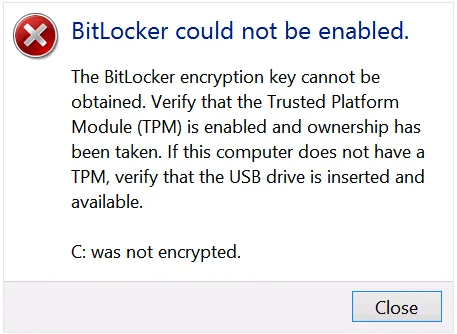
Record the complete error, including any code. Then back up accessible files and save an existing recovery key somewhere separate from the affected drive.
On a work or school computer, contact IT before changing BitLocker policy, firmware, or protectors. Your organization may control both encryption and recovery-key storage.
Check your Windows edition
Aberto Settings > System > About and check the Windows edition. Full BitLocker Drive Encryption management is available in editions such as Pro, Enterprise, and Education. Eligible Home devices can offer Device Encryption, which uses BitLocker technology but provides a different management experience.
Se você estiver procurando por “BitLocker could not be enabled Windows 10,” start with this check rather than installing tools that promise to add unsupported features.
Check encryption status first
Aberto Linha de comando como administrador e execute:
- manage-bde -status
For details about the Windows volume, run:
- manage-bde -status C:
- manage-bde -protectors -get C:
Substituir C: if you are investigating another volume.
The status output shows conversion progress, protection status, and lock status. The protector listing identifies configured unlock methods and may display a recovery password. Keep that output private.
Pay particular attention to these distinctions:
- Fully Decrypted: encryption is not currently applied to the volume.
- Encryption in Progress: conversion has already started.
- Protection Off: check the conversion status too; the volume may still contain encrypted data.
- Unlocked: Windows can access the volume now. This does not mean encryption is off.
Avoid repeatedly running enable commands when conversion already runs or the device is waiting for activation.
BitLocker Error Codes: What They Mean
These codes describe different conditions. They do not identify a single repair that works on every PC.
Error or search term | Significado | First diagnostic direction |
0x80070057 BitLocker | Invalid parameter | Check the command, selected volume, and relevant configuration |
0x80070002 BitLocker | Requested file cannot be found | Identify the missing file or path from the failing operation |
0x80070015 BitLocker | Device not ready | Check whether the target or backup device is accessible |
8007139f BitLocker | Invalid state; often shown as 0x8007139f | Establish whether setup, startup, or recovery failed |
Microsoft defines the underlying Windows errors as invalid parameter, file not found, device not ready, and invalid state. Treat the checks above as diagnostic starting points, rather than confirmed causes for your particular computer.
How to Fix BitLocker Could Not Be Enabled
Choose the section that matches your symptoms. After each relevant change, retry once and check the new status or event message.
1. Check the TPM When the Message Mentions Encryption Keys
Imprensa Windows + R, digite tpm.msc, and check the status. For more detail, open Windows PowerShell as administrator e execute:
Get-Tpm
Check whether Windows detects the TPM and reports it as ready. If Windows cannot find it:
- Check your PC manufacturer’s firmware instructions.
- Confirm that the firmware enables the TPM feature.
- Look for names such as Intel PTT, AMD fTPM, ou Suporte a dispositivos de segurança.
- Restart and check the status again.
Use the manufacturer’s guidance for your exact model. Firmware menus differ.
If Windows reports TPM lockout or preparation errors, follow the matching Microsoft troubleshooting procedure. Do not clear the TPM as a routine first step: Microsoft warns that clearing it can cause data loss. Preserve recovery access before any reset.
For an already encrypted system, follow the device maker’s instructions for suspending and resuming protection around firmware maintenance. Do not switch between Legacy and UEFI boot modes simply to test whether the error disappears.
2. Check the USB Startup Key After a Failed Restart Test
Se “BitLocker could not be enabled” appears after the hardware test and your configuration uses a USB startup key, check that USB device first.
- Leave the startup-key USB drive connected during restart.
- Connect it directly to the PC.
- Try another built-in USB port.
- Check the manufacturer’s instructions for USB support during startup.
- If necessary, create the startup key on a different compatible USB drive through the appropriate BitLocker setup process.
Microsoft identifies unreadable USB ports, incompatible USB devices, and firmware behavior as possible causes in this scenario.
A USB startup key and a printed 48-digit recovery password serve different roles. A flash drive containing only a text copy of the recovery password does not automatically act as a startup-key device.
3. Investigate 0x80070057 BitLocker Errors in Context
A code 0x80070057 BitLocker message indicates an invalid parameter, but that description alone does not tell you which setting failed.
Start with the action that produced it:
- A command failed: confirm its syntax and target drive letter.
- The setup wizard failed: record whether it stopped during drive preparation, protector setup, or recovery-key backup.
- A deployment task failed: ask IT to inspect the task’s logs and applied policy.
Microsoft documents a specific enablement failure involving an operating-system disk without a separate active system partition. That article describes older Windows layouts. Its partition preparation command is not a universal Windows 10/11 fix.
To inspect your current layout:
- Aberto
msinfo32and note Modo BIOS. - Aberto
diskmgmt.msc. - Identify the disk containing Windows.
- Inspect its existing system partitions without modifying them.
Modern UEFI installations normally use a FAT32 EFI System Partition; legacy systems use a different arrangement. A recovery partition has a separate purpose.
Do not format, delete, or mark partitions active based only on 0x80070057 BitLocker search results. If the evidence points to a layout problem, back up the disk and arrange a repair that matches its firmware and partition style.
4. Trace the Missing File Behind 0x80070002 BitLocker
Para um 0x80070002 BitLocker failure, identify what Windows tried to open.
For example, a command might reference a startup-key file on a USB drive whose letter changed. A recovery-environment operation may instead point to an unavailable Windows RE image.
Use this sequence:
- Check any file path in the command or event.
- Confirm that the referenced device is connected.
- Verify its current drive letter.
- If the failure concerns recovery setup, check Windows RE:
- reagentc /info
If Windows RE is disabled on the running Windows installation, try:
- reagentc /enable
Then run reagentc /info again. If enabling fails, record the message and repair the identified image or configuration problem. Do not delete the recovery partition to make the error disappear. Microsoft’s REAgentC documentation explains these commands and their scope.
For evidence of missing or damaged Windows system files, use Microsoft’s repair sequence:
- DISM.exe /Online /Cleanup-Image /RestoreHealth
- sfc /scannow
Run SFC after DISM finishes successfully. These tools repair Windows components; they cannot recreate a lost personal recovery-key file.
5. Check Device Availability for 0x80070015 BitLocker
A 0x80070015 BitLocker error points to a device that is not ready. First determine which device the failing operation needs: the encrypted volume, a startup-key USB, or the recovery-key backup destination.
For an external drive:
- Check that File Explorer and Disk Management detect the expected device.
- Confirm the drive letter and capacity.
- Check its power supply and cable.
- Try a direct USB connection if a hub causes intermittent detection.
Do not disconnect a drive during active encryption. If it repeatedly disappears or reports read errors, stop repeated enablement attempts and protect accessible files first.
Cancel any unexpected initialization or formatting prompt for a drive containing needed data. Formatting does not resolve the underlying access problem while preserving those files.
6. Separate 8007139f BitLocker Setup Errors From Recovery Loops
The underlying invalid-state code does not prove that the TPM, bootloader, or disk has failed.
Para um 8007139f BitLocker error inside Windows, inspect volume status and the event recorded at the same time. Determine whether another encryption operation or an incomplete configuration explains the state.
If the code appears before Windows starts:
- Record the screen and any recovery-key ID.
- Retrieve the matching 48-digit recovery password.
- Use the available Windows recovery options if normal startup still fails.
- Give IT or support the recent firmware, hardware, or boot changes.
Do not apply desktop repair commands blindly from recovery mode. Drive letters can differ there.
If the screen requests a key, follow our 48-digit BitLocker recovery key guide. A valid key restores an unlock method; it does not necessarily repair the startup fault.
7. Review Event Logs and Organizational Policy
Quando BitLocker could not be enabled still appears, use evidence from the failure time.
Aberto Event Viewer > Applications and Services Logs > Microsoft > Windows. Review the available BitLocker-API logs. Check Windows Logs > System for TPM and TPM-WMI events as well.
Save the event ID, full message, affected volume, and timestamp.
For managed computers, ask IT to check effective policy and recovery-key backup requirements. BitLocker may need to store recovery information in the organization’s directory before activation can continue. Troubleshoot that requirement with the administrator rather than disabling it locally.
Where Magic Recovery Key Helps
Fixing an enablement error may involve settings, firmware, or Windows repair. Before that work, you may also need a recovery key for an existing encrypted volume.
Check your Microsoft account, work or school account, printed records, and saved backups first. Match the recovery-key ID to the affected drive. Microsoft explains these locations in its recovery-key guidance.
Magic Recovery Key adds a dedicated search workflow when you need to look for recoverable BitLocker key information on accessible storage. It also retrieves supported installed-software product keys and saved Wi-Fi passwords.
For example, you might still have access to Windows but cannot remember where you saved the key before planned firmware maintenance.
Compatível com Windows 7/8/10/11 e Windows Server
To search:
1. Install and launch the tool on a working Windows computer.
2. Abrir Chave de recuperação do BitLocker.

3. Select the disk to search and click Pesquisa.

4. If it finds a key, verify the key ID and save a secure copy.
Siga a Manual do usuário do Magic Recovery Key for the current interface.
Its practical advantage is a focused search and copy/save workflow, which can reduce manual searching and transcription. We recommend it for that role, rather than claiming it outperforms an existing verified account backup.
Results depend on accessible key information. The tool cannot generate a missing key, bypass BitLocker encryption, or repair the TPM. You also cannot install a desktop utility directly on a PC that cannot boot.
Verify That the Fix Worked
After resolving the cause, return to Gerenciar o BitLocker. Continue setup if the volume remains fully decrypted, and back up the recovery key when Windows prompts you.
Executar:
- manage-bde -status C:
Check conversion progress and protection status. Once conversion finishes, confirm that protection is on and that the intended unlock method works after restart. If maintenance suspended protection, resume it through Manage BitLocker and verify again.
An error dialog disappearing does not by itself prove that the drive is protected.
Conclusão
Quando BitLocker could not be enabled, start with the failure stage and current volume status. TPM readiness, USB startup-key access, partition configuration, missing files, and unavailable devices each need a different response.
Recomendamos Magic Recovery Key when the immediate problem includes locating existing BitLocker recovery-key information. Its dedicated search and export workflow can help you preserve access before further troubleshooting. For related recovery steps, keep our Recuperação do BitLocker handy.
Compatível com Windows 7/8/10/11 e Windows Server
Perguntas frequentes
Why does BitLocker could not be enabled appear after restarting?
How do I fix BitLocker could not be enabled Windows 10 errors?
manage-bde -status, and identify the failure stage. Then investigate the matching TPM, USB, partition, or policy issue. Back up accessible files and any existing recovery key before changing the configuration.What does a code 0x80070057 BitLocker error mean?
Does 0x80070002 BitLocker mean my recovery key is gone?
How can I resolve 0x80070015 BitLocker on an external drive?
Is 8007139f BitLocker always a TPM problem?
Should I clear the TPM to fix an enablement failure?
Can Magic Recovery Key fix BitLocker enablement errors?

Jason é especialista em recuperação de dados e suporte técnico, com mais de 15 anos de experiência prática. Ele tem trabalhado extensivamente com usuários finais, resolvendo casos complexos de perda de dados e oferecendo soluções práticas de recuperação para exclusões acidentais, unidades formatadas, sistemas de arquivos danificados, partições perdidas, falhas de sistema e outras emergências de recuperação. Sua especialização também abrange backup e restauração, reparo de arquivos e recuperação de desastres, com forte ênfase em orientações seguras, confiáveis e tecnicamente precisas.