
BitLocker を有効にできない? Windows 10/11 での解決方法
メッセージ “「BitLocker を有効にできませんでした」” このメッセージは、セットアップを完了してPCを再起動した後に表示されることがよくあります。Windowsが起動キーにアクセスできない場合があります。また、パーティション、ポリシー、または使用できないデバイスが原因で暗号化が中断されることもあります。適切な対処法は、メッセージの全文や表示されるタイミングによって異なります。.
ファームウェアやドライブの設定を変更する前に、そのドライブにすでに暗号化されたデータが含まれていないか確認してください。既存の復元キーを探す必要がある場合は、, Magic Recovery Key 専用の検索機能を提供しています。これはキーの検索に役立ちますが、暗号化設定の修復は行いません。当社の BitLocker 復旧ガイド 関連する復旧の状況を網羅しています。.
このガイドでは、障害の特定方法、適切な修復方法の選択方法、および修復後にWindowsが実際にドライブを保護していることを確認する方法について説明します。.
目次
BitLocker を有効にできなかった理由が表示される
BitLocker を使用するには、正常に機能するロック解除方法と適切なドライブ構成が必要です。Windows ドライブの場合、通常は TPM(Trusted Platform Module)が使用されます。TPM は、暗号化キーの保護に役立つセキュリティコンポーネントです。.
ただし、有効化に失敗したからといって、必ずしもTPMが故障しているとは限りません。マイクロソフトのドキュメントには、起動ハードウェアテストで起動キーが格納されたUSBデバイスを読み取れないケースが記載されています。その場合、次回の起動時にコンピュータが正しくロック解除されない可能性があるため、BitLockerは暗号化の開始を拒否します。.
「失敗の段階」は、有用な出発点となります:
エラーが表示されたとき | まず何を調査すべきか |
「BitLockerを有効にする」を選択した直後 | Windows版、ドライブの選択、設定、および具体的なエラー内容 |
システムチェックのために再起動した後 | TPMの準備状況、起動キーの可用性、およびファームウェア |
復元情報を保存している間 | バックアップ先、アカウントへのアクセス、および組織の方針 |
外付けドライブの暗号化中に | 接続の安定性、デバイスの利用可能性、および容量の状態 |
Windowsの起動前の復旧画面で | リカバリキーによるアクセスと起動時のリカバリ |
すでに暗号化されているPCの復旧画面では、初期設定に失敗した場合とは異なる対応が必要です。どちらの問題も暗号化を無効にする必要があるとは決めつけないでください。.
「BitLocker を有効にできませんでした」というエラーを修正する前に
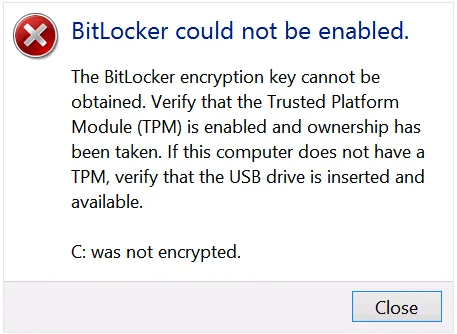
エラーメッセージを、コードも含めてすべて記録してください。その後、アクセス可能なファイルのバックアップを取り、既存の復元キーを問題のドライブとは別の場所に保存してください。.
職場や学校のコンピュータでは、BitLocker のポリシー、ファームウェア、またはプロテクターを変更する前に、IT 部門に連絡してください。所属組織によっては、暗号化と復元キーの保存の両方を管理している場合があります。.
お使いの Windows のエディションを確認してください
オープン 「設定」>「システム」>「バージョン情報」 また、Windowsのエディションを確認してください。BitLockerドライブ暗号化のすべての管理機能は、Pro、Enterprise、Educationなどのエディションで利用可能です。対象となるHomeエディションのデバイスでは、BitLockerテクノロジーを採用しつつも、異なる管理環境を提供する「デバイス暗号化」が利用可能です。.
をお探しなら “「Windows 10 で BitLocker を有効にできませんでした」” サポート対象外の機能を追加すると謳うツールをインストールするよりも、まずはこの確認から始めてください。.
まず暗号化の状態を確認してください
オープン 管理者としてコマンドプロンプトを実行する そして、次のように実行します:
- manage-bde -ステータス
Windows ボリュームの詳細を確認するには、次のコマンドを実行してください:
- manage-bde -status C:
- manage-bde -protectors -get C:
交換 C: 別のボリュームを調査している場合は。.
ステータス出力には、変換の進捗状況、保護ステータス、およびロックステータスが表示されます。プロテクターの一覧には、設定済みのロック解除方法が記載されており、復旧パスワードが表示される場合もあります。この出力内容は他者に開示しないでください。.
特に以下の違いに注意してください:
- 完全解読: 現在、このボリュームには暗号化が適用されていません。.
- 暗号化処理中: 転換はすでに始まっています。.
- 保護オフ: 変換状況も確認してください。ボリュームにはまだ暗号化されたデータが含まれている可能性があります。.
- ロック解除: これで Windows からそのボリュームにアクセスできるようになりました。ただし、これは暗号化が解除されたことを意味するわけではありません。.
変換がすでに実行されている場合や、デバイスがアクティベーションを待機している場合は、enable コマンドを繰り返し実行しないようにしてください。.
BitLockerのエラーコード:その意味
これらのコードは、さまざまな状態を表しています。これらは、すべてのPCに通用する単一の修理方法を示しているわけではありません。.
エラーまたは検索語 | 意味 | 最初の診断方針 |
0x80070057 BitLocker | 無効なパラメータ | コマンド、選択したボリューム、および関連する設定を確認してください |
0x80070002 BitLocker | 指定されたファイルが見つかりません | 失敗した操作から、欠落しているファイルまたはパスを特定する |
0x80070015 BitLocker | デバイスが準備できていません | ターゲットデバイスまたはバックアップデバイスにアクセスできるかどうかを確認してください |
8007139f BitLocker | 無効な状態。多くの場合、0x8007139f と表示されます。 | セットアップ、起動、または復旧のいずれが失敗したかを確認する |
マイクロソフトは、根本的な Windows のエラーとして、「無効なパラメータ」、「ファイルが見つかりません」、「デバイスが準備できていません」、「無効な状態」を挙げています。上記のチェック項目は、特定のコンピュータにおける確定した原因というよりは、診断の出発点として捉えてください。.
「BitLocker を有効にできませんでした」というエラーの解決方法
ご自身の症状に当てはまる項目を選んでください。関連する変更を行うたびに、一度再試行し、新しいステータスやイベントメッセージを確認してください。.
1. メッセージに暗号化キーに関する記述がある場合は、TPMを確認してください
プレス Windows + R, 入力 tpm.msc, 、そしてステータスを確認してください。詳細については、以下を開いてください。 管理者としてWindows PowerShellを実行する そして、次のように実行します:
Get-Tpm
Windows が TPM を検出し、「使用可能」と表示しているかどうかを確認してください。Windows が TPM を検出できない場合は:
- お使いのPCのメーカーが提供するファームウェアの取扱説明書をご確認ください。.
- ファームウェアでTPM機能が有効になっていることを確認してください。.
- 次のような名前を探してみてください。 インテルPTT, AMD fTPM, あるいは セキュリティ・デバイス・サポート.
- 再起動して、再度ステータスを確認してください。.
お使いの機種に応じたメーカーのガイドラインに従ってください。ファームウェアのメニューは機種によって異なります。.
Windows で TPM のロックアウトまたは準備エラーが報告された場合は、該当する Microsoft のトラブルシューティング手順に従ってください。最初の対応として、TPM をクリアしないでください。Microsoft は、TPM をクリアするとデータが失われる可能性があるとして警告しています。リセットを行う前に、復旧用のアクセス手段を確保しておいてください。.
すでに暗号化されているシステムの場合は、ファームウェアのメンテナンスに際して保護機能を一時停止および再開する方法について、デバイスメーカーの指示に従ってください。エラーが解消されるかどうかを確認するためだけに、レガシーブートモードとUEFIブートモードを切り替えないでください。.
2. 再起動テストに失敗した後のUSB起動キーの確認
もし “「BitLocker を有効にできませんでした」” ハードウェアテストの後に表示され、お使いの構成でUSB起動キーを使用している場合は、まずそのUSBデバイスを確認してください。.
- 再起動中は、起動用USBメモリを接続したままにしておいてください。.
- PCに直接接続してください。.
- 別の内蔵USBポートを試してみてください。.
- 起動時のUSB対応については、メーカーの取扱説明書をご確認ください。.
- 必要に応じて、互換性のある別のUSBドライブ上で、適切なBitLocker設定手順に従って起動用キーを作成してください。.
マイクロソフトは、この状況における考えられる原因として、認識されないUSBポート、互換性のないUSBデバイス、およびファームウェアの挙動を挙げています。.
USB起動キーと、印刷された48桁の復旧パスワードは、それぞれ異なる役割を果たします。復旧パスワードのテキストコピーのみが保存されたUSBメモリは、自動的に起動キーとして機能するわけではありません。.
3. 調査する 0x80070057 BitLocker 文脈における誤り
A コード 0x80070057 BitLocker このメッセージはパラメータが無効であることを示していますが、その説明だけでは、どの設定に問題があったのかはわかりません。.
まず、それが生じたきっかけとなった行動から始めましょう:
- コマンドの実行に失敗しました: その構文と対象のドライブ文字を確認してください。.
- セットアップウィザードが失敗しました: ドライブの準備中、プロテクターの設定中、またはリカバリキーのバックアップ中に停止したかどうかを記録してください。.
- デプロイメントタスクが失敗しました: IT部門に、そのタスクのログと適用されたポリシーを確認してもらう。.
マイクロソフトは、個別のアクティブなシステムパーティションがないオペレーティングシステムディスクに関連する、特定の有効化エラーについて記載しています。その記事では、以前の Windows のパーティション構成について説明しています。記事に記載されているパーティション準備コマンドは、Windows 10/11 における万能な解決策ではありません。.
現在のレイアウトを確認するには:
- オープン
msinfo32なお、以下の点に留意してください BIOSモード. - オープン
diskmgmt.msc. - Windows がインストールされているディスクを特定してください。.
- Inspect its existing system partitions without modifying them.
Modern UEFI installations normally use a FAT32 EFI System Partition; legacy systems use a different arrangement. A recovery partition has a separate purpose.
Do not format, delete, or mark partitions active based only on 0x80070057 BitLocker search results. If the evidence points to a layout problem, back up the disk and arrange a repair that matches its firmware and partition style.
4. Trace the Missing File Behind 0x80070002 BitLocker
の場合 0x80070002 BitLocker failure, identify what Windows tried to open.
For example, a command might reference a startup-key file on a USB drive whose letter changed. A recovery-environment operation may instead point to an unavailable Windows RE image.
Use this sequence:
- Check any file path in the command or event.
- Confirm that the referenced device is connected.
- Verify its current drive letter.
- If the failure concerns recovery setup, check Windows RE:
- reagentc /info
If Windows RE is disabled on the running Windows installation, try:
- reagentc /enable
Then run reagentc /info again. If enabling fails, record the message and repair the identified image or configuration problem. Do not delete the recovery partition to make the error disappear. Microsoft’s REAgentC documentation explains these commands and their scope.
For evidence of missing or damaged Windows system files, use Microsoft’s repair sequence:
- DISM.exe /オンライン/クリーンアップ-イメージ/RestoreHealth
- sfc /scannow
Run SFC after DISM finishes successfully. These tools repair Windows components; they cannot recreate a lost personal recovery-key file.
5. Check Device Availability for 0x80070015 BitLocker
A 0x80070015 BitLocker error points to a device that is not ready. First determine which device the failing operation needs: the encrypted volume, a startup-key USB, or the recovery-key backup destination.
For an external drive:
- Check that File Explorer and Disk Management detect the expected device.
- Confirm the drive letter and capacity.
- Check its power supply and cable.
- Try a direct USB connection if a hub causes intermittent detection.
Do not disconnect a drive during active encryption. If it repeatedly disappears or reports read errors, stop repeated enablement attempts and protect accessible files first.
Cancel any unexpected initialization or formatting prompt for a drive containing needed data. Formatting does not resolve the underlying access problem while preserving those files.
6. Separate 8007139f BitLocker Setup Errors From Recovery Loops
The underlying invalid-state code does not prove that the TPM, bootloader, or disk has failed.
For an 8007139f BitLocker error inside Windows, inspect volume status and the event recorded at the same time. Determine whether another encryption operation or an incomplete configuration explains the state.
If the code appears before Windows starts:
- Record the screen and any recovery-key ID.
- Retrieve the matching 48-digit recovery password.
- Use the available Windows recovery options if normal startup still fails.
- Give IT or support the recent firmware, hardware, or boot changes.
Do not apply desktop repair commands blindly from recovery mode. Drive letters can differ there.
If the screen requests a key, follow our 48-digit BitLocker recovery key guide. A valid key restores an unlock method; it does not necessarily repair the startup fault.
7. Review Event Logs and Organizational Policy
いつ BitLocker could not be enabled still appears, use evidence from the failure time.
オープン Event Viewer > Applications and Services Logs > Microsoft > Windows. Review the available BitLocker-API logs. Check Windows Logs > System for TPM and TPM-WMI events as well.
Save the event ID, full message, affected volume, and timestamp.
For managed computers, ask IT to check effective policy and recovery-key backup requirements. BitLocker may need to store recovery information in the organization’s directory before activation can continue. Troubleshoot that requirement with the administrator rather than disabling it locally.
Where Magic Recovery Key Helps
Fixing an enablement error may involve settings, firmware, or Windows repair. Before that work, you may also need a recovery key for an existing encrypted volume.
Check your Microsoft account, work or school account, printed records, and saved backups first. Match the recovery-key ID to the affected drive. Microsoft explains these locations in its recovery-key guidance.
Magic Recovery Key adds a dedicated search workflow when you need to look for recoverable BitLocker key information on accessible storage. It also retrieves supported installed-software product keys and saved Wi-Fi passwords.
For example, you might still have access to Windows but cannot remember where you saved the key before planned firmware maintenance.
Windows 7/8/10/11およびWindows Serverをサポート
To search:
1. Install and launch the tool on a working Windows computer.
2.開く BitLockerリカバリキー.

3. Select the disk to search and click 検索.

4. If it finds a key, verify the key ID and save a secure copy.
に従う。 Magic Recovery Key ユーザーガイド for the current interface.
Its practical advantage is a focused search and copy/save workflow, which can reduce manual searching and transcription. We recommend it for that role, rather than claiming it outperforms an existing verified account backup.
Results depend on accessible key information. The tool cannot generate a missing key, bypass BitLocker encryption, or repair the TPM. You also cannot install a desktop utility directly on a PC that cannot boot.
Verify That the Fix Worked
After resolving the cause, return to BitLockerの管理. Continue setup if the volume remains fully decrypted, and back up the recovery key when Windows prompts you.
走れ:
- manage-bde -status C:
Check conversion progress and protection status. Once conversion finishes, confirm that protection is on and that the intended unlock method works after restart. If maintenance suspended protection, resume it through Manage BitLocker and verify again.
An error dialog disappearing does not by itself prove that the drive is protected.
まとめ
いつ BitLocker could not be enabled, start with the failure stage and current volume status. TPM readiness, USB startup-key access, partition configuration, missing files, and unavailable devices each need a different response.
私たちは次のように勧める。 Magic Recovery Key when the immediate problem includes locating existing BitLocker recovery-key information. Its dedicated search and export workflow can help you preserve access before further troubleshooting. For related recovery steps, keep our ビットロッカーのリカバリ handy.
Windows 7/8/10/11およびWindows Serverをサポート
よくあるご質問
再起動後に「BitLocker を有効にできませんでした」というメッセージが表示されるのはなぜですか?
Windows 10で「BitLockerを有効にできませんでした」というエラーが発生した場合、どのように修正すればよいですか?
manage-bde -ステータス, そして障害の段階を特定します。その後、該当するTPM、USB、パーティション、またはポリシーの問題を調査します。設定を変更する前に、アクセス可能なファイルや既存の復旧キーをバックアップしてください。.BitLockerのエラーコード「0x80070057」とはどういう意味ですか?
BitLockerのエラーコード「0x80070002」は、回復キーが失われたことを意味するのでしょうか?
外付けドライブで発生した 0x80070015 の BitLocker エラーをどのように解決すればよいですか?
8007139f の BitLocker エラーは、常に TPM の問題なのでしょうか?
有効化エラーを修正するために、TPMを初期化すべきでしょうか?
Magic Recovery KeyはBitLockerの有効化エラーを修正できますか?

Jasonは、15年以上の実務経験を持つデータ復旧およびテクニカルサポートの専門家です。 彼は第一線のユーザーと幅広く連携し、困難なデータ損失事例のトラブルシューティングを行うとともに、誤削除、ドライブのフォーマット、ファイルシステムの破損、パーティションの消失、システム障害、その他の緊急の復旧事態に対して、実用的な復旧ソリューションを提供してきました。また、バックアップと復元、ファイル修復、災害復旧にも精通しており、安全かつ信頼性が高く、技術的に正確な指導を特に重視しています。.