
Solid State Drive:What is an SSD
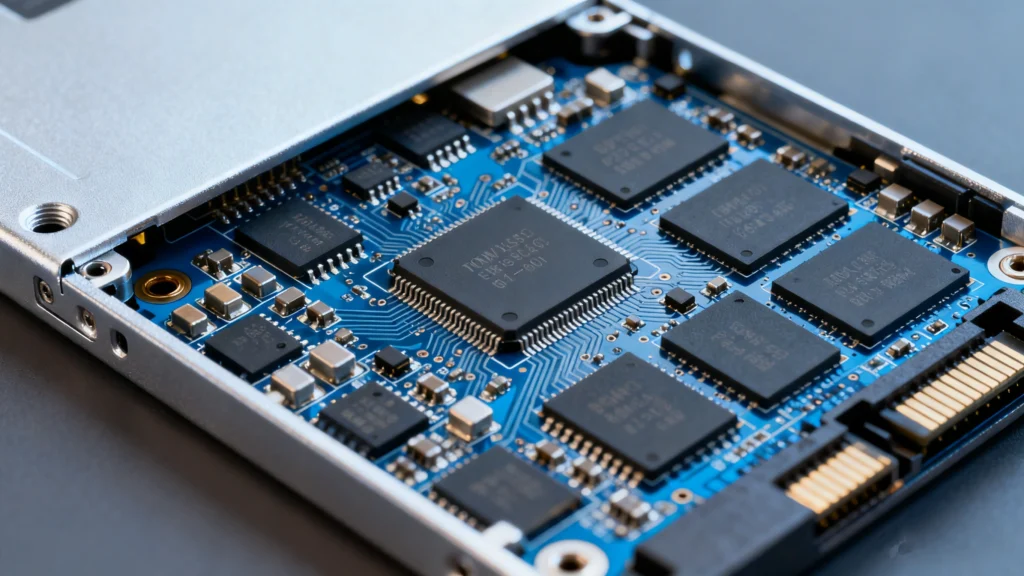
Storage performance directly affects how fast a computer boots, how smoothly applications run, and how safely data is stored. What is an SSD? An SSD (Solid State Drive) is a modern storage device that uses flash memory instead of spinning disks to store data.
Thanks to flash-based storage architecture, solid-state solutions offer faster speeds, lower power consumption, and better durability. However, higher performance does not mean zero risk. Accidental deletion, formatting mistakes, and system failures can still cause data loss.
This guide explains what an SSD is, its strengths and weaknesses, how it differs from HDDs, real-world usage scenarios, and how to recover lost data from solid-state storage using Magic Data Recovery.
Supports Windows 7/8/10/11 and Windows Server
Table of Contents
What is an SSD (Solid State Drive)?
An SSD is a storage device that saves data using NAND flash memory instead of spinning magnetic platters. Because there are no moving parts, solid-state storage delivers faster access times and improved reliability.
How Solid-State Storage Works
A Solid State Drive stores data in flash memory cells. An internal controller manages:
- Data allocation
- Wear leveling
- Error correction
- Performance optimization
Unlike mechanical drives, flash-based storage accesses data electronically, which explains the significant speed advantage in everyday use.
Pros and Cons of Solid-State Storage
Advantages of Using an SSD
Solid-state drives are widely adopted due to several practical benefits:
- High-speed performance
Faster boot times and quicker file access improve productivity.
- Improved durability
No moving parts means better resistance to physical shocks.
- Lower energy consumption
Ideal for laptops and mobile devices.
- Silent operation
No noise during read or write operations.
- Compact form factor
Suitable for slim and lightweight devices.
Limitations to Consider
Despite these benefits, solid-state technology has drawbacks:
- Higher cost per gigabyte
- Finite write cycles over the drive’s lifespan
- More complex recovery scenarios
- Sudden failure risks due to controller or firmware issues
Understanding these limitations helps users make informed storage decisions.
SSD vs HDD: What Is the Real Difference?
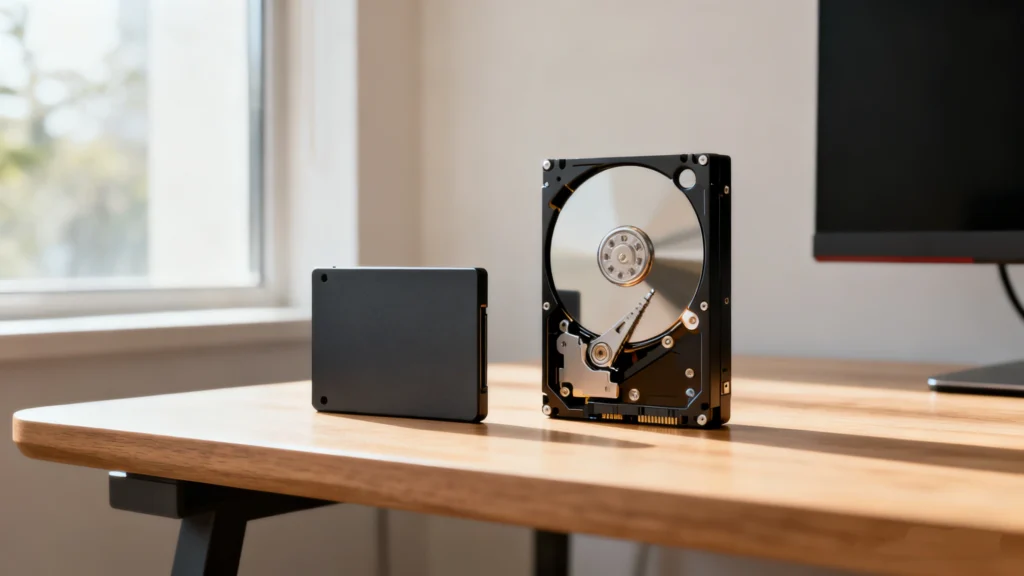
Choosing between flash-based storage and traditional hard drives depends on performance needs and budget.
Feature | SSD | HDD |
Speed | Very fast | Slower |
Durability | High | Lower |
Noise | Silent | Audible |
Power Use | Low | Higher |
Price | Higher | More affordable |
Data Recovery | More complex | Easier |
In practice, solid-state solutions are preferred for operating systems and applications, while HDDs remain useful for long-term backups.
Common Use Cases for Solid-State Drives
Operating System Installation
Installing Windows or macOS on an Solid-State Drives significantly improves system responsiveness.
Laptops and Portable Devices
Flash storage reduces weight, improves battery life, and enhances shock resistance.
Gaming and Creative Work
Games load faster, and software like video editors benefits from high-speed data access.
Business and Enterprise Systems
Databases, virtual machines, and servers rely on solid-state performance for efficiency.
External Storage
Portable solid-state drives are widely used for fast backups and data transfers.
These real-world scenarios demonstrate why solid-state storage has become the default choice.
Data Storage Security and Reliability
Solid-state technology is generally reliable, but data security depends on usage habits and system conditions.
Strengths of Flash-Based Storage
- Advanced error correction mechanisms
- Wear-leveling technology to extend lifespan
- Optional hardware-level encryption
Common Causes of Data Loss
Based on real usage cases, data loss often occurs due to:
- Accidental deletion
- Formatting the wrong partition
- System crashes or failed updates
- Power interruptions during write operations
- Firmware corruption
Additionally, the TRIM command can permanently erase deleted data blocks, making recovery time-sensitive.
How to Recover Lost Data from an SSD
Recovering data from solid-state storage requires careful handling. Continued use after data loss may reduce recovery success.
Best Practices Before Recovery
- Stop using the affected drive immediately
- Avoid installing new software on the same device
- Do not write new data to the storage space
- Use read-only recovery solutions
Why Magic Data Recovery Is a Practical Solution
When built-in system tools fail, specialized software is often required. Magic Data Recovery is designed to handle common solid-state data loss scenarios efficiently.
Problems It Can Solve
- Accidental file deletion
- Formatted solid-state partitions
- File system corruption
- Inaccessible or missing volumes
Key Advantages
- Optimized scanning for modern flash storage
- Supports SATA, NVMe, and external solid-state drives
- Read-only recovery process to avoid further data damage
- Clear interface suitable for everyday users
Real-World Example
If an external solid-state drive is accidentally formatted during a system reinstall, Magic Data Recovery can scan the device, preview recoverable files, and restore important documents safely.
Why It’s More Reliable Than Generic Tools
Unlike basic recovery utilities, Magic Data Recovery accounts for modern storage behaviors such as fragmented flash memory and partial TRIM effects.
If you are looking for a dependable solution, Magic Data Recovery is a sensible option to consider.
Supports Windows 7/8/10/11 and Windows Server
Conclusion
An SSD offers faster performance, better durability, and improved efficiency compared to traditional storage solutions. These advantages make solid-state drives ideal for modern computing needs.
However, no storage technology is immune to data loss. Understanding how flash-based storage works—and having a reliable recovery plan—can prevent permanent data loss. When issues occur, tools like Magic Data Recovery provide a practical and trustworthy way to retrieve important files.
FAQs About What is an SSD
What does SSD stand for?
Is solid-state storage better than HDD?
How long does a solid-state drive last?
Can data be recovered from flash-based storage?
Why is recovery more difficult than with HDDs?
Is Magic Data Recovery safe to use?
Can solid-state drives fail suddenly?
Should I back up data stored on solid-state drives?

Erin Smith is recognized as one of the most professional writers at Amagicsoft. She has continually honed her writing skills over the past 10 years and helped millions of readers solve their tech problems.