
USB-Laufwerk wird unter Windows 10 nicht erkannt
Wenn ein USB-Stick wird unter Windows 10 nicht erkannt Wenn dieses Problem auftritt, sind in der Regel zunächst die eigenen Dateien betroffen. Es kann vorkommen, dass Windows ein USB-Laufwerk im Datei-Explorer nicht anzeigt, obwohl Festplattenverwaltung oder der Geräte-Manager erkennt es möglicherweise noch. Die richtige Lösung hängt jedoch davon ab, was Windows erkennt. Ein fehlender Laufwerksbuchstabe erfordert eine andere Lösung als eine RAW-Partition, ein nicht zugewiesenes USB-Laufwerk oder ein Gerät, bei dem “Kein Medium” angezeigt wird.”
In dieser Anleitung wird erklärt, wie man ein USB-Stick wird unter Windows 10 nicht erkannt das Problem beheben, ohne den Datenverlust zu verschlimmern. Sie erfahren, wann Sie zuerst die Hardware, die Treiber, die Energieeinstellungen, CHKDSK oder die Wiederherstellung von Dateien überprüfen sollten. Wenn Windows den USB-Stick zwar weiterhin erkennt, Sie aber nicht auf Ihre Dateien zugreifen können, Magic Data Recovery kann eine praktische USB-Datenwiederherstellung Option.
Inhaltsübersicht
USB-Stick wird unter Windows 10 nicht erkannt: Zuerst das Problem identifizieren
Bevor Sie wahllos verschiedene Lösungen ausprobieren, prüfen Sie, wo der USB-Anschluss angezeigt wird.
Was Sie sehen | Wahrscheinliche Ursache | Der beste nächste Schritt |
Im Datei-Explorer nicht zu sehen, aber in der Datenträgerverwaltung sichtbar | Fehlender Laufwerksbuchstabe | Einen Laufwerksbuchstaben zuweisen |
Zeigt RAW | Beschädigung des Dateisystems | Dateien zuerst wiederherstellen |
Anzeigen ohne Zuordnung | Verlorene oder beschädigte Partition | Daten vor dem Erstellen eines Volumes wiederherstellen |
Wird nur im Geräte-Manager angezeigt | Problem mit Treiber/Steuergerät | Das Gerät neu installieren |
Zeigt “Keine Medien” oder 0 Byte an | Ausfall auf Hardware-Ebene | Keine Reparaturen mehr selbst durchführen |
Überall vermisst | Fehler am Anschluss, an der Verbindung oder auf Hardwareebene | Probieren Sie einen anderen Anschluss und einen anderen PC aus |
A USB-Stick wird unter Windows 10 nicht erkannt Ein Fehler ist ein Symptom, kein einzelner Ausfall. Passen Sie die Behebung daher dem Zustand des Geräts an.
Warum wird mein USB-Stick unter Windows 10 nicht erkannt?
Häufige Ursachen sind unter anderem ein defekter Anschluss, ein fehlender Laufwerksbuchstabe, ein beschädigter Treiber, USB-Energiespareinstellungen, eine Beschädigung des Dateisystems, eine verlorene Partition oder ein Defekt der Flash-Hardware.
Beispielsweise kann ein USB-Stick nach einem unsachgemäßen Entfernen aus dem Datei-Explorer verschwinden, während er in der Datenträgerverwaltung weiterhin als RAW. Die Dateien sind möglicherweise noch vorhanden, aber Windows kann das Dateisystem nicht mehr lesen. Sichern Sie daher wichtige Daten, bevor Sie destruktive Korrekturen vornehmen.
Bevor Sie das Problem beheben, dass ein USB-Stick unter Windows 10 nicht erkannt wird
Verwenden Sie einen „Recovery-First“-Workflow: Beenden Sie das Schreiben neuer Daten, überprüfen Sie die Datenträgerverwaltung und stellen Sie wichtige Dateien wieder her, bevor Sie das RAW-Laufwerk formatieren oder nicht zugewiesen Speicherplatz. Speichern Sie die wiederhergestellten Dateien auf einem anderen physischen Laufwerk.
Vermeiden Sie außerdem Wiederholungen CHKDSK Versuche an einem instabilen USB-Gerät. Erstellen Sie kein neues Volume auf nicht zugewiesenem Speicherplatz, wenn Sie die alten Dateien benötigen. Wenn das Gerät 0 Byte, “Kein Medium” oder ständige Verbindungsabbrüche anzeigt, brechen Sie die Reparatur in Eigenregie ab.
Kurz gesagt: Halten Sie sich bei wichtigen Dateien stets an eine Regel: Erst wiederherstellen, dann reparieren.
Lösung 1: Überprüfen Sie den USB-Anschluss und einen anderen Computer
Beginnen Sie zunächst mit der einfachsten Möglichkeit.
- Trennen Sie den USB-Stick vom Computer.
- Schließen Sie es an einen anderen USB-Anschluss an.
- Vermeiden Sie während der Tests die Verwendung von USB-Hubs.
- Probieren Sie nach Möglichkeit einen anderen Windows-PC aus.
Wenn der USB-Stick an einem anderen Computer funktioniert, liegt beim ursprünglichen PC wahrscheinlich ein Problem mit dem Anschluss, dem Treiber oder der Stromversorgung vor. Sollte er jedoch an mehreren Computern nicht funktionieren, fahren Sie mit der Datenträgerverwaltung fort.
Lösung 2: Überprüfen Sie den USB-Anschluss in der Datenträgerverwaltung
Öffnen Sie anschließend die Datenträgerverwaltung. Sie ist eines der besten Tools zur Diagnose eines USB-Stick wird unter Windows 10 nicht erkannt Problem, da dadurch Geräte angezeigt werden können, die der Datei-Explorer ausblendet.
- Presse Fenster + X.
- Wählen Sie Festplattenverwaltung.
- Suchen Sie den USB-Stick nach seiner Speicherkapazität.
- Prüfen Sie, ob der Status „Intakt“, „RAW“, „Nicht zugewiesen“ oder „Kein Medium“ angezeigt wird.
Wenn die Partition intakt ist, aber keinen Laufwerksbuchstaben hat, fahren Sie mit Lösung 3 fort. Wenn sie als „RAW“ oder „Nicht zugewiesen“ angezeigt wird, stellen Sie zunächst die Dateien wieder her. Wenn hingegen „Kein Medium“ angezeigt wird, springen Sie zum Abschnitt „Hardware“.
Lösung 3: Einen neuen Laufwerksbuchstaben zuweisen
Ein fehlender oder widersprüchlicher Laufwerksbuchstabe kann dazu führen, dass ein einwandfrei funktionierender USB-Stick im Datei-Explorer nicht mehr angezeigt wird.
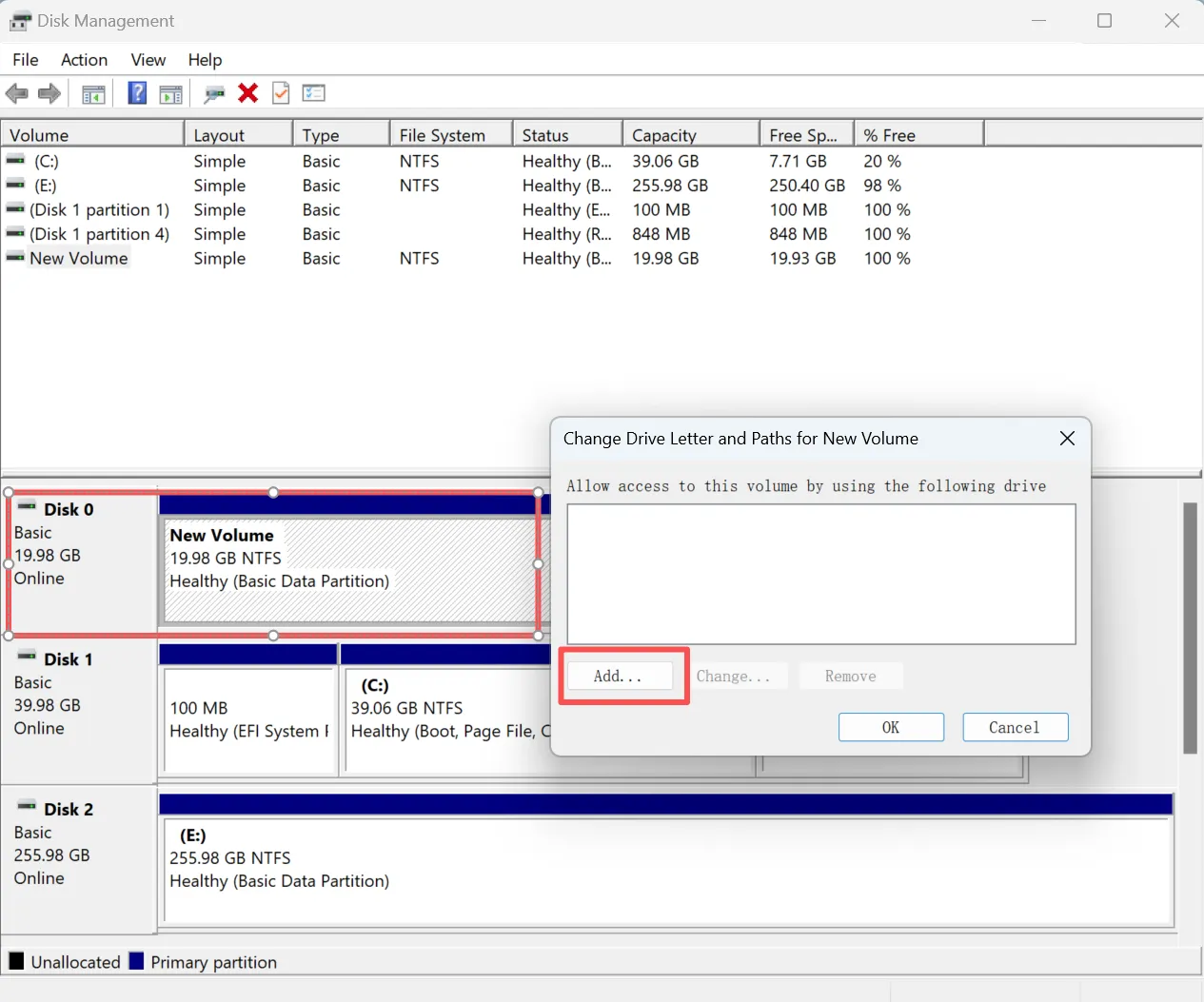
- Öffnen Sie Festplattenverwaltung.
- Klicken Sie mit der rechten Maustaste auf die USB-Partition.
- Wählen Sie Laufwerksbuchstaben und Pfade ändern.
- Klicken Sie auf hinzufügen oder Ändern Sie.
- Wählen Sie einen noch nicht verwendeten Buchstaben aus und klicken Sie darauf OK.
Öffnen Sie anschließend den Datei-Explorer erneut. Wenn das Laufwerk angezeigt wird, haben Sie das Problem gelöst. USB-Stick wird unter Windows 10 nicht erkannt Problem, ohne das Dateisystem zu ändern.
Diese Methode ist besonders nützlich, wenn die Datenträgerverwaltung eine normale NTFS-, FAT32- oder exFAT-Partition anzeigt, der Datei-Explorer das Laufwerk jedoch nicht auflistet.
Lösung 4: Den USB-Treiber aktualisieren oder neu installieren
Manchmal erkennt Windows die Hardware nicht richtig, weil der USB-Treiber oder die gespeicherte Gerätekonfiguration beschädigt ist.
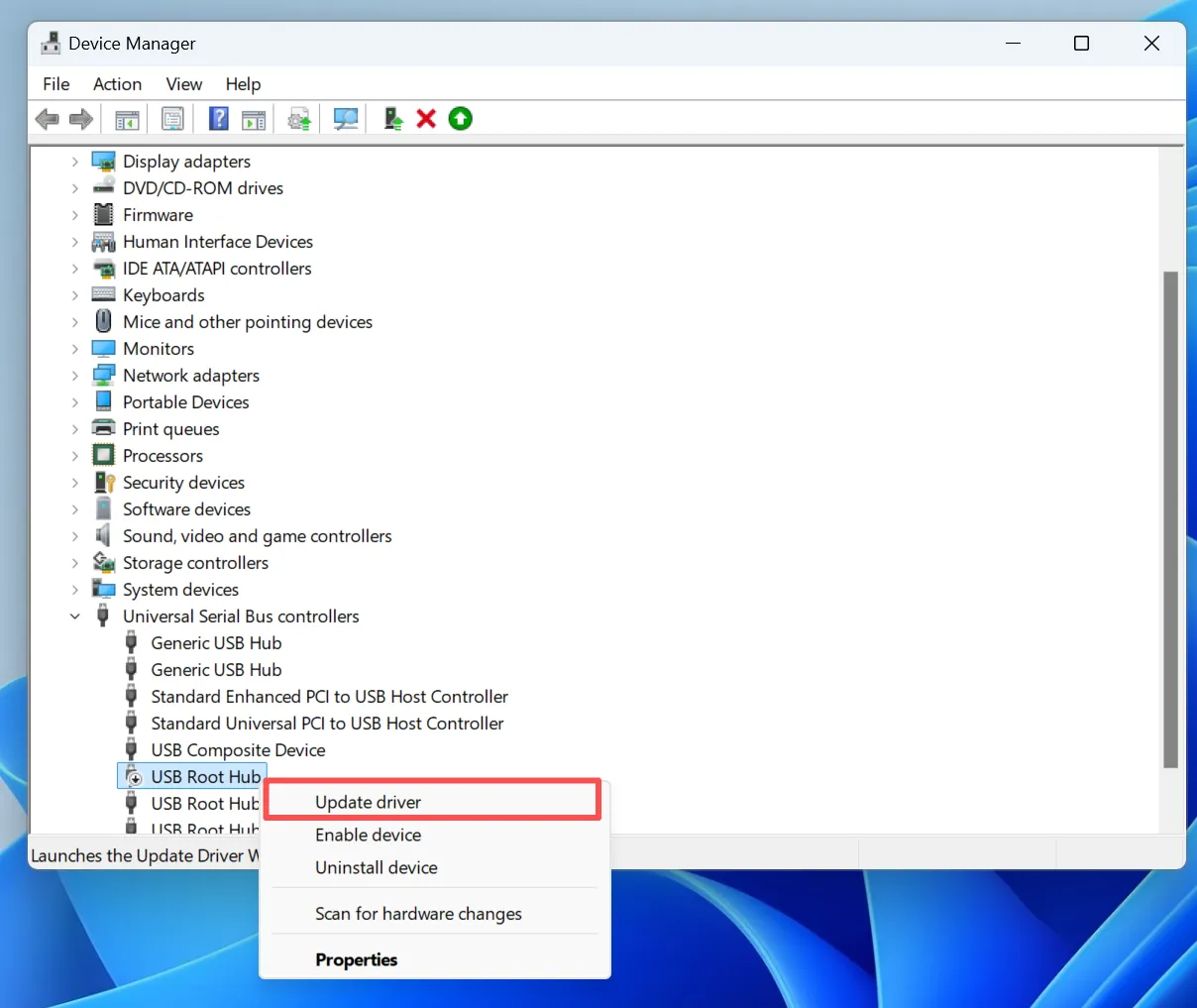
Öffnen Sie zunächst Geräte-Manager, erweitern Laufwerke oder Universal-Serial-Bus-Controller, klicken Sie mit der rechten Maustaste auf das betroffene Gerät und wählen Sie Treiber aktualisieren.
Sollte das nicht funktionieren, wählen Sie Gerät deinstallieren, ziehen Sie das USB-Kabel ab, starten Sie Windows neu und schließen Sie es wieder an. Windows sollte das Gerät nun mit einer neuen Konfiguration wieder erkennen.
Das ist wichtig, Treiber aktualisieren und Gerät deinstallieren unterschiedliche Funktionen ausführen. Daher kann eine Neuinstallation des Geräts helfen, selbst wenn Windows meldet, dass bereits der beste Treiber installiert ist.
Lösung 5: USB-Energiesparmodus deaktivieren
Die Energieverwaltung kann dazu führen, dass eine USB-Verbindung unterbrochen wird oder das Gerät nicht aus dem Ruhezustand erwacht.
Unter Geräte-Manager > USB-Controller, öffnen USB-Wurzelhub oder Generischer USB-Hub Eigenschaften und löschen Dem Computer erlauben, dieses Gerät auszuschalten, um Strom zu sparen.
Als Nächstes deaktivieren Sie Selektive USB-Aussetzung unter:
Systemsteuerung > Energieoptionen > Erweiterte Energieeinstellungen ändern > USB-Einstellungen
Schließen Sie anschließend das Laufwerk wieder an und prüfen Sie, ob das USB-Stick wird unter Windows 10 nicht erkannt Das Problem ist behoben.
Diese Lösung ist besonders hilfreich, wenn ein USB-Gerät nach dem Hochfahren funktioniert, aber nicht mehr erkannt wird, sobald der PC aus dem Ruhezustand erwacht.
Lösung 6: Nach Hardware-Änderungen suchen
Ein vorübergehender Treiberfehler führt möglicherweise lediglich dazu, dass Windows die angeschlossene Hardware neu laden muss.
- Öffnen Sie Geräte-Manager.
- Klicken Sie auf Aktion.
- Wählen Sie Auf Hardware-Änderungen prüfen.
- Warten Sie, bis die Geräteliste aktualisiert wurde.
Überprüfen Sie nach dem Scan erneut den Datei-Explorer und die Datenträgerverwaltung.
Wenn die USB-Verbindung wiederhergestellt wird, hat Windows wahrscheinlich nur vorübergehend die Verbindung zum Gerät verloren und es liegt kein Schaden am Dateisystem vor.
Lösung 7: Daten vor der Reparatur eines RAW- oder nicht zugewiesenen USB-Laufwerks wiederherstellen
Wenn die Datenträgerverwaltung das USB-Laufwerk erkennt, aber „RAW“, „Nicht zugewiesen“, eine fehlende Partition oder eine Aufforderung zum Formatieren anzeigt, stellen Sie die Dateien vor der Reparatur wieder her.
Dies ist der Ort, an dem Magic Data Recovery erweist sich als nützlich. Anstatt zunächst das beschädigte Dateisystem zu ändern, durchsucht es ein erkennbares Speichermedium nach wiederherstellbaren Dateien und ermöglicht es Ihnen, diese an einem anderen Ort zu speichern.
Daher eignet sich Magic Data Recovery für Situationen, in denen das Hauptproblem in unzugänglichen Daten liegt und nicht in einem einfachen Windows-Treiberproblem.
Typische Szenarien sind:
- Das USB-Gerät wird als RAW angezeigt.
- Windows fordert Sie auf, den USB-Stick zu formatieren.
- Die ursprüngliche Partition wird als „nicht zugewiesen“ markiert.
- Dateien verschwinden nach dem Löschen oder aufgrund einer Beschädigung des Dateisystems.
- Windows erkennt das Laufwerk, aber die Ordner lassen sich nicht mehr normal öffnen.

Lösung 8: Führen Sie CHKDSK aus, nachdem wichtige Dateien gesichert wurden
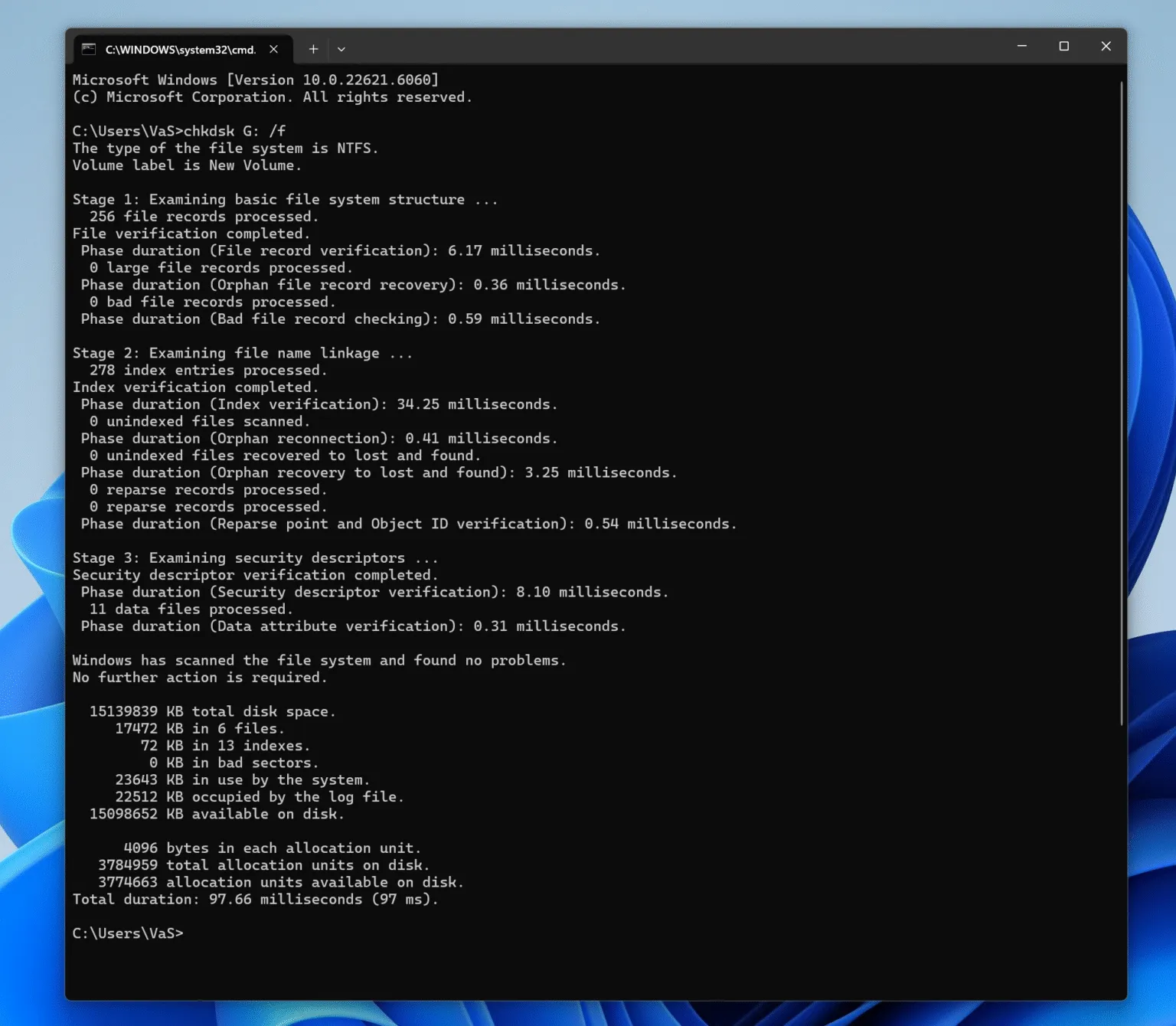
CHKDSK kann einige Dateisystemfehler beheben, sollte jedoch nur verwendet werden, wenn Windows dem Laufwerk noch einen Laufwerksbuchstaben zuweist, das USB-Laufwerk stabil bleibt und wichtige Dateien bereits gesichert oder wiederhergestellt wurden.
Öffnen Sie die Eingabeaufforderung als Administrator und führen Sie sie aus:
chkdsk X: /f
Ersetzen Sie X: mit dem richtigen Laufwerksbuchstaben.
Die /f Mit dieser Option wird CHKDSK angewiesen, erkannte Dateisystemfehler zu beheben. Allerdings kann CHKDSK bei der Reparatur des Volumes die Metadaten des Dateisystems ändern.
Vermeiden Sie es daher, das Programm zunächst auf einem RAW-Laufwerk, einem stark beschädigten oder einem instabilen USB-Stick auszuführen. Sollten dennoch wichtige Dateien fehlen, stellen Sie diese wieder her, bevor Sie CHKDSK verwenden.
Was tun, wenn das USB-Laufwerk in der Datenträgerverwaltung nicht angezeigt wird?
Wenn ein USB-Stick wird unter Windows 10 nicht erkannt Wenn das Gerät nicht in der Datenträgerverwaltung angezeigt wird, überprüfen Sie als Nächstes den Geräte-Manager.
Falls der Geräte-Manager das Gerät erkennt, installieren Sie es neu, suchen Sie nach Hardwareänderungen und probieren Sie einen anderen USB-Anschluss aus.
Wenn jedoch weder die Datenträgerverwaltung noch der Geräte-Manager das USB-Laufwerk auf mehreren Computern erkennen, liegt möglicherweise ein physischer Defekt vor. In diesem Fall kann die Wiederherstellungssoftware keine Speichermedien scannen, auf die Windows keinen Zugriff hat.
Daher ist es unwahrscheinlich, dass wiederholte Formatierungsvorgänge, CHKDSK-Befehle oder Treiberänderungen Abhilfe schaffen.
Tipps zur Vermeidung von Problemen bei der USB-Erkennung
Verwenden Sie Sichere Entfernung von Hardware Bevor Sie ein Laufwerk trennen. Vermeiden Sie es außerdem, den USB-Stecker während der Dateiübertragung abzuziehen, und erstellen Sie eine weitere Sicherungskopie wichtiger Dateien.
Sie sollten außerdem USB-Sticks austauschen, bei denen es häufig zu Verbindungsabbrüchen oder Fehlermeldungen kommt. Auch wenn diese Maßnahmen nicht jedes Problem verhindern können, USB-Stick wird unter Windows 10 nicht erkannt Fehler können sie vermeidbare Schäden am Dateisystem verringern.
Schlussfolgerung
A USB-Stick wird unter Windows 10 nicht erkannt Das Problem sollte vor der Reparatur diagnostiziert werden. Überprüfen Sie zunächst einen anderen Anschluss und einen anderen Computer. Stellen Sie anschließend mithilfe der Datenträgerverwaltung fest, ob der USB-Stick fehlerfrei ist, den Status „RAW“ aufweist, nicht zugewiesen ist oder die Meldung „Kein Medium“ anzeigt. Probleme mit Laufwerksbuchstaben, Treibern und der Stromversorgung lassen sich oft beheben, wodurch viele logische Probleme gelöst werden können.
Sollte das USB-Laufwerk jedoch als „RAW“, „Nicht zugewiesen“ oder mit einer Formatierungsaufforderung angezeigt werden, sollten Sie wichtige Daten wiederherstellen, bevor Sie CHKDSK ausführen, das Laufwerk formatieren oder eine Partition erstellen.
Magic Data Recovery wird in dieser Situation empfohlen, da es die eigentliche Priorität berücksichtigt: das Wiederherstellen von Dateien, bevor die Reparatur die Speicherstruktur verändert. Es handelt sich dabei nicht um eine Lösung für physisch defekten Flash-Speicher. Vielmehr ist es eine praktische Wiederherstellung von USB-Laufwerken Option, wenn Windows das Gerät zwar noch erkennt, auf die Dateien jedoch nicht mehr zugegriffen werden kann.
Wenn Sie nach einer effizienteren Wiederherstellungslösung suchen, bevor Sie den USB-Stick reparieren, versuchen Sie es mit Magic Data Recovery.
Unterstützt Windows 7/8/10/11 und Windows Server
USB-Laufwerk wird nicht erkannt Windows 10 - FAQs
Warum wird mein USB-Stick unter Windows 10 nicht erkannt?
Wie behebe ich den Fehler „USB-Gerät wird nicht erkannt“ unter Windows 10?
Warum wird mein USB-Stick in der Datenträgerverwaltung angezeigt, aber nicht im Datei-Explorer?
Was soll ich tun, wenn mein USB-Stick unter Windows 10 als „RAW“ angezeigt wird?
Warum wird bei meinem USB-Stick „Kein Medium“ oder „0 Byte“ angezeigt?
Kann CHKDSK ein nicht erkanntes USB-Laufwerk reparieren?
Kann ich Dateien von einem USB-Stick wiederherstellen, den Windows 10 nicht erkennt?
Wie repariert man ein unentdecktes Flash-Laufwerk?

Vasilii ist ein Datenrettungsspezialist mit rund 10 Jahren praktischer Erfahrung in diesem Bereich. Im Laufe seiner Karriere hat er Tausende von komplexen Fällen mit gelöschten Dateien, formatierten Laufwerken, verlorenen Partitionen und RAW-Dateisystemen erfolgreich gelöst. Sein Fachwissen umfasst sowohl manuelle Wiederherstellungsmethoden mit professionellen Tools wie Hex-Editoren als auch fortschrittliche automatische Lösungen mit Wiederherstellungssoftware. Vasilii hat es sich zur Aufgabe gemacht, zuverlässiges Wissen zur Datenwiederherstellung sowohl IT-Fachleuten als auch normalen Nutzern zugänglich zu machen und ihnen dabei zu helfen, ihre wertvollen digitalen Ressourcen zu schützen.