
Was ist TiWorker.exe? Ist es sicher? So beheben Sie eine hohe CPU-Auslastung
TiWorker.exe, im Task-Manager angezeigt als Windows Modules Installer Worker, ist normalerweise ein legitimer Windows-Prozess, der bei der Installation von Updates und der Wartung von Systemkomponenten hilft. Er fällt oft auf, wenn er vorübergehend viel CPU-Leistung oder Festplattenspeicher beansprucht.
Kurzzeitige Spitzen bei der Ressourcenauslastung sind in der Regel normal, wenn Windows Updates herunterlädt, installiert oder bereinigt. Sollte „TiWorker.exe“ jedoch auch nach einem Neustart weiterhin eine hohe CPU-Auslastung verursachen, auftreten, wenn Windows Update keinen Fortschritt anzeigt, oder aus einem verdächtigen Ordner ausgeführt werden, sind weitere Maßnahmen zur Fehlerbehebung erforderlich.
In dieser Anleitung wird erläutert, welche Funktion TiWorker.exe hat, wie Sie feststellen können, ob es sich um einen harmlosen Prozess handelt, und wie Sie eine anhaltend hohe CPU- oder Festplattenauslastung durch TiWorker.exe unter Windows 11 und Windows 10 beheben können.
Inhaltsübersicht
Was ist TiWorker.exe?
„TiWorker.exe“ ist die ausführbare Datei, die dem „Windows Modules Installer Worker“ zugrunde liegt., eine Windows-Komponente, die an der Installation, Änderung und Wartung von Systemupdates und optionalen Windows-Funktionen beteiligt ist.
Während eines Updates muss Windows unter Umständen Pakete auswerten, geschützte Dateien ersetzen, ältere Komponenten bereinigen oder den Komponentenspeicher reparieren. Diese Vorgänge können erhebliche CPU- und Festplattenressourcen beanspruchen, weshalb „TiWorker.exe“ manchmal ganz oben im Task-Manager erscheint.
TiWorker.exe arbeitet mit anderen Windows-Dienstkomponenten zusammen, darunter auch TrustedInstaller.exe. Es handelt sich nicht um eine normale Drittanbieteranwendung, und wenn Sie sie löschen, kann dies dazu führen, dass Windows keine Updates installieren oder Systemkomponenten reparieren kann.
| Artikel | Antwort |
|---|---|
| Prozessname | TiWorker.exe |
| Name des Task-Managers | Windows Modules Installer Worker |
| Verlag | Microsoft |
| Hauptfunktion | Installiert und verwaltet Windows-Updates und -Komponenten |
| Ist das normalerweise sicher? | Ja, sofern es von Microsoft signiert ist und sich in einem Windows-Wartungsordner befindet |
| Kann es eine hohe CPU- oder Festplattenauslastung verursachen? | Ja, vor allem während Updates |
| Sollte es gelöscht werden? | Nein |
Ist „TiWorker.exe“ sicher oder ein Virus?
Die echte Datei „TiWorker.exe“ ist eine sichere Komponente von Microsoft Windows. Allerdings kann Malware denselben Dateinamen verwenden, um vertrauenswürdig zu wirken, sodass sich allein anhand des Dateinamens nicht feststellen lässt, ob eine ausgeführte Kopie legitim ist.
Überprüfen Sie den Speicherort der Datei, die digitale Signatur, die Windows-Update-Aktivitäten und die Ergebnisse des Sicherheitsscans gemeinsam. Eine hohe CPU-Auslastung allein bedeutet nicht, dass TiWorker.exe infiziert ist.
Überprüfen Sie den Speicherort der Datei „TiWorker.exe“
- Presse Strg + Umschalt + Esc um den Task-Manager zu öffnen.
- Wählen Sie die Einzelheiten tab.
- Klicken Sie mit der rechten Maustaste auf . TiWorker.exe.
- Wählen Sie Dateispeicherort öffnen.
Eine gültige aktive Kopie wird in der Regel in einem versionierten Windows-Serviceordner unter folgendem Pfad gespeichert:
C:\Windows\WinSxS\Der genaue Ordner kann je nach Windows-Version und Updates des Servicing-Stacks variieren. Eine Datei namens „TiWorker.exe“, die in den Ordnern „AppData“, „Temp“, „Downloads“, „Startup“ oder einem nicht damit in Zusammenhang stehenden Anwendungsordner gespeichert ist, sollte überprüft werden.
Die digitale Signatur überprüfen
Klicken Sie mit der rechten Maustaste auf die Datei und wählen Sie Eigenschaften, und öffnen Sie die Digitale Signaturen Registerkarte. Die Signatur muss gültig sein und Microsoft als Unterzeichner ausweisen.
Sie können die Signatur auch in PowerShell überprüfen:
$path = (Get-Process TiWorker -Fehleraktion Stopp).Pfad
Get-AuthenticodeSignature -LiteralPath $path |
Formatliste Status, Signaturzertifikat
Eine gültige Microsoft-Signatur stützt die Schlussfolgerung, dass die Datei echt ist. Microsoft dokumentiert den Befehl zur Signaturprüfung in seiner Dokumentation zu „Get-AuthenticodeSignature“.
Verdächtige Kopien scannen
Wenn die Datei außerhalb eines normalen Windows-Serviceordners gespeichert ist, keine gültige Microsoft-Signatur aufweist oder nach einem Download aus einer nicht vertrauenswürdigen Quelle aufgetaucht ist, führen Sie einen vollständigen Scan mit Windows-Sicherheit durch.
Öffnen Sie Windows-Sicherheit > Viren- und Bedrohungsschutz > Scan-Optionen, und wählen Sie Vollständiger Scan oder Microsoft Defender Offline-Scan. Löschen Sie die Datei nicht manuell, bevor Sie überprüft haben, ob sie schädlich ist.
Warum beansprucht „TiWorker.exe“ so viel CPU-Leistung oder Festplattenspeicher?
TiWorker.exe Es kann zu einer erheblichen Auslastung der CPU oder der Festplatte kommen, während Windows Systemkomponenten überprüft, herunterlädt, installiert, ersetzt oder bereinigt. Ein vorübergehender Anstieg ist in der Regel normal, wenn Windows Update aktiv ausgeführt wird.
Eine anhaltende Nutzung deutet eher auf ein Problem hin, wenn:
- Windows Update bleibt lange Zeit bei demselben Prozentsatz stehen.
- Das gleiche Update schlägt immer wieder fehl.
- Nach jedem Neustart wird wieder eine hohe Auslastung angezeigt.
- TiWorker.exe bleibt aktiv, auch wenn Windows Update keine Wartungsaktivitäten anzeigt.
- Auf dem Systemlaufwerk ist nur sehr wenig Speicherplatz frei.
- DISM oder SFC meldet eine Beschädigung von Komponenten oder Systemdateien.
- Die ausführbare Datei befindet sich an einem unerwarteten Speicherort oder weist eine ungültige Signatur auf.
| Was Sie sehen | Wahrscheinliche Bedeutung | Empfohlene Maßnahme |
|---|---|---|
| Der Fortschritt von Windows Update ändert sich | Normale Update-Aktivitäten | Lass es zu Ende gehen |
| Windows fordert einen Neustart an | Die Aktualisierung wird gerade abgeschlossen | Arbeit speichern und neu starten |
| Die CPU- oder Festplattenauslastung bleibt hoch, ohne dass Fortschritte zu verzeichnen sind | Das Update oder die Reparatur einer Komponente ist möglicherweise hängengeblieben | Führen Sie die Fehlerbehebung durch |
| Nach jedem Systemstart werden hohe Auslastungswerte angezeigt | Mögliche Beschädigung des Komponenten-Speichers | Führen Sie DISM und SFC aus |
| Der Speicherort oder die Signatur der Datei ist verdächtig | Mögliche Täuschung durch Malware | Führen Sie einen vollständigen Sicherheitsscan durch |
Wie man überprüft, ob TiWorker.exe normal oder verdächtig ist
Führen Sie vor der Anwendung von Korrekturen eine kurze Überprüfung durch.
Task-Manager öffnen
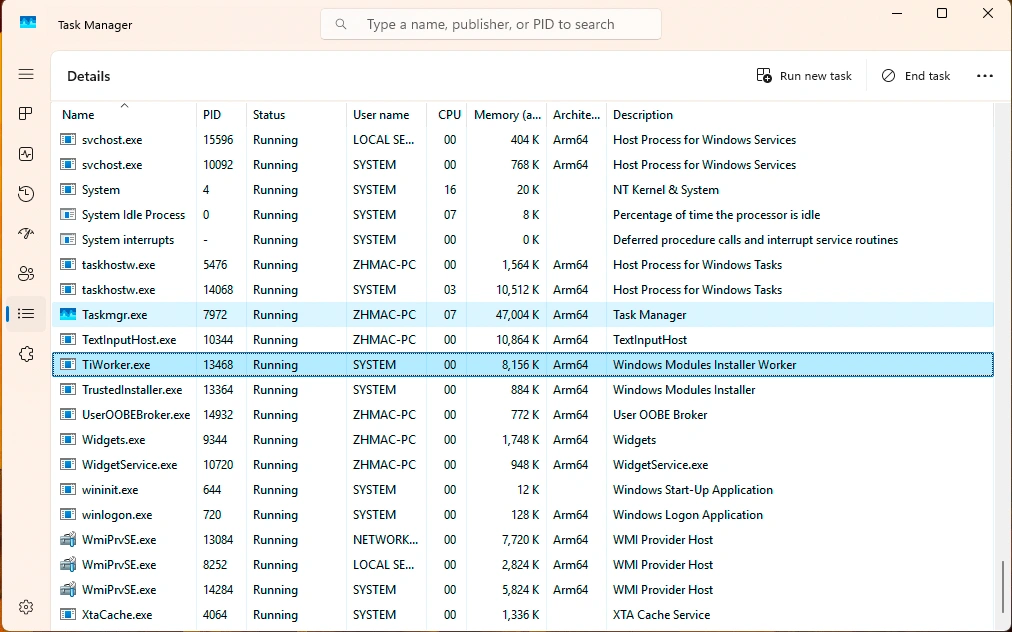
Drücken Sie Strg + Umschalt + Esc, dann suchen Sie TiWorker.exe oder Windows Modules Installer Worker.
Achten Sie auf das Timing
Wenn die CPU-Auslastung ansteigt, während Windows Updates herunterlädt, installiert oder abschließt, verhält sich der Prozess möglicherweise normal. Eine hohe Auslastung, die nach einer Weile wieder zurückgeht, ist weniger besorgniserregend.
Beobachten Sie die Dauer
Wenn der Wert für eine Stunde oder länger ungewöhnlich hoch bleibt, sich bei jedem Systemstart wiederholt oder das System kurz vor dem Einfrieren steht, sollten Sie das Problem als Fehlerbehebung und nicht als normale Wartung betrachten. Dieses Muster wird häufig in Anleitungen zur Fehlerbehebung und in Microsoft-Fragen und Antworten hervorgehoben.
Bei Bedarf einen Sicherheitsscan durchführen
Wenn das Verhalten nicht mit der Update-Aktivität übereinstimmt, überprüfen Sie das System mit Windows Security oder einem anderen vertrauenswürdigen Antivirenprogramm. Dies ist ein sinnvoller Überprüfungsschritt, nicht weil TiWorker.exe normalerweise Malware ist, sondern weil kopierte Prozessnamen vorkommen.
So beheben Sie eine hohe CPU- und Festplattenauslastung durch „TiWorker.exe“
Lösung 1: Fortschritt von Windows Update überprüfen
Öffnen Sie Einstellungen > Windows Update und prüfen Sie, ob ein Update gerade heruntergeladen, installiert, erneut versucht oder auf einen Neustart wartet. Öffnen Sie außerdem Änderungshistorie und notieren Sie sich gegebenenfalls wiederkehrende Fehlercodes.
Wenn sich der Prozentsatz ändert, lassen Sie den Computer an die Stromversorgung angeschlossen und warten Sie, bis die Aktualisierung abgeschlossen ist. Das wiederholte Beenden von „TiWorker.exe“ kann dazu führen, dass Windows denselben Wartungsvorgang erneut startet.
Lösung 2: Windows neu starten
Falls Windows Update einen Neustart anfordert, speichern Sie Ihre Arbeit und führen Sie einen normalen Neustart durch. Durch einen Neustart können noch ausstehende Update-Vorgänge abgeschlossen und ein vorübergehender Wartungszustand aufgehoben werden.
Nachdem Windows neu gestartet ist, kehren Sie zurück zu Einstellungen > Windows Update und prüfen Sie, ob die Aktualisierung erfolgreich abgeschlossen wurde.
Lösung 3: Speicherplatz auf dem Systemlaufwerk freigeben
Windows benötigt freien Speicherplatz, um Updates herunterzuladen, zu entpacken und vorzubereiten. Gehen Sie zu Einstellungen > System > Speicher > Empfehlungen zur Speicherbereinigung und löschen Sie Dateien, die Sie nicht mehr benötigen.
Löschen Sie keine Dateien manuell aus dem WinSxS-Ordner. Windows verwaltet diesen Komponentenspeicher, und das Löschen von Dateien daraus kann Updates und Systemwiederherstellungsfunktionen beeinträchtigen.
Lösung 4: Führen Sie die Windows Update-Fehlerbehebung aus
Unter Windows 11:
- Öffnen Sie Einstellungen.
- Wählen Sie System > Fehlerbehebung > Weitere Fehlerbehebungsprogramme.
- finden. Windows Update und wählen Sie Laufen lassen.
- Starten Sie den Computer neu, sobald die Fehlerbehebung abgeschlossen ist.
- Überprüfen Sie erneut, ob Updates verfügbar sind.
Der Problembehandler kann häufige Probleme mit dem Update-Dienst, beim Herunterladen und bei der Installation erkennen, die dazu führen, dass der „Windows Modules Installer Worker“ aktiv bleibt.
Lösung 5: Windows mit DISM und SFC reparieren
Sollte die hohe CPU-Auslastung durch „TiWorker.exe“ weiterhin bestehen und mit fehlgeschlagenen Updates oder Systemfehlern einhergehen, reparieren Sie den Windows-Komponentenspeicher und die geschützten Systemdateien.
Öffnen Sie Terminal (Admin) oder Eingabeaufforderung (Admin) und führen Sie Folgendes aus:
DISM.exe /Online /Aufräumen-Bilder /Gesundheit wiederherstellenWarten Sie, bis DISM abgeschlossen ist. Führen Sie anschließend Folgendes aus:
sfc /scannowSchließen Sie das Fenster nicht, bevor einer der beiden Vorgänge abgeschlossen ist. Starten Sie Windows anschließend neu und rufen Sie Windows Update erneut auf.
Lösung 6: Windows über Windows Update neu installieren
Sollten die vorherigen Methoden fehlschlagen, bietet Windows 11 möglicherweise eine Option zur Reparaturinstallation an:
- Öffnen Sie Einstellungen > System > Wiederherstellung.
- finden. Beheben Sie Probleme mithilfe von Windows Update.
- Wählen Sie Jetzt neu installieren.
- Lassen Sie den Computer an die Stromversorgung angeschlossen und befolgen Sie die Anweisungen auf dem Bildschirm.
Mit dieser Option wird die aktuelle Windows-Version neu installiert und Systemkomponenten werden repariert, wobei installierte Apps, persönliche Dateien und Einstellungen erhalten bleiben. Sichern Sie wichtige Dateien, bevor Sie eine umfangreichere Systemreparatur durchführen.
Hinweis zu Windows 10: Microsoft hat den Standard-Support für Windows 10 am 14. Oktober 2025 eingestellt. Diese Methoden zur Fehlerbehebung funktionieren möglicherweise weiterhin, doch sollten Nutzer in Erwägung ziehen, auf eine unterstützte Windows-Version umzusteigen.
Sollten Sie „TiWorker.exe“ deaktivieren oder löschen?
Nein. Sie sollten den Windows Modules Installer nicht dauerhaft deaktivieren, die Datei „TiWorker.exe“ nicht löschen und keine Ersatzdatei von einer Website eines Drittanbieters herunterladen.
TiWorker.exe wird für die Wartung von Windows-Komponenten benötigt. Wenn Sie diese Datei entfernen oder die zugehörigen Dienste dauerhaft deaktivieren, kann dies dazu führen, dass Sicherheitsupdates, optionale Funktionen und Systemreparaturen nicht mehr ordnungsgemäß funktionieren.
Vermeiden Sie diese Aktionen:
- Löschen Sie die Datei „TiWorker.exe“ nicht.
- Deaktivieren Sie Windows Update nicht dauerhaft.
- Laden Sie keine Ersatzdatei „TiWorker.exe“ herunter.
- Löschen Sie keine Dateien manuell aus dem WinSxS-Ordner.
- Löschen Sie den Ordner „SoftwareDistribution“ nicht routinemäßig als erste Maßnahme.
- Gehen Sie nicht davon aus, dass eine hohe CPU-Auslastung allein auf Malware hindeutet.
Beheben Sie das fehlgeschlagene Update oder den beschädigten Komponentenspeicher, anstatt den von Windows benötigten Prozess zu beenden.
Was passiert, wenn der Computer komplett einfriert?
Dies ist das reale Szenario, das in vielen Artikeln übergangen wird.
Manchmal TiWorker.exe Die damit verbundene Belastung wird so groß, dass die Maus nicht mehr reagiert, Anwendungen hängen bleiben und das System nicht mehr normal heruntergefahren werden kann. Wenn der Computer vollständig eingefroren ist und Sie keine normale Fehlerbehebung durchführen können, haben Sie möglicherweise keine andere Möglichkeit als einen manuellen Neustart.
Das bedeutet, dass Sie den Netzschalter gedrückt halten, um den Computer auszuschalten, und ihn dann wieder einschalten.
Dies sollte der letzte Ausweg sein. Ein erzwungener Neustart während Updates oder starker Festplattenaktivität kann nicht gespeicherte Arbeit unterbrechen oder Dateien in einem unvollständigen Zustand hinterlassen. In der Reparaturanleitung von Microsoft wird auch darauf hingewiesen, dass Windows-Instabilität, Update-Fehler und Dateibeschädigung oft zusammen auftreten, weshalb Datei- und Wiederherstellungsprüfungen nach der Wiederherstellung des Systems sinnvoll sind.
Was passiert, wenn ein Absturz von „TiWorker.exe“ zu Datenverlust führt?
TiWorker.exe löscht normalerweise keine persönlichen Dateien. Sollte der Computer jedoch vollständig unbrauchbar werden und Sie ihn zwangsweise herunterfahren, kann Windows möglicherweise einen laufenden Schreibvorgang, das Speichern eines Dokuments oder einen Übertragungsvorgang unterbrechen.
Überprüfen Sie nach dem Neustart zunächst die AutoRecover-Funktion der betroffenen Anwendung, die zuletzt verwendeten Dateien, den Papierkorb, den Dateiverlauf, OneDrive sowie alle verfügbaren Sicherungskopien. Beachten Sie, dass Datenwiederherstellungssoftware keine Daten wiederherstellen kann, die ausschließlich im Arbeitsspeicher vorhanden waren und nie auf dem Laufwerk gespeichert wurden.
Wenn eine zuvor gespeicherte Datei gelöscht wurde, aus ihrem Ordner verschwunden ist oder aufgrund eines Dateisystemfehlers nicht mehr zugänglich ist, sollten Sie keine neuen Daten mehr auf das betroffene Laufwerk schreiben. Neue Schreibvorgänge könnten wiederherstellbare Informationen überschreiben.
In dieser Situation, Magic Data Recovery kann das betroffene Laufwerk nach Dateien durchsuchen, die durch Löschen, Formatieren oder Probleme mit dem logischen Dateisystem verloren gegangen sind. Installieren Sie die Software nach Möglichkeit auf einem anderen Laufwerk und speichern Sie die wiederhergestellten Dateien an einem anderen Speicherort.

Schlussfolgerung
„TiWorker.exe“ ist normalerweise eine legitime Windows-Komponente, die für die Installation und Verwaltung von Updates zuständig ist. Eine vorübergehend hohe CPU- oder Festplattenauslastung ist zu erwarten, während Windows Update läuft. Wiederholte Ressourcen-Spitzen, fehlgeschlagene Updates, ein ungewöhnlicher Speicherort der Datei oder eine ungültige Signatur erfordern jedoch eine genauere Untersuchung.
Überprüfen Sie zunächst Windows Update, starten Sie den Computer neu, schaffen Sie Speicherplatz auf dem Systemlaufwerk und führen Sie die Windows Update-Fehlerbehebung aus. Sollte das Problem weiterhin bestehen, führen Sie DISM und anschließend SFC aus. Deaktivieren Sie den Windows Modules Installer nicht dauerhaft und löschen Sie die Datei „TiWorker.exe“ nicht.
Sollte eine erzwungene Abschaltung dazu führen, dass eine zuvor gespeicherte Datei verloren geht, sollten Sie das betroffene Laufwerk nicht mehr verwenden und die entsprechenden Wiederherstellung gelöschter Dateien Schritte, bevor die verlorenen Daten überschrieben werden.
Unterstützt Windows 7/8/10/11 und Windows Server
FAQs
Was ist TiWorker.exe?
Ist TiWorker.exe ein Virus?
Wo befindet sich die Datei „TiWorker.exe“?
Warum verbraucht TiWorker.exe so viel CPU?
Warum beansprucht TiWorker.exe so viel Festplattenspeicher?
Kann ich TiWorker.exe im Task-Manager beenden?
Kann ich „TiWorker.exe“ deaktivieren oder löschen?
Kann ein Absturz von „TiWorker.exe“ zu Datenverlusten führen?

Jason ist ein Spezialist für Datenwiederherstellung und technischen Support mit über 15 Jahren praktischer Erfahrung. Er hat intensiv mit Endnutzern zusammengearbeitet, schwierige Fälle von Datenverlust behoben und praktische Lösungen für versehentlich gelöschte Daten, formatierte Laufwerke, beschädigte Dateisysteme, verlorene Partitionen, Systemausfälle und andere Notfälle im Bereich der Datenwiederherstellung bereitgestellt. Zu seinen Fachgebieten gehören außerdem Datensicherung und -wiederherstellung, Dateireparatur sowie Notfallwiederherstellung, wobei er besonderen Wert auf eine sichere, zuverlässige und technisch korrekte Beratung legt.