
Guía sobre el comando «Attrib» para recuperar archivos
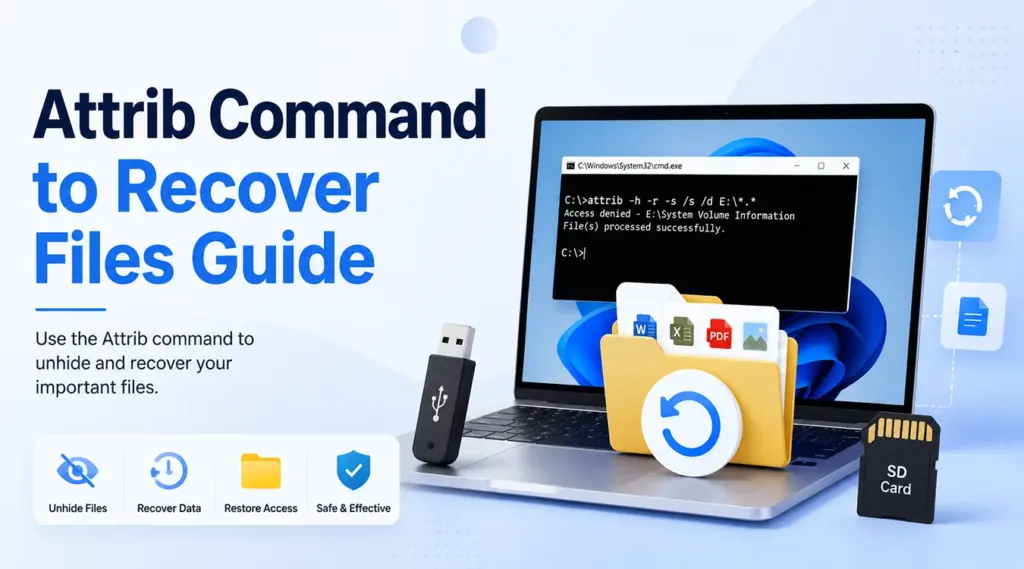
Cuando desaparecen archivos de una memoria USB, una tarjeta SD, un disco duro o una carpeta de Windows, muchos usuarios buscan el comando «attrib» para recuperar archivos. Este comando integrado de Windows permite detectar archivos que aún conservan los atributos «Oculto», «De sistema» o «Solo lectura». Sin embargo, no puede recuperar datos tras un borrado definitivo, un formateo, una sobrescritura, la pérdida de una partición o un daño físico.
Esta guía explica cómo utilizar el comando «attrib» para recuperar archivos, identificar las situaciones en las que funciona y corregir los errores más comunes al utilizar el CMD. También aprenderás cuándo dejar de usar el CMD y optar por un auténtico solución de recuperación de discos duros. Cuando los archivos que faltaban ya no existan como elementos ocultos, Magic Data Recovery ofrece una forma práctica de escanear, previsualizar y recuperar datos borrados o perdidos.
Compatible con Windows 7/8/10/11 y Windows Server
Índice
¿Funciona de verdad el comando «Attrib» para recuperar archivos?
Sí, pero solo cuando la desaparición se debe a los atributos del archivo. Microsoft define attrib como un comando que muestra, establece o elimina atributos de archivos y carpetas. Por lo tanto, el comando «attrib» para recuperar archivos No analiza el espacio libre en disco ni reconstruye los registros de los archivos eliminados.
Utiliza «Attrib» cuando una unidad parezca estar vacía pero muestre espacio utilizado, cuando los archivos hayan desaparecido tras un ataque de malware, o dir /a sigue mostrando las carpetas que faltan. Por el contrario, si utilizas un programa de recuperación tras pulsar Mayús+Supr, un papelera de reciclaje vacía, el formateo, la pérdida de particiones o la sobrescritura.
¿Para qué sirve el comando «attrib»?
Windows utiliza atributos para controlar el comportamiento de los archivos y las carpetas. Un atributo «Oculto» o «De sistema» puede hacer que un elemento ya existente no aparezca en el Explorador de archivos.
Utiliza este comando para eliminar los atributos correspondientes:
attrib -h -r -s /s /d X:\*.*
Sustituir X con la letra de unidad correcta.
-helimina el atributo «Oculto».-relimina el atributo «Solo lectura».-selimina el atributo «System»./sincluye subcarpetas./dincluye directorios.*.*elementos que coinciden con los criterios.
En resumen, el comando «attrib» para recuperar archivos Restablece la visibilidad. No recupera los datos eliminados.
Antes de utilizar el comando «attrib» para recuperar archivos
En primer lugar, deja de guardar datos nuevos en la ubicación afectada. A continuación, no formatees la unidad ni ejecutes herramientas de reparación. Además, comprueba la letra de la unidad.
A continuación, comprueba si los archivos que faltan siguen existiendo:
dir /a X:\
En /a Esta opción muestra los elementos con todos sus atributos. Si el comando muestra una lista de tus carpetas, Recuperar archivos ocultos de un dispositivo USB mediante el CMD Podría funcionar. Sin embargo, si no aparece nada, es probable que «Attrib» no pueda ayudar, ya que no quedan atributos existentes que modificar.
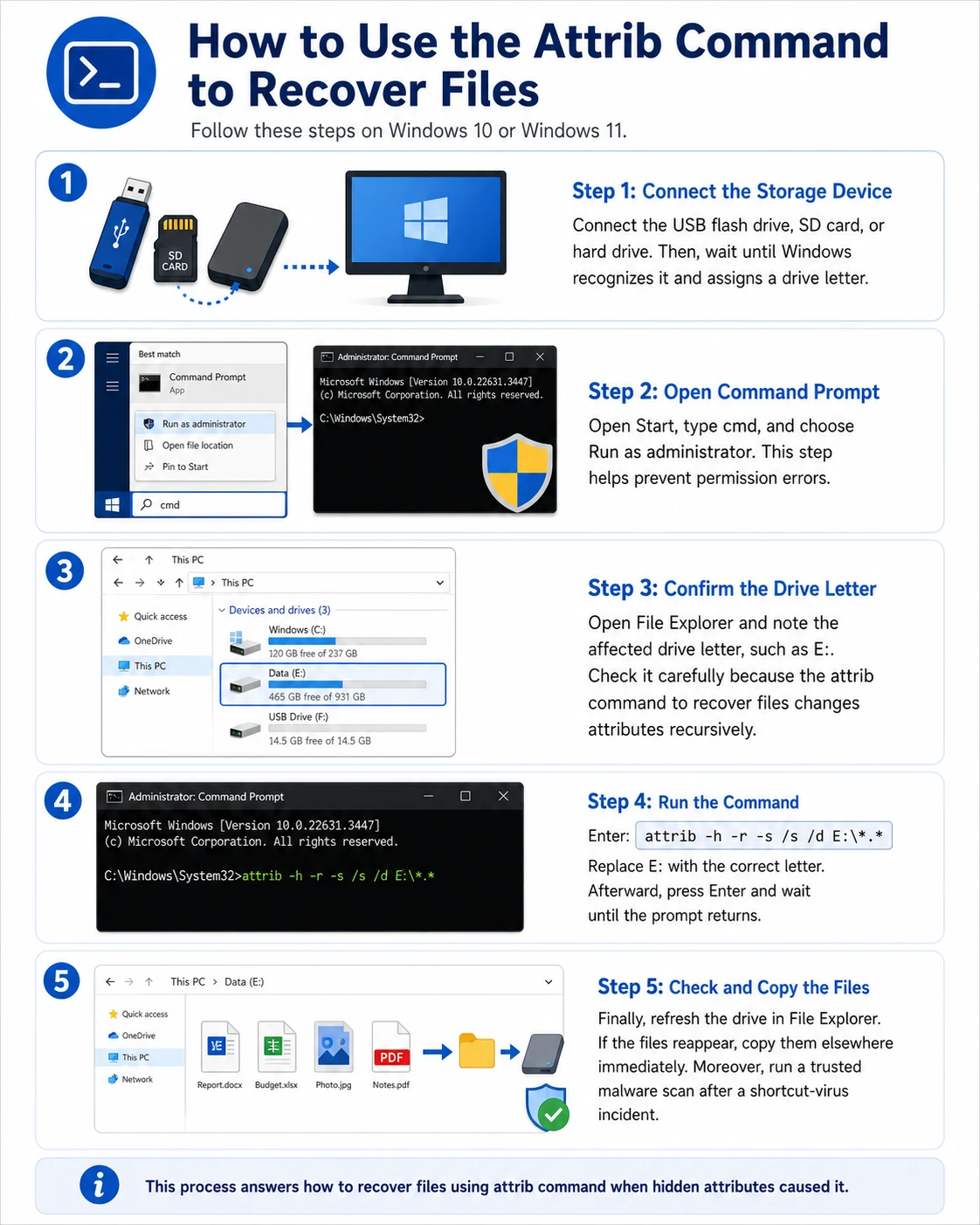
Cómo utilizar el comando «attrib» para recuperar archivos
Sigue estos pasos en Windows 10 o Windows 11.
Paso 1: Conecta el dispositivo de almacenamiento
Conecta la memoria USB, la tarjeta SD o el disco duro. A continuación, espera a que Windows lo reconozca y le asigne una letra de unidad.
Paso 2: Abre el símbolo del sistema
Abre «Inicio» y escribe cmd, y elija Ejecutar como administrador. Este paso ayuda a evitar errores de permisos.
Paso 3: Confirma la letra de la unidad
Abre el Explorador de archivos y anota la letra de la unidad afectada, como por ejemplo E:. Revísalo con atención porque el comando «attrib» para recuperar archivos modifica los atributos de forma recursiva.
Paso 4: Ejecuta el comando
Entra:
attrib -h -r -s /s /d E:\*.*
Sustituir E: con la letra correcta. A continuación, pulsa Intro y espera a que vuelva a aparecer el indicador.
Paso 5: Comprobar y copiar los archivos
Por último, actualiza la unidad en el Explorador de archivos. Si los archivos vuelven a aparecer, cópialos inmediatamente a otra ubicación. Además, ejecuta un análisis de malware de confianza tras un incidente con un virus de accesos directos.
Este proceso responde a Cómo recuperar archivos con el comando «attrib» cuando se debía a atributos ocultos.
Ejemplos útiles del comando «attrib»
Para procesar una carpeta, utiliza su ruta completa entre comillas:
attrib -h -r -s /s /d "E:\Archivos de trabajo\*.*"
Este formato admite rutas con espacios y hace que el comando «attrib» en Windows 11 facilitar el proceso.
¿Cuándo funciona mejor el comando «attrib» para recuperar archivos?
En comando «attrib» para recuperar archivos funciona mejor cuando el problema tiene que ver con la visibilidad y no con la eliminación.
Por ejemplo, es posible que una memoria USB muestre accesos directos mientras que Windows sigue indicando el espacio utilizado. En ese caso, dir /a puede mostrar las carpetas originales con los atributos «Oculto» y «Sistema». Tras la eliminación del malware, un Comando «attrib» para la recuperación por USB puede volver a hacer que esas carpetas sean visibles.
No obstante, abre después varios archivos restaurados. Si aparecen pero no se abren, los cambios de atributos no pueden reparar el contenido dañado.
¿El comando «Attrib» no funciona? Prueba estas soluciones
“Acceso denegado”
En primer lugar, vuelve a abrir el Símbolo del sistema como administrador. A continuación, comprueba si algún programa de seguridad, BitLocker u otro programa bloquea el acceso. Además, evita los directorios protegidos de Windows.
“Archivo no encontrado” o “Ruta no encontrada”
Comprueba la letra de la unidad y la ortografía. A continuación, escribe entre comillas las rutas que contengan espacios. Por último, comprueba que Windows sigue detectando el dispositivo.
El comando se ejecuta, pero no aparece nada
Es posible que los archivos se hayan borrado, formateado, sobrescrito o perdido debido a una partición dañada. Por lo tanto, repetir el comando «attrib» para recuperar archivos No servirá de nada.
Solo aparecen los archivos de acceso directo
No abras accesos directos desconocidos. En su lugar, comprueba si hay malware y utiliza dir /a para localizar las carpetas originales, eliminar la amenaza y, a continuación, ejecutar attrib -h -r -s /s /d.
El comando «Attrib» frente al software de recuperación de datos
Situación | Atrib | Software de recuperación de datos |
Los archivos existentes tienen el atributo «Oculto» | Adecuado | Normalmente innecesario |
Se han eliminado los archivos | No apto | Adecuado |
Se ha formateado la unidad | No apto | Adecuado |
El dispositivo presenta daños físicos | No apto | Recurre a un servicio profesional |
Windows File Recovery también existe como herramienta independiente para recuperar archivos locales eliminados. Por lo tanto, el comando «attrib» para recuperar archivos No puede sustituir al software de recuperación original.
Recuperar archivos eliminados cuando el comando «attrib» falla
Si dir /a Si no puede encontrar los archivos que faltan, o si la pérdida se debe a un borrado o a un formateo, elija una herramienta que analice la ubicación afectada en busca de datos recuperables.
Magic Data Recovery ofrece un flujo de trabajo de análisis visual, vista previa y recuperación para Windows. Resuelve la principal limitación del comando «attrib» para recuperar archivos porque busca los datos perdidos en lugar de limitarse a modificar los atributos.
Por qué el modelo Magic Data Recovery es adecuado para este problema
Magic Data Recovery puede ayudar en casos de borrado, formateo, particiones perdidas y almacenamiento inaccesible. Entre sus principales ventajas se incluyen:
- Una interfaz intuitiva que no requiere el uso de la línea de comandos.
- Compatibilidad con discos duros, SSD, memorias USB y tarjetas de memoria.
- Recuperación de documentos, fotos, vídeos y archivos habituales.
- Vista previa del archivo antes de la recuperación.
- Un proceso sencillo de análisis, vista previa y recuperación.
Por ejemplo, puede resultar útil cuando alguien borra la carpeta de un proyecto o formatea la tarjeta de una cámara. Sin embargo, la sobrescritura, el cifrado, los daños graves en los archivos y los daños físicos pueden reducir las posibilidades de recuperación.
Cómo utilizar Magic Data Recovery con seguridad
Sigue estos pasos cuando un borrado, un formateo u otro problema lógico impida que el comando «attrib» para recuperar archivos de trabajar.
Paso 1: Descargar e instalar Magic Data Recovery
Descarga Magic Data Recovery e instálalo en una partición en buen estado que no sea la que contiene los archivos perdidos. Esta opción reduce el riesgo de sobrescribir información recuperable.
Compatible con Windows 7/8/10/11 y Windows Server
Paso 2: Seleccione la unidad o partición afectada
Inicia el programa. A continuación, busca la unidad o partición de la que han desaparecido los archivos. Selecciónala e inicia el análisis.

Paso 3: Buscar archivos eliminados o perdidos
Magic Data Recovery inicia automáticamente un análisis avanzado. Mientras tanto, muestra una lista de los archivos detectados a medida que avanza el análisis, lo que te permite revisar los posibles resultados antes de que este finalice.

Paso 4: Vista previa de los archivos antes de la recuperación
A continuación, previsualiza las fotos, documentos, vídeos u otros archivos compatibles que se hayan detectado, siempre que sea posible. Este paso te ayuda a confirmar el contenido de los archivos y a seleccionar solo los elementos que necesites.

Paso 5: Recuperar archivos a una ubicación segura
Por último, selecciona los archivos que desees y inicia la recuperación. Guárdalos en otra unidad o dispositivo de almacenamiento. Nunca restaures los archivos en la ubicación afectada, ya que los nuevos datos podrían sobrescribir otro contenido recuperable.

¿Deberías ejecutar CHKDSK antes de recuperar archivos?
En el caso de datos importantes que falten, recupéralos primero y repáralos después. CHKDSK comprueba si hay errores en el sistema de archivos y en el disco de un volumen. Dado que las opciones de reparación pueden modificar las estructuras del sistema de archivos, no puede convertir el comando «attrib» para recuperar archivos en un método de recuperación de archivos borrados.
Si aparece una partición RAW Si los archivos han desaparecido tras sufrir daños, escanea y protege primero los datos. A continuación, repara, formatea o sustituye el dispositivo.
Conclusión: Cuándo utilizar el comando «attrib» para recuperar archivos
En comando «attrib» para recuperar archivos Ofrece una solución rápida e integrada cuando los atributos «Oculto», «Sistema» o «Solo lectura» impiden que Windows muestre los datos existentes. Funciona especialmente bien en casos de virus de accesos directos y carpetas que permanecen en la unidad.
Sin embargo, Attrib no puede recuperar datos borrados, formateados, sobrescritos o dañados físicamente. Por lo tanto, cuando dir /a si no aparecen archivos que falten, deja de utilizar la ubicación afectada y elige una auténtica método de recuperación de archivos borrados.
Magic Data Recovery merece una recomendación porque ofrece un flujo de trabajo claro para el análisis, la vista previa y la recuperación. Además, proporciona a los usuarios de Windows una solución práctica para el siguiente paso cuando el comando «attrib» para recuperar archivos llega a su límite, sin promesas poco realistas.
Compatible con Windows 7/8/10/11 y Windows Server
Preguntas frecuentes sobre la guía para utilizar el comando «attrib» para recuperar archivos
¿Puede el comando «Attrib» recuperar archivos eliminados de forma definitiva?
No. El comando «attrib» para recuperar archivos solo modifica los atributos de los archivos y carpetas que aún existen. No puede reconstruir los datos tras pulsar Mayús+Supr, vaciar la Papelera de reciclaje, formatear o sobrescribir. En esos casos, deja de utilizar la ubicación afectada y prueba con una copia de seguridad, la herramienta de recuperación de archivos de Windows, Magic Data Recovery o un servicio profesional.
¿Cuál es el comando «attrib» correcto para los archivos ocultos?
Utiliza el comando «attrib -h -r -s /s /d X:\*.*», sustituyendo «X» por la letra de unidad correcta. Este comando elimina los atributos «Oculto», «Solo lectura» y «Sistema» de los archivos y carpetas que coincidan. Antes de continuar, comprueba la letra de la unidad y utiliza dir /a X:\ para confirmar que los archivos que faltan siguen existiendo allí.
¿Funciona el comando «Attrib» en Windows 11?
Sí. Windows 11 incluye el comando «Attrib», y la misma sintaxis básica también funciona en Windows 10. Abre el Símbolo del sistema como administrador, comprueba que la letra de unidad sea la correcta y ejecuta el comando con cuidado. Sin embargo, recuerda que «Attrib» solo muestra los archivos ocultos existentes; no recupera los datos que se han borrado definitivamente.
¿Por qué siguen sin aparecer mis archivos después de ejecutar «attrib»?
Es posible que los archivos ya no existan como entradas normales del sistema de archivos. Su eliminación, el formateo, la sobrescritura, la pérdida de particiones, la corrupción o un fallo de hardware pueden impedir que Attrib los encuentre. En primer lugar, ejecuta «dir /a» para comprobar si hay elementos ocultos. Si no aparece nada, deja de escribir en la ubicación afectada y utiliza un método de recuperación.
¿Es seguro utilizar el comando «Attrib»?
Sí, siempre que introduzcas la letra de unidad correcta y selecciones únicamente la ubicación de los datos afectados. Sin embargo, el comando puede modificar los atributos de muchos archivos y carpetas a la vez. Por lo tanto, evita los directorios protegidos de Windows. Además, copia los archivos restaurados en otra ubicación y analiza el dispositivo en busca de malware si el problema lo han causado los archivos de acceso directo.
¿Puede Attrib reparar una memoria USB dañada?
No. La herramienta «Attrib» modifica los atributos de los archivos y las carpetas, pero no repara el sistema de archivos, los sectores defectuosos ni el contenido dañado de los archivos. Puede mostrar archivos que el malware haya ocultado, pero no puede solucionar los daños. Si la unidad USB aparece como «RAW», se desconecta repetidamente o muestra errores, recupera los datos importantes antes de intentar repararla.
¿Qué debo hacer si el comando «attrib» no funciona?
En primer lugar, comprueba la letra de la unidad, utiliza comillas para las rutas que contengan espacios y ejecuta el Símbolo del sistema como administrador. A continuación, comprueba la ubicación con el comando «dir /a». Si los archivos siguen sin aparecer, deja de repetir el comando. En su lugar, analiza la ubicación afectada con Magic Data Recovery y guarda los archivos recuperados en otra ubicación.

Vasilii es un especialista en recuperación de datos con unos 10 años de experiencia práctica en este campo. A lo largo de su carrera, ha resuelto con éxito miles de casos complejos relacionados con archivos borrados, unidades formateadas, particiones perdidas y sistemas de archivos RAW. Su experiencia abarca tanto métodos de recuperación manual con herramientas profesionales como editores hexadecimales como soluciones automatizadas avanzadas con software de recuperación. La misión de Vasilii es poner los conocimientos sobre recuperación de datos al alcance tanto de los profesionales informáticos como de los usuarios de a pie, ayudándoles a salvaguardar sus valiosos activos digitales.