
¿No se puede activar BitLocker? Cómo solucionarlo en Windows 10/11
El mensaje “No se ha podido activar BitLocker” Suele aparecer una vez finalizada la configuración y tras reiniciar el ordenador. A veces, Windows no puede acceder a la clave de inicio. En otros casos, una partición, una política o un dispositivo no disponible impiden el cifrado. La solución adecuada depende del mensaje completo y del momento en que aparezca.
Antes de modificar la configuración del firmware o de la unidad, comprueba si la unidad ya contiene datos cifrados. Si necesitas localizar una clave de recuperación existente, Magic Recovery Key ofrece una función de búsqueda específica. Ayuda a recuperar claves, pero no repara la configuración de cifrado. Nuestra Guía de recuperación de BitLocker aborda situaciones de recuperación relacionadas.
En esta guía se explica cómo identificar el fallo, elegir una solución adecuada y comprobar que, tras la reparación, Windows protege efectivamente la unidad.
Índice
Motivos por los que no se ha podido activar BitLocker
BitLocker requiere un método de desbloqueo que funcione y una configuración adecuada de la unidad. En el caso de la unidad de Windows, esto suele implicar el uso del Módulo de Plataforma de Confianza (TPM), un componente de seguridad que ayuda a proteger las claves de cifrado.
Sin embargo, un error de habilitación no significa automáticamente que el TPM haya fallado. Microsoft describe un caso en el que la prueba de hardware de arranque no puede leer el dispositivo USB que contiene la clave de arranque. BitLocker se niega entonces a iniciar el cifrado porque es posible que el ordenador no se desbloquee correctamente en el siguiente arranque.
La fase de fracaso te ofrece un punto de partida útil:
Cuando aparece el error | Qué hay que investigar primero |
Inmediatamente después de seleccionar «Activar BitLocker» | Edición de Windows, selección de unidad, configuración y el error exacto |
Tras reiniciar para realizar la comprobación del sistema | Preparación para TPM, disponibilidad de la clave de arranque y firmware |
Al guardar la información de recuperación | Destino de la copia de seguridad, acceso a la cuenta y política de la organización |
Al cifrar una unidad externa | Estabilidad de la conexión, disponibilidad de los dispositivos y estado del volumen |
En una pantalla de recuperación antes de que se inicie Windows | Acceso mediante la clave de recuperación y recuperación del arranque |
Una pantalla de recuperación en un ordenador que ya está cifrado requiere un enfoque diferente al de una configuración inicial fallida. No des por sentado que ambos problemas requieren desactivar el cifrado.
Antes de solucionar el error «No se ha podido activar BitLocker»
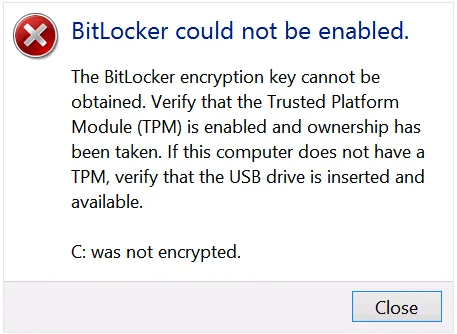
Anota el mensaje de error completo, incluido cualquier código. A continuación, haz una copia de seguridad de los archivos a los que puedas acceder y guarda una clave de recuperación existente en un lugar distinto de la unidad afectada.
Si utilizas un ordenador del trabajo o del centro educativo, ponte en contacto con el departamento de TI antes de modificar la política de BitLocker, el firmware o los protectores. Es posible que tu organización controle tanto el cifrado como el almacenamiento de las claves de recuperación.
Comprueba qué versión de Windows tienes
Abrir Ajustes > Sistema > Acerca de y comprueba la edición de Windows. La gestión completa del cifrado de unidad BitLocker está disponible en ediciones como Pro, Enterprise y Education. Los dispositivos Home que cumplan los requisitos pueden ofrecer el cifrado de dispositivos, que utiliza la tecnología BitLocker pero proporciona una experiencia de gestión diferente.
Si busca “No se ha podido activar BitLocker en Windows 10”,” Empieza por esta comprobación en lugar de instalar herramientas que prometen añadir funciones para las que no hay soporte.
Comprueba primero el estado del cifrado
Abrir Símbolo del sistema como administrador y ejecuta:
- manage-bde -status
Para obtener más información sobre el volumen de Windows, ejecuta:
- manage-bde -status C:
- manage-bde -protectors -get C:
Sustituir C: si estás investigando otro volumen.
La salida de estado muestra el progreso de la conversión, el estado de protección y el estado de bloqueo. La lista de protectores identifica los métodos de desbloqueo configurados y puede mostrar una contraseña de recuperación. Mantén esa salida en secreto.
Presta especial atención a estas diferencias:
- Totalmente descifrado: Actualmente, el volumen no está cifrado.
- Cifrado en curso: La conversión ya ha comenzado.
- Protección desactivada: Comprueba también el estado de la conversión; es posible que el volumen siga conteniendo datos cifrados.
- Desbloqueado: Ahora Windows puede acceder al volumen. Esto no significa que el cifrado esté desactivado.
Evita ejecutar repetidamente comandos de activación cuando la conversión ya se esté ejecutando o el dispositivo esté a la espera de ser activado.
Códigos de error de BitLocker: qué significan
Estos códigos describen distintas situaciones. No indican una única solución que sirva para todos los ordenadores.
Error o término de búsqueda | Significado | Primera línea de diagnóstico |
0x80070057 BitLocker | Invalid parameter | Check the command, selected volume, and relevant configuration |
0x80070002 BitLocker | Requested file cannot be found | Identify the missing file or path from the failing operation |
0x80070015 BitLocker | Device not ready | Check whether the target or backup device is accessible |
8007139f BitLocker | Invalid state; often shown as 0x8007139f | Establish whether setup, startup, or recovery failed |
Microsoft defines the underlying Windows errors as invalid parameter, file not found, device not ready, and invalid state. Treat the checks above as diagnostic starting points, rather than confirmed causes for your particular computer.
Cómo solucionar el error «No se ha podido activar BitLocker»
Choose the section that matches your symptoms. After each relevant change, retry once and check the new status or event message.
1. Check the TPM When the Message Mentions Encryption Keys
Pulse Windows + R, introduce tpm.msc, and check the status. For more detail, open Windows PowerShell como administrador y ejecuta:
Get-Tpm
Check whether Windows detects the TPM and reports it as ready. If Windows cannot find it:
- Check your PC manufacturer’s firmware instructions.
- Confirm that the firmware enables the TPM feature.
- Look for names such as PTT de Intel, AMD fTPM, o Soporte de dispositivos de seguridad.
- Restart and check the status again.
Use the manufacturer’s guidance for your exact model. Firmware menus differ.
If Windows reports TPM lockout or preparation errors, follow the matching Microsoft troubleshooting procedure. Do not clear the TPM as a routine first step: Microsoft warns that clearing it can cause data loss. Preserve recovery access before any reset.
For an already encrypted system, follow the device maker’s instructions for suspending and resuming protection around firmware maintenance. Do not switch between Legacy and UEFI boot modes simply to test whether the error disappears.
2. Check the USB Startup Key After a Failed Restart Test
Si “No se ha podido activar BitLocker” appears after the hardware test and your configuration uses a USB startup key, check that USB device first.
- Leave the startup-key USB drive connected during restart.
- Connect it directly to the PC.
- Try another built-in USB port.
- Check the manufacturer’s instructions for USB support during startup.
- If necessary, create the startup key on a different compatible USB drive through the appropriate BitLocker setup process.
Microsoft identifies unreadable USB ports, incompatible USB devices, and firmware behavior as possible causes in this scenario.
A USB startup key and a printed 48-digit recovery password serve different roles. A flash drive containing only a text copy of the recovery password does not automatically act as a startup-key device.
3. Investigate 0x80070057 BitLocker Errors in Context
A code 0x80070057 BitLocker message indicates an invalid parameter, but that description alone does not tell you which setting failed.
Start with the action that produced it:
- A command failed: confirm its syntax and target drive letter.
- The setup wizard failed: record whether it stopped during drive preparation, protector setup, or recovery-key backup.
- A deployment task failed: ask IT to inspect the task’s logs and applied policy.
Microsoft documents a specific enablement failure involving an operating-system disk without a separate active system partition. That article describes older Windows layouts. Its partition preparation command is not a universal Windows 10/11 fix.
To inspect your current layout:
- Abrir
msinfo32and note Modo BIOS. - Abrir
diskmgmt.msc. - Identify the disk containing Windows.
- Inspect its existing system partitions without modifying them.
Modern UEFI installations normally use a FAT32 EFI System Partition; legacy systems use a different arrangement. A recovery partition has a separate purpose.
Do not format, delete, or mark partitions active based only on 0x80070057 BitLocker search results. If the evidence points to a layout problem, back up the disk and arrange a repair that matches its firmware and partition style.
4. Trace the Missing File Behind 0x80070002 BitLocker
Para un 0x80070002 BitLocker failure, identify what Windows tried to open.
For example, a command might reference a startup-key file on a USB drive whose letter changed. A recovery-environment operation may instead point to an unavailable Windows RE image.
Use this sequence:
- Check any file path in the command or event.
- Confirm that the referenced device is connected.
- Verify its current drive letter.
- If the failure concerns recovery setup, check Windows RE:
- reagentc /info
If Windows RE is disabled on the running Windows installation, try:
- reagentc /enable
Then run reagentc /info again. If enabling fails, record the message and repair the identified image or configuration problem. Do not delete the recovery partition to make the error disappear. Microsoft’s REAgentC documentation explains these commands and their scope.
For evidence of missing or damaged Windows system files, use Microsoft’s repair sequence:
- DISM.exe /Online /Limpiar-Imagen /RestaurarSalud
- sfc /scannow
Run SFC after DISM finishes successfully. These tools repair Windows components; they cannot recreate a lost personal recovery-key file.
5. Check Device Availability for 0x80070015 BitLocker
A 0x80070015 BitLocker error points to a device that is not ready. First determine which device the failing operation needs: the encrypted volume, a startup-key USB, or the recovery-key backup destination.
For an external drive:
- Check that File Explorer and Disk Management detect the expected device.
- Confirm the drive letter and capacity.
- Check its power supply and cable.
- Try a direct USB connection if a hub causes intermittent detection.
Do not disconnect a drive during active encryption. If it repeatedly disappears or reports read errors, stop repeated enablement attempts and protect accessible files first.
Cancel any unexpected initialization or formatting prompt for a drive containing needed data. Formatting does not resolve the underlying access problem while preserving those files.
6. Separate 8007139f BitLocker Setup Errors From Recovery Loops
The underlying invalid-state code does not prove that the TPM, bootloader, or disk has failed.
Para un 8007139f BitLocker error inside Windows, inspect volume status and the event recorded at the same time. Determine whether another encryption operation or an incomplete configuration explains the state.
If the code appears before Windows starts:
- Record the screen and any recovery-key ID.
- Retrieve the matching 48-digit recovery password.
- Use the available Windows recovery options if normal startup still fails.
- Give IT or support the recent firmware, hardware, or boot changes.
Do not apply desktop repair commands blindly from recovery mode. Drive letters can differ there.
If the screen requests a key, follow our 48-digit BitLocker recovery key guide. A valid key restores an unlock method; it does not necessarily repair the startup fault.
7. Review Event Logs and Organizational Policy
En BitLocker could not be enabled still appears, use evidence from the failure time.
Abrir Event Viewer > Applications and Services Logs > Microsoft > Windows. Review the available BitLocker-API logs. Check Windows Logs > System for TPM and TPM-WMI events as well.
Save the event ID, full message, affected volume, and timestamp.
For managed computers, ask IT to check effective policy and recovery-key backup requirements. BitLocker may need to store recovery information in the organization’s directory before activation can continue. Troubleshoot that requirement with the administrator rather than disabling it locally.
Where Magic Recovery Key Helps
Fixing an enablement error may involve settings, firmware, or Windows repair. Before that work, you may also need a recovery key for an existing encrypted volume.
Check your Microsoft account, work or school account, printed records, and saved backups first. Match the recovery-key ID to the affected drive. Microsoft explains these locations in its recovery-key guidance.
Magic Recovery Key adds a dedicated search workflow when you need to look for recoverable BitLocker key information on accessible storage. It also retrieves supported installed-software product keys and saved Wi-Fi passwords.
For example, you might still have access to Windows but cannot remember where you saved the key before planned firmware maintenance.
Compatible con Windows 7/8/10/11 y Windows Server
To search:
1. Install and launch the tool on a working Windows computer.
2. Abra Clave de recuperación de BitLocker.

3. Select the disk to search and click Buscar en.

4. If it finds a key, verify the key ID and save a secure copy.
Siga las Manual de usuario de Magic Recovery Key for the current interface.
Its practical advantage is a focused search and copy/save workflow, which can reduce manual searching and transcription. We recommend it for that role, rather than claiming it outperforms an existing verified account backup.
Results depend on accessible key information. The tool cannot generate a missing key, bypass BitLocker encryption, or repair the TPM. You also cannot install a desktop utility directly on a PC that cannot boot.
Verify That the Fix Worked
After resolving the cause, return to Gestionar BitLocker. Continue setup if the volume remains fully decrypted, and back up the recovery key when Windows prompts you.
Corre:
- manage-bde -status C:
Check conversion progress and protection status. Once conversion finishes, confirm that protection is on and that the intended unlock method works after restart. If maintenance suspended protection, resume it through Manage BitLocker and verify again.
An error dialog disappearing does not by itself prove that the drive is protected.
Conclusión
En BitLocker could not be enabled, start with the failure stage and current volume status. TPM readiness, USB startup-key access, partition configuration, missing files, and unavailable devices each need a different response.
Recomendamos Magic Recovery Key when the immediate problem includes locating existing BitLocker recovery-key information. Its dedicated search and export workflow can help you preserve access before further troubleshooting. For related recovery steps, keep our Recuperación de BitLocker handy.
Compatible con Windows 7/8/10/11 y Windows Server
Preguntas frecuentes
¿Por qué aparece el mensaje «No se ha podido activar BitLocker» tras reiniciar el sistema?
¿Cómo puedo solucionar los errores de Windows 10 que indican que no se ha podido activar BitLocker?
manage-bde -status, e identifica la fase del fallo. A continuación, investiga el problema correspondiente relacionado con el TPM, el USB, la partición o la política. Haz una copia de seguridad de los archivos a los que puedas acceder y de cualquier clave de recuperación existente antes de modificar la configuración.¿Qué significa el error 0x80070057 de BitLocker?
¿El código de error 0x80070002 de BitLocker significa que he perdido mi clave de recuperación?
¿Cómo puedo solucionar el error 0x80070015 de BitLocker en una unidad externa?
¿El error 8007139f de BitLocker siempre se debe a un problema con el TPM?
¿Debería borrar el TPM para solucionar un error de activación?
¿Puede Magic Recovery Key solucionar los errores de activación de BitLocker?

Jason es un especialista en recuperación de datos y asistencia técnica con más de 15 años de experiencia práctica. Ha trabajado intensamente con usuarios finales, resolviendo casos complejos de pérdida de datos y ofreciendo soluciones prácticas de recuperación para eliminaciones accidentales, unidades formateadas, sistemas de archivos dañados, particiones perdidas, fallos del sistema y otras situaciones de emergencia relacionadas con la recuperación. Su experiencia también abarca las copias de seguridad y la restauración, la reparación de archivos y la recuperación ante desastres, con especial énfasis en ofrecer una orientación segura, fiable y técnicamente precisa.