
Magic Recovery Key Guía del usuario

Bienvenido
Magic Recovery Key es una herramienta intuitiva y muy eficaz. Con una interfaz sencilla, agiliza el proceso de recuperación de claves para una amplia gama de componentes. Esto incluye claves para sistemas operativos Windows registrados, aplicaciones instaladas, e incluso se extiende a descubrir y gestionar contraseñas para redes, conexiones WLAN y otras credenciales de Windows.
Además, Magic Recovery Key ofrece una capa adicional de funcionalidad. Permite a los usuarios localizar las claves de recuperación de BitLocker. Dado el papel crucial de BitLocker en la protección de datos en dispositivos Windows, tener la capacidad de recuperar sus claves de recuperación es muy valioso, especialmente cuando se enfrentan a problemas imprevistos del sistema o desafíos de seguridad.
Esta guía de usuario para Magic Recovery Key le ayuda a entender cómo utilizar Magic Recovery Key para recuperar sus claves de licencia, contraseñas y mucho más.
Compatible con Windows 7/8/10/11 y Windows Server
Índice
Primeros pasos
En esta parte se describen los parámetros básicos que deben utilizarse Magic Recovery Key. Es para ayudarle a adquirir una comprensión general antes de empezar.
1. Requisitos de hardware
Procesador a 500 MHz o superior
Un mínimo de 1 gigabyte (GB) de RAM; un mínimo de 2 GB de RAM para Window 8/8.1/10/11
Un mínimo de 1 GB de espacio disponible en el disco duro
Teclado, ratón y otros dispositivos señaladores compatibles
2. Requisitos del sistema
Asegúrate de que utilizas uno de los sistemas operativos de la lista:
Windows® 7/8/8.1/10/11
Servidor Windows® 2003/2008/2008 R2/2012/2012 R2/2016/2019
Windows Small Business Server 2003/2008/2011
3. Instalar y desinstalar
Instale
Puede descargar Magic Recovery Key desde el sitio web oficial de Amagicsoft. Una vez finalizada la descarga, puede seguir directamente los pasos que se indican a continuación y hacer doble clic en el archivo de instalación descargado para instalarlo.
(1) Seleccione el idioma que desea utilizar durante la instalación.

(2) Haga clic en Siguiente para continuar.

(3) Debe aceptar el Acuerdo de Licencia para continuar con la instalación.

(4) Elige un lugar de instalación.

(5) A continuación, puede completar la instalación y ejecutar el programa.

Desinstalar
Puedes encontrar Magic Recovery Key en “Panel de control” > “Programas” > “Programas y características”. A continuación, haz clic con el botón derecho y selecciona “Desinstalar”. Después, se desinstalará directamente.

Activación y código de licencia
El Magic Recovery Key sólo admite la previsualización gratuita de algunas funciones. Para utilizar todas las funciones del producto, deberá adquirir el Magic Recovery Key. Puede hacer clic en el botón “Actualizar a Pro” en la esquina inferior izquierda de la interfaz principal y, a continuación, haga clic en el botón Actualizar de la nueva ventana emergente para completar el pedido.

Recibirá el código de licencia adquirido en los 10 minutos siguientes a la finalización de la compra. El código de activación es similar a: XXXXX-XXXXX-XXXXX-XXXXX-XXXXX.
Puede hacer clic en Activar elemento, introducir el código de licencia adquirido en la ventana emergente de activación y, a continuación, hacer clic en el botón Activar para activar el producto. Para evitar errores de introducción, se recomienda copiar y pegar directamente el código de licencia en el cuadro de entrada.

Características del producto
Magic Recovery Key incluye varias funciones para encontrar claves, nombres de usuario y contraseñas. Esta sección presentará las funciones y métodos de uso de cada característica.

1. Claves de registro
La función Claves del Registro puede ayudarle a extraer información sobre claves de software. Puede recuperar la información de la clave de todo el software instalado en el sistema informático actual, incluso si ha olvidado cómo activó originalmente el software y de dónde procedía la clave. El uso de esta función le permite recuperar las claves, evitando la situación en la que no pueda encontrar las claves de activación cuando reinstale el software o el sistema operativo en el futuro.

Una vez finalizado el escaneo, puedes buscar por nombre de producto en la parte derecha de la interfaz actual. Después de encontrar la clave del producto, marque la opción y guardar o copiar la clave.
2. Navegador Web PassView
Web Browser PassView te ayuda a encontrar marcadores y los nombres de usuario y contraseñas guardados en tus navegadores web.

Una vez finalizado el escaneo, puedes buscar por dirección web o nombre de usuario en la parte derecha de la interfaz actual. Una vez que haya localizado la información requerida, marque la opción y guardar o copiar la clave.
3. Red PassView
Network PassView le ayuda a encontrar información sobre cuentas y contraseñas de red, que normalmente incluye la dirección, el nombre de usuario y los detalles de la contraseña para acceder a la unidad de red de área local (LAN).

Puedes buscar por dirección IP de la unidad de red o por nombre de usuario en la parte derecha de la interfaz actual. Una vez localizada la información necesaria, marque la opción y guarde o copie la clave.
4. Correo PassView
Mail PassView le ayuda a encontrar las direcciones de correo electrónico y las contraseñas de las cuentas de los buzones conectados en el ordenador actual.

Una vez finalizado el análisis, aparecerá una lista con información sobre todas las cuentas de correo electrónico conectadas en el ordenador actual. Puedes seleccionar la información que necesitas copiar o guardar.
5. Contraseña Wifi
Wifi Password le ayuda a recuperar la información de la contraseña Wi-Fi almacenada en el ordenador actual. Una vez completado el escaneo, aparecerá una lista con toda la información WiFi del ordenador actual. Puedes seleccionar la información que necesitas copiar o guardar.

6. Clave de recuperación de Bitlocker
BitLocker es la opción de cifrado de Microsoft. Puede proteger los datos de tu disco duro. Sin embargo, cuando tenga problemas con su unidad, es posible que necesite la clave para desbloquearla. La clave de recuperación de BitLocker puede encontrar el ID de la clave y la clave que se puede utilizar para desbloquear la unidad.
Seleccione el disco para el que desea recuperar la clave de BitLocker y, a continuación, haga clic en el botón “Buscar en” para buscar la clave de recuperación de BitLocker.

Por lo general, la búsqueda puede completarse en unos minutos. Tenga paciencia.

Una vez finalizada la búsqueda, verá la clave de recuperación de BitLocker y podrá copiarla o guardarla.

Para casos especiales, si no se encuentra su clave, puede realizar el escaneo de nuevo.
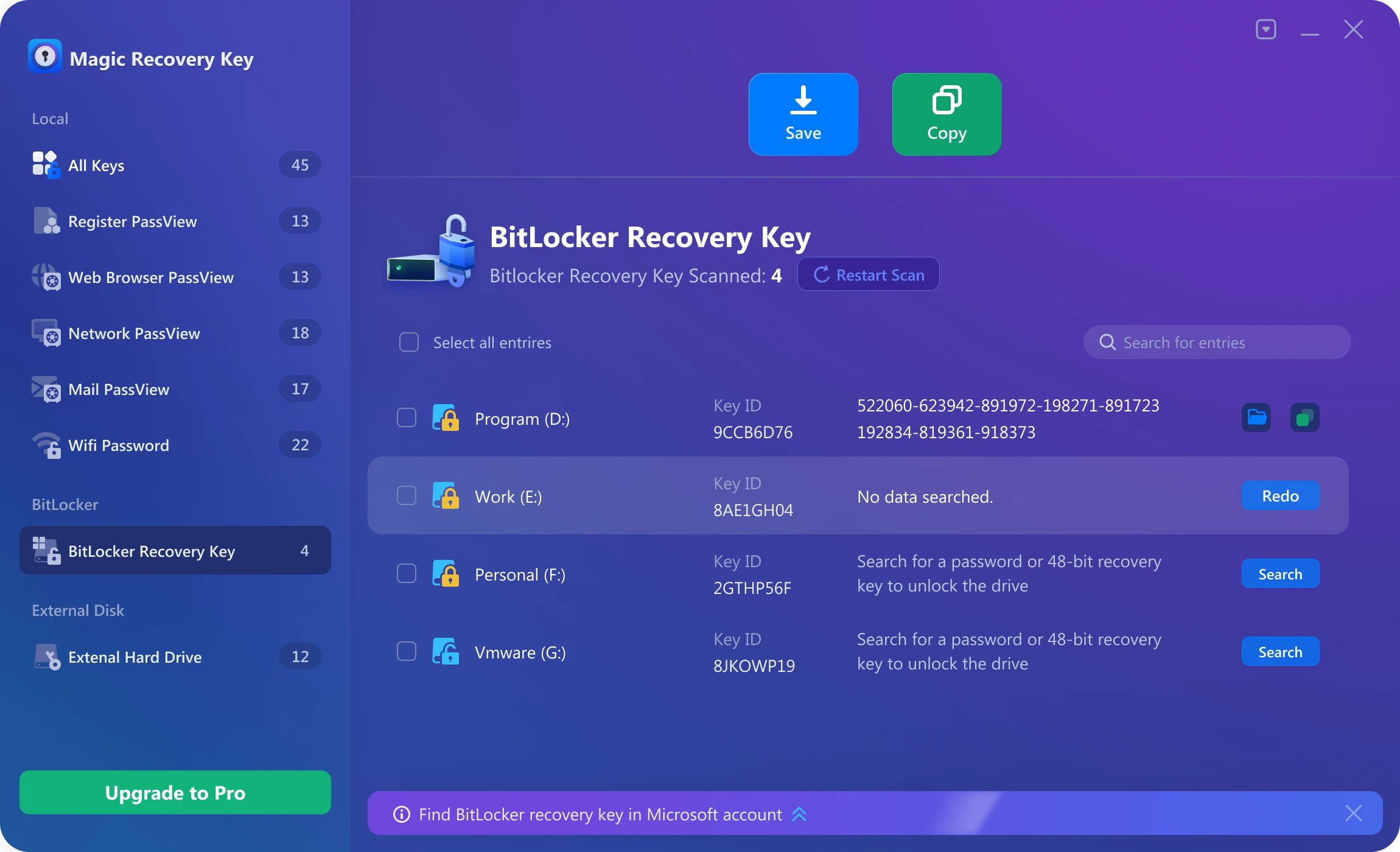
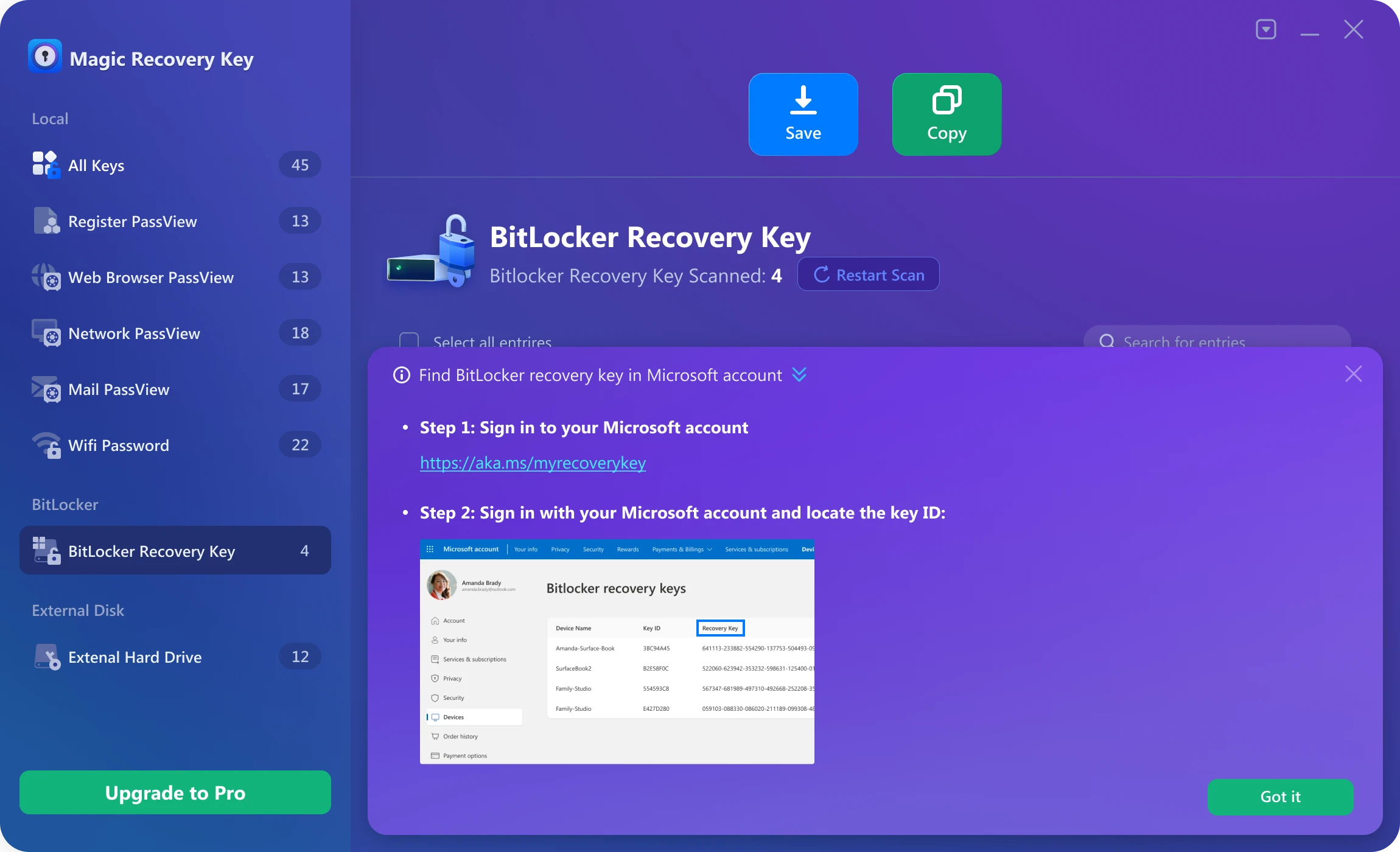
Si la clave de recuperación de BitLocker no está almacenada en el equipo actual, también puede seguir los pasos que se indican a continuación para buscarla en su cuenta de Microsoft.
7. Disco duro externo
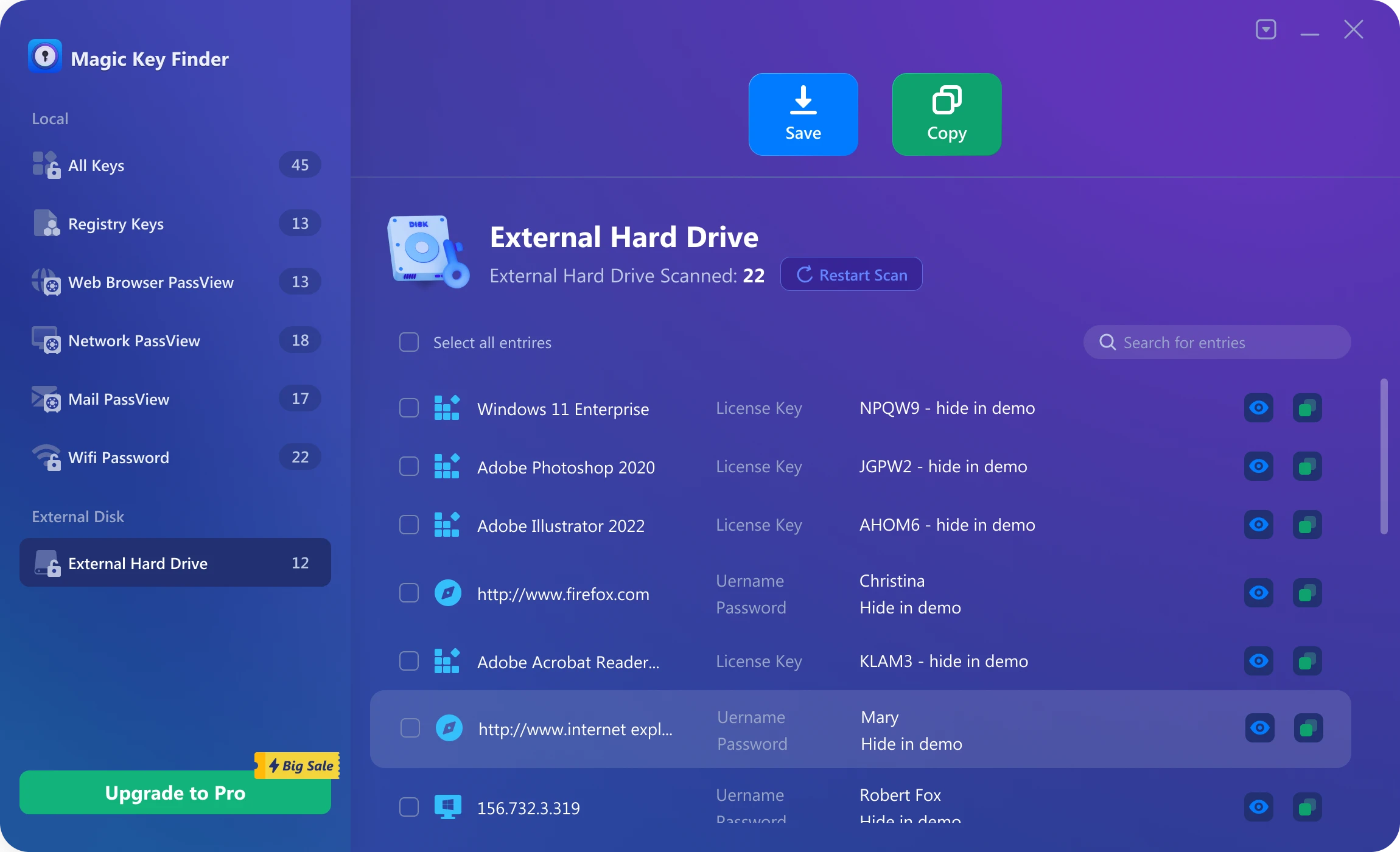
Esta función le ayuda a extraer información como claves de software, información de marcadores del navegador, contraseñas de cuentas de red y contraseñas Wi-Fi de un disco externo. Esta función está destinada principalmente a situaciones en las que no se puede iniciar un ordenador. Cuando el ordenador tiene problemas de arranque, puedes intentar extraer el disco y conectarlo a un ordenador en funcionamiento como disco externo. De esta forma, puedes instalar Magic Recovery Key en este ordenador e intentar extraer la información del disco externo conectado.
Para obtener los permisos necesarios, debes introducir la cuenta y la contraseña del ordenador original en la ventana emergente que aparece a continuación.

Después de obtener los permisos y completar el escaneo, puedes ver las claves de software, la información de los marcadores del navegador, las contraseñas de las cuentas de red, las contraseñas Wi-Fi y otra información en el disco externo.
Ayuda
Amagicsoft proporciona a los usuarios asistencia y recursos completos para garantizar una experiencia sin problemas. Tanto si se enfrenta a fallos técnicos como si tiene dudas sobre la funcionalidad o necesita orientación sobre funciones específicas, nuestra infraestructura de asistencia está aquí para ayudarle.
Contacto
Ahora ofrecemos asistencia por correo electrónico 24 horas al día, 7 días a la semana. Si necesita ayuda, envíe un correo electrónico a support@amagicsoft.com. Le responderemos lo antes posible.
En circunstancias especiales, si desea resolver un problema rápidamente, podemos ofrecerle asistencia a través de una sesión remota. Para ello utilizamos TeamViewer para conexiones remotas.
Generar archivo de registro
A la hora de solucionar problemas técnicos, los archivos de registro desempeñan un papel crucial para ayudar a nuestro equipo de asistencia a comprender la causa del problema.
Puede utilizar el siguiente método para generar archivos de registro:
Pulsa simultáneamente las teclas Win+R de tu teclado para abrir el cuadro de diálogo Ejecutar. A continuación, introduzca %tmp%Magic Recovery Key.log y pulse la tecla Intro para abrir el archivo de registro. Después de revisar el registro, por favor guárdelo y envíenoslo para una mayor investigación.
Si sigue estos procedimientos para ponerse en contacto con el servicio de asistencia y generar archivos de registro, se asegurará de que cualquier problema que encuentre se resuelva con rapidez y eficacia, lo que le permitirá sacar el máximo partido a nuestro Magic Recovery Key.

Erin Smith es reconocida como una de las redactoras más profesionales de Amagicsoft. Ha perfeccionado continuamente sus habilidades de escritura durante los últimos 10 años y ha ayudado a millones de lectores a resolver sus problemas tecnológicos.