
Cómo recuperar datos de una tarjeta SD formateada de forma segura
Formatear una tarjeta SD puede hacer que desaparezcan en cuestión de segundos fotos, vídeos, documentos y archivos de trabajo muy valiosos. Afortunadamente, aprender Cómo recuperar datos de una tarjeta SD formateada puede ayudarte a recuperar esos archivos antes de que los nuevos datos los sobrescriban. En muchos casos, un formateo rápido elimina los registros del sistema de archivos en lugar de borrar inmediatamente el contenido original. Por lo tanto, al iniciar el Recuperación de tarjetas SD Si inicias el proceso lo antes posible, podrás aumentar tus posibilidades de recuperar los datos restantes.
Esta guía explica Cómo recuperar datos de una tarjeta SD formateada en Windows y Android. Abarca diferentes situaciones de formateo, las limitaciones de almacenamiento de Android, los errores más comunes en la recuperación y una solución segura paso a paso. También aprenderás cuándo Magic Data Recovery puede ayudar con recuperación de tarjeta SD formateada y cuando el cifrado, los daños físicos o la sobrescritura de datos puedan limitar los resultados. Aunque ningún programa puede recuperar todos los archivos sobrescritos o borrados de forma segura, el método de recuperación adecuado puede evitar una mayor pérdida de datos y ayudarte a recuperar de forma segura los archivos a los que se puede acceder.
Compatible con Windows 7/8/10/11 y Windows Server
Índice
Qué hay que hacer antes de recuperar datos de una tarjeta SD formateada
Antes de intentar Cómo recuperar datos de una tarjeta SD formateada, detén cualquier acción que pueda escribir nueva información en la tarjeta. Las nuevas fotos, descargas, archivos de aplicaciones y operaciones de reparación pueden sobrescribir los datos recuperables.
En primer lugar, retira la tarjeta del teléfono, la cámara, el dron o la cámara de salpicadero. A continuación, cancela cualquier solicitud de formatearla de nuevo. Además, no Ejecuta CHKDSK o instalar un programa de recuperación en la tarjeta afectada.
Sigue estas reglas:
- Deje de utilizar la tarjeta SD inmediatamente.
- Utiliza un lector de tarjetas fiable.
- Realiza un análisis antes de probar las herramientas de reparación.
- Instala el software en otra unidad.
- Guarda los archivos recuperados en otra ubicación.
- Detén el proceso si la tarjeta se sobrecalienta o se desconecta repetidamente.
Por lo tanto, el primer paso para Cómo recuperar datos de una tarjeta SD formateada impide que se sigan sobrescribiendo los datos.
¿Se pueden recuperar datos de una tarjeta SD formateada?
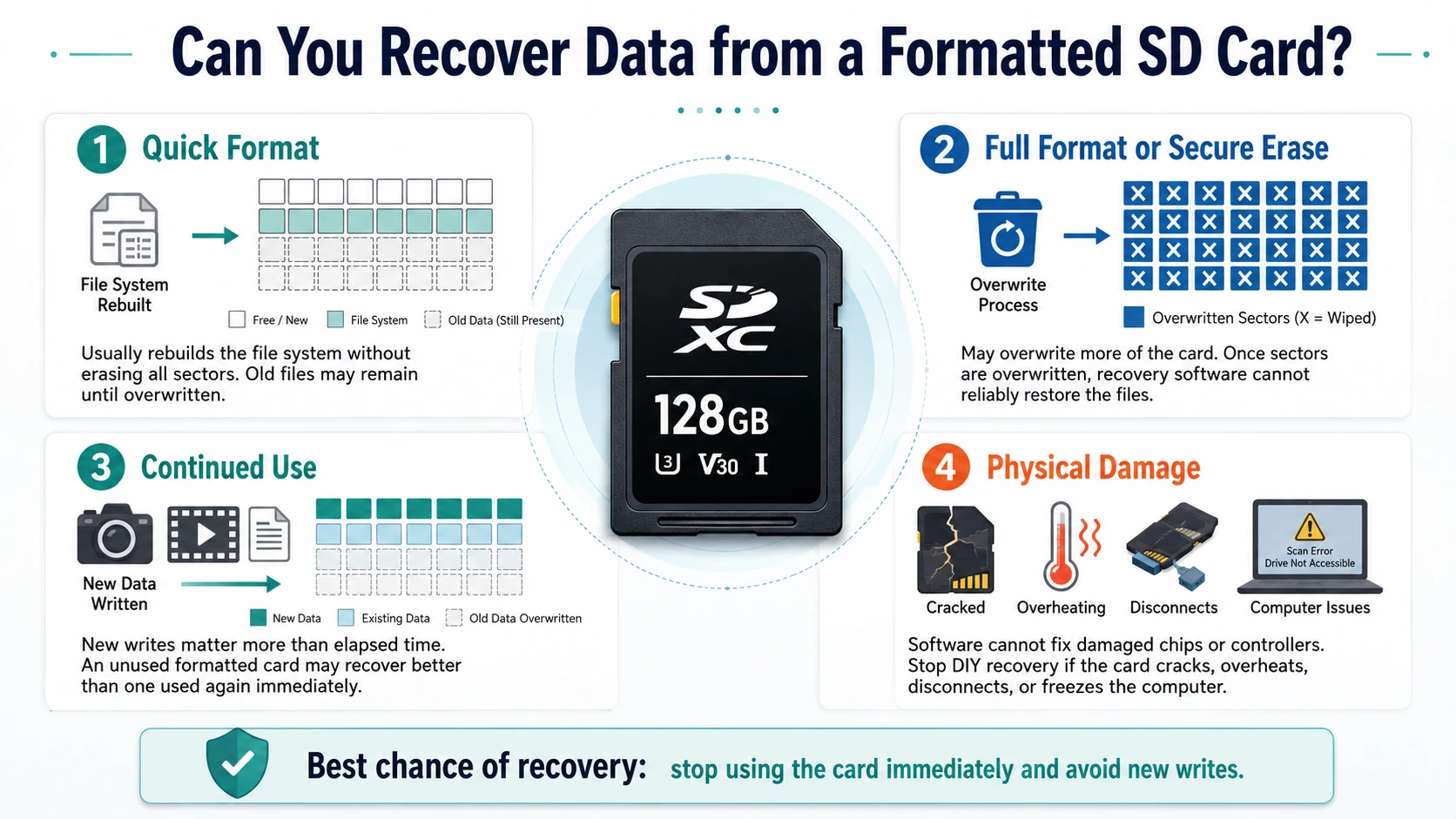
Una respuesta fiable a Cómo recuperar datos de una tarjeta SD formateada Depende del tipo de formato, del uso posterior, del cifrado y del estado físico.
Formato rápido
A formato rápido Normalmente, reconstruye el sistema de archivos sin sobrescribir todos los sectores de almacenamiento. Como resultado, los archivos antiguos pueden permanecer hasta que los nuevos datos los sustituyan.
Formateo completo o borrado seguro
A formato completo puede sobrescribir una mayor parte de la tarjeta. Del mismo modo, las herramientas de borrado seguro sustituyen intencionadamente los datos almacenados. Una vez que otro proceso sobrescribe los sectores originales, el software no puede reconstruirlos de forma fiable.
Uso continuado y daños físicos
Al evaluar Cómo recuperar datos de una tarjeta SD formateada, el tiempo transcurrido es menos importante que las nuevas grabaciones. Por ejemplo, una tarjeta sin usar que se haya formateado hace un mes puede ofrecer mejores resultados que una tarjeta que se haya llenado con vídeos nuevos inmediatamente después.
El software tampoco puede reparar chips de memoria o controladores averiados. Por lo tanto, deja de intentar la recuperación por tu cuenta si la tarjeta se rompe, se sobrecalienta, desaparece durante el escaneo o bloquea el ordenador.
Identifica qué se ha formateado antes de elegir una solución
Antes de elegir Cómo recuperar datos de una tarjeta SD formateada, identifica el tipo de almacenamiento.
Tarjeta SD extraíble
Las tarjetas de cámara y las tarjetas microSD estándar suelen utilizar los sistemas de archivos FAT32 o exFAT. Windows suele poder leerlas mediante un lector, incluso cuando el Explorador de archivos muestra una unidad vacía.
Almacenamiento portátil para Android
Una tarjeta Android portátil funciona como cualquier otro soporte extraíble. Por lo tanto, retírala del teléfono y escanéala en Windows.
Almacenamiento interno o adoptable de Android
Android puede cifrar una tarjeta y vincularla a un teléfono concreto. Por lo tanto, aunque un ordenador pueda detectar la tarjeta, no podrá leer sus archivos sin el dispositivo original y la información de cifrado.
Restablecimiento de fábrica de un teléfono Android
El restablecimiento de fábrica afecta al almacenamiento flash interno, no a una tarjeta extraíble. Por lo tanto, los usuarios que busquen Recuperar un teléfono Android formateado Deberías comprobar primero las copias de seguridad en la nube y en el dispositivo.
Cómo recuperar datos de una tarjeta SD formateada con Magic Data Recovery
En el caso de los soportes extraíbles que Windows puede detectar, Magic Data Recovery ofrece un proceso directo para Cómo recuperar datos de una tarjeta SD formateada. Escanea la tarjeta, muestra una lista de los archivos recuperables, ofrece filtros y vistas previas, y guarda los datos recuperados en otra ubicación.
Por qué Magic Data Recovery encaja en este escenario
El formateo suele eliminar la vista original de las carpetas. Magic Data Recovery resuelve este problema buscando registros de archivos perdidos y contenido reconocible, en lugar de modificar la tarjeta.
Entre sus principales ventajas figuran:
- Compatibilidad con tarjetas SD, tarjetas microSD, memorias USB y dispositivos de almacenamiento externos
- Recuperación de fotos, vídeos, documentos, archivos y archivos de audio habituales
- Filtros por tipo de archivo, ruta, nombre y tamaño
- Vista previa del archivo antes de recuperarlo
- Un proceso guiado para usuarios sin conocimientos técnicos
- Recuperación en una ubicación diferente
En comparación con CHKDSK o con volver a formatear, este método es más fiable, ya que se centra en localizar archivos. Además, las vistas previas ayudan a los usuarios a evitar restaurar resultados innecesarios.
Paso 1: Conecta la tarjeta SD
Extrae la tarjeta y conéctala a un lector fiable. Si Windows te pide que la formatees, cancela la solicitud. A continuación, comprueba su capacidad y la letra de unidad.
Paso 2: Instalar Magic Data Recovery en otra ubicación
Descargar Magic Data Recovery de Amagicsoft. Instálalo en el disco duro interno del ordenador o en otro disco que funcione correctamente. De lo contrario, los archivos de instalación podrían sobrescribir los datos de la tarjeta.
Compatible con Windows 7/8/10/11 y Windows Server
Paso 3: Selecciona y escanea la tarjeta
Abre el programa e identifica la tarjeta por su capacidad, letra de unidad y nombre del dispositivo. A continuación, inicia el escaneo y evita utilizar la tarjeta.
Deja que el análisis termine. Aunque los primeros resultados pueden aparecer rápidamente, un análisis completo puede detectar más archivos después de que el formateo haya eliminado las carpetas originales.

Paso 4: Filtrar y previsualizar archivos
Filtra los resultados por tipo, tamaño, fecha, ruta o nombre. Por ejemplo, los fotógrafos pueden centrarse en archivos JPG, PNG, CR2 o NEF, mientras que los usuarios de oficina pueden buscar archivos DOCX, XLSX, PDF y ZIP.
A continuación, revisa los archivos importantes siempre que sea posible. Este paso ayuda a descartar los archivos dañados o irrelevantes.

Paso 5: Recuperar archivos en otra unidad
Guarda los archivos seleccionados en el ordenador, en un SSD externo o en otro dispositivo que funcione correctamente. Nunca los restaures en la tarjeta original.
Por último, abre varias fotos, documentos y vídeos recuperados. Comprueba que los vídeos más largos se reproduzcan más allá de los primeros segundos. Con esta comprobación se completa el proceso. Cómo recuperar datos de una tarjeta SD formateada con seguridad.

Cómo recuperar una tarjeta SD formateada en un teléfono Android
Usuarios que buscan Cómo recuperar una tarjeta SD formateada en un teléfono Android En primer lugar, deberías comprobar si Android ha utilizado la tarjeta como almacenamiento portátil o interno.
En el caso de los dispositivos de almacenamiento portátiles, desmonta la tarjeta de forma segura, retírala y conéctala a Windows. A continuación, escanéala con Magic Data Recovery y guarda los resultados en otra ubicación.
Este método reduce el número de nuevas escrituras, ya que Android puede crear archivos de caché, miniaturas y carpetas de aplicaciones. Por lo tanto, el análisis en el ordenador suele ofrecer una opción más segura para Cómo recuperar datos de una tarjeta SD formateada que instalar una aplicación móvil.
Al seguir Cómo recuperar datos de una tarjeta SD formateada En Android, las aplicaciones pueden encontrar imágenes almacenadas en la caché o archivos multimedia limitados. Sin embargo, los permisos de almacenamiento restringen el acceso profundo, mientras que la instalación de aplicaciones puede sobrescribir los datos. Por otra parte, el almacenamiento adoptable utiliza un cifrado vinculado al dispositivo, por lo que es posible que el software habitual de Windows no pueda recuperar archivos utilizables.
Cómo recuperar datos borrados de un teléfono Android
La frase Cómo recuperar datos de un teléfono Android tras un formateo A menudo se refiere a un restablecimiento de fábrica. En ese caso, empieza por las copias de seguridad en lugar de utilizar el software de la tarjeta extraíble.
Comprueba Google Fotos, Google Drive, Contactos de Google, los servicios en la nube del fabricante, las copias de seguridad de los mensajes y las copias de seguridad anteriores del ordenador. Además, revisa Samsung Smart Switch, OneDrive, Dropbox o servicios similares.
Magic Data Recovery funciona mejor con dispositivos de almacenamiento que Windows detecta como unidades, incluidas las tarjetas SD extraíbles y las memorias USB. No debe describirse como una forma garantizada de eludir el cifrado de Android. Esta distinción ayuda a los usuarios que buscan Recuperar un teléfono Android formateado Elige una solución realista.
Métodos que no permiten recuperar datos de una tarjeta SD formateada
Una guía fiable sobre Cómo recuperar datos de una tarjeta SD formateada Debe explicar qué métodos populares no funcionan.
CHKDSK
CHKDSK comprueba y repara los errores del sistema de archivos. Sin embargo, no realiza el mismo análisis en profundidad que el software de recuperación y puede modificar los metadatos.
ATRIB
ATRIB revela archivos ocultos por atributos o por malware. Por lo tanto, no puede recuperar los archivos eliminados al formatear.
Volver a dar formato
Un segundo formateo no anula el primero. En cambio, modifica el sistema de archivos y puede eliminar metadatos útiles.
Comandos «Copiar» y «Mover»
Estos comandos solo gestionan archivos que el sistema operativo puede identificar. No pueden escanear el espacio no asignado ni reconstruir registros formateados.
Factores que influyen en los resultados de la recuperación
Para comprender Cómo recuperar datos de una tarjeta SD formateada, revisa estas condiciones:
- Tipo de formato
- Datos nuevos añadidos posteriormente
- Fotos o vídeos fragmentados
- Sectores defectuosos o lectores inestables
- Cifrado en Android
- Daños en los tipos de archivo y en las carpetas
- Destino de recuperación
Por ejemplo, una tarjeta de cámara sin usar tras un formateo rápido ofrece mejores condiciones que una tarjeta de cámara de salpicadero que haya grabado horas de material nuevo. No obstante, ninguna herramienta responsable debería prometer resultados idénticos para todas las tarjetas.
Errores habituales y consejos para evitarlos
Al seguir Cómo recuperar datos de una tarjeta SD formateada, evita utilizar la tarjeta, instalar software en ella, guardar archivos en ella o ejecutar herramientas de reparación antes de nada. Además, no realices el «root» a un teléfono Android sin conocer los riesgos.
Tras completar Cómo recuperar datos de una tarjeta SD formateada, establece una rutina de copias de seguridad. En primer lugar, conserva una copia de trabajo. A continuación, guarda otra copia en un disco externo. Por último, utiliza el almacenamiento en la nube para los archivos irremplazables. Además, comprueba las copias de seguridad antes de formatear y sustituye las tarjetas que presenten errores frecuentes.
Conclusión: Cómo recuperar datos de una tarjeta SD formateada
El proceso más seguro para Cómo recuperar datos de una tarjeta SD formateada Lo primero es dejar de utilizar la tarjeta por completo. A continuación, comprueba si el problema afecta al almacenamiento extraíble, al almacenamiento portátil de Android, al almacenamiento adoptable cifrado o a la memoria interna del teléfono.
Para una tarjeta extraíble que Windows pueda detectar, Magic Data Recovery ofrece una guía práctica Solución de recuperación de tarjetas SD. Busca archivos perdidos, ofrece filtros y vistas previas, y restaura los datos seleccionados en otra ubicación. Además, evita los riesgos de volver a formatear el disco o de ejecutar comandos de reparación demasiado pronto.
Ningún programa puede recuperar datos que hayan sido sobrescritos por completo o borrados de forma segura. Sin embargo, una intervención rápida, una tarjeta de origen protegida y un análisis minucioso hacen que Magic Data Recovery desempeñe un papel claro en Cómo recuperar datos de una tarjeta SD formateada.
Compatible con Windows 7/8/10/11 y Windows Server
PREGUNTAS FRECUENTES
¿Puedo recuperar los datos de una tarjeta SD después de formatearla?
Sí, es posible recuperar los datos tras un formateo rápido si la tarjeta sigue siendo legible y ningún dato nuevo ha sobrescrito los archivos originales. En primer lugar, deja de utilizarla. A continuación, conéctala a un ordenador y realiza un análisis completo. Guarda todos los archivos recuperados en otra unidad, en lugar de en la tarjeta SD original.
¿Puedo recuperar una tarjeta SD formateada sin un ordenador?
Una aplicación móvil puede recuperar imágenes almacenadas en la caché o archivos multimedia de tamaño limitado, pero suele tener menos acceso al almacenamiento que el software de ordenador. Por lo tanto, un ordenador con Windows y un lector fiable ofrecen una opción más segura para las tarjetas extraíbles. Este método también reduce la probabilidad de que un teléfono sobrescriba los datos con archivos de la caché o de la aplicación.
¿Cómo puedo recuperar una tarjeta SD formateada en Android?
Para saber cómo recuperar una tarjeta SD formateada en un teléfono Android, primero comprueba que Android haya utilizado la tarjeta como almacenamiento portátil. Retírala, conéctala a Windows y escanéala con Magic Data Recovery. Sin embargo, es posible que este método no funcione si Android ha cifrado la tarjeta como almacenamiento interno o adoptable.
¿Puedo recuperar archivos tras un formateo completo?
La recuperación depende de si el formateo completo ha sobrescrito los sectores de almacenamiento originales. Si se ha producido la sobrescritura, el software no podrá reconstruir de forma fiable los archivos perdidos. No obstante, deja de utilizar la tarjeta y realiza un análisis minucioso antes de intentar ejecutar comandos de reparación, crear particiones o volver a formatear el dispositivo de almacenamiento.
¿Puede Magic Data Recovery recuperar una tarjeta microSD formateada?
Magic Data Recovery puede escanear una tarjeta microSD formateada cuando Windows la detecta a través de un lector compatible. Puede localizar fotos, vídeos, documentos y archivos habituales. Sin embargo, los resultados dependen de si se han sobrescrito posteriormente, del cifrado, de posibles daños físicos, de la fragmentación de los archivos, del estado de la tarjeta y del tipo de formato utilizado.
¿Por qué están dañados los vídeos que he recuperado?
Los vídeos de gran tamaño suelen ocupar varias áreas de almacenamiento no contiguas. Si unos datos nuevos sobrescriben una de esas secciones, es posible que el vídeo recuperado se cuelgue, se salte partes o no se abra. Por lo tanto, completa el análisis, recupera todos los archivos de vídeo disponibles y comprueba cada resultado con más de un reproductor multimedia antes de descartarlo.
¿Puedo recuperar un teléfono Android que se ha restablecido a los valores de fábrica?
Un restablecimiento de fábrica suele impedir el acceso a los datos cifrados del usuario en los teléfonos Android modernos, por lo que la recuperación directa puede resultar muy limitada. En primer lugar, comprueba las copias de seguridad de Google, del fabricante, de los mensajes, en la nube y en el ordenador. Magic Data Recovery es compatible con tarjetas SD extraíbles y otros dispositivos de almacenamiento que Windows pueda detectar como unidades.

Vasilii es un especialista en recuperación de datos con unos 10 años de experiencia práctica en este campo. A lo largo de su carrera, ha resuelto con éxito miles de casos complejos relacionados con archivos borrados, unidades formateadas, particiones perdidas y sistemas de archivos RAW. Su experiencia abarca tanto métodos de recuperación manual con herramientas profesionales como editores hexadecimales como soluciones automatizadas avanzadas con software de recuperación. La misión de Vasilii es poner los conocimientos sobre recuperación de datos al alcance tanto de los profesionales informáticos como de los usuarios de a pie, ayudándoles a salvaguardar sus valiosos activos digitales.