
How to Recover Data from a Formatted SD Card

Accidentally formatted a camera card before copying your photos? Formatted SD card recovery may still work, but your next action matters: stop using the card. New pictures, downloads, or recordings can overwrite the files you want back.
This guide explains how to recover a formatted SD card, compares four practical methods, and identifies situations that require professional help. If you need a visual Windows workflow, Magic Data Recovery offers scanning and file previews. For other memory-card problems, visit our SD card recovery solutions.
Quick answer: Remove the card, check existing backups, and connect it through a reliable reader. If the computer detects it normally, scan for lost files and save the results to another drive. Avoid formatting again or running repair commands first.
Table of Contents
Can You Recover Files from a Formatted SD Card?
Often, yes—especially after a quick format with no further use. However, formatted SD card recovery depends on what remains readable, not simply whether the card looks empty.
Quick Format vs. Full Format
A file system acts like a map of filenames, folders, and storage locations. A quick format rebuilds that map and makes space available for reuse. It may leave previous file content behind. The SD Association’s formatter FAQ distinguishes this process from overwrite formatting, which writes across the user-data area.
Full-format behavior varies by device and tool. Once an operation completely overwrites the old content, recovery software cannot recreate it. A lab cannot promise to reverse that overwrite either.
What happened? | Recovery outlook | Best next step |
Quick format; no later use | Files may remain | Check backups, then scan |
Camera or drone format | Depends on the device’s format operation | Remove the card; avoid recording |
New photos or video afterward | Some old files may survive | Stop all further writes |
Complete overwrite | Software cannot restore overwritten content | Look for existing copies |
Disconnections, heat, or wrong capacity | Possible hardware failure | Stop and seek assessment |
For example, consider two photographers who format their cards. One removes the card immediately; the other records another event. The first generally has better conditions for formatted SD card recovery, although neither case guarantees success.
What Does “Unformat SD Card” Mean?
People use unformat SD card to mean retrieving files after formatting. There is no universal undo button. Recovery tools search surviving records or recognize file signatures: patterns that identify formats such as JPEG or PDF.
Signature scanning may retrieve content without original filenames or folders. Fragmented videos can also remain incomplete because their pieces occupy separate locations.
Before You Start Formatted SD Card Recovery
Protect the source before choosing a tool:
- Turn off the camera, phone, drone, or recorder and remove the card.
- Cancel any prompt to format or initialize it.
- Avoid CHKDSK, partition changes, and other repairs before saving important files.
- Install recovery software on your computer, away from the affected card.
- Prepare a folder on a different physical drive with enough free space.
- Stop if the card disconnects repeatedly, becomes unusually hot, or freezes the computer.
For formatted SD card recovery, preventing new writes usually matters more than elapsed time. An unused card from last week may offer better prospects than one that recorded video five minutes after formatting.
How to Recover a Formatted SD Card: Compare Your Options
Choose a method according to your backups, operating system, and comfort with recovery tools.
Method | Best fit | Main limitation |
Existing backups | You already copied or synced the files | Only protects content you previously saved |
Magic Data Recovery | Windows users who want filters and previews | Cannot reverse overwriting or hardware failure |
Windows File Recovery | Windows users comfortable with commands | Requires correct drive letters and syntax |
PhotoRec | Users seeking a free, cross-platform tool | Original names and folders may not survive |
The best formatted SD card recovery method is the one that fits your situation while preserving the source.
Method 1: Restore Existing Backups
Check computer import folders, external disks, cloud libraries, and previous phone backups. Camera-upload apps or shared albums may also contain copies.
Download files to your computer first. Then check image resolution, video length, and document contents. A messaging-app attachment may be a compressed copy rather than the original.
File History or another backup service only helps if it captured the files beforehand. Enabling it after formatting will not retrieve data that existed only on the card.
Method 2: Use Magic Data Recovery on Windows
If backups do not contain the missing files, formatted SD card recovery software becomes a practical next step for a stable, detectable card.
Magic Data Recovery addresses a common problem: the card looks empty, and you cannot judge which files remain usable. Its visual workflow combines scanning, filters, previews, and selective recovery. It supports SD and microSD cards, common photo and video formats, and FAT32/exFAT recovery scenarios.
For example, a camera owner can focus on JPEG or RAW images instead of restoring every scan result. Previewing supported files helps identify useful content before saving it.
Compared with formatting again or running repair commands, this workflow better matches the goal of retrieving files. Compared with command-line utilities, it reduces syntax and selection complexity. These benefits do not establish a higher recovery rate than competing tools; results still depend on the card.
Step 1: Install the Program and Connect the Card
Get the installer from Amagicsoft and install it on your Windows computer. Connect the card with a reliable reader. If Windows requests formatting, cancel.
Supports Windows 7/8/10/11 and Windows Server
Step 2: Select the Correct Device
Open the program and match the card’s capacity, device name, and drive letter when available. Check carefully if several external drives are connected.
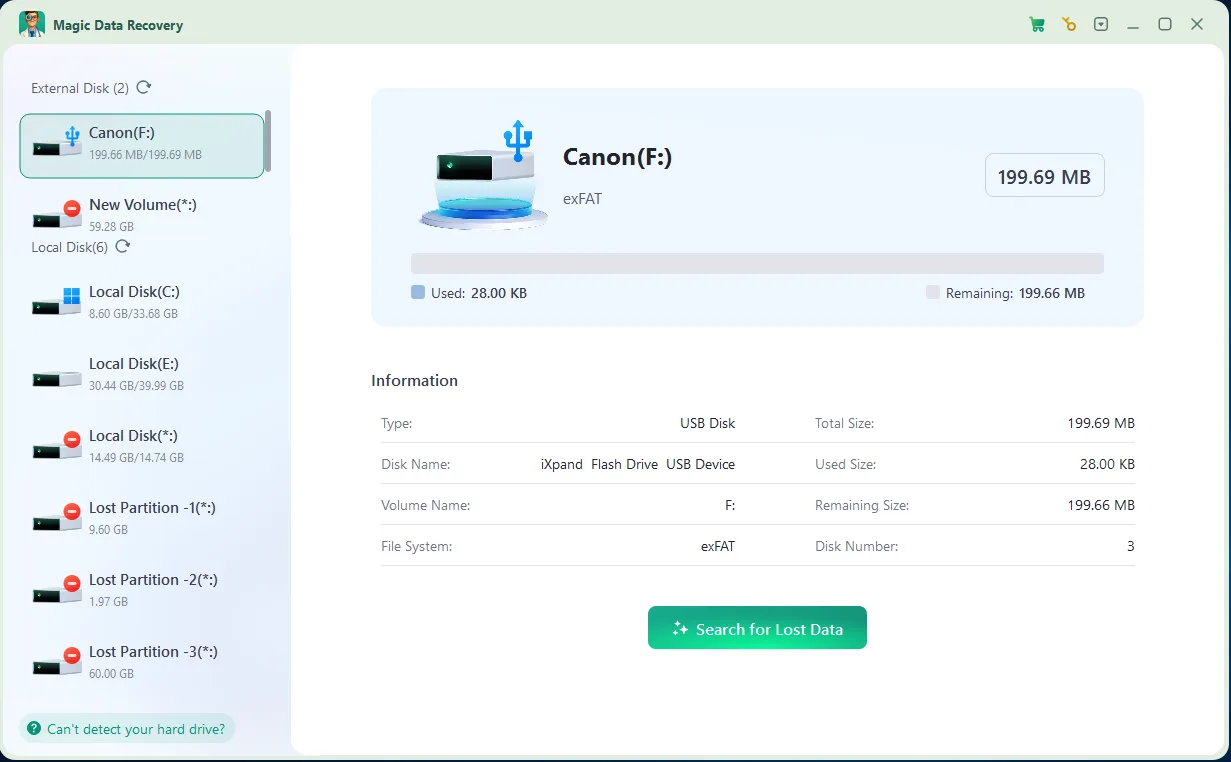
Step 3: Run a Complete Scan
Start scanning and leave the card connected. Allow the scan to finish while the device remains stable.
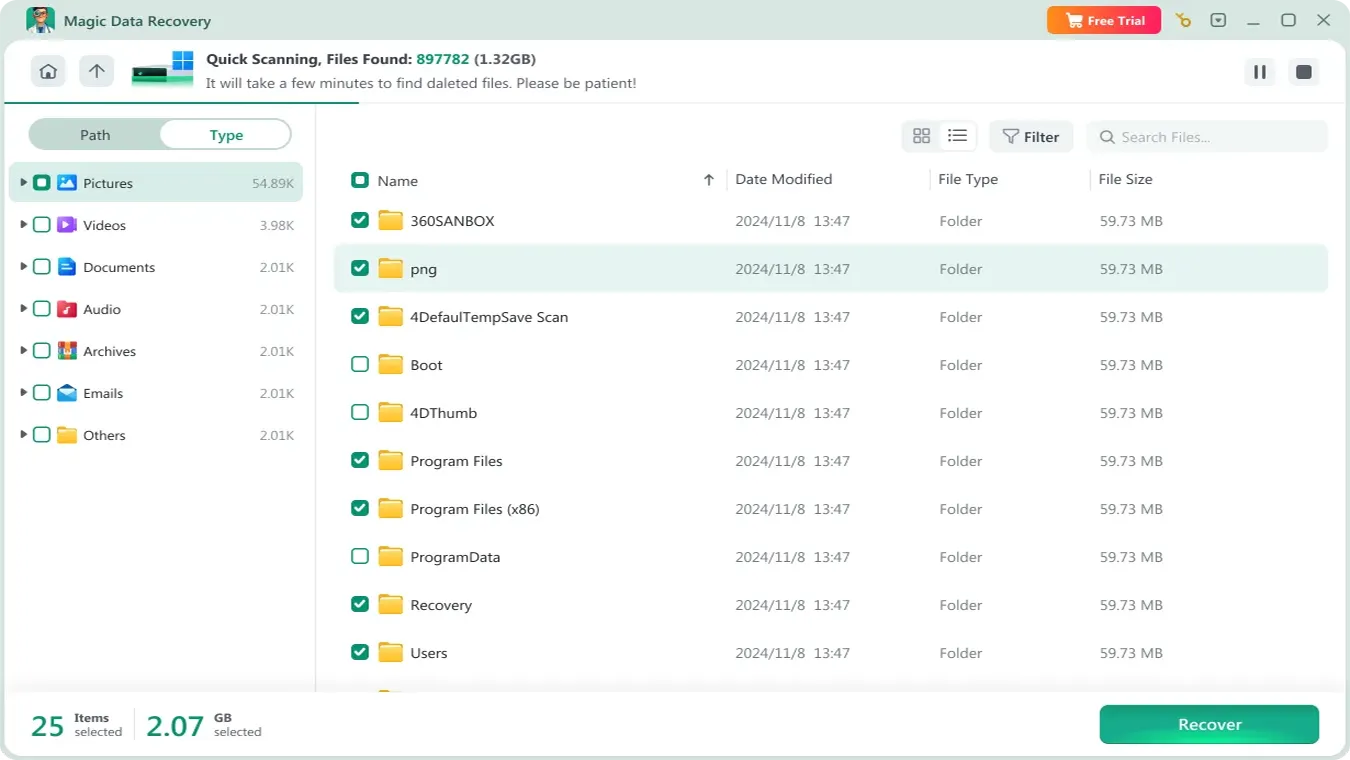
Step 4: Filter and Preview Results
Narrow the results by file type or other available filters. Preview important photos and documents. During formatted SD card recovery, a thumbnail alone does not prove that an entire video remains intact.

Step 5: Recover Elsewhere and Verify
Select the files you need and save them to your computer or another external drive. Never choose the source card. Open full-size photos, test documents, and check videos at several points, including the ending.
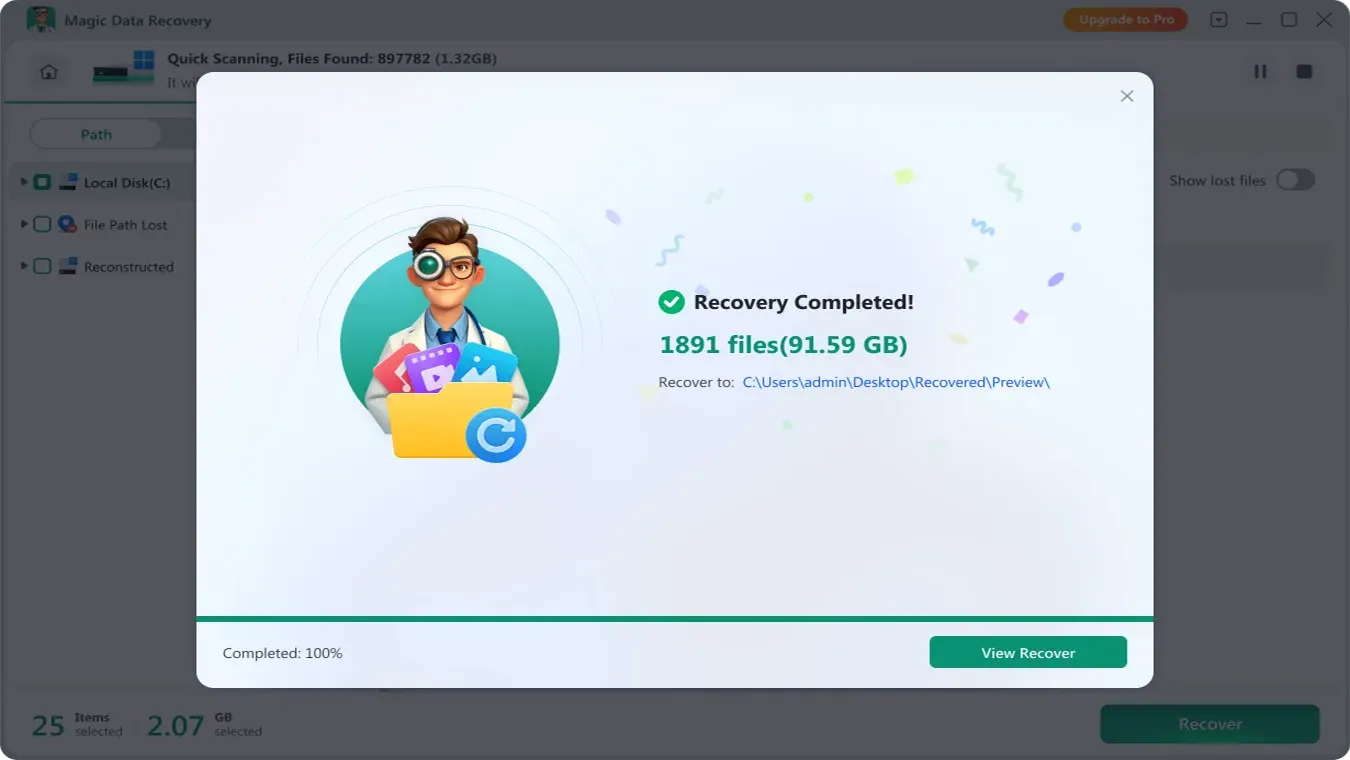
Keep the card untouched until you verify the important files. Review the current trial allowance and license terms on the product page before relying on the free edition for a large recovery.
Method 3: Try Windows File Recovery for Free
Microsoft’s Windows File Recovery offers a command-line option for free formatted SD card recovery. Install it from Microsoft Store and open it with administrator approval.
Microsoft recommends Extensive mode for FAT/exFAT storage and formatted NTFS volumes. For a card using E: and a separate destination drive using D:, a photo-and-video search could use:
winfr E: D: /extensive /n *.jpg /n *.jpeg /n *.mp4 /n *.mov
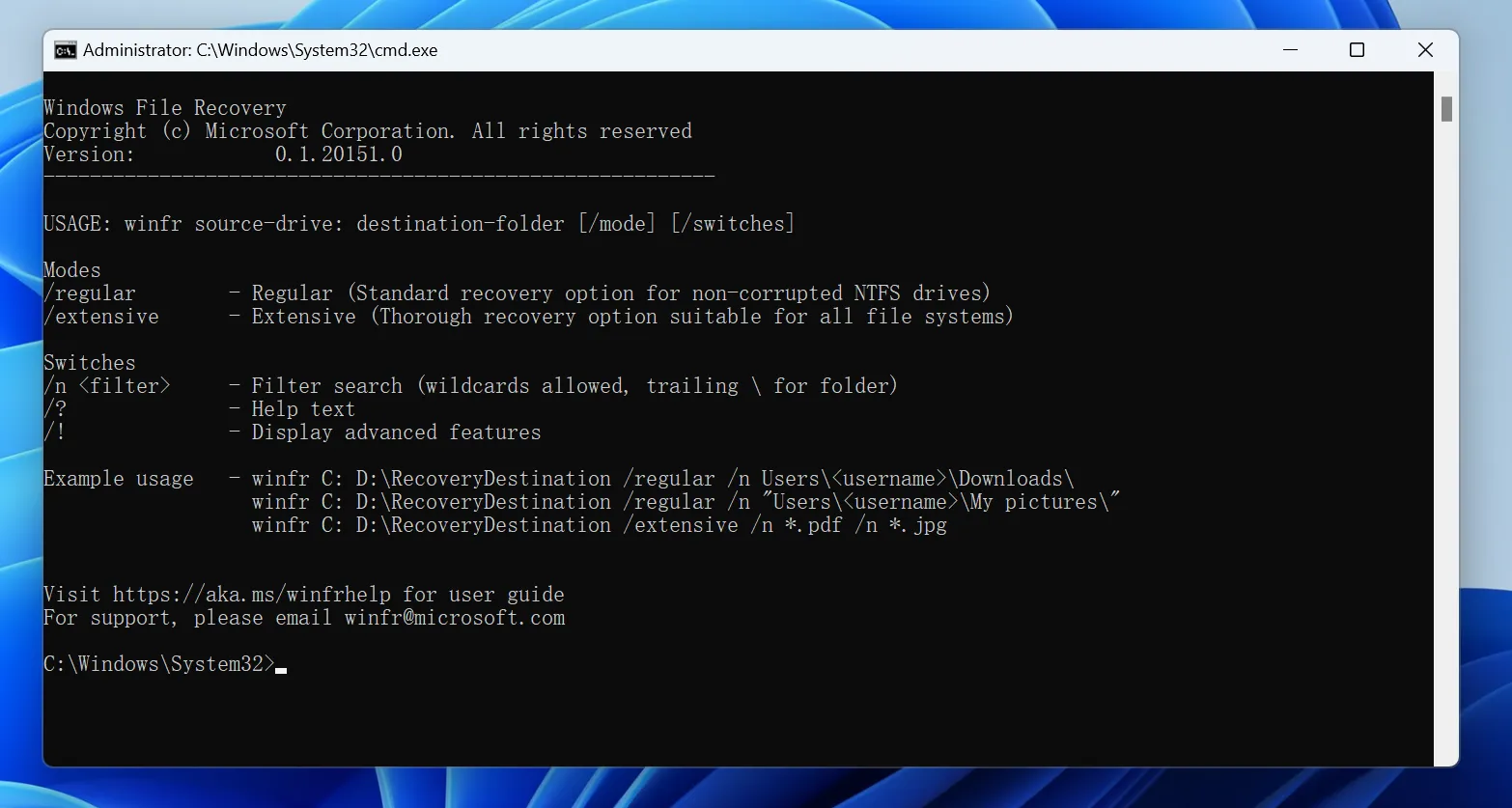
Replace both drive letters with your actual devices. Change the extension filters if you need other formats. The source and destination must differ; choose a separate physical device for the destination. Review the output folder and test the recovered files. See Microsoft’s instructions for supported options.
This formatted SD card recovery approach suits users comfortable checking commands. It does not offer the same visual preview workflow as Magic Data Recovery.
Method 4: Use PhotoRec on Windows, macOS, or Linux
PhotoRec is free, open-source software that searches underlying file content even after reformatting. It offers a cross-platform option for formatted SD card recovery.
Following the official PhotoRec guide:
- Download and extract the package onto your computer.
- Select the correct card and affected partition.
- Choose
Otherfor FAT/exFAT when the program asks for the file-system type. - Search the whole partition after formatting and set a destination on another drive.
- Review the recovered files and check their contents.
Expect extra sorting afterward. Signature-based recovery may lose names and folders, and fragmented files can remain damaged. Those limits affect what you get back, even when a scan finds many items.
Formatted SD Card Recovery on Android: Check Storage Type
For an unencrypted Android formatted SD card that served as portable storage, power off the phone and remove the card. Use a reader to scan it on a computer. Avoid installing apps or downloading files onto it.
Adopted storage is different. Android’s documentation explains that Android encrypts adopted media and ties it to the original device. Ordinary PC recovery tools cannot bypass that encryption. Preserve the phone and card together; seek advice before resetting the phone or changing storage settings.
A phone factory reset also differs from formatting a removable card. Check account backups and cloud photos first. Do not assume an SD-card utility can retrieve encrypted internal phone storage.
Formatted SD Card Recovery: Detection and File Errors
If the card appears physically sound, try another reader, USB port, or computer. Next, check Windows Disk Management. Formatted SD card recovery software may detect a card that File Explorer cannot open, provided the system exposes a readable storage device.
Do not initialize or format it to make it appear. A card showing zero bytes, implausible capacity, or repeated disconnections needs a different approach. For irreplaceable files, stop and contact a recovery specialist. Experienced users may work from a sector-by-sector image, but imaging a failing card also requires care.
Incomplete formatted SD card recovery results can reflect missing fragments, overwriting, or read errors. Preserve the source and compare file sizes with known originals where possible. File repair cannot manufacture content that no longer exists.
Conclusion: A Practical Formatted SD Card Recovery Plan
Start with existing copies, protect the card, and choose a method that matches its condition. Successful formatted SD card recovery means retrieving usable files and checking them before reusing the source.
We recommend Magic Data Recovery for Windows users who need a clear scan, filter, and preview workflow. It offers a practical way to inspect remaining files without manual commands, while backups and free utilities remain useful alternatives. For broader troubleshooting and prevention advice, explore our SD card recovery solutions.
Supports Windows 7/8/10/11 and Windows Server
FAQ
Can a formatted SD card really be recovered?
Can I recover a formatted SD card without software?
Is formatted SD card recovery free?
Can I recover photos after formatting an SD card?
Does Quick Format Permanently Erase an SD Card?
Can a Full-Format SD Card Be Recovered?
Can CMD Recover a Formatted SD Card?
Where Should I Save Recovered Files?

Vasilii is a data recovery specialist with around 10 years of hands-on experience in the field. Throughout his career, he has successfully solved thousands of complex cases involving deleted files, formatted drives, lost partitions, and RAW file systems. His expertise covers both manual recovery methods using professional tools like hex editors and advanced automated solutions with recovery software. Vasilii's mission is to make reliable data recovery knowledge accessible to both IT professionals and everyday users, helping them safeguard their valuable digital assets.