Ir al contenido
icono del logotipo de amagicsoft
  • Inicio
  • Productos
    • Magic Data Recovery
    • Magic Recovery Key
  • Tienda
  • Blog
  • Más
    • Acerca de Amagicsoft
    • Contacto
    • Política de privacidad
    • Términos
    • Acuerdo de licencia
    • Política de reembolso
  • Español
    • English
    • 日本語
    • 한국어
    • Deutsch
    • Français
    • 繁體中文
Wiki

Data Drive

26 de noviembre de 2025 Eddie Comentarios desactivados en Data Drive
Data Drive

Índice

Keeping the System and Your Files Apart

Many Windows installations start on a single drive where the operating system, applications, and user files all share the same volume.
That layout looks simple at first, but it increases the impact of crashes, reinstalls, and disk failures.

A dedicated data drive solves that weakness.
It gives user files, work projects, and archives their own physical disk (or at least their own volume), separate from the OS and program files.

What a “Data Drive” Means in Practice

In this context, a data drive is a physical disk or dedicated volume that stores user data only.
The operating system boots from one system drive, while documents, photos, VMs, and backups live on another.

This drive can be:

  • An internal HDD dedicated to bulk storage

  • A secondary SSD for active worksets and project files

  • A RAID set or NAS volume for shared team data

The important idea is isolation.
System failures, reinstalls, and experiments affect the OS drive first, while the data drive stays untouched as long as the hardware remains healthy.

Why Separate System and Data Volumes

Separating system and data brings several benefits that matter directly for safety and recovery.

Protection During OS Failure

When the OS volume fails logically, Windows may refuse to boot or ask for a reinstall.
If user data sits on that same partition, recovery becomes more complex.

With a separate data drive, you can:

  • Reinstall or repair Windows on the system drive without formatting data volumes

  • Boot from another disk or USB and still access the data drive

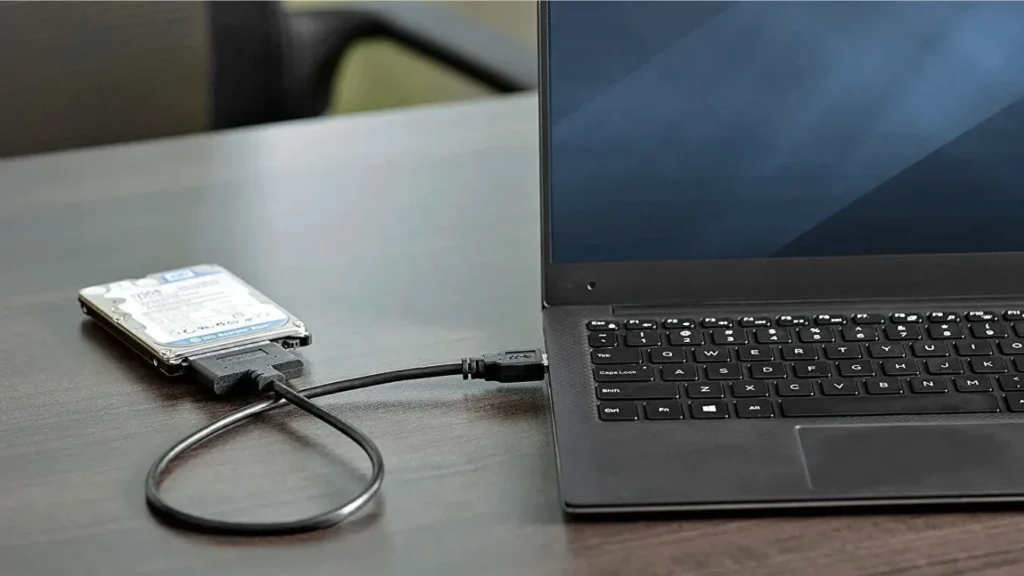
  • Attach the data drive to another machine for emergency access

Therefore, you reduce the chance that a rushed reinstall wipes irreplaceable files.

Cleaner Backup and Recovery

Backups work best when the source structure stays predictable.
A dedicated data drive keeps variable content in one place and system files in another.

That separation lets you:

  • Back up the data drive more frequently than the OS volume

  • Use image-based backups for the system and file-based backups for data

  • Restore user files to a new system without dragging along old OS clutter

When something goes wrong, tools like Amagicsoft Data Recovery can focus scans on the affected drive and avoid unnecessary passes over healthy volumes.

Descargar Magic Data Recovery

Compatible con Windows 7/8/10/11 y Windows Server

Performance and Wear Considerations

Modern systems often pair a fast SSD with a larger HDD.
Using the SSD as the OS and application drive while assigning the HDD as a data drive balances speed and capacity.

In addition, this pattern:

  • Reduces random I/O contention between system tasks and large media files

  • Keeps heavy write workloads (like downloads and raw footage) on cheaper disks

  • Simplifies future SSD upgrades, because you only clone the system drive

Consequently, the machine stays responsive while still offering plenty of room for user data.

Planning a Data Drive Layout

Before you move folders, you should design a basic layout that matches your hardware and workload.

Choosing SSD vs. HDD for a Data Drive

For active projects, virtual machines, and databases, an SSD data drive works best.
It provides low latency and strong random I/O performance.

For archives, backup copies, and media libraries, an HDD remains cost-effective.
You gain terabytes of capacity at a lower price per gigabyte, which suits long-term retention.

A mixed approach is common: SSD for “hot” data and HDD for “warm” and “cold” data.

Partition vs. Separate Physical Disk

You can simulate a data drive by creating a separate partition on one physical disk.
However, a true separate disk offers stronger isolation.

A second physical drive:

  • Reduces the chance that a single mechanical failure wipes both OS and data

  • Allows independent SMART monitoring and testing

  • Makes it easier to remove and attach the data drive to another system

If budget allows, prefer a separate disk for important datasets.

Setting Up a Data Drive on Windows

You can move to this layout gradually on an existing system.

Step 1: Prepare and Format the Drive

  1. Install the second drive or connect it via SATA or NVMe.

  2. Abrir Gestión de discos and initialize the disk (MBR or GPT as appropriate).

  3. Create one or more NTFS volumes for data.

  4. Assign clear drive letters (for example, D: for primary data, E: for archives).

At this stage, you have a blank data drive ready for content.

Step 2: Move User Folders and Libraries

Next, you shift common user locations:

  1. Right-click folders such as Documentos, Pictures, y Descargas.

  2. Abrir Propiedades and switch to the Location ficha.

  3. Haga clic en Move… and choose a folder on the data drive.

  4. Confirm moving existing files when prompted.

This method tells Windows to store new files directly on the data drive without breaking application expectations.

Step 3: Redirect Application Data

You also want major applications to use the data drive:

  • Change default project paths in editing and office tools.

  • Point virtual machine storage to the data volume.

  • Configure backup software to write archives to the data drive or an additional backup drive.

Additionally, keeping a dedicated folder for recovery-related exports makes later investigations easier when you use Amagicsoft Data Recovery or similar tools.

Data Drive and Amagicsoft Data Recovery

A data drive works well with professional recovery workflows.
When you experience corruption, accidental deletion, or a failing system drive, separation gives you more options.

You can:

  • Remove the data drive and attach it to a stable machine

  • Install Amagicsoft Data Recovery on a different disk or system

  • Scan the data drive in read-only mode and recover to a third device

Because the OS and recovery tools run elsewhere, the data drive sees fewer writes during diagnosis, which increases the chance of successful recovery.

Supports Windows 7/8/10/11 and Windows Server.

Descargar Magic Data Recovery

Compatible con Windows 7/8/10/11 y Windows Server

Good Habits for Long-Term Safety

A dedicated data drive improves your resilience, but you still need discipline.

Practical habits include:

  • Monitoring SMART attributes for early warning signs

  • Backing up the data drive to another physical device or cloud storage

  • Avoiding experiments and test installations on the data drive

  • Checking free space regularly so recovery exports always have room

With these habits in place, a data drive becomes the core of a safer, more maintainable storage strategy.


PREGUNTAS FRECUENTES

What does data drive?

In a storage context, a data drive holds user files, projects, and archives separately from the operating system. It prevents routine OS changes from endangering important content. In analytics, data drives decisions by providing objective evidence instead of opinion, which leads to more predictable and defensible outcomes across a business.

What is a data-driven example?

A retailer that adjusts stock levels based on sales logs and return rates follows a data-driven approach. Instead of guessing, it analyzes transaction data, identifies fast movers and slow items, then updates orders. The same idea applies to IT teams that size storage by observing growth trends rather than relying on estimates.

How to use data-driven?

You use data-driven methods by defining clear metrics, collecting relevant data, and tying actions to thresholds. For example, you might scale backup storage when usage crosses a set percentage or schedule drive replacements after SMART errors spike. Decisions follow measured behavior, and you document the logic so others can review it.

What is a data-driven method?

A data-driven method relies on quantitative evidence to guide choices. You gather data, analyze patterns, and choose actions that match what the numbers show. This approach contrasts with purely intuition-based decisions and fits well with capacity planning, risk assessments, and incident response in storage and recovery work.

Is data drive SSD or HDD?

A data drive can be either SSD or HDD. Many systems use an SSD for the OS and a larger HDD as the main data drive. Others use an SSD data drive for high-performance workloads. The right choice depends on cost, capacity requirements, and how often you read and write large files or run intensive applications.

How do you become data-driven?

You become data-driven by building habits around measurement and feedback. First, decide which metrics matter, such as recovery success rates or failed drive counts. Then instrument systems to capture those metrics, review them regularly, and tie specific actions to thresholds. Over time, decisions reflect evidence instead of tradition.

What is a data drive strategy?

A data drive strategy, in storage terms, outlines how you separate OS, applications, and user data across disks. It defines which drive holds projects, which holds backups, and how you protect each. In analytics, a data-driven strategy describes how data informs goals, investments, and operational rules across the organization.

What are the 4 types of data modeling?

Common modeling categories include conceptual, logical, physical, and dimensional models. Conceptual models describe high-level entities and relationships. Logical models refine details such as attributes and keys. Physical models map those structures to specific database implementations. Dimensional models support analytics with facts and dimensions optimized for reporting.

Is data-driven a skill?

Yes, working in a data-driven way counts as a skill. It combines technical abilities, such as reading metrics and using tools, with judgment about which measures matter. People who practice it learn to question assumptions, design small experiments, and adjust plans when data contradicts expectations or reveals new patterns.

What are the 5 pillars of data qualit

Many frameworks list accuracy, completeness, consistency, timeliness, and validity as five pillars. Accurate data reflects reality, complete data avoids critical gaps, and consistent data matches across systems. Timely data arrives when decisions need it. Valid data respects formats, ranges, and business rules, which supports reliable analytics and recovery planning.
  • WiKi
Eddie

Eddie es un informático con más de 10 años de experiencia en varias empresas de renombre del sector informático. Aporta a cada proyecto profundos conocimientos técnicos y capacidad práctica para resolver problemas.

Navegación de entradas

Anterior
Siguiente

Buscar en

Categorías

  • Recuperación de Bitlocker
  • Recuperación de archivos eliminados
  • Solución de problemas de disco
  • Recuperación de documentos
  • Recuperación de archivos formateados
  • Recuperación de discos duros
  • Recuperación de claves de licencia
  • Recuperación de archivos perdidos
  • Recuperación de tarjetas de memoria
  • Noticias
  • Recuperación de contraseñas
  • Recuperación de fotos
  • Recuperación de SSD
  • Recuperación de unidades USB
  • Guía del usuario
  • Recuperación de vídeos
  • Wiki
  • Solución de problemas de Windows

Entradas recientes

  • Qué hacer si no se reconoce la unidad flash (solucionado)
    Qué hacer si no se reconoce la unidad flash
  • Cómo arreglar si el ordenador no reconoce un disco duro
    Cómo arreglar si el ordenador no reconoce el disco duro
  • ¿Puede recuperar archivos borrados en Windows 10 Sí, aquí es cómo
    ¿Puedes Recuperar Archivos Borrados en Windows 10? Sí, aquí te explicamos cómo

Etiquetas

CHKDSK y herramientas de disco Reparación de discos Solución de errores Cómo Magic Data Recovery Magic Recovery Key WiKi

Puestos relacionados

Qué hacer si no se reconoce la unidad flash (solucionado)
Wiki

Qué hacer si no se reconoce la unidad flash

25 de diciembre de 2025 Vasilii Aún no hay comentarios

Resulta frustrante que el ordenador no reconozca una unidad flash. Tanto si estás intentando acceder a archivos importantes como si simplemente quieres utilizarla para una transferencia rápida, una unidad flash que no se detecta puede parecer un gran inconveniente. La buena noticia es que, en la mayoría de los casos, el problema puede resolverse con [...]

Cómo arreglar si el ordenador no reconoce un disco duro
Wiki

Cómo arreglar si el ordenador no reconoce el disco duro

25 de diciembre de 2025 Vasilii Aún no hay comentarios

¿Su ordenador no reconoce su disco duro? Tanto si se trata de una unidad interna como externa, este problema puede deberse a varias razones, desde simples problemas de conexión hasta fallos de hardware o software más complejos. Afortunadamente, en la mayoría de los casos, es posible recuperar los datos de un disco duro que el ordenador no reconoce. Esto [...]

El ordenador no reconoce el disco duro externo
Solución de problemas de disco

Guía de la computadora no reconoce el disco duro externo

24 de diciembre de 2025 Vasilii Comentarios desactivados en Computer Not Recognizing External Hard Drive Guide

Cuando un ordenador no reconoce un disco duro externo, puede ser alarmante, sobre todo si el dispositivo contiene archivos importantes. La buena noticia es que, en muchos casos, los datos no se pierden. Este problema suele deberse a problemas de conexión, conflictos de controladores, errores del sistema de archivos o problemas de partición, más que a un fallo físico de la unidad. Comprender [...]

icono del logotipo de amagicsoft

Nuestra visión es convertirnos en una marca de software y proveedor de servicios de renombre mundial, que ofrezca productos y servicios de primer nivel a nuestros usuarios.

Productos
  • Magic Data Recovery
  • Magic Recovery Key
Política
  • Términos
  • Política de privacidad
  • Política de reembolso
  • Acuerdo de licencia
Empresa
  • Acerca de Amagicsoft
  • Contacto
  • Tienda
Síguenos

Derechos de autor © 2025 Amagicsoft. Todos los derechos reservados.

  • Términos
  • Política de privacidad