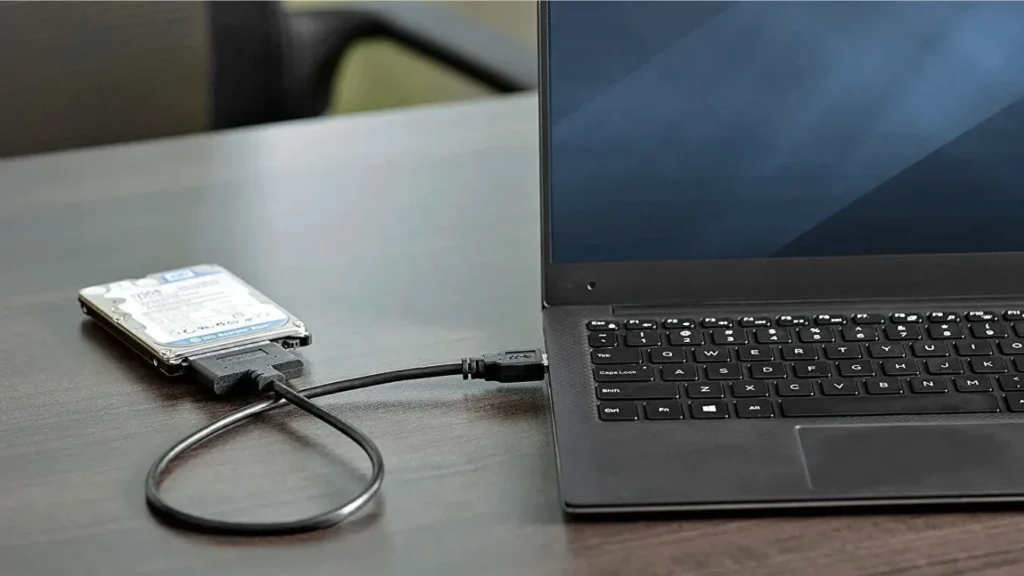
Data Drive

Table of Contents
Keeping the System and Your Files Apart
Many Windows installations start on a single drive where the operating system, applications, and user files all share the same volume.
That layout looks simple at first, but it increases the impact of crashes, reinstalls, and disk failures.
A dedicated data drive solves that weakness.
It gives user files, work projects, and archives their own physical disk (or at least their own volume), separate from the OS and program files.
What a “Data Drive” Means in Practice
In this context, a data drive is a physical disk or dedicated volume that stores user data only.
The operating system boots from one system drive, while documents, photos, VMs, and backups live on another.
This drive can be:
An internal HDD dedicated to bulk storage
A secondary SSD for active worksets and project files
A RAID set or NAS volume for shared team data
The important idea is isolation.
System failures, reinstalls, and experiments affect the OS drive first, while the data drive stays untouched as long as the hardware remains healthy.

Why Separate System and Data Volumes
Separating system and data brings several benefits that matter directly for safety and recovery.
Protection During OS Failure
When the OS volume fails logically, Windows may refuse to boot or ask for a reinstall.
If user data sits on that same partition, recovery becomes more complex.
With a separate data drive, you can:
Reinstall or repair Windows on the system drive without formatting data volumes
Boot from another disk or USB and still access the data drive
Attach the data drive to another machine for emergency access
Therefore, you reduce the chance that a rushed reinstall wipes irreplaceable files.
Cleaner Backup and Recovery
Backups work best when the source structure stays predictable.
A dedicated data drive keeps variable content in one place and system files in another.
That separation lets you:
Back up the data drive more frequently than the OS volume
Use image-based backups for the system and file-based backups for data
Restore user files to a new system without dragging along old OS clutter
When something goes wrong, tools like Amagicsoft Data Recovery can focus scans on the affected drive and avoid unnecessary passes over healthy volumes.
Supports Windows 7/8/10/11 and Windows Server
Performance and Wear Considerations
Modern systems often pair a fast SSD with a larger HDD.
Using the SSD as the OS and application drive while assigning the HDD as a data drive balances speed and capacity.
In addition, this pattern:
Reduces random I/O contention between system tasks and large media files
Keeps heavy write workloads (like downloads and raw footage) on cheaper disks
Simplifies future SSD upgrades, because you only clone the system drive
Consequently, the machine stays responsive while still offering plenty of room for user data.
Planning a Data Drive Layout
Before you move folders, you should design a basic layout that matches your hardware and workload.
Choosing SSD vs. HDD for a Data Drive
For active projects, virtual machines, and databases, an SSD data drive works best.
It provides low latency and strong random I/O performance.
For archives, backup copies, and media libraries, an HDD remains cost-effective.
You gain terabytes of capacity at a lower price per gigabyte, which suits long-term retention.
A mixed approach is common: SSD for “hot” data and HDD for “warm” and “cold” data.
Partition vs. Separate Physical Disk
You can simulate a data drive by creating a separate partition on one physical disk.
However, a true separate disk offers stronger isolation.
A second physical drive:
Reduces the chance that a single mechanical failure wipes both OS and data
Allows independent SMART monitoring and testing
Makes it easier to remove and attach the data drive to another system
If budget allows, prefer a separate disk for important datasets.
Setting Up a Data Drive on Windows
You can move to this layout gradually on an existing system.
Step 1: Prepare and Format the Drive
Install the second drive or connect it via SATA or NVMe.
Open Disk Management and initialize the disk (MBR or GPT as appropriate).
Create one or more NTFS volumes for data.
Assign clear drive letters (for example, D: for primary data, E: for archives).
At this stage, you have a blank data drive ready for content.
Step 2: Move User Folders and Libraries
Next, you shift common user locations:
Right-click folders such as Documents, Pictures, and Downloads.
Open Properties and switch to the Location tab.
Click Move… and choose a folder on the data drive.
Confirm moving existing files when prompted.
This method tells Windows to store new files directly on the data drive without breaking application expectations.
Step 3: Redirect Application Data
You also want major applications to use the data drive:
Change default project paths in editing and office tools.
Point virtual machine storage to the data volume.
Configure backup software to write archives to the data drive or an additional backup drive.
Additionally, keeping a dedicated folder for recovery-related exports makes later investigations easier when you use Amagicsoft Data Recovery or similar tools.
Data Drive and Amagicsoft Data Recovery
A data drive works well with professional recovery workflows.
When you experience corruption, accidental deletion, or a failing system drive, separation gives you more options.
You can:
Remove the data drive and attach it to a stable machine
Install Amagicsoft Data Recovery on a different disk or system
Scan the data drive in read-only mode and recover to a third device
Because the OS and recovery tools run elsewhere, the data drive sees fewer writes during diagnosis, which increases the chance of successful recovery.
Supports Windows 7/8/10/11 and Windows Server.
Supports Windows 7/8/10/11 and Windows Server
Good Habits for Long-Term Safety
A dedicated data drive improves your resilience, but you still need discipline.
Practical habits include:
Monitoring SMART attributes for early warning signs
Backing up the data drive to another physical device or cloud storage
Avoiding experiments and test installations on the data drive
Checking free space regularly so recovery exports always have room
With these habits in place, a data drive becomes the core of a safer, more maintainable storage strategy.
FAQ
What does data drive?
What is a data-driven example?
How to use data-driven?
What is a data-driven method?
Is data drive SSD or HDD?
How do you become data-driven?
What is a data drive strategy?
What are the 4 types of data modeling?
Is data-driven a skill?
What are the 5 pillars of data qualit
Eddie is an IT specialist with over 10 years of experience working at several well-known companies in the computer industry. He brings deep technical knowledge and practical problem-solving skills to every project.


