Ir al contenido
icono del logotipo de amagicsoft
  • Inicio
  • Productos
    • Magic Data Recovery
    • Magic Recovery Key
  • Tienda
  • Blog
  • Más
    • Acerca de Amagicsoft
    • Contacto
    • Política de privacidad
    • Términos
    • Acuerdo de licencia
    • Política de reembolso
  • Español
    • English
    • 日本語
    • 한국어
    • Deutsch
    • Français
    • 繁體中文
Wiki

Defragmentation

27 de noviembre de 2025 Eddie Comentarios desactivados en Defragmentation
Defragmentation

Índice

Disk Slowdowns Linked to Fragmentation

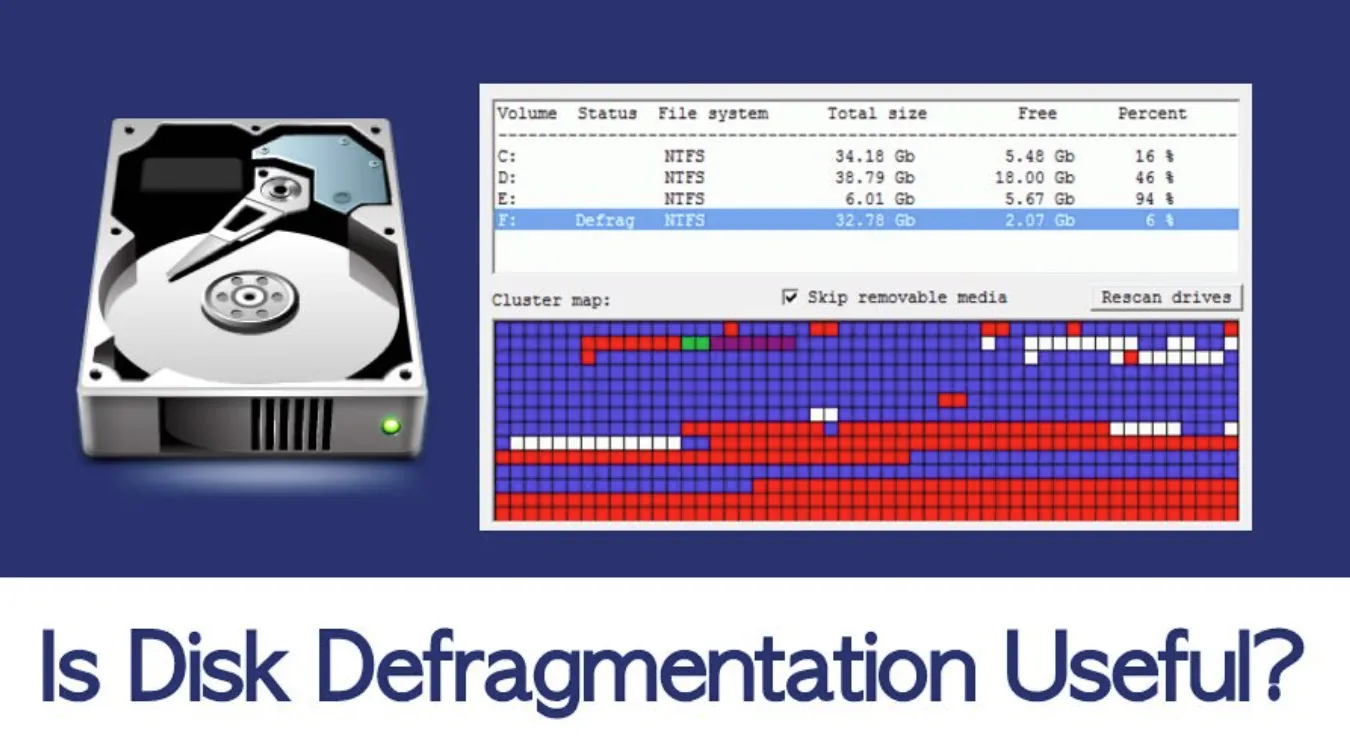
A computer that boots normally but opens folders slowly or pauses during large copies often suffers from fragmentation on its hard drive.
The operating system still reads the same files, yet it must jump between many separate locations on the platters.

On mechanical HDDs, this extra movement wastes seek time and produces stutter, noise, and latency.
Defragmentation rearranges those scattered pieces into a more orderly layout.

How Files Become Fragmented on a Hard Drive

An HDD stores data in fixed-size sectors and clusters across spinning platters.
When you create, modify, and delete files, free space breaks into many small gaps instead of one large region.

New or growing files then occupy multiple noncontiguous clusters:

  • The file system allocates space wherever it finds a gap.

  • Large files split into many fragments over time.

  • Head movement increases as the drive seeks each fragment.

The data itself stays intact, but access patterns become less efficient.

Defragmentation on Mechanical HDDs

Defragmentation takes fragmented files and rewrites them into contiguous clusters.
The process tries to compact related data and reduce the distance between frequently accessed areas.

A typical defrag cycle:

  1. Analyzes current fragmentation on the selected volume.

  2. Identifies fragmented files and suitable destination regions.

  3. Copies data into new contiguous space and updates file system metadata.

  4. Frees the old scattered clusters for future use.

After a successful pass, the heads perform fewer seeks during normal workloads, which improves access time for many HDDs.

Why SSDs Require a Different Approach

Solid-state drives do not rely on spinning platters or moving heads.
They access flash memory cells electronically with near-uniform seek times.

Heavy defragmentation offers almost no performance gain on SSDs, and it adds unnecessary write cycles.
Modern operating systems therefore:

  • Run TRIM and optimization tasks instead of classic defrag for SSD volumes.

  • Leave logical fragmentation largely untouched.

  • Focus on internal flash management and wear-leveling.

You should let Windows handle SSD maintenance automatically instead of scheduling manual defrag jobs for those drives.

Performance, Wear, and Data Safety Considerations

Defragmentation reads and writes a large volume of data.
On a healthy HDD, that extra I/O creates temporary load but no lasting damage.

On a marginal drive with growing bad sectors or unusual noises, defrag can accelerate failure or expose hidden weakness.
When you suspect physical problems, you should treat defrag as a last step, not an early optimization.

Good practice:

  • Run SMART checks before long maintenance operations.

  • Avoid defrag on drives that show frequent I/O errors.

  • Focus on backup and data recovery first, then on layout optimizations.

Preparation Checklist Before Defragmenting

Before you launch any defragmentation job, take a few minutes to prepare the system.

Recommended checklist:

  • Confirm that the volume resides on an HDD, not an SSD.

  • Back up critical files to another drive or network location.

  • Close large applications, virtual machines, and active databases.

  • Check available free space; defrag needs room to move data.

  • Review SMART attributes for warning signs of hardware trouble.

This routine reduces the chance of data loss if a disk fails during heavy I/O.

Running Defrag in Windows: Practical Steps

Windows includes a built-in tool for defragmentation on HDDs.
You can access it from the graphical interface and schedule regular runs for suitable volumes.

  1. Abrir Inicio and search for Defragment and Optimize Drives.

  2. Select the HDD volume you want to optimize.

  3. Compruebe el Media type column to confirm you target a hard disk, not an SSD.

  4. Haga clic en Analyze to see the current fragmentation level.

  5. Seleccione Optimize to run defragmentation on that drive.

  6. Optionally configure a schedule that includes only HDDs.

During the process, you can continue light tasks, but you should avoid heavy writes on the same drive.

Defragmentation and Data Recovery with Amagicsoft

Defragmentation changes where data lives on the disk.
When you run it after accidental deletion or corruption, you increase the chance of overwriting remnants that recovery tools could still read.

A safer sequence for data-focused work:

  1. Pause plans for defrag if you lost important files or partitions.

  2. Use a dedicated tool such as Amagicsoft Recuperación de datos to scan the affected drive.

  3. Recover needed data to a separate physical disk.

  4. Verify that recovered files open correctly.

  5. Only then consider defragmentation or a full volume rebuild.

Amagicsoft Recuperación de datos reads sectors in a controlled, read-only manner and reconstructs files from existing structures.
After you secure your data, layout optimization becomes far less risky.

Compatible con Windows 7/8/10/11 y Windows Server.

Closing Notes on Modern Defragmentation

Defragmentation still matters for busy HDDs that handle large files, archives, and project folders.
On those drives, a careful defrag cycle can shorten load times and reduce mechanical wear.

SSDs, in contrast, rely on internal firmware and logical optimization rather than classic defrag.
By distinguishing between disk types and prioritizing data protection, users gain performance improvements without sacrificing recoverability.


Descargar Magic Data Recovery

Compatible con Windows 7/8/10/11 y Windows Server

 PREGUNTAS FRECUENTES

What is defragmentation in computer?

Defragmentation reorganizes scattered file fragments on a hard disk into contiguous sequences. The process reduces head movement and improves average read and write times on mechanical drives. Users typically run defrag on HDD volumes that store large projects, games, or archives after heavy installation, update, or delete activity.

Should I defrag my SSD?

Manual defragmentation offers almost no benefit on SSDs and creates extra write cycles. Modern versions of Windows detect SSDs and schedule optimization tasks that focus on TRIM and internal maintenance instead. You should leave those defaults in place and avoid third-party tools that run full, traditional defrag operations on solid-state drives.

What is an example of defragmentation?

A common example appears on a workstation with a busy project drive. After months of editing large video files, the HDD slows noticeably. Running Defragment and Optimize Drives on that specific volume rearranges those fragmented clips into contiguous clusters, which shortens seek times and smooths playback and export operations.

Does defragging speed up PC?

Defragging can improve performance on HDD-based systems, especially when fragmentation affects frequently used files and folders. Boot times, application launches, and sequential reads often benefit most. On SSD-based systems, you rarely see a speed gain because access times already stay low and the hardware does not rely on head movement.

Do newer computers need to be defragmented?

Newer computers with SSD-only storage usually do not need classic defragmentation. Windows handles SSD optimization automatically through scheduled maintenance. Systems that still use mechanical HDDs for data storage can benefit from periodic defrag, but only when you confirm disk health and run the operation at appropriate intervals.

Is defragging the same as disk cleanup?

Defragging rearranges data on the disk to reduce fragmentation, while disk cleanup removes unnecessary files. Cleanup targets temporary files, caches, and old installers to free space. Defrag focuses on layout and access patterns. Using both together on HDDs often gives better results than running either task alone.

Why don't we need to defrag anymore?

Many users no longer notice defrag because SSDs and modern storage design changed performance characteristics. SSDs deliver fast random access regardless of fragmentation, and operating systems schedule background optimization automatically. Mechanical drives still benefit from defrag, but they appear less often in everyday desktops that rely on solid-state storage for primary workloads.

Is 1TB of SSD overkill?

A 1TB SSD suits many modern use cases, particularly when you store games, virtual machines, or media libraries. The capacity allows fast access to large datasets and reduces reliance on slower external drives. For light office or web-only usage, smaller SSDs work, but additional space provides flexibility as software and files grow.

What are the disadvantages of defragmentation?

Defragmentation consumes time, CPU, and disk I/O, especially on large HDDs. On weak or failing drives, the heavy read and write activity can expose new bad sectors or trigger complete failure. During the operation, power loss and crashes also create risk, so you should back up important data before long defrag cycles.

What are the signs I need to defragment?

Signs include slow folder browsing on HDDs, longer application launch times, and noticeable delays when opening large projects. Analysis in Defragment and Optimize Drives may show high fragmentation percentages on work volumes. When the drive passes hardware checks and holds sufficient free space, a defrag pass often helps reduce those specific delays.
  • WiKi
Eddie

Eddie es un informático con más de 10 años de experiencia en varias empresas de renombre del sector informático. Aporta a cada proyecto profundos conocimientos técnicos y capacidad práctica para resolver problemas.

Navegación de entradas

Anterior
Siguiente

Buscar en

Categorías

  • Recuperación de Bitlocker
  • Recuperación de archivos eliminados
  • Solución de problemas de disco
  • Recuperación de documentos
  • Recuperación de archivos formateados
  • Recuperación de discos duros
  • Recuperación de claves de licencia
  • Recuperación de archivos perdidos
  • Recuperación de tarjetas de memoria
  • Noticias
  • Recuperación de contraseñas
  • Recuperación de fotos
  • Recuperación de SSD
  • Recuperación de unidades USB
  • Guía del usuario
  • Recuperación de vídeos
  • Wiki
  • Solución de problemas de Windows

Entradas recientes

  • Qué hacer si no se reconoce la unidad flash (solucionado)
    Qué hacer si no se reconoce la unidad flash
  • Cómo arreglar si el ordenador no reconoce un disco duro
    Cómo arreglar si el ordenador no reconoce el disco duro
  • ¿Puede recuperar archivos borrados en Windows 10 Sí, aquí es cómo
    ¿Puedes Recuperar Archivos Borrados en Windows 10? Sí, aquí te explicamos cómo

Etiquetas

CHKDSK y herramientas de disco Reparación de discos Solución de errores Cómo Magic Data Recovery Magic Recovery Key WiKi

Puestos relacionados

Qué hacer si no se reconoce la unidad flash (solucionado)
Wiki

Qué hacer si no se reconoce la unidad flash

25 de diciembre de 2025 Vasilii Aún no hay comentarios

Resulta frustrante que el ordenador no reconozca una unidad flash. Tanto si estás intentando acceder a archivos importantes como si simplemente quieres utilizarla para una transferencia rápida, una unidad flash que no se detecta puede parecer un gran inconveniente. La buena noticia es que, en la mayoría de los casos, el problema puede resolverse con [...]

Cómo arreglar si el ordenador no reconoce un disco duro
Wiki

Cómo arreglar si el ordenador no reconoce el disco duro

25 de diciembre de 2025 Vasilii Aún no hay comentarios

¿Su ordenador no reconoce su disco duro? Tanto si se trata de una unidad interna como externa, este problema puede deberse a varias razones, desde simples problemas de conexión hasta fallos de hardware o software más complejos. Afortunadamente, en la mayoría de los casos, es posible recuperar los datos de un disco duro que el ordenador no reconoce. Esto [...]

El ordenador no reconoce el disco duro externo
Solución de problemas de disco

Guía de la computadora no reconoce el disco duro externo

24 de diciembre de 2025 Vasilii Comentarios desactivados en Computer Not Recognizing External Hard Drive Guide

Cuando un ordenador no reconoce un disco duro externo, puede ser alarmante, sobre todo si el dispositivo contiene archivos importantes. La buena noticia es que, en muchos casos, los datos no se pierden. Este problema suele deberse a problemas de conexión, conflictos de controladores, errores del sistema de archivos o problemas de partición, más que a un fallo físico de la unidad. Comprender [...]

icono del logotipo de amagicsoft

Nuestra visión es convertirnos en una marca de software y proveedor de servicios de renombre mundial, que ofrezca productos y servicios de primer nivel a nuestros usuarios.

Productos
  • Magic Data Recovery
  • Magic Recovery Key
Política
  • Términos
  • Política de privacidad
  • Política de reembolso
  • Acuerdo de licencia
Empresa
  • Acerca de Amagicsoft
  • Contacto
  • Tienda
Síguenos

Derechos de autor © 2025 Amagicsoft. Todos los derechos reservados.

  • Términos
  • Política de privacidad