
6 Ways! How to Find Your Microsoft Office Product Key

Looking for your Microsoft Office product key? The right method depends on which version of Office you use, how you purchased it, and whether the key has already been redeemed.
For older versions of Microsoft Office, you may still be able to recover the product key from your computer, email receipt, or original package. For Microsoft 365, Office 2024, Office 2021, Office 2019, and Office 2016, Microsoft often uses your Microsoft account instead of showing the full 25-character product key.
This guide explains where to find your Microsoft Office product key, what to do if you cannot see the full key, and how to recover a lost Office key from an old or crashed PC.
Supports Windows 7/8/10/11 and Windows Server
Table of Contents
Quick Answer: Can You Still Find the Full Microsoft Office Product Key?
Before trying every method, check the table below. It will help you choose the best solution.
Office Version | Can You View the Full Product Key? | Best Way to Recover or Reinstall |
Microsoft 365 | Usually no | Sign in with the Microsoft account linked to your subscription |
Office 2024 | Usually account-based after redemption | Sign in to the associated Microsoft account |
Office 2021 | Usually no full key shown in Office | Microsoft account, order history, product card, or receipt |
Office 2019 | Usually no full key shown in Office | Microsoft account, receipt, or last 5 characters through CMD |
Office 2016 | Depends on license type | Microsoft account, receipt, CMD last 5 characters, or recovery tool |
Office 2013 | Sometimes recoverable depending on installation type | Receipt, product box, account, or recovery tool |
Office 2010 / 2007 / 2003 | More likely recoverable | Product box, email receipt, old PC, or product key recovery software |
Important: If your Office product key has already been redeemed, you usually do not need to enter it again. You can often reinstall or activate Office by signing in with the same Microsoft account.
What Is a Microsoft Office Product Key?
A Microsoft Office product key is a 25-character code used to activate certain versions of Microsoft Office. It usually looks like this:
XXXXX-XXXXX-XXXXX-XXXXX-XXXXX
You may need a product key when:
- Installing Office for the first time
- Reinstalling Office after replacing your computer
- Activating Office after Windows reinstallation
- Moving Office to another device
- Recovering a license from an old or crashed PC
- Verifying which Office license was used on a computer
However, Microsoft has changed how activation works for many newer versions. For Microsoft 365 and many one-time purchase versions such as Office 2024, Office 2021, Office 2019, and Office 2016, your Microsoft account may be more important than the product key itself.
Microsoft Office Product Key vs Microsoft Account
Many users search for “Microsoft Office product key” because Office asks them to activate. But in many cases, the solution is not to find the full key. The solution is to sign in with the right Microsoft account.
Here is the difference:
Item | Meaning |
Product Key | A 25-character code used to redeem or activate Office |
Microsoft Account | The account linked to your Office license after redemption |
Digital License | A license associated with your account or device |
Last 5 Characters | A partial key shown by Office tools or CMD to identify the installed license |
Once a product key has been redeemed, it is usually linked to a Microsoft account. After that, you can reinstall Office by signing in to that account instead of entering the product key again.
So before using advanced recovery methods, always check whether your Office license is already linked to your Microsoft account.
Method 1. How to find Microsoft Office product key via Magic Recovery Key
Follow the detailed steps to find the Microsoft Office product keys:
Step 1. Click “Registry Keys” tab under “Local“.

Step 2. On the right panel, view the Applications Registry Keys. Magic Recovery Key will display all keys for installed software. Select and copy the targeted serial numbers. Additionally, you have the option to click either “Copy” or “Save” for your convenience.
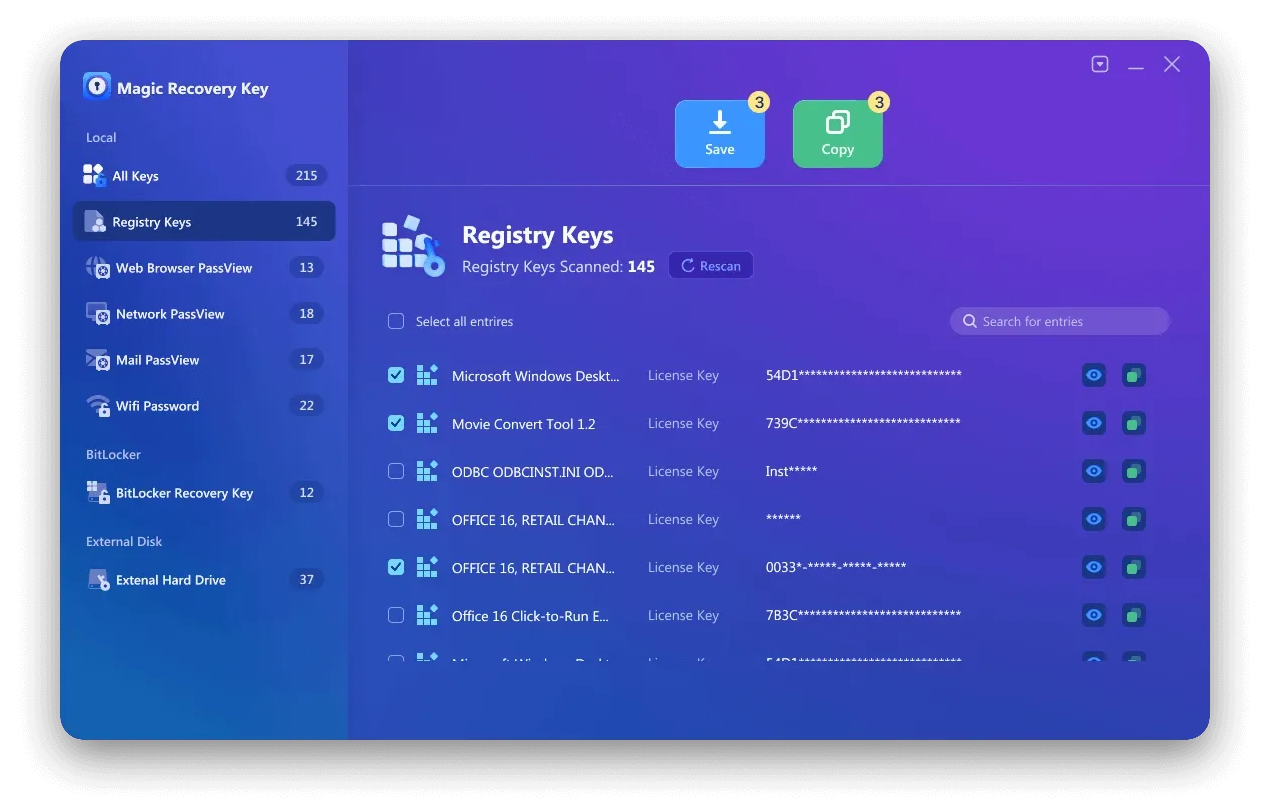
Would you like to use Magic Recovery Key to find your Microsoft Office Product key? You can download it to use.
Supports Windows 7/8/10/11 and Windows Server
Method 2. Run CMD to Find Microsoft Office Product Key
Applies to: Office 2013, Office 2016, or Office 2019
This method is effective only if the last five characters of a 25-character Office 2019, Office 2016, or Office 2013 product key are stored on your computer. If that’s the case, you can try this approach to retrieve your Microsoft product keys.
Step 1. Type “CMD” in the search box, right-click on the Command Prompt result, and select “Run as administrator” to execute it with administrative privileges.
Step 2. Type the following command according to your needs.
					Office 2013 (32-bit)(Win32-bit): cscript “C:Program FilesMicrosoft OfficeOffice15OSPP.VBS” /dstatus
Office 2013 (32-bit)(Win64-bit): cscript “C:Program Files (x86)Microsoft OfficeOffice15OSPP.VBS” /dstatus
Office 2013 (64-bit)(Win64-bit): cscript “C:Program FilesMicrosoft OfficeOffice15OSPP.VBS” /dstatus
Step 3. Upon executing the appropriate command or following the necessary steps, your Microsoft Office product key should appear on the screen or in the designated location. Keep in mind that the exact appearance and format might vary depending on the method you used to retrieve it.

Method 3. Open ProduKey to find Microsoft Office Product Key
Applies to: Office 2003, Office 2007, Office 2010, Office 2013
You’re correct about ProduKey being a straightforward tool for finding product keys, particularly for Microsoft products prior to Office 2013. Here’s a more detailed breakdown of how to use ProduKey to retrieve your Microsoft Office product key:
Step 1: Download and Unzip ProduKey
Navigate to a trusted source to download the ProduKey.zip file.
Extract the contents of the zip file to a folder on your computer.
Step 2: Open ProduKey
Locate the produkey.exe file within the extracted folder.
Double-click on produkey.exe to run the program.
Step 3: View the Product Key
Once ProduKey opens, it will automatically scan your system for installed software product keys.
Scroll through the list of products until you find your Microsoft Office version (e.g., Microsoft Office Professional Plus 2010).
The product key for your Office version will be displayed in the “Product Key” column next to the software name.

Note:
ProduKey only displays product keys for Microsoft products and does not support non-Microsoft software.
Ensure you download ProduKey from a reputable source to avoid any potential malware risks.
If you’re using a newer version of Microsoft Office (2016, 2019, or 365), consider using Magic Recovery Key, as ProduKey may not be able to retrieve keys for these
versions.
Method 4. Find Microsoft Office product key with Microsoft Account
Applies to: All Microsoft Office Versions
“If you have previously registered and activated your copy of Microsoft Office 2010, 2013, 2016, or 2019, you’ll be pleased to learn that Microsoft has stored your original product key and can display it for you.”
Step 1. Navigate to your Microsoft Account.
Step 2. Expand the license information section to view your product key.

Note: Keep in mind that the availability of viewing product keys through the Microsoft Account might depend on various factors, including how you purchased and activated your Office license. Some keys might not be displayed directly in the account, especially for keys tied to corporate or educational accounts. In such cases, you may need to contact your organization’s IT department or use a third-party key finder tool, such as Magic Recovery Key.
Method 5. Contact the support to get Microsoft Office Product Key
If you cannot locate your microsoft office product key using any of the methods outlined above, the last resort is to contact Microsoft directly. Before doing so, ensure you have proof of purchase.
If you’re facing an issue with your product key and need to speak with a Microsoft representative, you can visit the contact us page. Here, you’ll have the option to seek assistance through the “Get Help” app or to contact support via your browser.
If you have the “Get Help” app installed on your device, opening it will take you directly to a fast and free Microsoft support session. This app is available for Windows 10 users.
Alternatively, getting help through your browser is also quick and free. You’ll be presented with a virtual agent that will assist you in resolving your issue. Simply follow the on-screen instructions to receive help from Microsoft.

Method 6. Activate Microsoft Office Using KMS (For Testing)
In certain enterprise or testing environments, Microsoft Office can be activated by using KMS (Key Management Service) activation. KMS allows organizations to activate Office installations through a centralized server, making it easier to manage licenses across multiple devices.
How KMS activation works
- Microsoft Office connects to a local or authorized KMS server
- Activation is completed automatically without manual key input
- The activation must be renewed periodically to remain valid
How to Activate it Step by Step
(1) First, you need to download the Office ProPlus installation files from the Microsoft website. Only Office 2019 and 2016 are provided here for trial.
(2) After the installation is complete, download the VOL version installation tool by clicking here. Once downloaded, double-click to run it, and you will see the following information.
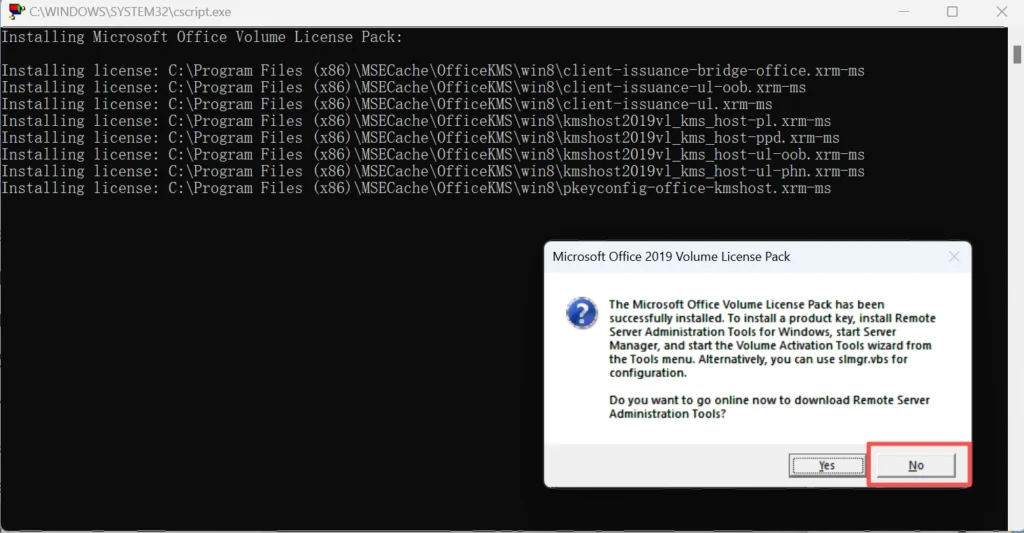
Note: During the installation process, if a prompt appears asking whether to download Remote Server Administration Tools, please click No.
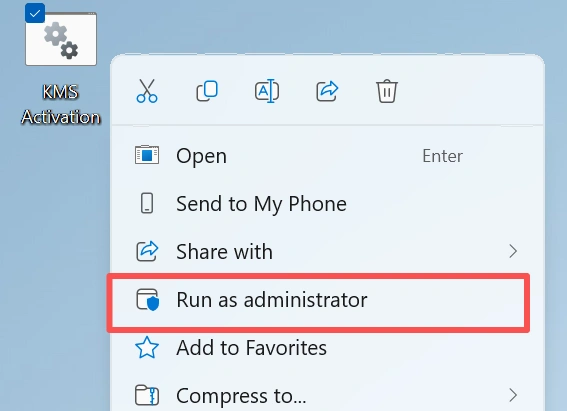
(3) Please download the shared KMS Activation file from GitHub:
KMS Activation File Information:
					if exist "%ProgramFiles%\Microsoft Office\Office16\ospp.vbs" cd /d "%ProgramFiles%\Microsoft Office\Office16"
if exist "%ProgramFiles(x86)%\Microsoft Office\Office16\ospp.vbs" cd /d "%ProgramFiles(x86)%\Microsoft Office\Office16"
cscript ospp.vbs /inpkey:XQNVK-8JYDB-WJ9W3-YJ8YR-WFG99
cscript ospp.vbs /sethst:kms1689.anan.cc
cscript ospp.vbs /setprt:1689
cscript ospp.vbs /act
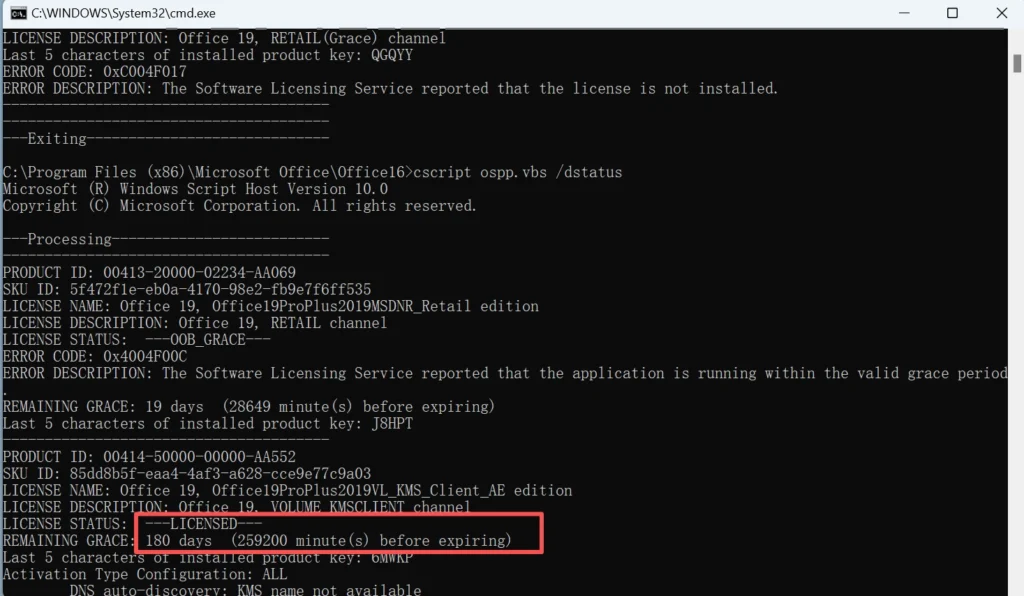
cscript ospp.vbs /dstatus
The ‘inpkey‘ indicates the activation key, and the ‘sethst‘ indicates the KMS host address. If the KMS activation you downloaded cannot be used successfully, you may need to change the activation key or the activation server address. Below are some shared activation keys and KMS host address:
Office 2019 Activation Key:
GRBR4-J4N3M-KTX9C-JM4PJ-J8HPT
NXVJY-X9T8G-Y6RWG-8VQ7V-PWHPT
W8W6K-3N7KK-PXB9H-8TD8W-BWTH9
3Q9NB-GJFJ8-RYVQY-BDGFJ-W46TG
CWGWB-4DN22-H6QV3-W9M3W-4VXGG
XNTT9-CWMM3-RM2YM-D7KB2-JB6DV
BHXN7-MQB36-MTHQ4-8MHKV-CYT97
3XJTG-YNBMY-TBH9M-CWB2Y-YWRHH
6TCQ3-NBBJ2-RTJCM-HFRKV-G6PQV
CGGR9-NQYC7-KRRGM-K4Y8J-XW3K7
For Others version, you can get the key from Microsoft site.
KMS Host Sddress:
- kms.srv.crsoo.com
- cy2617.jios.org
- kms.digiboy.ir
- kms.cangshui.net
You can also get more KMS host address.
How to Keep Your Microsoft Office Product Key Safe
After you recover or locate your Microsoft Office product key, keep it safe.
Recommended ways to store your key:
- Save it in a password manager
- Print a copy and keep it with purchase records
- Save your order confirmation email
- Take a photo of the product key card
- Keep the original product box
- Record which Microsoft account is linked to Office
Do not share your product key publicly. A product key may stop working if it is used improperly or shared with others.
Conclusion
Recovering or activating your Microsoft Office product key is not as complicated as it may seem. Depending on your Office version and licensing method, your product key may be stored in the system registry, linked to your Microsoft account, or managed through enterprise activation tools. Methods such as Command Prompt scripts, Microsoft account access, and professional key recovery tools can help you retrieve your Office key quickly.
If your product key is saved locally but difficult to locate manually, Magic Recovery Key offers a simple and reliable way to scan your system and recover your Microsoft Office product key automatically. Choose the method that best fits your situation to restore full access to Microsoft Office.
Supports Windows 7/8/10/11 and Windows Server
FAQs
How can I find my Microsoft Office product key?
Will these methods work for all Office versions (Office 2013, 2016, 2019, 365)?
What if I can’t find the product key using any of the listed methods?
Can I find my Microsoft Office product key from the registry?
Does Office 365 have a traditional product key?
Can I use the same Microsoft Office product key on multiple computers?
What should I do if I lost my Office product key after reinstalling Windows?
Is it possible to recover an Office product key from a crashed or old hard drive?

Erin Smith is recognized as one of the most professional writers at Amagicsoft. She has continually honed her writing skills over the past 10 years and helped millions of readers solve their tech problems.