
Come formattare l'unità USB in FAT32
La formattazione di un'unità flash in FAT32 è uno dei modi più affidabili per massimizzare la compatibilità tra Windows, macOS, Linux, TV, console di gioco e sistemi audio per auto. Molti utenti cercano come formattare l'unità flash in FAT32 quando si preparano i supporti per l'uso universale o si ripara un dispositivo USB danneggiato. FAT32 rimane pratico per il supporto multipiattaforma, soprattutto se confrontato con NTFS o exFAT.
Questa guida spiega come formattare un'unità USB in FAT32, Come gestire la formattazione quando l'USB contiene dati importanti e cosa fare se Windows mostra errori o il processo non riesce. Inoltre, copre lo scenario in cui gli utenti hanno specificamente bisogno di come formattare l'USB in FAT32 su Windows 11 o come formattare un'unità miniaturizzata in FAT32 in modo sicuro e corretto con una corretta Soluzioni di recupero USB.
Indice dei contenuti
Formattazione di un'unità USB in FAT32 (senza dati importanti all'interno)
Se l'unità USB non contiene file importanti, la formattazione è semplice. I passaggi indicati di seguito sono validi per tutti i tipi di unità USB più comuni, comprese le unità flash e le chiavette.
Opzione A - Esplora file di Windows
1. Collegare l'unità USB.
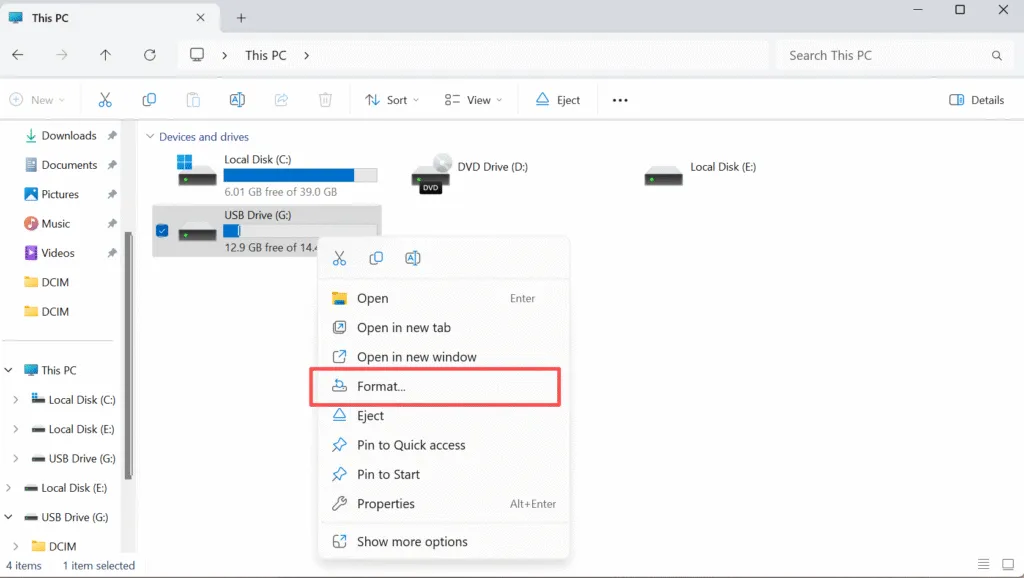
2. Fare clic con il tasto destro del mouse sul dispositivo USB → Formato.
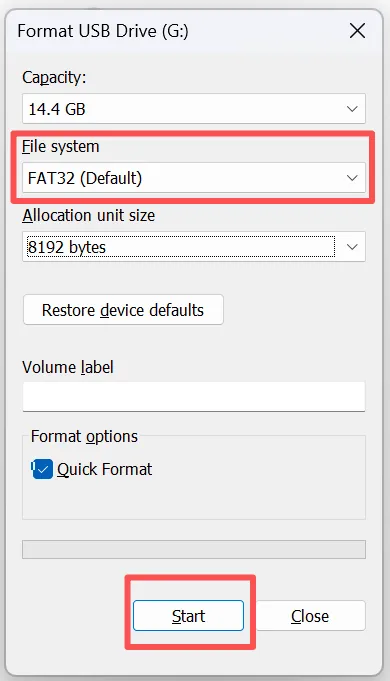
3. Selezionare FAT32 (predefinito) → Inizio.
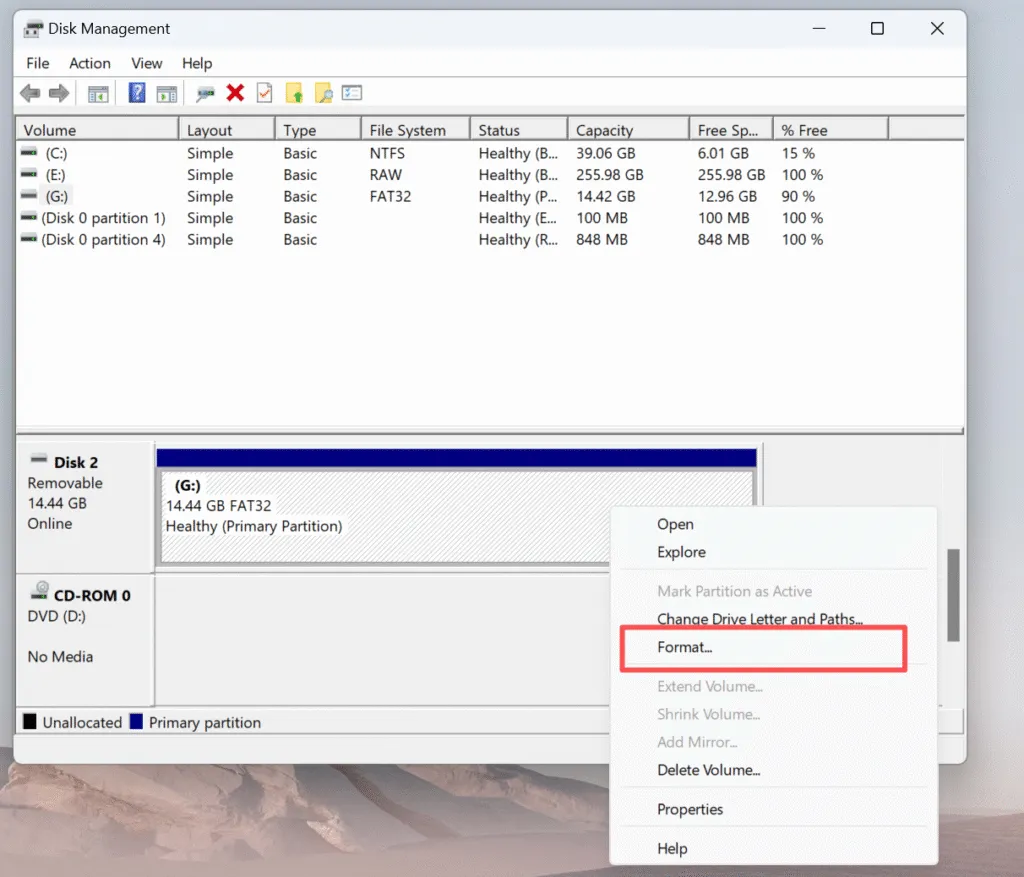
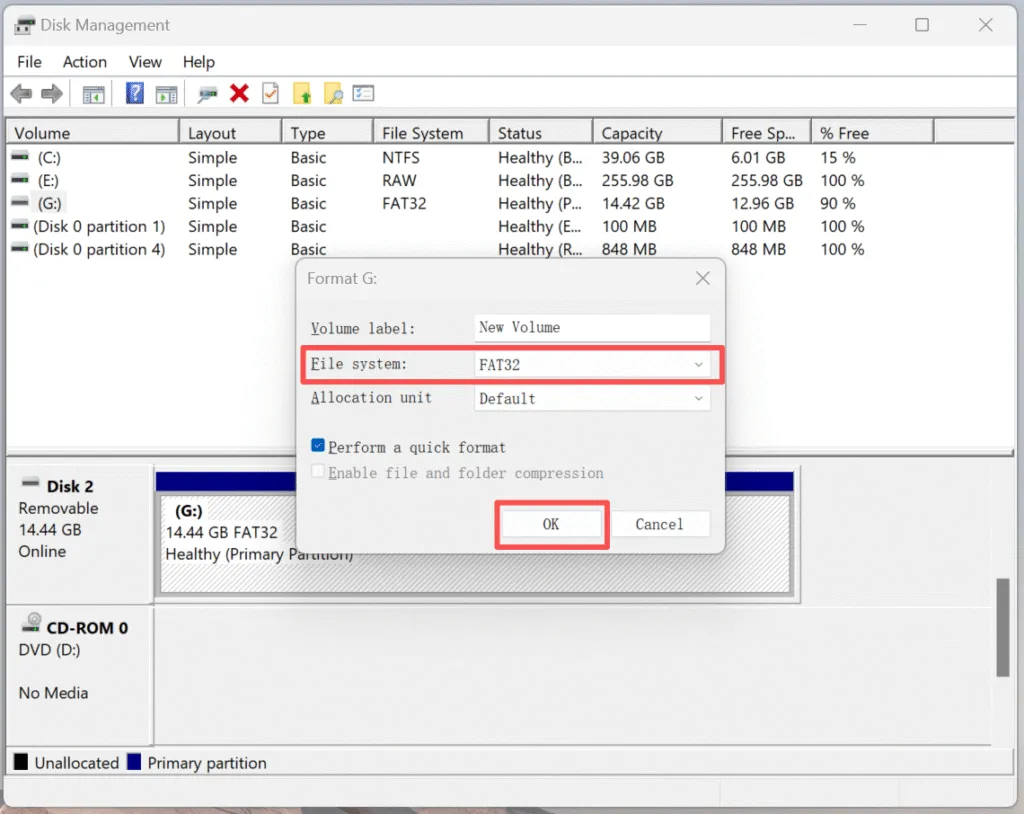
Opzione B - Gestione disco
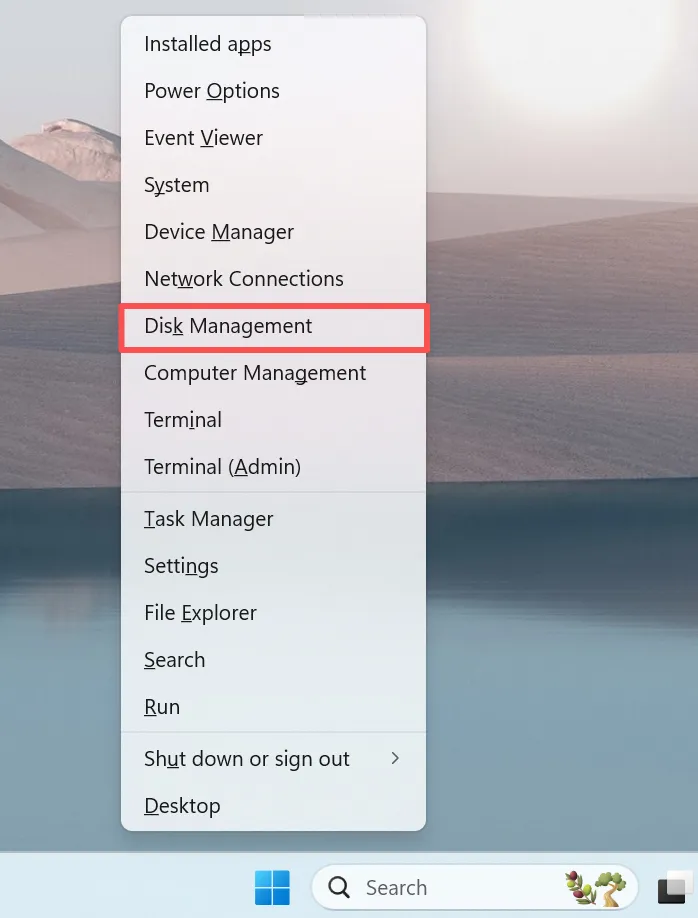
1. Premere Win + X → Gestione del disco.
Formattazione in FAT32 quando l'USB contiene dati importanti
Se sull'unità sono rimasti file importanti, la formattazione deve essere evitata finché i dati non sono al sicuro. Qualsiasi operazione di formattazione riscrive le strutture del file system e rende più difficile il successivo recupero.
Prima della formattazione, è necessario:
Copiare manualmente i file accessibili su un'altra unità.
Se l'USB non è leggibile, mostra RAW o richiede la formattazione, recuperare prima i dati.
Sintomi comuni come Sistema di file RAW, dispositivo illeggibile, oppure “È necessario formattare il disco prima di poterlo utilizzare”:
Metadati del file system danneggiati
Tabella delle partizioni rotta
Rimozione non sicura dell'unità
Corruzione da virus o malware
In queste situazioni, la formattazione forzata può distruggere definitivamente i dati altrimenti recuperabili.
Perché Windows chiede di formattare l'unità“
Questo messaggio indica quasi sempre un danneggiamento del file system piuttosto che un danno fisico.
| Causa | Risultato |
|---|---|
| Espulsione non sicura | File system danneggiato |
| Interruzione dell'alimentazione | L'unità appare RAW |
| Invecchiamento USB | Settori danneggiati |
| Infezione virale | Unità illeggibile |
| Partizione errata | Richiesta di formato |
Quando appare questo avviso, la sequenza corretta è la seguente:
Recuperare i dati → quindi formattare l'unità in FAT32.
Quando la formattazione non funziona: cosa significa?
A volte Windows non riesce a completare l'operazione e mostra errori come:
“Windows non è riuscito a completare il formato”
“Il volume è troppo grande per FAT32”.”
Errore Gestione disco 0x80070057
Questo può indicare:
Eccessivi settori danneggiati
Protezione da scrittura
Pesante corruzione del file system
MBR o tabella delle partizioni danneggiati
In questi casi, un strumento di recupero professionale è consigliabile prima di tentare un altro formato.
Perché molti utenti scelgono Magic Data Recovery prima della formattazione
Il tempismo è fondamentale nel recupero dei dati. L'estrazione dei file prima della formattazione migliora notevolmente le percentuali di successo.
Magic Data Recovery è spesso utilizzato dai tecnici perché è in grado di ripristinare i file da unità USB danneggiate, RAW, non allocate o illeggibili, anche quando Windows non riesce a montarle correttamente.
Tabella di confronto
Caratteristica | Magic Data Recovery | Strumenti integrati gratuiti (Windows CHKDSK / Cronologia file) | Altro software di recupero |
Recupera i dati da RAW / chiede di formattare | ✔ | ✖ | Parziale |
Scansione profonda dei file persi | ✔ | ✖ | ✔ |
Recupera la struttura originale delle cartelle | ✔ | ✖ | Parziale |
Funziona dopo una formattazione fallita | ✔ | ✖ | Parziale |
Facilità d'uso | ⭐⭐⭐⭐⭐ | ⭐⭐⭐ | ⭐⭐⭐⭐ |
Costo-efficacia | Alto | Gratuito ma limitato | Medio |
L'interfaccia guida gli utenti attraverso la scansione e il ripristino dei file, rendendo il processo accessibile anche senza competenze tecniche. Assicura che gli utenti non siano costretti a scegliere tra la formattazione e la perdita dei dati.
Conclusione
Per formattare in modo sicuro un'unità USB o una chiavetta in FAT32:
Aprire l'USB. Se accessibile → eseguire il backup dei dati → formattare in FAT32.
Se non è leggibile o Windows richiede la formattazione → recuperare prima i dati.
Dopo il recupero → formattare con Esplora file o Gestione disco.
Questo soluzione per unità usb evita inutili perdite di dati e garantisce la massima compatibilità tra i sistemi.
Supporta Windows 7/8/10/11 e Windows Server
Formattare un'unità USB in FAT32 Domande frequenti
La formattazione in FAT32 cancella tutti i dati?
Come si risolve un USB che dice "È necessario formattare il disco prima di poterlo utilizzare"?
È possibile convertire NTFS in FAT32 senza perdere i dati?
Cosa succede se la formattazione USB non riesce?
FAT32 è meglio di NTFS o exFAT per l'USB?
L'Magic Data Recovery può salvare i file dopo la formattazione?

Vasilii è uno specialista del recupero dati con circa 10 anni di esperienza pratica nel settore. Nel corso della sua carriera, ha risolto con successo migliaia di casi complessi riguardanti file cancellati, unità formattate, partizioni perse e file system RAW. La sua esperienza copre sia i metodi di recupero manuale utilizzando strumenti professionali come gli editor esadecimali, sia le soluzioni automatiche avanzate con i software di recupero. La missione di Vasilii è quella di rendere accessibile la conoscenza del recupero dati affidabile sia ai professionisti IT che agli utenti di tutti i giorni, aiutandoli a salvaguardare i loro preziosi beni digitali.