
How to Format USB Drive to FAT32
Formatting a flash drive to FAT32 is one of the most reliable ways to maximize compatibility across Windows, macOS, Linux, TVs, gaming consoles, and car audio systems. Many users search for how to format flash drive to FAT32 when preparing media for universal use or repairing a corrupted USB device. FAT32 remains practical for cross-platform support, especially when compared with NTFS or exFAT.
This guide explains how to format a USB drive to FAT32, how to handle formatting when the USB contains important data, and what to do if Windows shows errors or the process fails. It also covers the scenario where users specifically need how to format USB to FAT32 on Windows 11 or how to format a thumb drive to FAT32 safely and correctly with correct USB recovery solutions.
Table of Contents
Formatting a USB Drive to FAT32 (No Important Data Inside)
If the USB drive contains no important files, formatting is simple. The steps below work for all common USB types — including flash drives and thumb drives.
Option A — Windows File Explorer
1. Connect the USB drive.
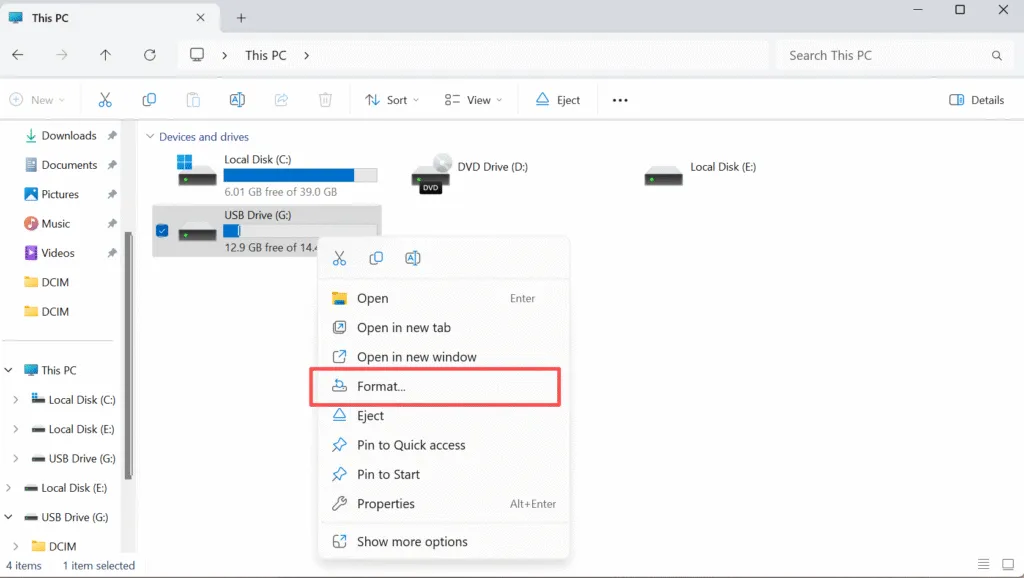
2. Right-click the USB device → Format.
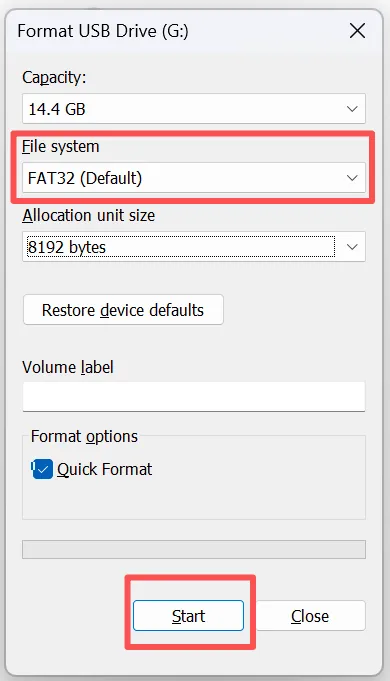
3. Select FAT32 (Default) → Start.
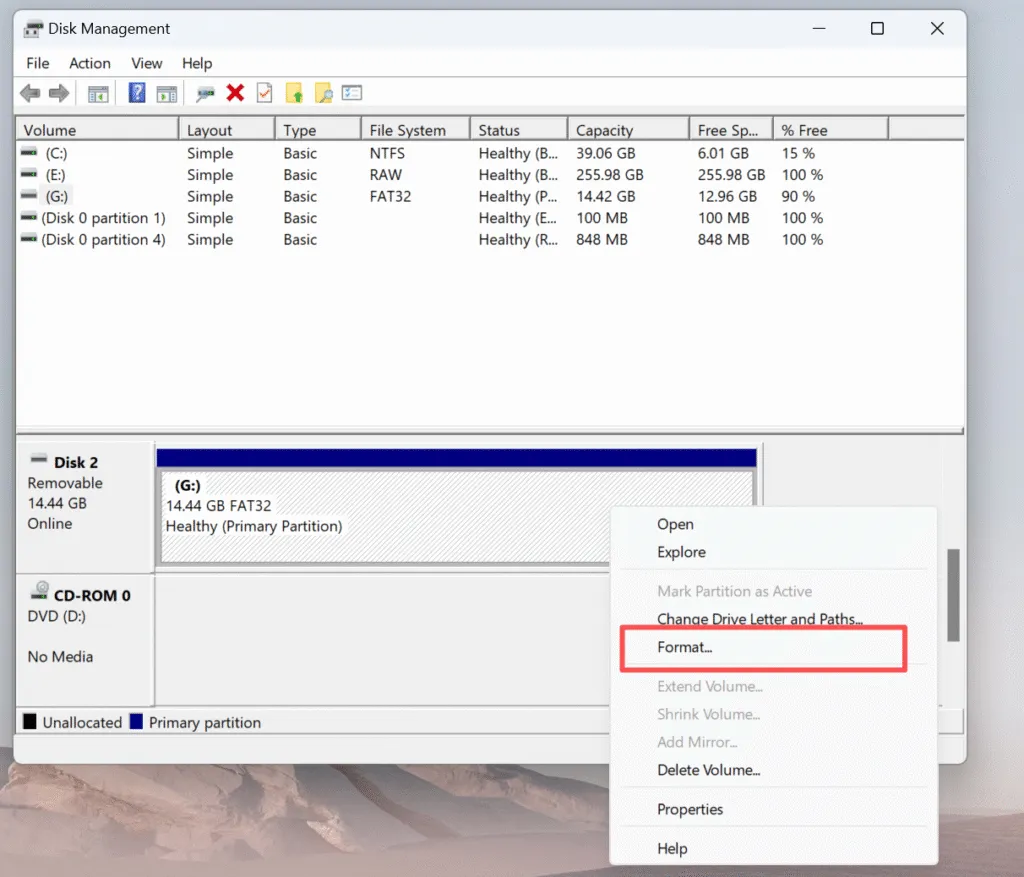
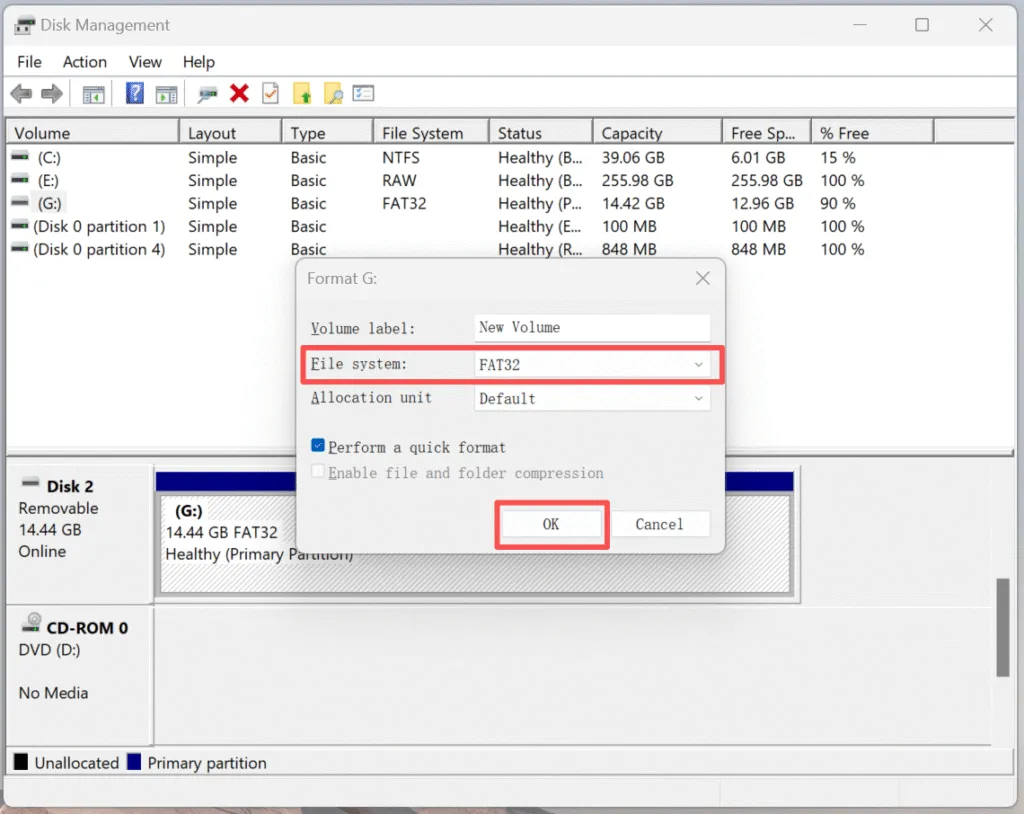
Option B — Disk Management
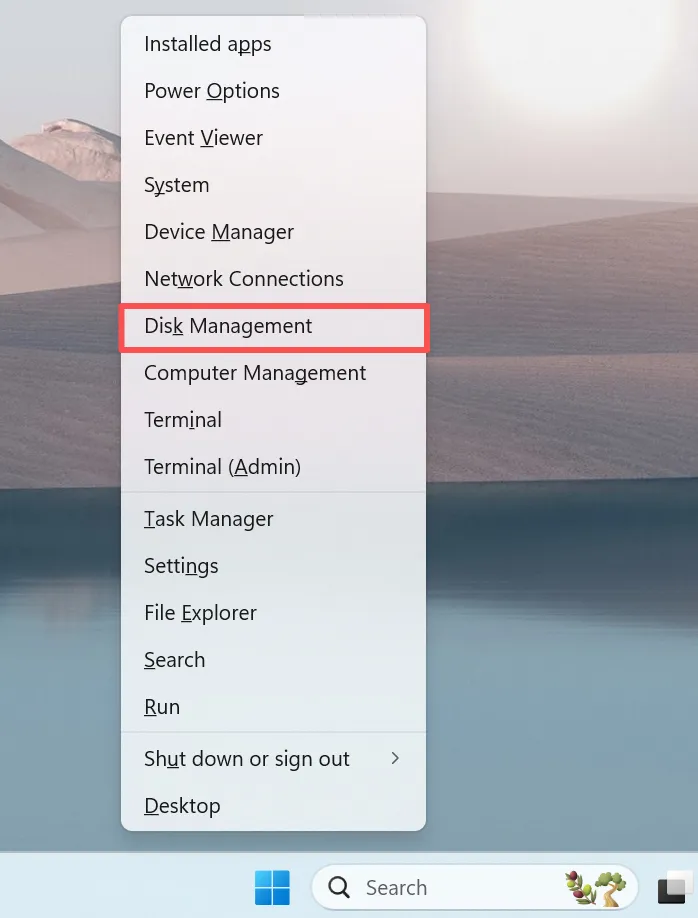
1. Press Win + X → Disk Management.
Formatting to FAT32 When the USB Contains Important Data
If important files remain on the drive, formatting should be avoided until the data is secured. Any formatting operation rewrites file system structures and makes later recovery more difficult.
Before formatting, you should:
Copy accessible files to another drive manually.
If the USB is unreadable, shows RAW, or requests formatting, recover data first.
Common symptoms such as RAW file system, unreadable device, or “You need to format the disk before you can use it” usually indicate:
Damaged file system metadata
Broken partition table
Unsafe drive removal
Virus or malware corruption
In these situations, forced formatting may permanently destroy otherwise recoverable data.
Why Windows Prompts “You Need to Format the Drive”
This message almost always points to file system corruption rather than physical damage.
| Cause | Result |
|---|---|
| Unsafe ejection | File system damaged |
| Power interruption | Drive appears RAW |
| USB aging | Bad sectors |
| Virus infection | Drive unreadable |
| Wrong partitioning | Format prompt |
When this warning appears, the correct sequence is:
Recover data → then format the drive to FAT32.
When Formatting Fails — What It Means
Sometimes Windows cannot complete the operation and shows errors such as:
“Windows was unable to complete the format”
“The volume is too large for FAT32”
Disk Management error 0x80070057
This may indicate:
Excessive bad sectors
Write protection
Heavy file system corruption
Damaged MBR or partition table
In these cases, a professional recovery tool is recommended before attempting another format.
Why Many Users Choose Magic Data Recovery Before Formatting
Timing is critical in data recovery. Extracting files before formatting significantly improves success rates.
Magic Data Recovery is often used by technicians because it can restore files from corrupted, RAW, unallocated, or unreadable USB drives — even when Windows fails to mount them properly.
Comparison Table
Feature | Magic Data Recovery | Free Built-in Tools (Windows CHKDSK / File History) | Other Recovery Software |
Recovers data from RAW / asks to format | ✔ | ✖ | Partial |
Deep scan of lost files | ✔ | ✖ | ✔ |
Recovers original folder structure | ✔ | ✖ | Partial |
Works after a failed format | ✔ | ✖ | Partial |
Ease of use | ⭐⭐⭐⭐⭐ | ⭐⭐⭐ | ⭐⭐⭐⭐ |
Cost-effectiveness | High | Free but limited | Medium |
The interface guides users through scanning and restoring files, making the process approachable even without technical expertise. It ensures users are not forced to choose between formatting and losing data.
Conclusion
To safely format a USB drive or thumb drive to FAT32:
Open the USB. If accessible → back up data → format to FAT32.
If unreadable or Windows requests formatting → recover data first.
After recovery → format using File Explorer or Disk Management.
This usb drive solution prevents unnecessary data loss and ensures maximum compatibility across systems.
Supports Windows 7/8/10/11 and Windows Server
Format a USB Drive to FAT32 FAQs
Does formatting to FAT32 erase all data?
How do I fix a USB that says "You need to format the disk before you can use it"?
Can I convert NTFS to FAT32 without losing data?
What happens if USB formatting fails?
Is FAT32 better than NTFS or exFAT for USB?
Can Magic Data Recovery rescue files after formatting?

Vasilii is a data recovery specialist with around 10 years of hands-on experience in the field. Throughout his career, he has successfully solved thousands of complex cases involving deleted files, formatted drives, lost partitions, and RAW file systems. His expertise covers both manual recovery methods using professional tools like hex editors and advanced automated solutions with recovery software. Vasilii's mission is to make reliable data recovery knowledge accessible to both IT professionals and everyday users, helping them safeguard their valuable digital assets.