
Corruzione dei file
Indice dei contenuti
Che cos'è la corruzione dei file?
Cause comuni di problemi con i file
Diversi fattori possono danneggiare la struttura dei file e interrompere le normali operazioni:
① Improvvisa perdita di potenza durante il salvataggio dei file
② Arresto del sistema o spegnimento forzato
③ Settori danneggiati su HDD o SSD
④ Download o trasferimenti incompleti
Infezione da malware
⑥ Unità USB difettose o archiviazione esterna instabile
Queste cause interferiscono con i normali processi di lettura e scrittura, creando intestazioni interrotte, cluster mancanti o metadati non validi.
Sintomi che si possono notare
I segni tipici includono:
① “Il file è corrotto e non può essere aperto”
② Arresto anomalo dell'applicazione
③ File che mostrano 0 KB
④ Foto o video distorti
⑤ Documenti che si aprono con caratteri illeggibili
⑥ I file di archivio non vengono estratti.
Individuare tempestivamente questi sintomi aiuta a prevenire ulteriori danni.
Come risolvere la corruzione dei file (metodi pratici)
Di seguito sono riportati i passi sicuri e attuabili da chiunque.
1. Utilizzare gli strumenti di riparazione dei file integrati
I sistemi operativi forniscono utility per riparare i file danneggiati o gli errori di archiviazione.
Opzioni di Windows:
Eseguire Controllo dei file di sistema (SFC)
② Utilizzo DISM per le riparazioni di componenti più profondi
Prova CHKDSK per risolvere le incongruenze del file system
2. Ripristino dei file da versioni precedenti
Windows e macOS generano automaticamente istantanee o versioni dei file.
Navigare fino al file → fare clic con il tasto destro del mouse → Ripristino della versione precedente (Windows) o Torna a (macOS).
3. Riparazione dei documenti con strumenti specifici per le app
Molte applicazioni offrono le proprie funzioni di recupero:
Microsoft Office → Aprire e riparare
Applicazioni Adobe → Progetto di recupero o il salvataggio automatico
Strumenti ZIP/RAR → Archivio delle riparazioni
L'utilizzo di strumenti di riparazione di prima parte riduce il rischio di ulteriori danni.
4. Verifica della presenza di errori nel dispositivo di archiviazione
Se il danneggiamento dei file avviene di frequente, è possibile che l'unità contenga settori danneggiati.
Spostare immediatamente i dati importanti e testare il dispositivo utilizzando:
Gestione disco di Windows
Strumenti di monitoraggio SMART
Software di diagnosi di terze parti
Se vengono rilevati problemi fisici, evitare di eseguire operazioni pesanti sull'unità.
5. Recuperare i file danneggiati con un software professionale
Quando gli strumenti integrati non riescono a risolvere il problema, il software di recupero dati offre una scansione più approfondita e ripristina i frammenti leggibili.
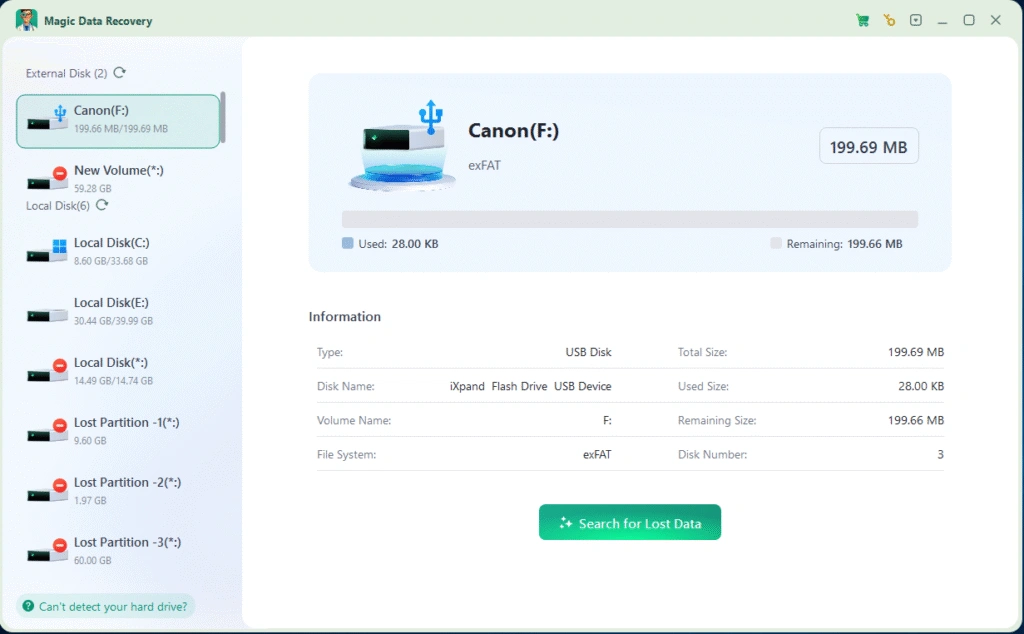
Uno strumento di recupero sicuro e di sola lettura come Magic Data Recovery può:
Scansiona le unità danneggiate senza sovrascrivere i dati.
② Ricostruzione di strutture di file danneggiate
③ Ripristino di foto, video, documenti e file di sistema
Questo metodo è particolarmente utile quando non esiste un backup.
Come prevenire la corruzione dei file
Seguire alcune pratiche riduce significativamente il rischio:
Utilizzare fonti di alimentazione stabili e sistemi UPS.
② Evitare gli arresti forzati
③ Mantenere attiva la protezione antivirus
④ Espulsione sicura del dispositivo di archiviazione USB
⑤ Mantenere backup regolari
⑥ Monitoraggio della salute dell'unità con gli strumenti SMART
Le piccole abitudini sono molto utili per mantenere i file sani.
Conclusione
Il danneggiamento dei file può essere stressante, ma la maggior parte dei casi può essere risolta con controlli sistematici, utilità integrate e strumenti di recupero professionali. Agendo tempestivamente si riduce la possibilità di un'infezione permanente. perdita di dati. Quando i file importanti non si aprono, iniziare con metodi di riparazione sicuri ed evitare di scrivere nuovi dati sull'unità.
Se avete bisogno di un ripristino dei file affidabile e di sola lettura, potete scaricare Magic Data Recovery per recuperare in modo sicuro i file danneggiati o inaccessibili senza rischiare ulteriori danni.
Supporta Windows 7/8/10/11 e Windows Server
Domande frequenti sulla corruzione dei file
Cosa significa quando un file diventa illeggibile?
Che cosa causa di solito la rottura o la mancata apertura dei file digitali?
È possibile riparare i documenti danneggiati senza perdere il contenuto?
Come si può verificare se il dispositivo di archiviazione causa problemi ai file?
Perché alcune foto o video appaiono distorte o incomplete?
È sicuro continuare a utilizzare un'unità che produce spesso file danneggiati?
Qual è il modo più sicuro per recuperare i dati importanti?
Come posso prevenire futuri problemi di file?

Erin Smith è riconosciuta come una delle scrittrici più professionali di Amagicsoft. Negli ultimi 10 anni ha continuamente affinato le sue capacità di scrittura e ha aiutato milioni di lettori a risolvere i loro problemi tecnologici.