
File Corruption
Table of Contents
What Is File Corruption?
Common Causes of File Issue
Several factors can damage file structure and interrupt normal operations:
① Sudden power loss while saving files
② System crashes or forced shutdown
③ Bad sectors on HDD or SSD
④ Incomplete downloads or transfers
⑤ Malware infection
⑥ Faulty USB drives or unstable external storage
These causes interfere with normal read-write processes, creating broken headers, missing clusters, or invalid metadata.
Symptoms You May Notice
Typical signs include:
① “The file is corrupt and cannot be opened”
② Unexpected application crashes
③ Files showing 0 KB
④ Distorted photos or videos
⑤ Documents opening with unreadable characters
⑥ Archive files failing to extract
Spotting these symptoms early helps prevent additional corruption.
How to Fix File Corruption (Practical Methods)
Below are safe, actionable steps anyone can follow.
1. Use Built-In File Repair Tools
Operating systems provide utilities to repair damaged files or storage errors.
Windows options:
① Run System File Checker (SFC)
② Use DISM for deeper component repairs
③ Try CHKDSK to fix file system inconsistencies
2. Restore Files from Previous Versions
Windows and macOS automatically generate snapshots or versions of your files.
Navigate to the file → Right-click → Restore previous version (Windows) or Revert To (macOS).
3. Repair Documents Using App-Specific Tools
Many apps provide their own recovery features:
Microsoft Office → Open and Repair
Adobe apps → Recover Project or auto-save
ZIP/RAR tools → Repair archive
Using first-party repair tools reduces the risk of further damage.
4. Check the Storage Device for Errors
If file corruption happens frequently, the drive may contain bad sectors.
Move important data immediately and test the device using:
Windows Disk Management
SMART monitoring tools
Third-party diagnosis software
If physical issues are detected, avoid heavy operations on the drive.
5. Recover Corrupted Files with Professional Software
When built-in tools cannot fix the issue, data recovery software offers a deeper scan and restores readable fragments.
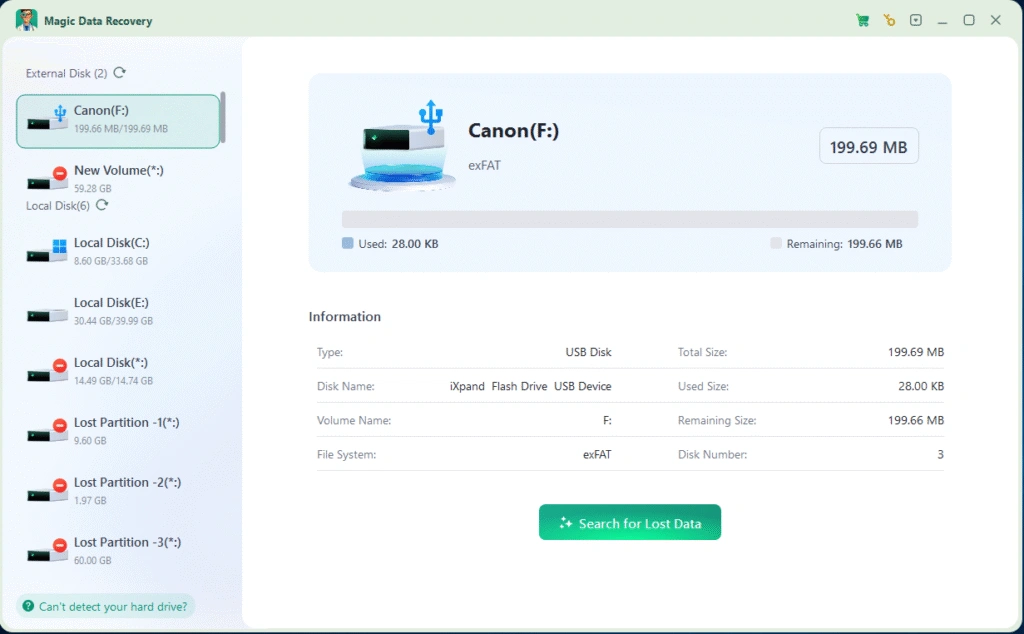
A safe, read-only recovery tool such as Magic Data Recovery can:
① Scan corrupted drives without overwriting data
② Rebuild damaged file structures
③ Restore photos, videos, documents, and system files
This method is especially helpful when no backup exists.
How to Prevent File Corruption
Following a few practices significantly reduces risk:
① Use stable power sources and UPS systems
② Avoid forced shutdowns
③ Keep antivirus protection active
④ Eject USB storage safely
⑤ Maintain regular backups
⑥ Monitor drive health with SMART tools
Small habits go a long way toward maintaining healthy files.
Conclusion
File corruption can be stressful, but most cases can be fixed with systematic checks, built-in utilities, and professional recovery tools. Acting quickly reduces the chance of permanent data loss. When important files fail to open, start with safe repair methods and avoid writing new data to the drive.
If you need reliable, read-only file restoration, you may download Magic Data Recovery to safely recover corrupted or inaccessible files without risking further damage.
Supports Windows 7/8/10/11 and Windows Server
File Corruption FAQs
What does it mean when a file becomes unreadable?
What usually causes digital files to break or fail to open?
Can damaged documents be repaired without losing content?
How do I check if my storage device is causing file issues?
Why do some photos or videos appear distorted or incomplete?
Is it safe to keep using a drive that frequently produces broken files?
What is the safest way to recover important data?
How can I prevent future file problems?

Erin Smith is recognized as one of the most professional writers at Amagicsoft. She has continually honed her writing skills over the past 10 years and helped millions of readers solve their tech problems.