
Intune の BitLocker 回復キーについて
アン Intune BitLocker 回復キー これは、BitLockerで暗号化されたWindowsドライブ用の48桁の復旧パスワードであり、パスワードがMicrosoft Entra IDに正常にバックアップされている場合、権限のあるユーザーがMicrosoft Intuneを通じてこのパスワードを取得できます。これにより、Windowsが通常通りドライブのロックを解除できない場合でも、ユーザーは暗号化されたデータへのアクセスを回復することができます。.
Intune は BitLocker ポリシーや回復情報を管理しますが、オンデマンドで回復パスワードを生成することはありません。回復パスワードは Windows によって作成され、Microsoft Entra ID はそのバックアップを保存することができます。.
この関係性を理解することで、Intune にリカバリキーが表示される理由、それが時折表示されなくなる理由、および利用可能なリカバリオプションがどれかについて説明できます。より詳細な背景情報については、当社の BitLocker 復旧ガイド.
目次
Intune BitLocker リカバリキー:概要
次の表は、Microsoftが管理するWindows環境におけるBitLocker回復キーの主な特徴をまとめたものです。.
プロパティ | 説明 |
テクノロジー | Microsoft BitLocker ドライブ暗号化 |
リカバリ形式 | 48桁の数字による復旧パスワード |
作成者 | Windows BitLocker |
クラウドバックアップの保存先 | Microsoft Entra ID を設定した場合 |
管理インターフェース | Microsoft Intune 管理センター |
ユーザーのアクセス権限 | 承認された管理者または利用資格のあるデバイス利用者 |
関連用語 | Azure AD、エンドポイント マネージャー、リカバリ キー ID、Company Portal |
主な目的 | 通常のBitLockerのロック解除に失敗した場合、承認されたアクセス権を復元する |
主な違い: Microsoft Intune では復旧レコードにアクセスできますが、それ自体が暗号化エンジンであるわけでも、すべての BitLocker パスワードの共通の保存場所であるわけでもありません。.
IntuneのBitLocker回復キーは、実際にはどのような役割を果たすのでしょうか?
簡単に言えば、BitLockerはWindowsドライブの内容を暗号化することで、そのドライブを保護します。これにより、ドライブを取り外して別のコンピュータに接続しただけでは、データを読み取ることができなくなります。.
通常、Windows は、コンピューターの信頼できるセキュリティ構成を確認した後、システムドライブのロックを自動的に解除します。.
ただし、特定の変更が行われると、BitLocker が追加の確認を求める場合があります。たとえば、ファームウェアの更新、TPM に関連する変更、または起動環境の変更を行った後、コンピュータがリカバリモードに入る可能性があります。.
この状況になると、Windows は BitLocker の回復画面を表示し、48 桁のパスワードの入力を求めます。.
企業管理対象のデバイスについては、権限を持つ管理者が Microsoft Intune からそのパスワードを取得できます。その後、ユーザーはそのパスワードを入力してドライブのロックを解除できます。.
このプロセスには2つの目的があります:
- データ保護: 権限のないユーザーは、暗号化を簡単に回避して保護されたファイルにアクセスすることはできません。.
- 承認された回収: 組織は、BitLockerのセキュリティ機能を無効にすることなく、正当なユーザーがアクセス権を取り戻せるよう支援することができます。.
したがって、 Intune BitLocker 回復キー これは、独立した暗号化技術というよりは、管理された復旧システムの一部として捉えるのが最も適切である。.
Intune の BitLocker 回復キーの管理はどのように機能するのでしょうか?
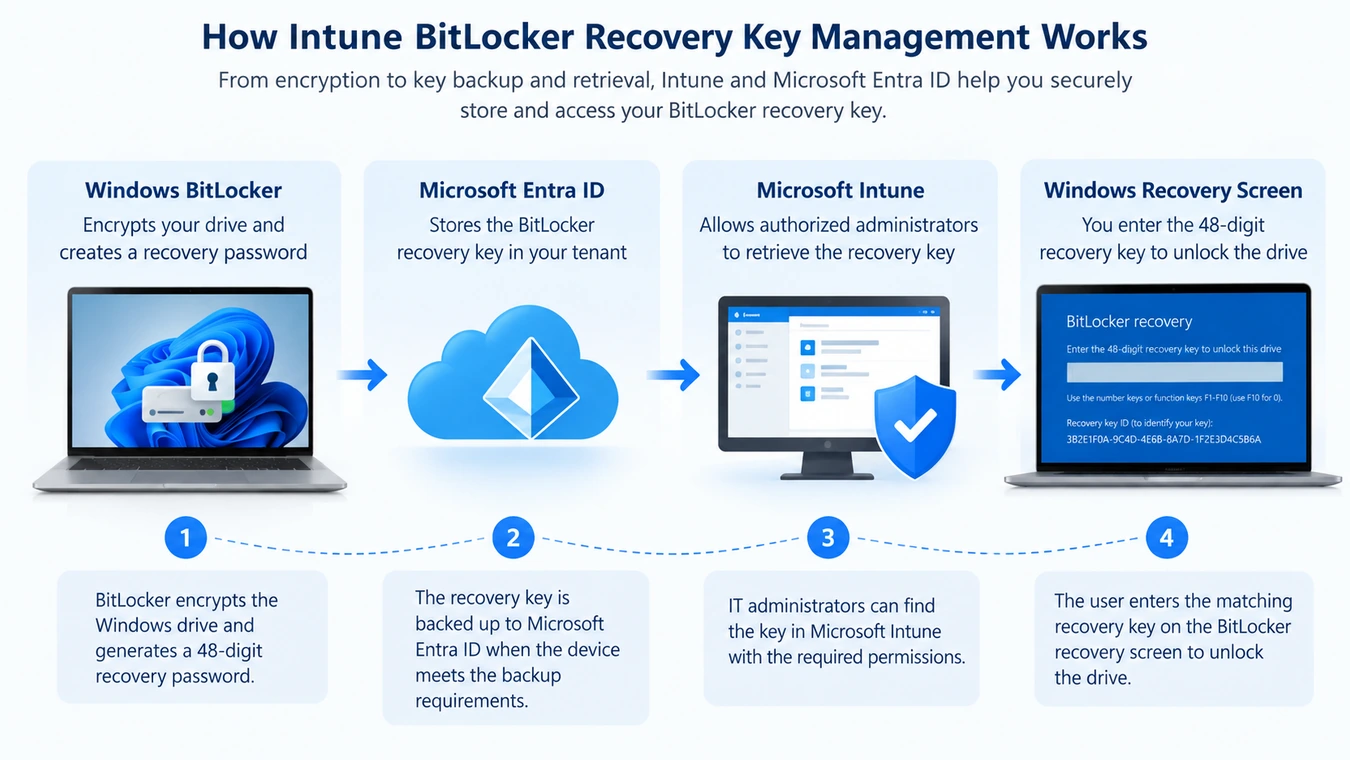
BitLockerの復旧には、WindowsおよびMicrosoftのクラウドコンポーネントが連携して動作します。.
この一連の流れを理解することで、復旧情報の出所や、Intuneが実際に何を管理しているのかが明らかになります。.
Windows が BitLocker の回復パスワードを作成します
管理者がBitLockerを有効にすると、Windowsはドライブに必要な暗号化プロテクターを設定します。.
復旧パスワードプロテクターは、通常の認証が失敗した場合に、別のロック解除方法を提供します。.
回復パスワードは48桁で構成されており、通常は6桁ずつ8つのグループに分けて表示されます。.
この数値パスワードは、BitLockerがボリュームを保護するために内部で使用している暗号化キーとは異なります。.
Windows は復元情報をバックアップします
Intune で管理されている環境では、管理者は、Windows に BitLocker の復元情報を Microsoft Entra ID にバックアップするよう義務付けるポリシーを設定できます。.
関連する設定により、Windows が回復パスワードを保存するかどうか、および暗号化処理がバックアップの完了を待つ必要があるかどうかが決まります。.
この区別は重要です。組織が復元キーの保存状況を確認せずに暗号化を実行することを許可した場合、利用可能なクラウドバックアップが存在しないにもかかわらず、コンピュータが暗号化されてしまう可能性があります。.
マイクロソフトは、これらの制御機能について、同社の Intune の BitLocker ポリシー設定.
Microsoft Entra ID は復旧レコードを保存します
When backup succeeds, Microsoft Entra ID associates the recovery information with the relevant device identity.
The stored information can include the recovery password and its corresponding identifier.
However, cloud storage does not mean everyone in the organization can access the password.
Microsoft Entra applies identity and permission controls to recovery key retrieval.
Intune Displays the Stored Key to Authorized Users
When an administrator requests a recovery password in Intune, the service accesses the associated Microsoft Entra recovery information.
If the key exists and the account has sufficient permission, Intune displays it.
Microsoft also records the key-access event in its audit logs.
If the record does not exist, Intune may show No BitLocker key found for this device.
Windows Uses the Matching Password to Unlock the Drive
Finally, the administrator or authorized user compares the stored Recovery Key ID with the identifier shown on the locked computer.
After identifying the correct password, the user enters the 48-digit code.
BitLocker then validates the recovery password and, if successful, allows the protected drive to unlock.
The overall process follows this sequence:
BitLocker encryption → Recovery password creation → Microsoft Entra backup → Intune retrieval → Authorized drive unlocking
Importantly, a successful encryption operation does not, by itself, prove that a recovery password exists in the cloud.
Intune vs. Azure AD vs. Endpoint Manager: What's the Difference?
Microsoft has changed several product names over time. As a result, older instructions may use terminology that differs from today’s management interfaces.
For example, searches for azure ad bitlocker recovery key そして bitlocker recovery key azure ad generally refer to recovery passwords stored in Microsoft Entra ID.
同様に、, endpoint manager bitlocker recovery key reflects older Microsoft endpoint management terminology.
These terms overlap, but they do not all describe the same component.
Microsoft Component | Primary Role | Relationship to BitLocker |
Microsoft Intune | Cloud endpoint management | Configures encryption policies and provides recovery access |
Microsoft Entra ID | Identity and device directory | Stores eligible cloud-backed recovery information |
Azure Active Directory | Former name of Entra ID | Older name for the same identity platform |
Microsoft Endpoint Manager | Former management product branding | Historical term used in older Intune documentation |
Company Portal | Employee self-service interface | Allows eligible users to retrieve recovery information |
Active Directory Domain Services | On-premises directory service | Can store recovery information for domain-managed devices |
Intune vs. Microsoft Entra ID
The most important difference concerns management and storage.
Intune manages device configuration and provides a recovery key viewing interface. Meanwhile, Microsoft Entra ID maintains the corresponding cloud device records and backed-up recovery information.
Consequently, a computer can appear in Intune without having a recovery password available in Entra ID.
Entra ID vs. Active Directory Domain Services
Microsoft Entra ID and traditional Active Directory Domain Services support different identity-management environments.
Organizations using on-premises domain management may store BitLocker recovery passwords in AD DS instead of, or alongside, Entra ID.
In that situation, administrators need the appropriate directory tools and permissions.
For additional details, see How to Find a BitLocker Recovery Key in Active Directory.
BitLocker Recovery Key vs. Recovery Key ID
The recovery password and its identifier serve different purposes.
特徴 | パスワードの再設定 | リカバリーキーID |
主な目的 | 暗号化されたドライブのロックを解除します | Identifies the relevant recovery password |
Typical format | 48-digit number | Identifier associated with a recovery protector |
BitLockerのロックを解除しますか? | Yes, if it matches | いいえ |
Where displayed | Recovery records and approved backups | Recovery screen and management tools |
Can generate the password? | 該当なし | いいえ |
A Recovery Key ID is not an encoded recovery password.
Therefore, you cannot calculate a valid BitLocker recovery password from its identifier alone.
Instead, use the ID to match the recovery screen with an existing record.
This distinction becomes especially important when a computer has undergone password rotation or has several recovery records.
For a more detailed explanation, read IDからBitLocker回復キーを見つける方法.
Why Is Intune BitLocker Recovery Key Management Important?
について Intune BitLocker 回復キー plays an important role in enterprise data protection and device support.
Its value goes beyond unlocking a computer after a startup problem.
Data Security and Controlled Access
BitLocker encryption protects data when a computer is lost, stolen, or accessed without authorization.
However, organizations also need a reliable method to restore access for legitimate users.
Centralized recovery information helps administrators handle these situations without broadly distributing encryption passwords.
Business Continuity
Consider an employee whose Windows laptop enters BitLocker recovery mode after a firmware update.
Without a recovery password, the employee may be unable to access the encrypted system drive.
If the organization has backed up the password correctly, an authorized administrator can retrieve it and help restore access.
This reduces dependence on a single printed recovery document or locally saved file.
Auditing and Accountability
Recovery passwords are sensitive security credentials.
Microsoft Entra ID and Intune support permission-controlled access and auditing when administrators reveal recovery information.
As a result, organizations can review who accessed recovery records and apply appropriate security policies.
Recovery Limitations
Centralized management also creates responsibilities.
If administrators fail to verify recovery backups, they may discover missing records only after a computer becomes locked.
Therefore, encryption deployment should include recovery planning, backup verification, and access-control reviews.
Where Can You Find an Intune BitLocker Recovery Key?
You may encounter BitLocker recovery information in several Microsoft management interfaces.
The correct location depends on your organization’s device configuration and your account permissions.
Microsoft Intune Admin Center
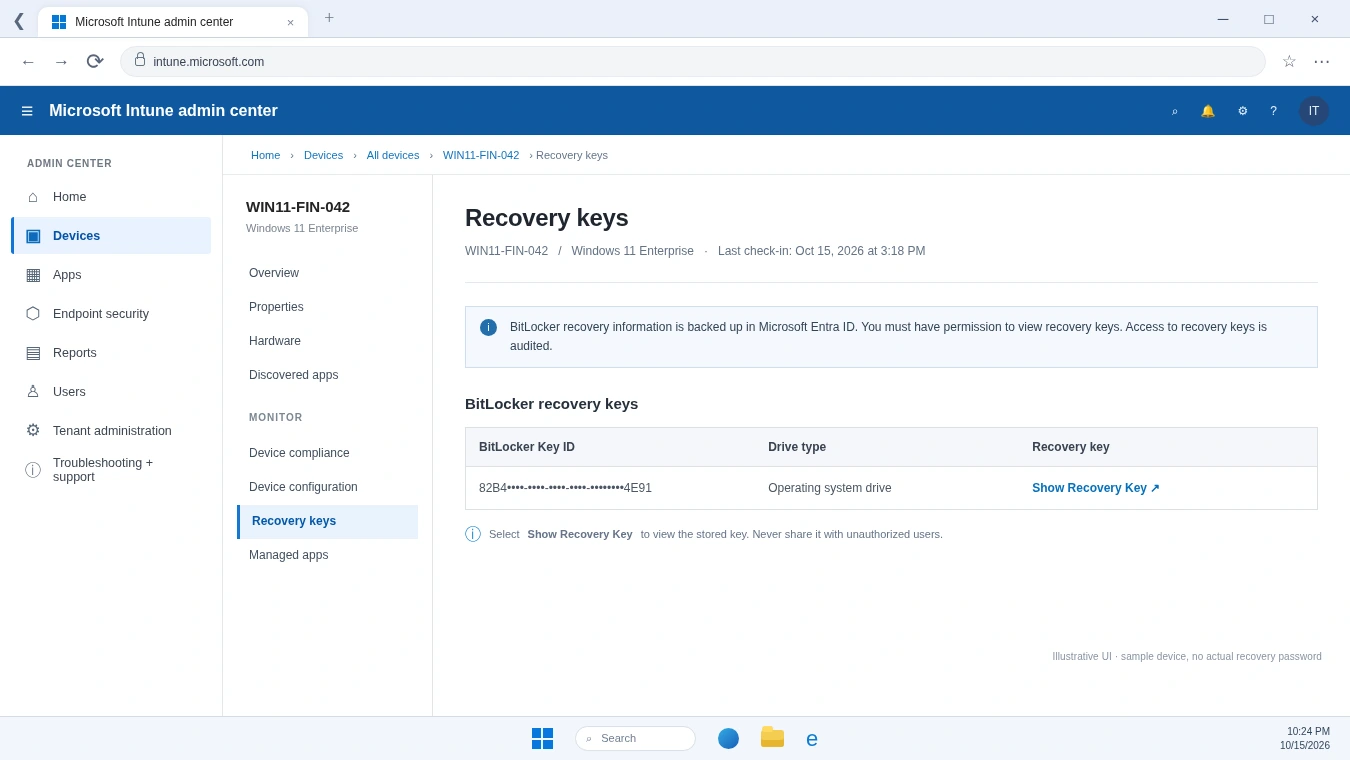
IT administrators can view available cloud-backed recovery information through the Microsoft Intune 管理センター.
The usual path is:
Devices → All devices → Select device → Recovery keys → Show Recovery Key
The Recovery keys option appears under the device’s monitoring section.
When recovery records exist, Intune can display the Key ID, recovery password, and drive type.
However, administrators need the appropriate Microsoft Entra permissions to reveal the password.
Microsoft Entra Admin Center
Administrators can also view an azure ad bitlocker recovery key through the Microsoft Entra admin center.
オープン Entra ID → Devices → All devices, select the affected computer, and choose Show Recovery Key 入手可能な場合。.
This method accesses recovery information associated with the device’s Entra identity.
Microsoft documents the required roles and permissions in its device management guidance.
BitLocker Recovery Portal for Employees
Employees may be able to retrieve their own recovery passwords through a bitlocker recovery portal, depending on organizational settings.
For eligible Intune-enrolled devices, the Company Portal website provides a self-service option:
- Sign in with your registered work or school account.
- オープン デバイス and select the affected computer.
- 選ぶ Get recovery key そして Show recovery key.
- Compare the Key ID and use the matching password.
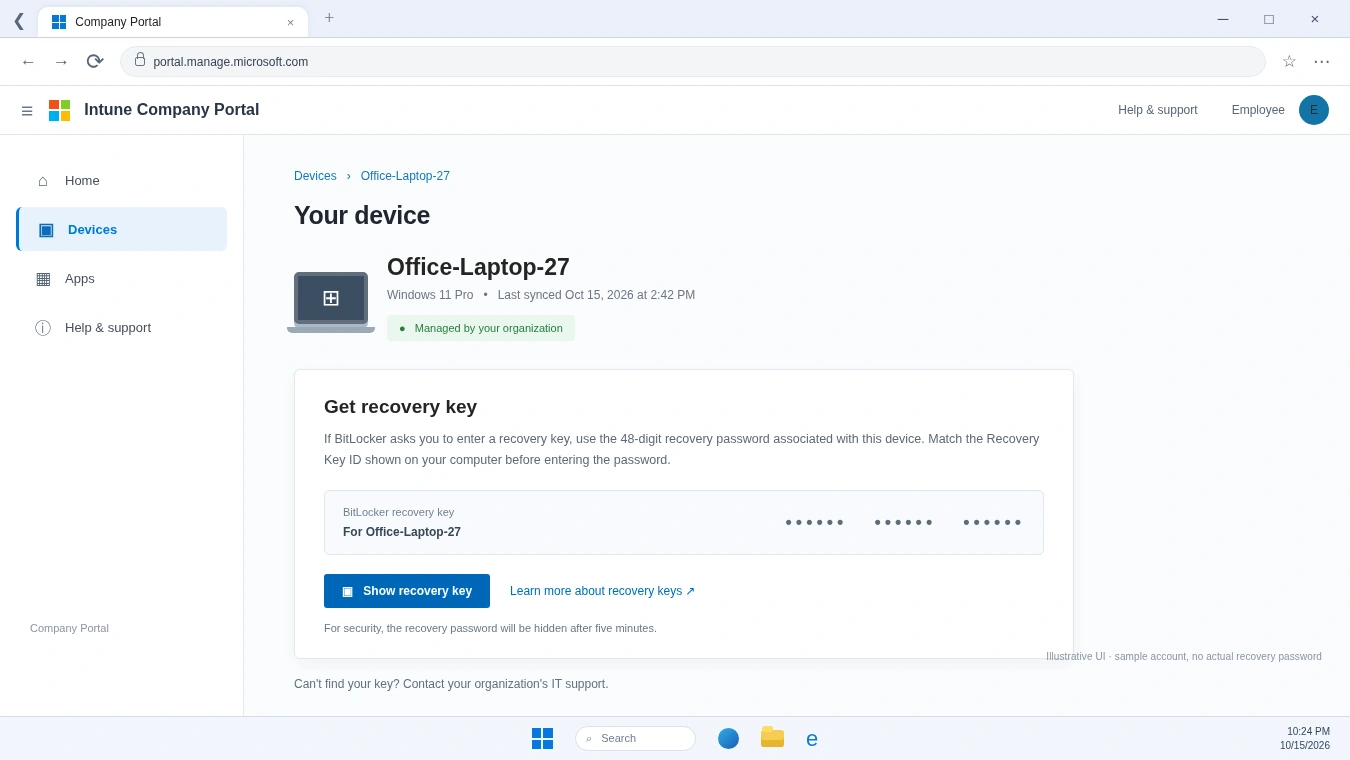
Microsoft states that Company Portal hides the displayed password after five minutes.
Some organizations also allow device owners to view recovery information through Microsoft My Account.
However, Configuration Manager’s separate BitLocker Self-Service Portal is not the same service as Intune Company Portal. Organizations must configure it independently.
参照 Microsoft’s official Company Portal guide for current requirements and supported devices.
Common Misconceptions About Intune BitLocker Recovery Keys
Several misunderstandings can make BitLocker recovery more confusing than necessary.
Does Every Intune-Managed Device Have a Recovery Key in Entra ID?
そうだ。.
Intune enrollment and successful recovery password backup are separate conditions.
A device may appear in the Intune inventory even though Windows never successfully saved its recovery password to Microsoft Entra ID.
Administrators should verify the backup rather than assume enrollment guarantees recovery availability.
Can Intune Generate a New Recovery Key for a Locked Drive?
そうだ。.
Intune cannot generate the missing recovery password needed to unlock an already inaccessible drive.
Supported key rotation can refresh recovery information for eligible managed devices, but it does not replace the requirement to unlock an inaccessible volume with valid credentials.
Can You Recover a Password from Its Key ID Alone?
そうだ。.
The Key ID identifies a recovery protector. It does not contain enough information to calculate the 48-digit recovery password.
A legitimate recovery process must locate an existing matching password rather than attempt to convert the identifier into one.
Does a Missing Recovery Key Mean the Drive Is Damaged?
Not necessarily.
A missing cloud record usually points to a backup, account, identity, or permission problem.
The encrypted drive may still function correctly.
Therefore, avoid assuming the storage device needs formatting or repair merely because Intune cannot display a recovery password.
What Happens When an Intune BitLocker Recovery Key Is Missing?
A missing recovery password can have different causes and consequences.
Understanding the visible symptoms helps determine whether the issue involves missing data or simply unavailable access.
症状 | Possible Explanation | Appropriate Next Step |
No BitLocker key found | No recovery record exists in Entra ID | Verify backup status on an accessible device |
アクセス拒否 | Account lacks required permission | Ask an authorized administrator |
Device not listed | Incorrect account, tenant, or device identity | Verify organizational registration |
Key does not work | Incorrect or outdated recovery password | Compare the Recovery Key ID |
Self-service option missing | Organizational policy restricts access | Contact the IT help desk |
If Windows is still accessible, an administrator can inspect the existing BitLocker protector information with PowerShell:
Get-BitLockerVolume -MountPoint "C:"
This command provides information about the drive’s encryption status and key protectors.
However, it cannot run within a normal Windows session when the computer is blocked at the preboot recovery screen.
Furthermore, checking protector information is not the same as repairing a missing cloud backup.
For more comprehensive recovery methods, see BitLocker 復元キーを紛失しましたか?復元する手順.
Is It Safe to Delete or Modify BitLocker Recovery Information?
BitLocker recovery information requires careful handling because it protects access to encrypted data.
Deleting a recovery record does not necessarily remove encryption from the drive. Instead, it may eliminate an important way to regain access later.
For example, Microsoft warns that deleting device records from Entra ID can affect associated BitLocker recovery information. Device deletion behavior also depends on the applicable lifecycle and soft-delete support.
Therefore, administrators should verify recovery backups before removing device objects.
Likewise, recovery password rotation should follow supported Intune procedures. After rotation, confirm that the current password appears in the intended backup location.
Avoid these actions when the only recovery password is missing:
- Resetting or formatting the encrypted drive without understanding the data-loss consequences.
- Removing organizational device records before checking recovery information.
- Sharing complete recovery passwords through public or unsecured channels.
- Attempting to calculate a password from its Recovery Key ID.
If the drive is already locked, involve the organization’s IT administrator before making changes that could complicate recovery.
When Should You Take Further Action?
を理解する Intune BitLocker 回復キー is useful even when your computer works normally. However, certain situations require more than a conceptual explanation.
If you are an administrator, review whether BitLocker policies require successful recovery information backup and whether authorized staff can retrieve the correct keys.
If your device is locked, check Intune, Entra ID, Company Portal, and approved backup locations before making changes to the encrypted drive.
When an existing recovery password may have been stored on an accessible Windows system, Magic Recovery Key offers a supplementary way to search for that information. Its dedicated BitLocker search interface can display found keys and support copying or saving them, which may be more convenient than manually examining multiple locations. However, it cannot bypass encryption or generate a password that was never stored, and organizational authorization remains essential.

まとめ
アン Intune BitLocker 回復キー is the recovery password used to regain access to a BitLocker-encrypted Windows drive when normal unlocking fails. Windows creates the password, Microsoft Entra ID can store its backup, and Intune provides an authorized management interface for retrieving it.
Understanding these separate roles helps explain why a device can appear in Intune without an available recovery password.
For most users, the safest approach is to rely on official recovery portals and verified backups. When local recovery information exists on accessible storage, Magic Recovery Key may provide a useful supplementary search option.
For more information about BitLocker recovery mechanisms and practical solutions, explore the Amagicsoft BitLocker Recovery Hub.
Windows 7/8/10/11およびWindows Serverをサポート
よくある質問
IntuneのBitLocker回復キーは、実際にはどこに保存されているのでしょうか?
Azure ADのBitLocker回復キーは、Entra IDキーとは異なりますか?
Intuneで「このデバイス用のBitLockerキーが見つかりません」と表示されるのはなぜですか?
一般の従業員はBitLockerの回復キーを確認できますか?
BitLockerの回復キーのローテーションにより、キーIDは変更されますか?
デバイスが削除された場合、BitLocker の回復キーはどうなるのでしょうか?
復旧ソフトウェアは、Microsoft IntuneのBitLocker復旧機能の代わりになるのでしょうか?

バシリイは、この分野で約10年の実務経験を持つデータ復元のスペシャリストです。そのキャリアを通じて、彼は削除されたファイル、フォーマットされたドライブ、失われたパーティション、RAWファイルシステムを含む何千もの複雑なケースの解決に成功してきました。彼の専門知識は、16進エディタなどの専門ツールを使用した手動復元方法と、復元ソフトウェアを使用した高度な自動化ソリューションの両方をカバーしています。バシリの使命は、信頼できるデータ復元知識をITプロフェッショナルと一般ユーザーの双方が利用できるようにし、貴重なデジタル資産を保護できるようにすることです。.