Skip to content
amagicsoft logo icon
  • Home
  • Products
    • Magic Data Recovery
    • Magic Recovery Key
  • Store
  • Blog
  • More
    • About Amagicsoft
    • Contact US
    • Privacy Policy
    • Terms
    • License Agreement
    • Refund Policy
  • English
    • 日本語
    • 한국어
    • Deutsch
    • Français
    • 繁體中文
Wiki

What Is TRIM

17.12.2025 Vasilii No comments yet
What Is TRIM
TRIM is an operating system–level command that informs solid-state drives (SSDs) which data blocks are no longer needed and can be cleared internally. Unlike traditional hard disk drives(HDDs), SSDs cannot overwrite existing data directly. They must erase memory blocks before writing new information. By identifying unused blocks in advance, this mechanism helps the drive preserve speed, reduce wear, and manage storage more efficiently.

Table of Contents

How TRIM Works

When a file is deleted on a system without this feature, the operating system usually removes only the file system reference. The underlying flash memory still contains the original data, and the SSD does not recognize that space as reusable. Over time, this behavior increases write amplification, lowers performance, and accelerates flash wear.

With support enabled, the operating system actively notifies the SSD when files are deleted, volumes are formatted, or storage space becomes free. These notifications specify the logical block addresses that no longer hold valid data. The SSD controller can then erase those blocks during idle periods, so they are ready for future writes. Official guidance from Microsoft and major SSD vendors confirms that this approach improves sustained write speed while reducing unnecessary erase cycles.

Why TRIM Matters for Long-Term Performance

This functionality plays an essential role in maintaining SSD efficiency over time:

  • Stable write performance: Pre-erased blocks allow immediate data writes.

  • Lower write amplification: Fewer internal copy and erase operations occur.

  • Improved durability: Reduced stress on NAND flash cells extends usable life.

  • Consistent user experience: Performance degradation over time is minimized.

Most modern operating systems automatically activate this feature when they detect a compatible SSD.

TRIM Compared with Garbage Collection

Although often mentioned together, these mechanisms serve different purposes:

  • TRIM commands: Instructions sent by the operating system to indicate unused blocks.

  • Garbage collection: An internal SSD process that consolidates data and erases blocks.

Accurate block information allows garbage collection to operate more efficiently. Without it, the controller must infer which blocks are safe to erase, which consumes more resources and time.

System and Device Compatibility

Support depends on multiple factors:

  • Storage hardware: Most SATA and NVMe SSDs support this command set.
  • Operating systems: Windows 7 and later, modern Linux distributions, and macOS provide native support.
  • File systems: NTFS, ext4, APFS, and other modern formats are compatible.
  • Connection methods: SATA and NVMe connections handle commands reliably, while some USB adapters and older RAID controllers may block them.

Checking TRIM Status in Windows

If you are using Windows, checking TRIM status is straightforward:

1. Open Command Prompt as Administrator.

2. Enter the following command:

fsutil behavior query DisableDeleteNotify
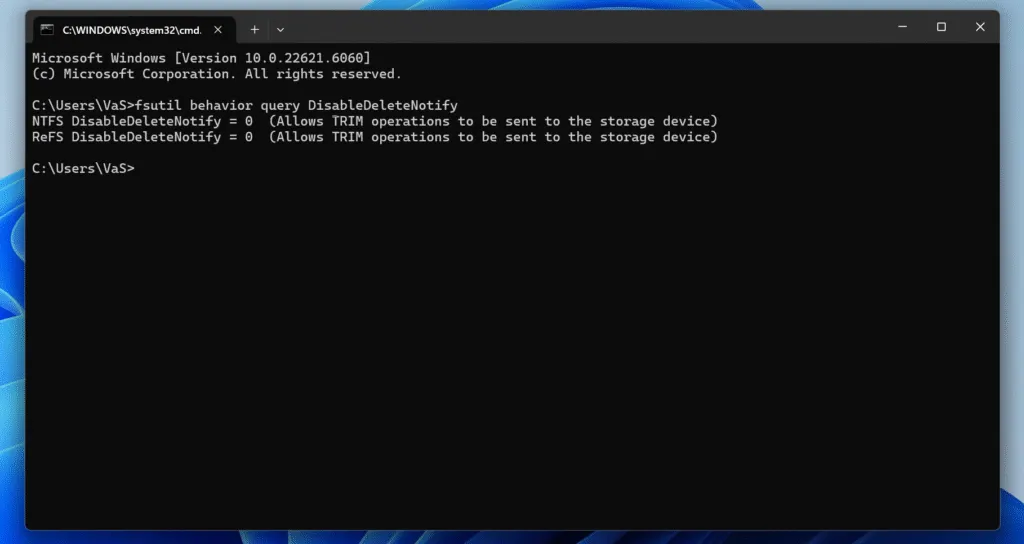
Check if TRIM is enabled

3. Interpret the result:

    • DisableDeleteNotify = 0 → The feature is active.
    • DisableDeleteNotify = 1 → The feature is turned off.
In most cases, enabling it is safe unless a legacy or specialized storage configuration is in use.

Impact on Data Recovery

From a recovery standpoint, this behavior introduces important limitations. Once blocks are marked as unused and erased internally, the original data is physically removed. As a result:

  • Deleted files may become unrecoverable within a short time.
  • Traditional scans of unallocated space often fail after internal cleanup occurs.
  • Rapid response after accidental deletion is critical.

This outcome reflects a design choice focused on performance and security rather than a defect. Professional tools such as Magic Data Recovery perform read-only scans and may identify recoverable data before internal cleanup completes. Acting immediately improves the likelihood of success.

TRIM in RAID and Virtual Environments

Behavior varies in advanced storage configurations:

  • RAID 0/1: Many modern software RAID solutions pass commands correctly.

  • Hardware RAID: Older controllers frequently block them.

  • Virtual machines: Pass-through support depends on the hypervisor and configuration.

Administrators should verify support when consistent performance and SSD longevity are priorities.

Security and Privacy Considerations

By reducing the chance that deleted data remains accessible, this technology strengthens data security. The same characteristic also limits recovery after accidental deletion, which makes regular backups essential in both personal and enterprise environments.

Best Practices

  • Maintain reliable backups before formatting or large-scale deletions.
  • Avoid disabling this feature unless a specific forensic or legacy requirement exists.
  • Use professional recovery software immediately after accidental data loss.
  • Confirm compatibility when using external enclosures or RAID systems.

Conclusion

TRIM support is fundamental to modern SSD storage. It helps maintain performance consistency, improves efficiency, and extends drive lifespan. Although it reduces post-deletion recovery options, the benefits in speed, reliability, and security are substantial. Understanding how this process works enables informed decisions about data management, backup planning, and recovery timing. Download Magic Data Recovery to scan your SSD safely and recover accessible files before internal cleanup permanently removes them.
Download Magic Data Recovery

Supports Windows 7/8/10/11 and Windows Server

FAQs

1.What is TRIM on an SSD?

It is an operating system command that informs an SSD which data blocks are no longer in use, allowing the drive to clear them internally and prepare for efficient future writes.

2.Is it good to TRIM an SSD?

Yes. Enabling it helps maintain performance, reduces internal wear, and supports a longer service life. Most modern systems activate it automatically.

3.Should I enable TRIM or not?

In nearly all environments, it should remain enabled. Disabling it is typically reserved for specialized forensic or legacy scenarios.

4.How often should you TRIM an SSD?

Manual operations are unnecessary. Operating systems issue commands automatically during file deletion and routine maintenance.

5.What happens if you don’t TRIM an SSD?

Write speeds may decline over time, and the drive may experience increased internal wear due to additional erase operations during writes.

6.What is TRIM used for?

It optimizes SSD performance and longevity by ensuring unused blocks are cleared efficiently and ready for reuse.

7.What is the average lifespan of an SSD?

Most SSDs last between five and ten years, depending on workload and quality. Proper block management helps achieve more predictable longevity.

8.Does SSD TRIM delete data?

It marks deleted blocks as unused so the SSD can erase them internally. Once that process completes, recovery becomes extremely difficult or impossible.
  • WiKi
Vasilii

Vasilii is a data recovery specialist with around 10 years of hands-on experience in the field. Throughout his career, he has successfully solved thousands of complex cases involving deleted files, formatted drives, lost partitions, and RAW file systems. His expertise covers both manual recovery methods using professional tools like hex editors and advanced automated solutions with recovery software. Vasilii's mission is to make reliable data recovery knowledge accessible to both IT professionals and everyday users, helping them safeguard their valuable digital assets.

文章导航

Previous
Next

Search

Categories

  • Bitlocker Recovery
  • Deleted File Recovery
  • Format File Recovery
  • Hard Drive Recovery
  • License Key Recovery
  • Lost File Recovery
  • Memory Card Recovery
  • News
  • Password Recovery
  • Photo Recovery
  • SSD Recovery
  • USB Drive Recovery
  • User Guide
  • Video Recovery
  • Wiki

Recent posts

  • How to Recover Files from a Corrupted SD Card
    How to Recover Files from a Corrupted SD Card
  • How to Recover Deleted Files From External Hard Drive
    How to Recover Deleted Files From External Hard Drive
  • Run CHKDSK on SD Card Easy Steps to Fix Errors
    Run CHKDSK on SD Card: Easy Steps to Fix Errors

Tags

How to Magic Data Recovery Magic Recovery Key WiKi

Related posts

Run CHKDSK on SD Card Easy Steps to Fix Errors
Wiki

Run CHKDSK on SD Card: Easy Steps to Fix Errors

17.12.2025 Vasilii No comments yet

CHKDSK (Check Disk) is a built-in Windows command-line utility used to scan and repair file system errors on storage devices, including SD cards. When applied to an SD card, CHKDSK examines the logical file structure—such as directory entries, file allocation tables, and file system metadata—to identify corruption, bad sectors, or inconsistencies that may prevent the […]

how to use CHKDSK commands
Wiki

CHKDSK Commands: A Complete Guide

17.12.2025 Smith, Erin No comments yet

CHKDSK (Check Disk) is a built-in Windows tool that helps maintain and repair file systems on hard drives by checking for errors, bad sectors, and fragmented files. It’s an essential utility for keeping your disk healthy and optimizing performance. It provide several CHKDSK Commands for fixing file system errors, bad sectors, and fragmented files. Table […]

how to run chkdsk
Wiki

CHKDSK: Your Ultimate Guide to Fixing Disk Errors

17.12.2025 Smith, Erin No comments yet

In this comprehensive guide, we will dive deep into CHKDSK—what it is, what does chkdsk do, and the precise steps on how to run chkdsk. We’ll explore its benefits, limitations, and the potential risks. Most importantly, we’ll provide a reliable safety net for scenarios where running CHKDSK might result in inaccessible partitions or lost data, […]

amagicsoft logo icon

Our vision is to become a globally renowned software brand and service provider, delivering top-tier products and services to our users.

Products
  • Magic Data Recovery
  • Magic Recovery Key
Policy
  • Terms
  • Privacy Policy
  • Refund Policy
  • License Agreement
Company
  • About Amagicsoft
  • Contact US
  • Store
Follow Us

Copyright © 2025 Amagicsoft. All Rights Reserved.

  • Terms
  • Privacy Policy
