
Quick Format: How It Works, Data Recovery, and Best Practices
Formatting a drive is a common task when preparing storage for reuse. However, many users accidentally choose Quick Format without fully understanding its consequences. As a result, important files may appear to be permanently lost within seconds.
In this article, you will learn how this formatting option works, how it differs from a Full Format, whether data remains recoverable, and how to restore lost files safely. If you are facing data loss after formatting, this article also explains why Magic Data Recovery is a reliable solution.
Table of Contents
What Is Quick Format?
It is a formatting option available in Windows, macOS, and many disk management tools. It prepares a storage device—such as a hard drive, SSD, USB flash drive, or SD card—for reuse by rebuilding the file system structure.
Unlike more thorough formatting methods, this quick formatting process completes in seconds because it does not scan the disk surface or erase existing data blocks.
Common Scenarios Where This Format Option Is Used
Users often apply this formatting method when:
- Reinstalling Windows or macOS
- Preparing a USB drive for file transfer
- Resetting an external hard drive
- Fixing minor file system errors
- Setting up a new partition
While convenient, the speed of this approach often creates the false impression that data is erased completely.
How Quick Format Works: The Technical Principle
To understand data recovery after formatting, it is essential to know what actually happens during the process.
What Happens During the Process
When you perform a Quick Format, the system:
- Deletes file system metadata (such as the file allocation table or MFT)
- Marks disk space as available
- Creates a new, empty file system structure
What Does Not Happen
However, this option does not:
- Overwrite existing file data
- Scan for bad sectors
- Securely erase content
In practical terms, your files still exist on the disk until new data overwrites them.
How to Perform a Format on Windows (Step-by-Step)
Understanding the process helps reduce the risk of accidental data loss.
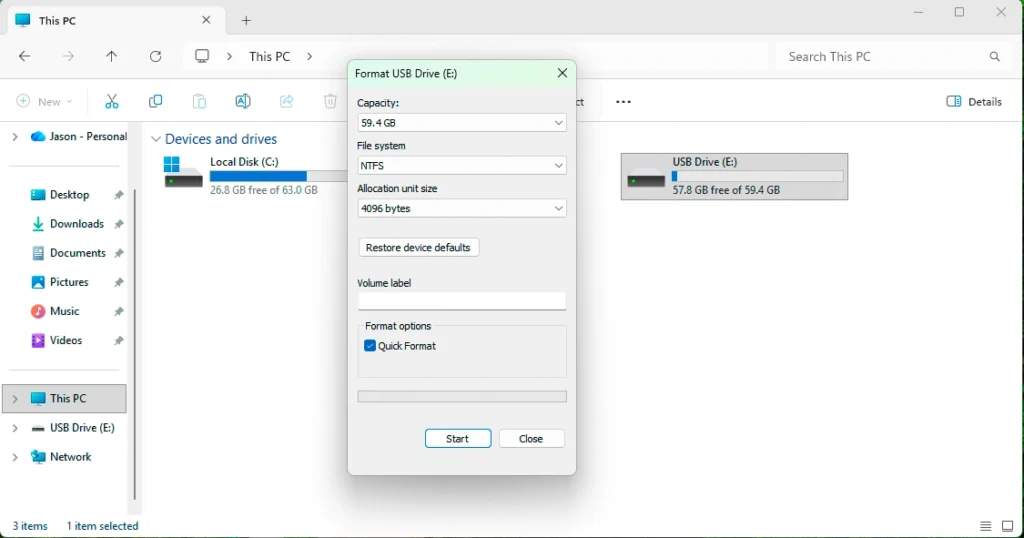
Using Windows File Explorer
- Open This PC
- Right-click the target drive
- Select Format
- Check Quick Format
- Choose a file system (NTFS, FAT32, or exFAT)
- Click Start
Using Disk Management
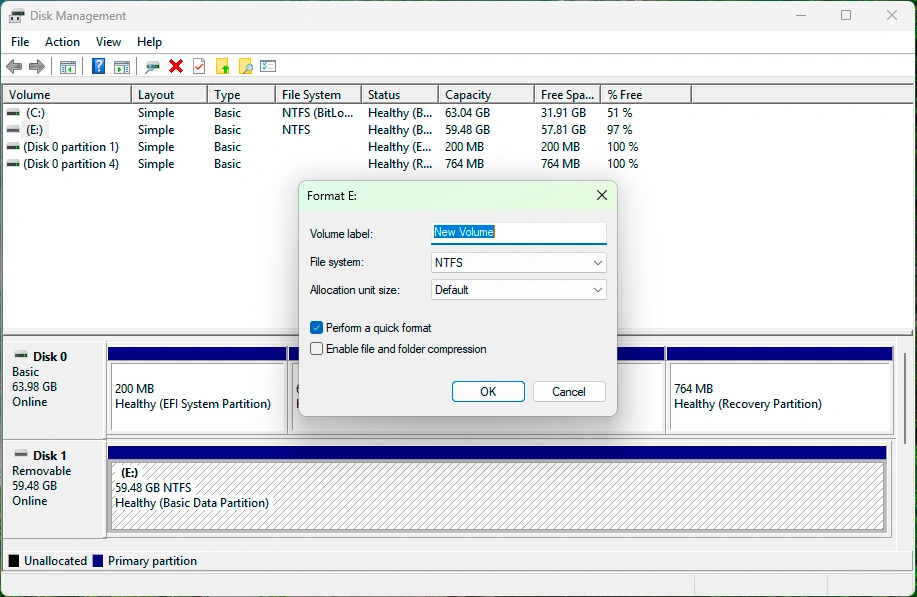
- Press Win + X → Disk Management
- Right-click the partition
- Select Format
- Enable the quick formatting option
- Confirm the operation
A confirmation prompt warns about data loss, but it does not explain recoverability.
Quick Format vs Full Format: Key Differences
Choosing between these two methods has long-term implications for data safety and recovery.
Feature | Quick Format | Full Format |
Time required | Seconds | Minutes to hours |
Deletes file system | Yes | Yes |
Overwrites data | No | Yes |
Scans for bad sectors | No | Yes |
Data recoverable | High | Very low |
Recommended for reuse | Limited | Yes |
When Each Option Is Appropriate
- Quick Format: Minor issues, fast reuse, temporary cleanup
- Full Format: Selling a drive, security concerns, deep error checking
Is Data Recoverable After Formatting?
Yes, in most cases, data recovery after a quick formatting process is highly possible.
Why Recovery Works
Because this method only removes file references, recovery software can:
- Scan raw disk sectors
- Identify file signatures
- Reconstruct deleted files
When Recovery May Fail
Recovery success decreases if:
- New data is written to the drive
- A Full Format is performed afterward
- TRIM is enabled on SSDs
- The disk suffers physical damage
For best results, stop using the drive immediately after formatting.
How to Recover Data After Formatting
Recovering data requires a tool that can scan beyond the file system.
Recommended Solution: Magic Data Recovery
Magic Data Recovery is designed to restore files lost due to format, accidental deletion, and partition loss.
Supports Windows 7/8/10/11 and Windows Server
Core Pain Points It Solves
- Files missing after formatting
- Inaccessible partitions
- Lost photos, documents, and videos
- USB and external drive recovery
Why Magic Data Recovery Is a Reliable Choice
Instead of marketing claims, the value of Magic Data Recovery lies in practical recovery performance.
Key Advantages
- Deep scan technology that bypasses deleted file systems
- Support for NTFS, FAT32, exFAT, and more
- Compatible with HDDs, SSDs, USB drives, and SD cards
- Read-only scanning to prevent data overwrite
Real-World Use Case
A common scenario involves users formatting a USB drive to fix a file system error. After using the quick formatting option, files disappear. Magic Data Recovery can scan the device, locate recoverable files, and preview them before restoration.
Why It Is More Reliable Than Manual Methods
Manual recovery attempts, such as CHKDSK or reformatting again, often reduce success rates. In contrast, Magic Data Recovery preserves original disk content while performing advanced scans.
Best Practices to Avoid Data Loss
Prevention remains the most effective strategy.
Practical Tips
- Always back up important files before formatting
- Double-check format options before confirming
- Avoid formatting drives with unknown errors
- Stop using the drive immediately if data loss occurs
These habits significantly reduce the need for recovery.
Conclusion
Quick Format is fast and convenient, but it is often misunderstood. While it removes file system access, it does not immediately erase data. This makes recovery possible, provided no further writes occur.
When files are lost after formatting, a professional solution such as Magic Data Recovery offers a safe, efficient, and proven way to restore valuable data without causing further damage. If you are looking for a dependable recovery solution after formatting, Magic Data Recovery provides a balanced combination of reliability, ease of use, and technical depth suitable for most users.
Supports Windows 7/8/10/11 and Windows Server
FAQs
Is quick format good enough for USB?
Why is a full format more beneficial than a quick option?
Should I quick format or full format PS3?
Is it better to quick format or full format a USB drive?
Is there a downside to using exFAT?
Is full format worth it?
Which format should I use for my SSD?

Erin Smith is recognized as one of the most professional writers at Amagicsoft. She has continually honed her writing skills over the past 10 years and helped millions of readers solve their tech problems.