
Run CHKDSK on SD Card: Easy Steps to Fix Errors
CHKDSK (Check Disk) is a built-in Windows command-line utility used to scan and repair file system errors on storage devices, including SD cards. When applied to an SD card, CHKDSK examines the logical file structure—such as directory entries, file allocation tables, and file system metadata—to identify corruption, bad sectors, or inconsistencies that may prevent the card from being read correctly.
If your SD card suddenly becomes unreadable, shows incorrect capacity, or reports errors like “The file or directory is corrupted and unreadable,” CHKDSK is often the first diagnostic tool recommended by Microsoft for logical disk repair.
Table of Contents
What CHKDSK Does on an SD Card
When running on an SD card, CHKDSK performs several key operations depending on the parameters used:
- Verifies file system integrity (FAT32, exFAT, or NTFS)
- Fixes logical file system errors such as cross-linked files or invalid directory entries
- Marks bad sectors to prevent future data writes
- Restores readable file fragments when possible
It is important to note that CHKDSK operates at the file system level, not the physical memory cell level. It cannot repair physically damaged NAND flash memory.
Common SD Card Issues CHKDSK Can Fix
CHKDSK is effective for logical corruption, including:
- SD card showing as “needs to be formatted”
- Files missing or renamed after unsafe removal
- Read/write errors caused by improper ejection
- File system converted to RAW due to metadata damage
The good news is that these issues usually mean your data is not permanently lost, but temporarily inaccessible due to file system inconsistencies.
How to Run CHKDSK on an SD Card (Step-by-Step)
Before proceeding, insert the SD card into your computer using a reliable card reader.
Step 1: Identify the SD Card Drive Letter
1. Open File Explorer
2. Locate your SD card (for example, E: or F:)
3. Note the assigned drive letter
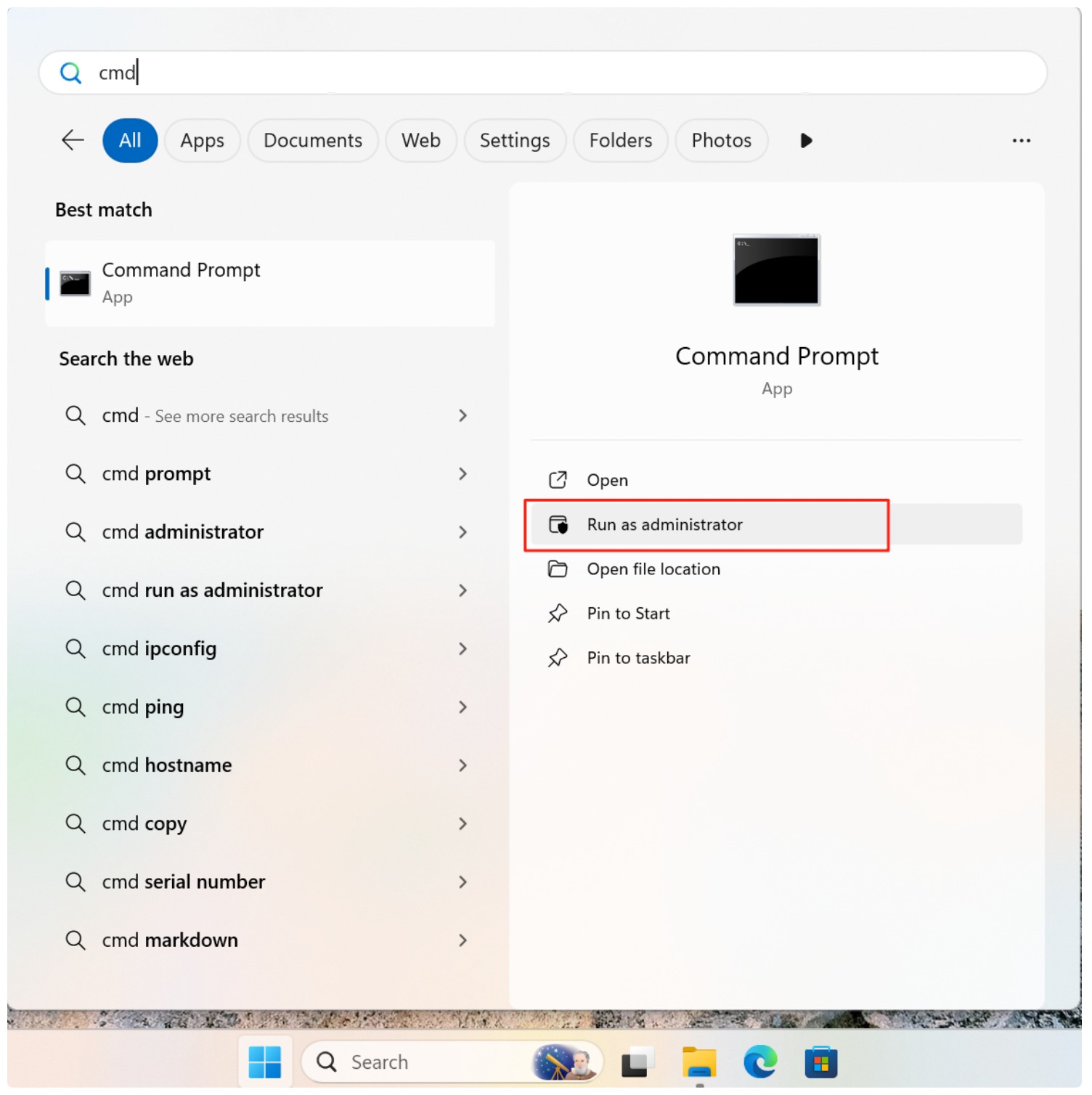
Step 2: Open Command Prompt as Administrator
1. Press Win + X
2. Select Command Prompt (Admin) or Windows Terminal (Admin)
Step 3: Run the CHKDSK Command
Use the following syntax:
chkdsk E: /f
Replace E: with your actual SD card drive letter.
/ffixes detected file system errors/r(optional) locates bad sectors and attempts data recovery (slower)
Example:
chkdsk E: /f /r

Step 4: Wait for the Scan to Complete
Do not remove the SD card during the process. Interruption may worsen corruption.
Important Risks and Limitations
While CHKDSK is useful, it is not risk-free:
- Potential data loss: CHKDSK may delete corrupted directory entries or truncate damaged files
- Not suitable for RAW recovery: If the SD card appears as RAW, CHKDSK may fail with “CHKDSK is not available for RAW drives”
- No recovery preview: CHKDSK does not allow you to preview files before modification
For SD cards containing important photos, videos, or work files, running CHKDSK without a backup can be risky.
When You Should NOT Use CHKDSK
Avoid running CHKDSK if:
- The SD card contains irreplaceable data
- The card shows as RAW
- Windows repeatedly disconnects the device
- You hear unusual read/write delays or freezes
In these cases, read-only data recovery should be performed first.
Safe Alternative: Recover Data Before Repair
Professional recovery tools like Magic Data Recovery are designed to scan SD cards in read-only mode, extracting files without altering the original structure. This approach minimizes risk and allows you to verify recoverable files before taking any repair action.
Once data is safely recovered, CHKDSK can then be used to restore the SD card’s usability if needed.
Conclusion
CHKDSK is a powerful Windows utility for repairing logical SD card file system errors, but it should be used with caution. While effective for minor corruption, it is not a data recovery tool and may permanently remove damaged files during repair. For critical data, SD card recovery should always come first. Download Magic Data Recovery to safely recover files from a corrupted SD card before attempting CHKDSK repairs, and restore your data with confidence and control.
Supports Windows 7/8/10/11 and Windows Server
FAQ
Can CHKDSK fix an SD card?
How do I repair a corrupted SD card?
How to scan an SD card for errors?
How to check if an SD card is corrupted?
Can you restore an SD card?
How to CHKDSK a RAW SD card?

Vasilii is a data recovery specialist with around 10 years of hands-on experience in the field. Throughout his career, he has successfully solved thousands of complex cases involving deleted files, formatted drives, lost partitions, and RAW file systems. His expertise covers both manual recovery methods using professional tools like hex editors and advanced automated solutions with recovery software. Vasilii's mission is to make reliable data recovery knowledge accessible to both IT professionals and everyday users, helping them safeguard their valuable digital assets.