
Data Recovery Solution-Recover Lost, Deleted & Formatted Data
Data Recovery is the process of retrieving lost, deleted, or inaccessible files from storage devices such as hard drives, SSDs, USB flash drives, SD cards, external drives, and encrypted disks. Whether your data loss is caused by accidental deletion, drive formatting, partition corruption, system crashes, or malware attacks, the right recovery method can often restore your files safely.
With Magic Data Recovery, you can recover lost data quickly, securely, and with professional-grade scanning technology.
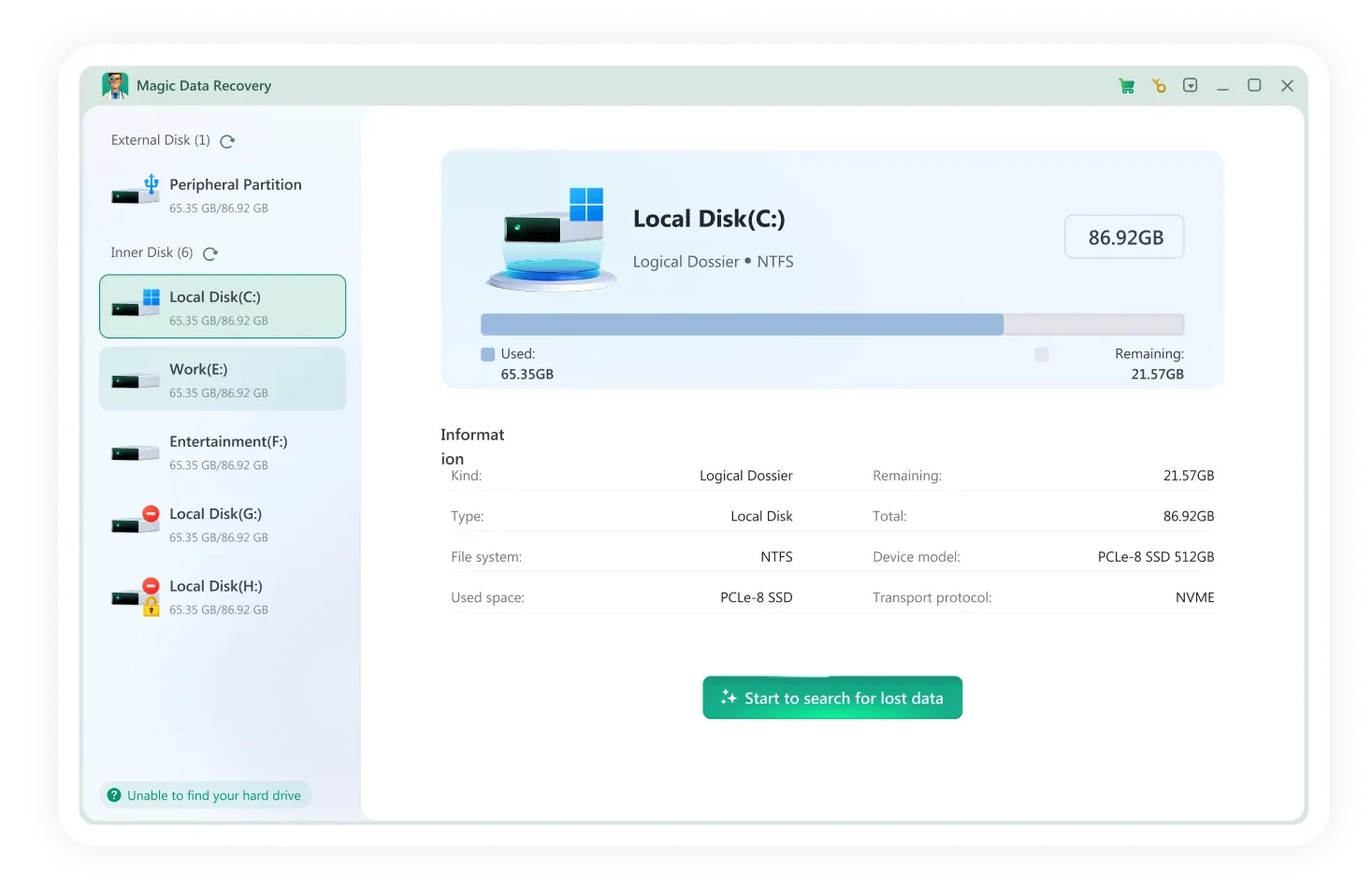
What Is Data Recovery?
Data recovery refers to restoring digital information that has become inaccessible due to logical errors or physical damage. In many cases, when a file is deleted or a drive is formatted, the data itself is not immediately erased. Instead, the operating system marks the storage space as available for new data. Until it is overwritten, recovery remains possible using specialized software such as Magic Data Recovery.
Data recovery is commonly used for:
- Recovering deleted files
- Recovering formatted drives
- Restoring lost partitions
- Recovering data from deleted, missing, or RAW partitions
- Recovering files after virus or ransomware attacks

Common Data Recovery Scenarios
Data loss can happen in many different ways, from simple human error to complex system failures. Understanding the most common data recovery scenarios helps you quickly identify the right solution and improve your chances of successful recovery.

Deleted File Recovery
Recover files deleted from the Recycle Bin, Shift+Delete actions, or emptied trash folders. It helps restore documents, photos, videos, and more.
Formatted Drive Recovery
Lost Partition Recovery
Recover data from deleted, missing, or RAW partitions caused by partition table corruption or accidental disk changes. It is for external drives and multi-partition disks.
Video Recovery
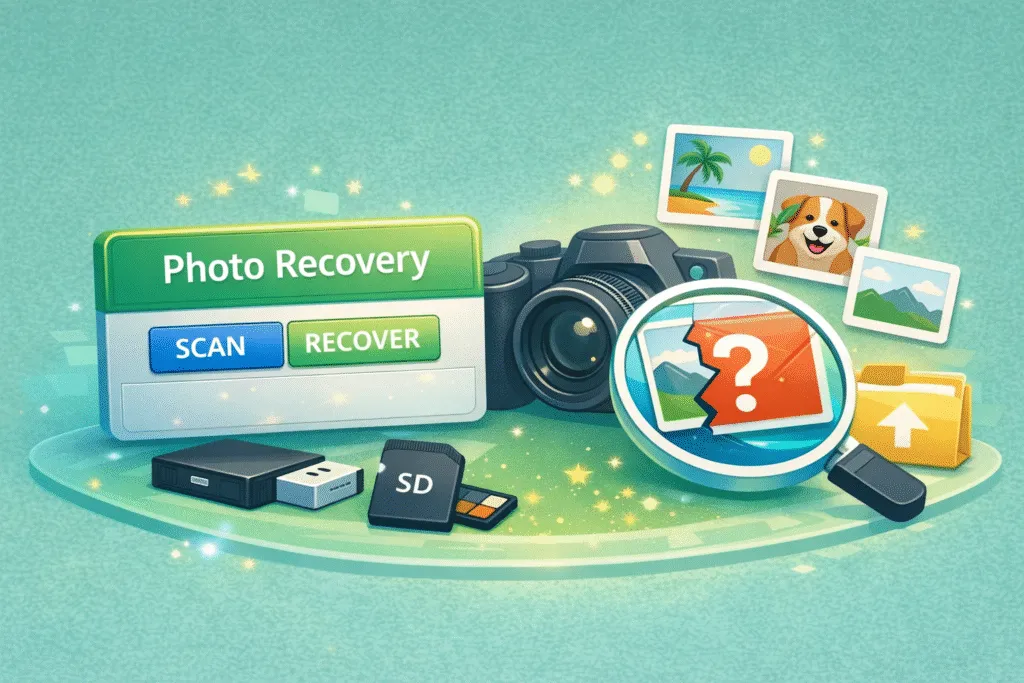
Photo Recovery
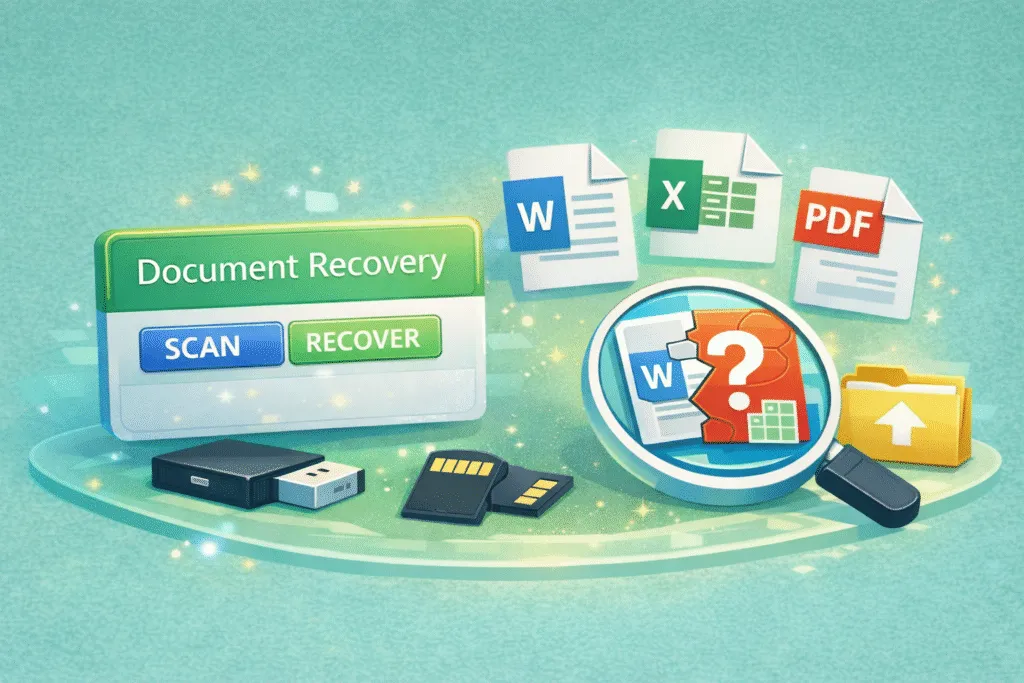
Document Recovery
Device Types Supported by Magic Data Recovery
Data loss can occur on almost any storage device, from internal computer drives to portable media used for backups, photos, and work files. Magic Data Recovery is built to support a wide variety of device types, making it easier to recover lost data no matter where it was stored.
Internal Hard Drives
Scan internal HDDs or SSDs to recover deleted or lost files.
External hard drives
Connect an external drive and restore lost data with a quick scan.
Flash drives
Plug in a USB flash drive to recover deleted files easily.
Memory cards
Recover photos, videos, and documents from SD or microSD cards.
Digital Cameras & Camcorders
Restore lost media files from camera storage devices and cards.
Other Supported Devices
Scan other removable storage devices recognized by your devices.
Recoverable File Types
Different data loss situations can affect many kinds of files, from personal photos to important work documents. Recovery tools are designed to support a wide range of file formats, helping you restore common media files, archives, emails, and other valuable data across different storage devices. Below are some of the most frequently recoverable file types.
Video Files
mp4, mov, mkv, avi, wmv, flv, webm, mpg, mpeg, m4v, 3gp, 3g2, mts, m2ts, m2t, ts, tod, mxf, r3d, crm, ogm and more
Image & Graphics Files
JPG, PNG, GIF, TIFF, BMP, WEBP, HEIC, PSD, AI, SVG, CR2, CR3, NEF, ARW, RAF, RW2, ORF, DNG, PEF and more
Audio Files
MP3, M4A, AAC, WAV, FLAC, OGG, AIF, AIFF, WMA, MP2, MPA, AA, AMR, AWB, CAF, DS2, RA, VOC, ZRV and more
Document Files
docx, xlsx, pptx, pdf, rtf, xml, odg, sxc, wps, epub, msg, emlx, mdb, fp7, db3, bkf, jks, rp, afdesign, apk, ipa, cs and more
Archive Files
zip, rar, 7z, tar, xz, cab, arj, dmg, iso, rdb, jar, mbx, pst and more
Other File Types
accdb, db, sql, myo, otf, raw, dd, img, iso, dsk, bin, dat, vmdk and more
Professional Data Recovery Software: Magic Data Recovery
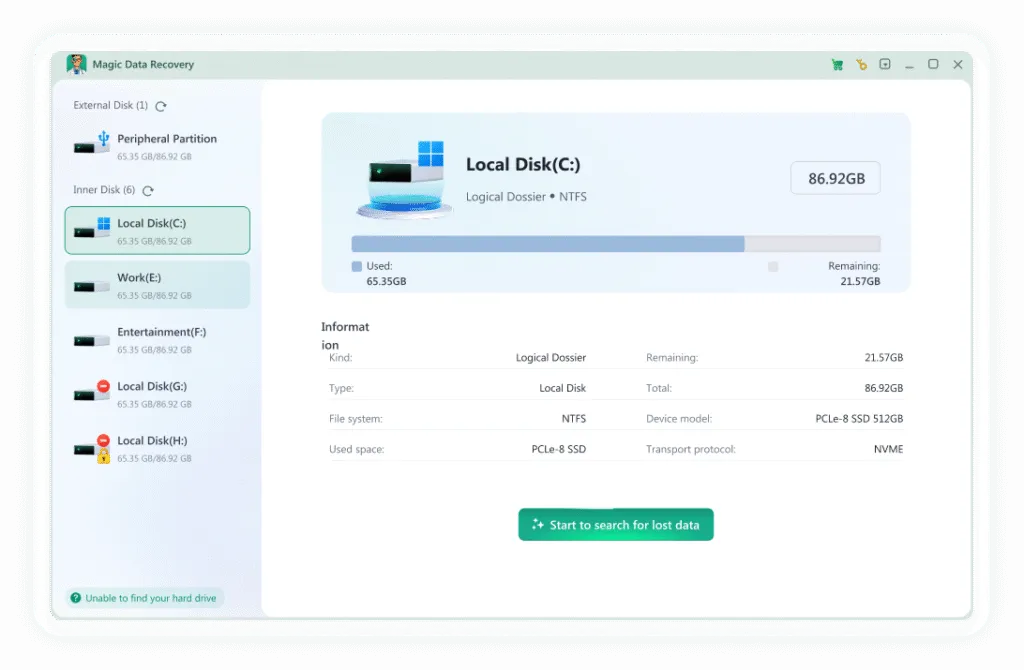
Magic Data Recovery is a powerful data recovery software designed to recover lost files from various devices, file systems, and data loss scenarios.
- Scan HDDs, SSDs, USB drives, and SD cards
- Identify and preview recoverable files for free
- Recovers files based on file system data and file signatures
- Perform safe, read-only recovery scans
- Recover deleted, formatted files and other files
Steps to Recover Lost, Deleted & Formatted Files
Recovering lost data is often possible if you act quickly and avoid overwriting the affected drive. The recovery process typically involves scanning the storage device, previewing recoverable files, and restoring them to a safe location. Follow the steps below to improve your chances of successfully recovering deleted, formatted, or missing files.
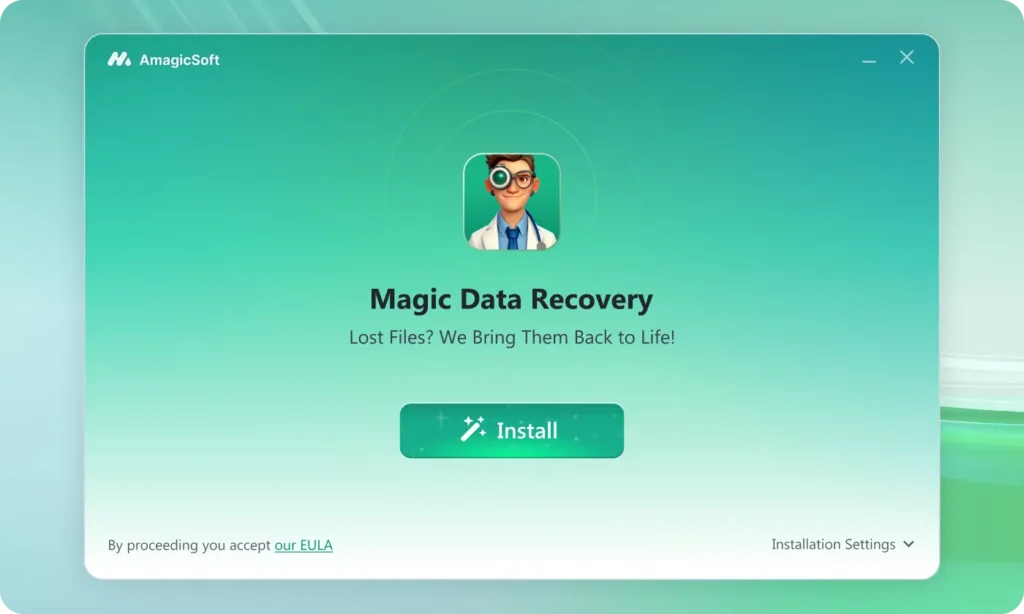
Step 1: Download and Install Magic Data Recovery
First, download Magic Data Recovery from the official website and complete the installation. To reduce the risk of overwriting deleted data, avoid installing the software on the same location where the lost files located.
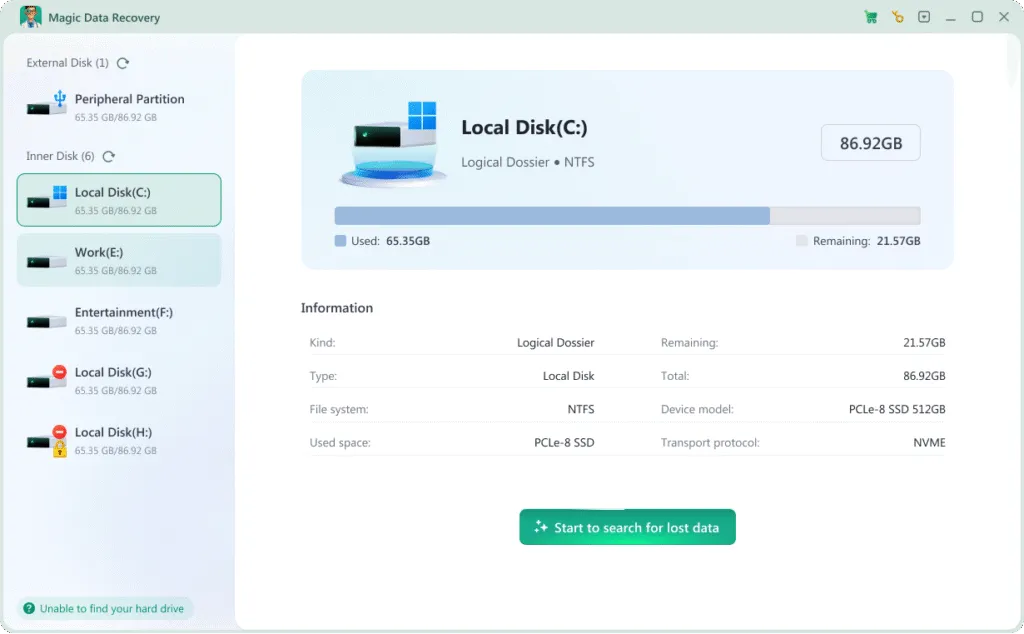
Step 2: Select the Drive or Location to Scan
After launching the program, you will see a list of available drives and storage locations. Choose the drive where you deleted the files, then start the scan to search for recoverable data.
Step 3: Scan for Deleted Files
Magic Data Recovery automatically performs a deep scan to locate deleted files. During the scanning process, recoverable files appear in real time, allowing you to browse results while the scan continues.
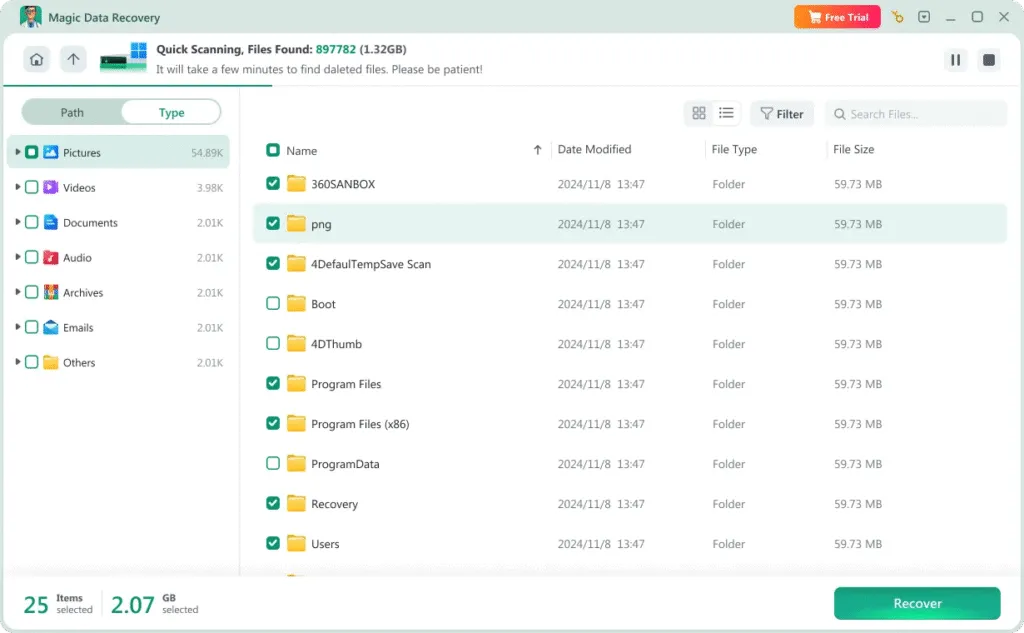

Step 4: Preview Files Before Recovery
Once the scan identifies deleted files, use the built-in preview feature to check file content. This step helps confirm file quality and ensures that only the correct files are selected for recovery.
Step 5: Recover Files to a Secure Location
Select the files you want to recover and choose a safe destination on your computer or another external drive. Never save recovered files back to the same SD card, as this may overwrite remaining data and reduce recovery success.
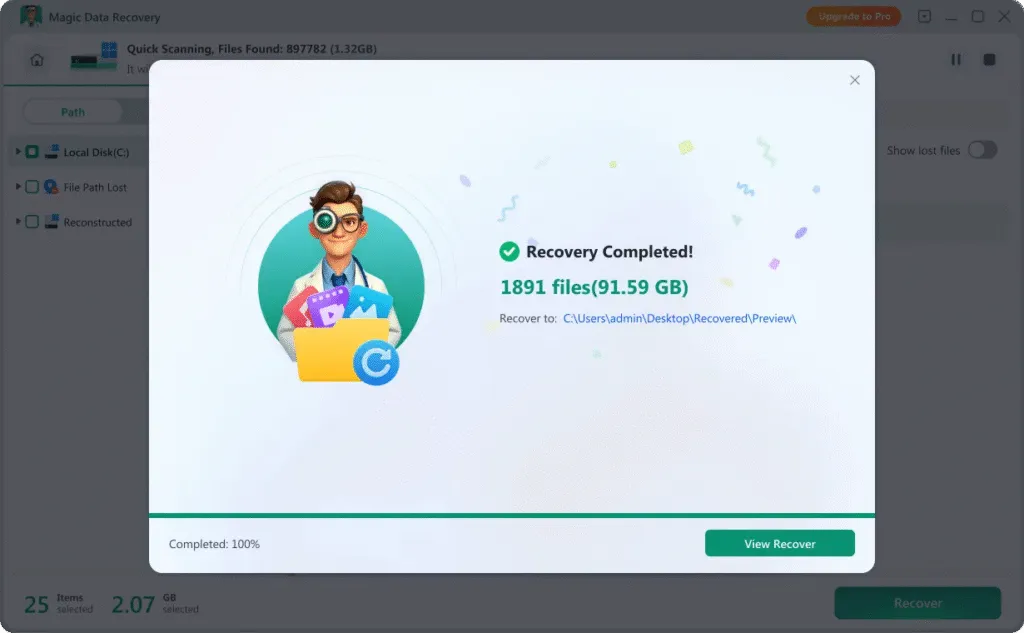
Tips to Successfully Restore Deleted Files
Here are some tips that will increase the probability that you can perform a successful data recovery.
Stop using the device
As soon as you notice data loss, stop using the affected drive immediately. Continued activity may overwrite recoverable files and reduce recovery success.
Don’t recover to the original drive
Always save recovered files to a different drive or storage location. Restoring data to the same device can overwrite the files you are trying to recover.
Use reliable data recovery software
If your drive shows signs of corruption or failure, act quickly. Using trusted recovery software can help retrieve your files before the problem gets worse.
Frequently Asked Questions
Easily restore files using Magic Data Recovery software, no matter the device.

Magic Data Recovery
Reliable and powerful data recovery software
Recover lost, deleted, or formatted files with an easy-to-use recovery solution. Regular updates and ongoing improvements help ensure stable performance and secure file recovery.