

Magic Recovery Key
Password Recovery
Password recovery is a specialized process designed to retrieve saved account credentials, Windows-related passwords, and connection details stored on a computer. While users may forget login information over time, many passwords and credentials remain saved locally by browsers, Windows, mail clients, wireless settings, or network connections. With a professional password recovery solution like Magic Recovery Key, users can recover saved passwords and restore access to important accounts and connections more easily.
At Amagicsoft, we understand that losing access to saved credentials can interrupt daily work, account use, and network connections. Magic Recovery Key offers a secure and practical password recovery approach, helping users retrieve browser accounts, mail passwords, network credentials, Wi-Fi passwords, and other Windows-related login information stored on the system.
What Is Password Recovery?
Password recovery refers to the method of locating and extracting saved login credentials from a Windows computer. These credentials may include browser usernames and passwords, mail account information, network authentication details, Wi-Fi passwords, and other Windows credentials. When the original login information is forgotten or no longer written down, a dedicated password recovery tool can help recover saved passwords directly from the system.
Common Scenarios Lead to Password Loss
- Forgetting saved website account passwords
- Losing access to Windows-related credentials
- Needing to reconnect to a saved Wi-Fi network
- Trying to restore mail account login details
- Recovering network authentication information
- Checking saved credentials on an old computer

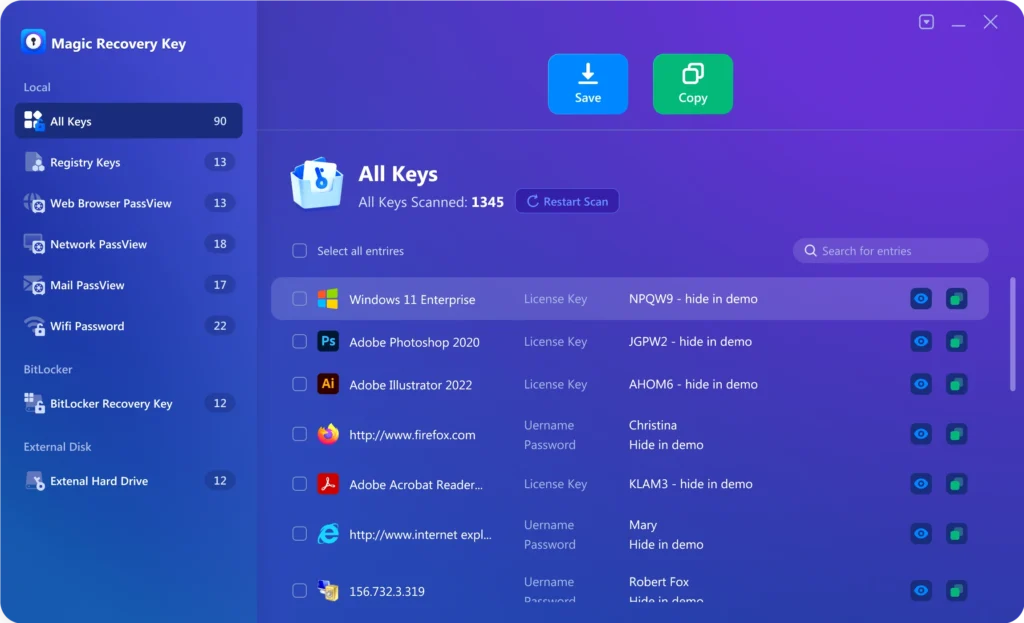
Why Magic Recovery Key Is the Right Choice
Magic Recovery Key is designed to help with password recovery scenarios, combining multiple credential-retrieval functions in one simple interface.
- Recover saved browser usernames and passwords
- Retrieve Windows-related credential information
- Find saved Wi-Fi passwords
- Recover mail account login details
- Support practical and efficient password recovery tool usage
Steps to Recover Passwords Using Magic Recovery Key
Recovering saved credentials does not need to be complex. Magic Recovery Key simplifies the password recovery process into clear steps.

Step 1: Download and Install Magic Recovery Key
Download Magic Recovery Key from the official website and complete the installation.

Step 2: Select the Password Recovery Feature
Open the software and choose the feature that matches your recovery target.

Step 3: Review the Found Credentials
After scanning, review the discovered account and password information. You can then identify the saved login details associated with the websites, networks, or accounts you need.

Step 4: Save the Passwords Securely
Select the credentials you want to keep and save them in a secure location. Proper backup helps prevent repeated account access issues and makes future recovery easier.
Recover Passwords from Different Account Environments
Password recovery is not limited to one account type. Magic Recovery Key supports saved credential recovery across different Windows environments:
- Web browsers and saved website logins
- Windows-related credential records
- Mail account information
- Wi-Fi network passwords
- Network authentication details
- Credentials saved on existing Windows systems
Tips to Improve Password Recovery Success
To increase the chance of successful password recovery, it is important to take the right steps before changing or resetting account settings.
Recover Passwords Before Resetting Accounts
Before resetting a password or reconfiguring an account, check whether the original credential is still stored on the computer. This may save time and avoid unnecessary account changes.
Back Up Saved Credentials in Advance
If you are changing computers or reinstalling Windows, back up saved credentials first. This helps preserve important access information before system changes remove it.
Do Not Depend Only on Browser Memory
Saved passwords may exist in more than one place, including browser storage, network settings, and Windows credentials. Using this tool is more practical than guessing where each password was stored.
Save Recovered Passwords to a Separate Location
After recovery, store the results in a secure place outside the original system whenever possible. This helps keep login details available during future migrations or system repairs.
Check the Correct Feature for Each Password Type
Use the matching function for the credential you need, such as browser passwords, mail details, network accounts, or Wi-Fi passwords. Choosing the right module makes password recovery more efficient.
Keep Account Records Organized
Once recovered, organize your account and password information clearly. Good records help reduce login problems and repeated recovery work later. This is an inference supported by the product’s credential backup purpose.
Frequently Asked Questions About Password Recovery
Password recovery often raises specific questions related to saved credentials, login access, and Windows account information. The answers below help clarify the recovery process.
Check whether the password is still stored on the computer and use Magic Recovery Key to recover the saved credential before resetting the account.
Yes. In many cases, credentials saved by browsers, Windows, network settings, mail clients, or Wi-Fi connections can still be retrieved from the system.
Yes. Magic Recovery Key includes functions for browser password recovery and Wi-Fi password retrieval, along with other saved credential types.
Yes. The user guide lists dedicated functions for mail account information and network-related credentials.
Yes. Magic Recovery Key is designed to retrieve existing saved credentials from the system through its built-in functions rather than requiring risky manual extraction steps. This safety characterization is an inference from the documented workflow.
The duration depends on the type of credentials being checked and the amount of saved information on the computer. In general, the process is designed to be straightforward and practical.

Magic Recovery Key
Start Your Password Recovery Now
Losing access to saved credentials does not always mean permanent account loss. With Magic Recovery Key, you gain a dependable password recovery solution for retrieving browser passwords, Windows-related credentials, mail account details, network authentication information, and saved Wi-Fi passwords. Download Magic Recovery Key today and recover your password information safely, accurately, and efficiently.
Related Guides
Explore more password recovery guides to understand how to retrieve saved credentials from Windows systems, browsers, networks, and account environments more effectively.
When you suddenly cannot access your PC because you forgot the administrator password, it can interrupt …
When you need to reconnect a device or share your network, forgetting your Wi-Fi password can be frustrating …
For many users, forgetting a saved password happens at the worst possible moment—when you urgently need to …