

Magic Data Recovery
Crashed OS Recovery
Crashed os recovery enables users to retrieve important files when Windows becomes unbootable due to a system crash, blue screen, or persistent boot loop. When an operating system fails, data stored on the drive is usually still intact, even if the computer cannot start normally. With a reliable data recovery solution like Magic Data Recovery, you can scan the affected drive, locate recoverable files, and restore them securely before additional damage occurs.
A sudden system crash can interrupt work, corrupt files, and prevent access to personal data. Magic Data Recovery from Amagicsoft offers an efficient and straightforward approach to os crash recovery, helping users recover files from crashed computer systems without requiring advanced technical knowledge.
What Is Crashed OS Recovery?
After a system crash, Windows may fail to boot or display a blue screen. Even then, files are often still intact on the disk. Recovery software can scan the drive and restore data safely without reinstalling Windows.
Common Scenarios That Cause System Crashes
- Blue screen errors after driver conflicts
- Corrupted system files or registry damage
- Malware attacks acting as a system crasher
- Failed Windows updates
- Hardware instability or disk errors
- Power outages during system operations
- Boot loop issues after improper shutdown

Why Magic Data Recovery Is the Right Choice
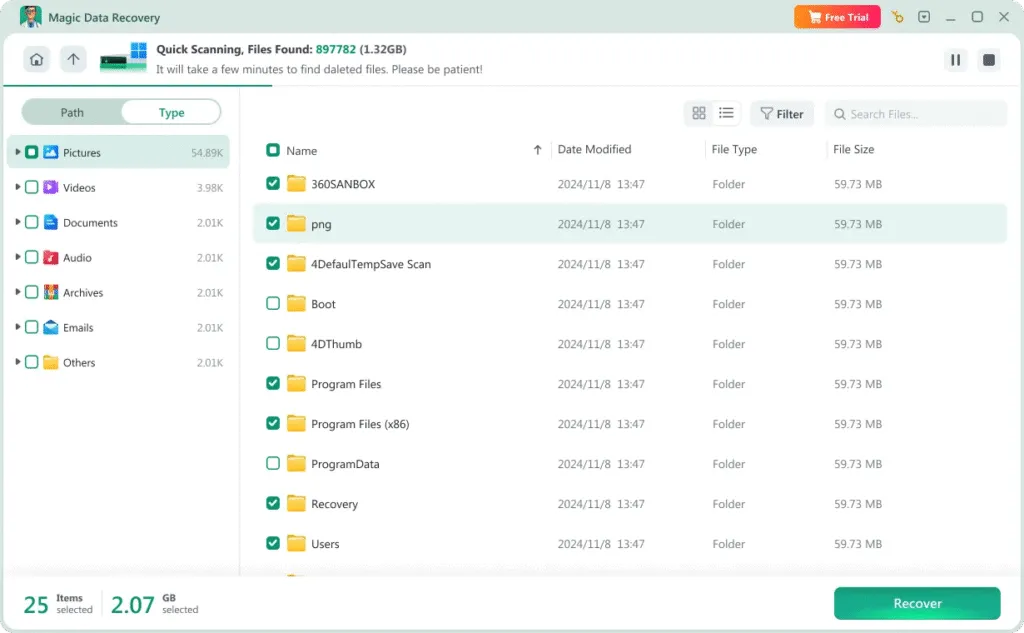
Magic Data Recovery is designed to simplify crashed os recovery while maintaining data integrity and system safety for users at any skill level.
- Powerful scanning engine for os crash recovery
- Recovers files even when Windows cannot boot
- Preview feature to verify recoverable content
- Supports NTFS, FAT32, exFAT, and other file systems
Steps to Recover Files from a Crashed Computer
Recovering data after a system crash does not need to be overwhelming. Magic Data Recovery organizes the recovery process into clear steps:
Step 1: Install Magic Data Recovery on a Healthy Device
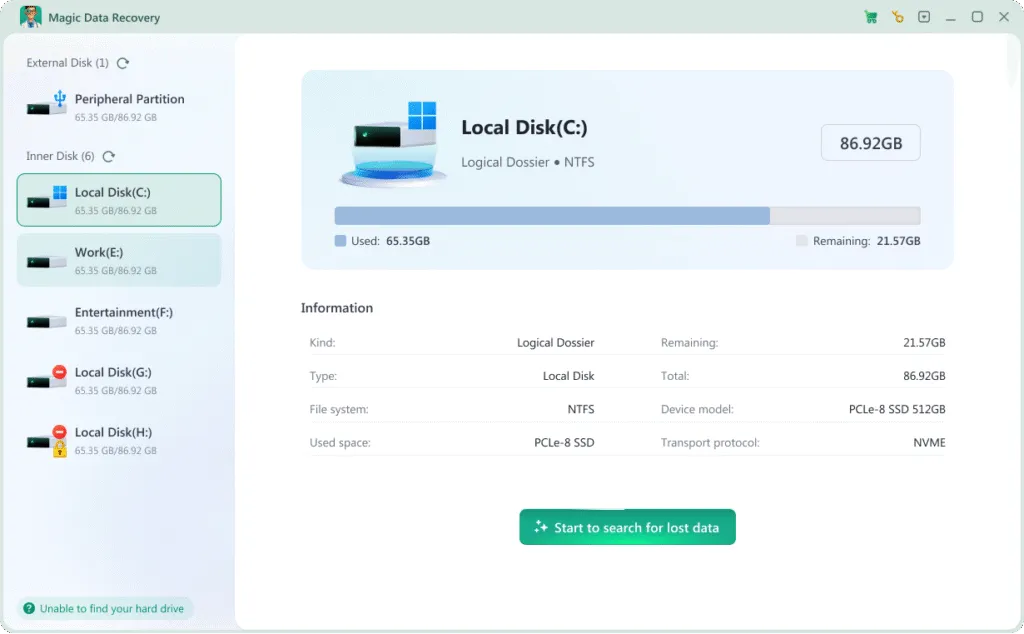
Download and install the software on a working computer or separate drive. Avoid installing it on the affected system disk to reduce overwrite risks.
Step 2: Connect or Access the Crashed Drive
Remove the hard drive from the crashed computer or connect it externally if necessary. Launch the software and select the affected disk for scanning.

Step 3: Scan and Preview Lost Files
Run a comprehensive scan to detect documents, media, and other recoverable items. Use the preview function to confirm file quality before restoring.
Step 4: Recover to a Secure Location
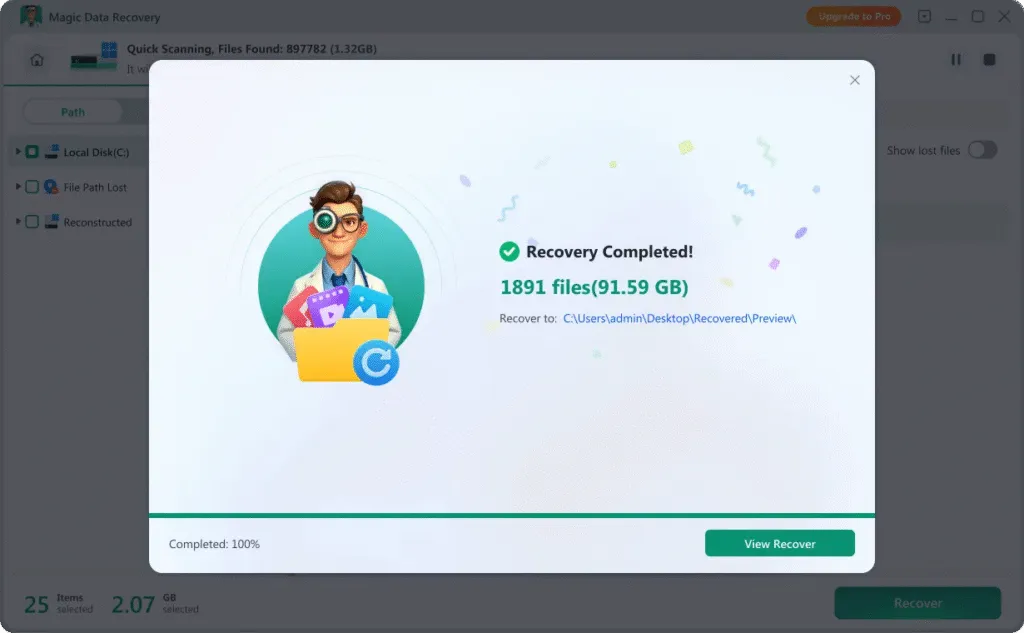
Choose the files you want to restore and save them to another healthy drive or storage device to ensure data safety.
Recover Files from Different Crash Situations
System crashes can vary in severity and cause. Magic Data Recovery supports crashed os recovery in situations such as:
- Blue screen startup failures
- Continuous boot loop errors
- Windows recovery environment failures
- Corrupted system partitions
- Virus-related system crash incidents
- Inaccessible drives after update errors

File Types Supported for Crashed OS Recovery
After a system crash, various types of data may need restoration. Magic Data Recovery supports recovery of hundreds of file formats, including:
Video Files
mp4, mov, mkv, avi, wmv, flv, webm, mpg, mpeg, m4v, 3gp, 3g2, mts, m2ts, m2t, ts, tod, mxf, r3d, crm, ogm and more
Image & Graphics Files
JPG, PNG, GIF, TIFF, BMP, WEBP, HEIC, PSD, AI, SVG, CR2, CR3, NEF, ARW, RAF, RW2, ORF, DNG, PEFORF, DNG, PEFand more
Audio Files
MP3, M4A, AAC, WAV, FLAC, OGG, AIF, AIFF, WMA, MP2, MPA, AA, AMR, AWB, CAF, DS2, RA, VOC, ZRV AWB, CAF, DS2, RA, VOC, ZRV and more
Document Files
docx, xlsx, pptx, pdf, rtf, xml, odg, sxc, wps, epub, msg, emlx, mdb, fp7, db3, bkf, jks, rp, afdesign, apk, ipa, cs and more
Archive Files
zip, rar, 7z, tar, xz, cab, arj, dmg, iso, rdb, jar, mbx, pst and more zip, rar, 7z, tar, xz, cab, arj, dmg, iso, rdb, jar, mbx, pst and more
Other File Types
accdb, db, sql, myo, otf, raw, dd, img, iso, dsk, bin, dat, vmdk and more accdb, db, sql, myo, otf, raw, dd, img, iso, dsk, bin, dat, vmdk and more
Tips to Improve Crashed OS Recovery Success
Taking the right actions after a system crash can significantly increase recovery success rates:

Avoid Reinstalling Windows Immediately
Reinstalling the operating system may overwrite existing data. Perform crashed os recovery before attempting system repair.

Do Not Format the System Drive
Formatting removes file system structures and complicates recovery. Scan the drive first to recover files safely.

Use Professional Recovery Software
Dedicated os crash recovery tools provide structured scanning methods that help protect your data during the windows recovery process.
Frequently Asked Questions About Crashed OS Recovery
Crashed os recovery may raise many concerns. The following FAQs address common questions users have after a system crash.
Magic Data Recovery
Start Crashed OS Recovery Today
A system crash, blue screen, or boot loop does not necessarily mean permanent data loss. With Magic Data Recovery, you have a dependable solution for crashed os recovery, enabling you to recover files from crashed computer environments safely and efficiently.
Download Magic Data Recovery now and restore your critical data with confidence.
Related Guides
Explore more data recovery guides to recover lost files caused by a crashed OS on Windows, and learn effective methods to restore your important data safely and efficiently.
Learn what KB5077181 fixes in Windows 11, the common KB5077181 issue users have encountered, and …
Step-by-step guide on how to make a recovery USB for Windows 10. Learn preparation tips, common issues …
Learn what causes the Inaccessible Boot Device (0x7B) BSOD and how to fix it safely, recover data with …
Learn how to create a recovery USB for Windows 10 safely. This guide explains recovery risks and how Magic …