

Magic Data Recovery
Deleted File Recovery
Deleted file recovery is one of the most common data recovery needs today—and in most cases, your files are not truly gone. With a professional deleted file recovery software like Magic Data Recovery, you can recover deleted files safely, quickly, and with a high success rate, even after permanent deletion or formatting.
At Amagicsoft, we understand how stressful accidental file deletion can be. That’s why Magic Data Recovery provides a safe and effective solution for deleted file recovery, helping you restore lost files with confidence.
What Is Deleted File Recovery?
Deleted file recovery is the process of restoring files that were removed from a device due to accidental deletion, system errors, or storage issues. When files are deleted, the system usually removes only the file reference, not the actual data. As long as the space hasn’t been overwritten, deleted files recovery is still possible using the right recovery software to recover deleted files.
Common Scenarios That Cause File Deletion
- Accidentally deleting files or folders
- Emptying the Recycle Bin by mistake
- Using Shift + Delete for permanent deletion
- Formatting a hard drive, USB, or SD card
- System crashes or power failures
- Virus or malware attacks
- Partition loss or file system errors

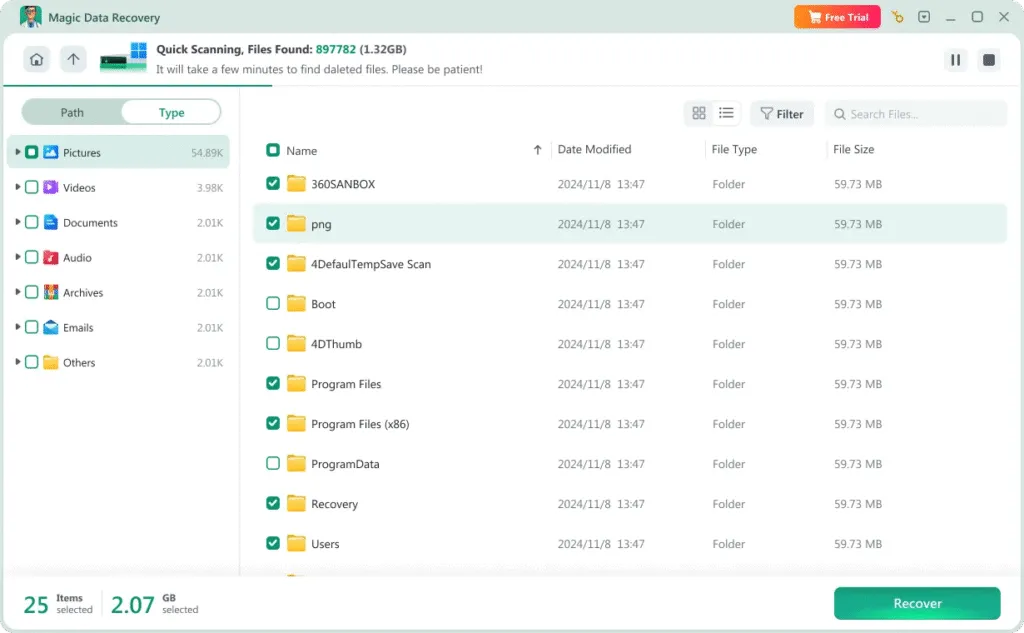
Why Magic Data Recovery Is the Right Choice
Magic Data Recovery stands out because it combines powerful scanning technology with an easy-to-use interface.
- Advanced deep scan for deleted and lost files
- Preview files before recovery to ensure accuracy
- Supports NTFS, FAT32, exFAT, and other file systems
- Read-only recovery process to prevent data overwriting
- Suitable for beginners and advanced users alike
Steps to Recover Deleted Files Using Magic Data Recovery
Recovering deleted files doesn’t need to be complicated. With Magic Data Recovery, you can complete the process in just three simple steps:
Step 1: Download and Install Magic Data Recovery
First, download Magic Data Recovery from the official website and complete the installation. To avoid overwriting deleted data, do not install the software on the same drive where the lost files were stored.
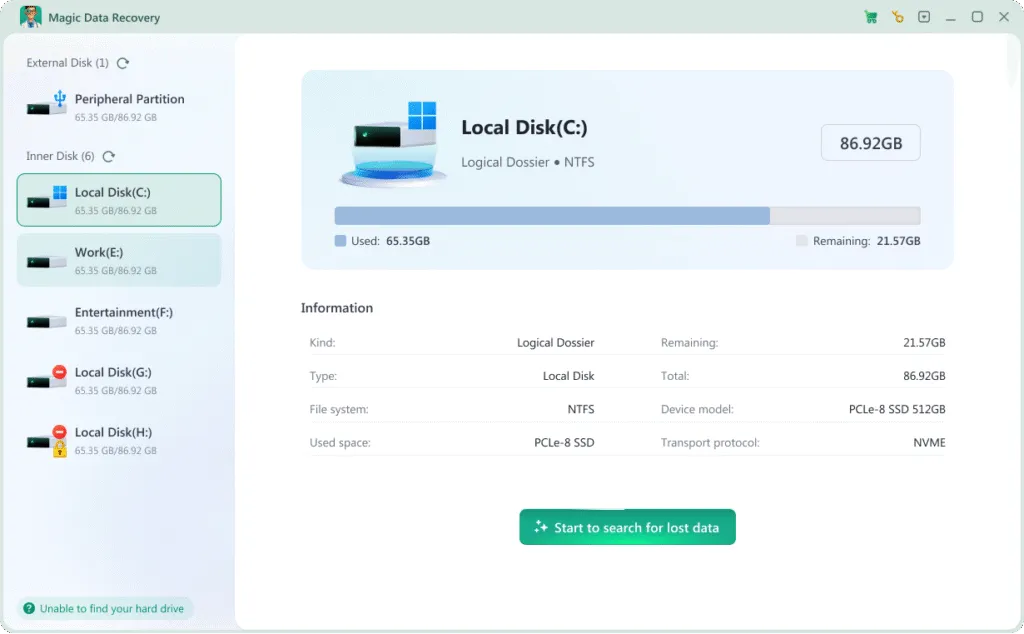
Step 2: Select the Drive or Device to Scan
Launch Magic Data Recovery and select the drive, partition, or external device where the files were deleted. Then start the scan to allow the software to search for all recoverable deleted files.

Step 3: Preview Deleted Files
Once the scan is complete, browse the scan results and preview the deleted files. This step helps you verify file integrity and confirm which files can be successfully recovered before proceeding.
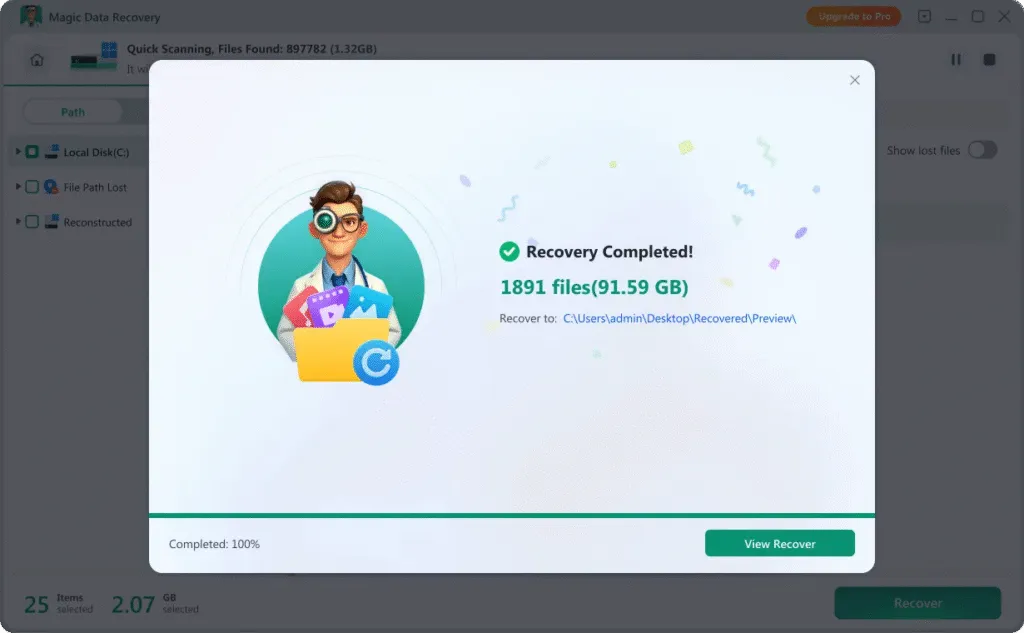
Step 4: Recover and Save Files Safely
Select the files you want to restore and recover them to a safe location. To prevent data overwriting, always save recovered files to a different drive or storage device from the original one.
Recover Deleted Files from Different Devices
Deleted file recovery is not limited to computers. Files can be lost on many types of storage devices in everyday situations, and Magic Data Recovery makes it easy to recover deleted files from a wide range of media.
- Windows computers
- Internal and external hard drives
- USB flash drives, SD cards and memory cards
- SSDs and formatted partitions
- Digital cameras and DSLR storage cards
- Drone (UAV) memory cards
- Action cameras (such as GoPro devices)
- Portable media players and others
Files Types Supported for Deleted File Recovery
Deleted file recovery can involve many different types of data, depending on how and where the files were lost. Magic Data Recovery is designed to support a wide range of file formats, allowing you to recover deleted files whether they are work documents, personal photos, or large media files.
Video Files
mp4, mov, mkv, avi, wmv, flv, webm, mpg, mpeg, m4v, 3gp, 3g2, mts, m2ts, m2t, ts, tod, mxf, r3d, crm, ogm and more
Image & Graphics Files
JPG, PNG, GIF, TIFF, BMP, WEBP, HEIC, PSD, AI, SVG, CR2, CR3, NEF, ARW, RAF, RW2, ORF, DNG, PEFORF, DNG, PEFand more
Audio Files
MP3, M4A, AAC, WAV, FLAC, OGG, AIF, AIFF, WMA, MP2, MPA, AA, AMR, AWB, CAF, DS2, RA, VOC, ZRV AWB, CAF, DS2, RA, VOC, ZRV and more
Document Files
docx, xlsx, pptx, pdf, rtf, xml, odg, sxc, wps, epub, msg, emlx, mdb, fp7, db3, bkf, jks, rp, afdesign, apk, ipa, cs and more
Archive Files
zip, rar, 7z, tar, xz, cab, arj, dmg, iso, rdb, jar, mbx, pst and more zip, rar, 7z, tar, xz, cab, arj, dmg, iso, rdb, jar, mbx, pst and more
Other File Types
accdb, db, sql, myo, otf, raw, dd, img, iso, dsk, bin, dat, vmdk and more accdb, db, sql, myo, otf, raw, dd, img, iso, dsk, bin, dat, vmdk and more
Tips to Maximize the Chance of Successful Data Recovery
If you want the best chance of restoring lost data, it’s important to act quickly and correctly after accidental deletion. The following tips can help improve the success rate of deleted file recovery and prevent further data loss before using recovery software.
Stop Device Use
Stop using the affected drive immediately. Continued activity may overwrite deleted data, reducing recovery chances. Install recovery software on a different storage location whenever possible.
Create a Backup
If possible, make a disk image before recovery. This preserves the current data state and allows multiple recovery attempts without further risk.
Use Reliable Storage
Poor-quality or aging drives are more likely to fail or corrupt files. Using trusted storage devices helps reduce future deletion and recovery problems.
Avoid Malware Threats
Viruses can delete or damage files unexpectedly. Keep your system protected with updated security tools to prevent additional data loss.
Handle Devices Carefully
External drives and memory cards can be damaged easily. Always eject devices safely and avoid physical stress to prevent file system errors.
Complete File Transfers
Interrupting file transfers may cause missing or corrupted files. Always wait for operations to finish before unplugging devices or shutting down your system.
Frequently Asked Questions
Deleted file recovery often raises common questions. The answers below help you better understand the recovery process.
Magic Data Recovery
Start Deleted File Recovery Today
Losing files doesn’t have to be permanent. With Magic Data Recovery, you get a powerful and reliable deleted file recovery software that helps you recover what matters most.
Related Guides
Explore more file recovery guides to recover deleted or lost files on different devices, and learn practical tips and reliable methods to restore your important data safely and effectively.
Learn how to retrieve deleted files from your PC or external drives. This guide compares free software …
Learn how to recover permanently deleted files in Windows 11 using built-in tools and reliable recovery …
Looking for the best free undelete software? This guide compares free recovery software and explains …
How do I recover deleted files from a flash drive? Follow the step-by-step guide for easy file recovery …
Learn how to retrieve recently deleted files and recover permanently deleted data using proven methods …