Skip to content
amagicsoft logo icon
  • Home
  • Products
    • Magic Data Recovery
    • Magic Recovery Key
  • Store
  • Blog
  • More
    • About Amagicsoft
    • Contact US
    • Privacy Policy
    • Terms
    • License Agreement
    • Refund Policy
  • English
    • 日本語
    • 한국어
    • Deutsch
    • Français
    • Español
    • 繁體中文
Deleted File Recovery

How to Recover Deleted Data from a Hard Drive
25.12.2025 Vasilii No comments yet
How to Recover Deleted Data from a Hard Drive

Accidentally deleting important files from your hard drive can be a nightmare, especially when the data is crucial. Whether it’s a crucial document, photo, or video, the anxiety of losing files can be overwhelming. Fortunately, you don’t have to panic. In most cases, you can recover deleted data from your hard drive even if files are permanently removed from the Recycle Bin.

In this article, we’ll walk you through practical steps to recover deleted data from a hard drive, including how to use Magic Data Recovery for lost file recovery.
Download Magic Data Recovery

Supports Windows 7/8/10/11 and Windows Server

Wondering if your files can be recovered? Find out  in seconds with our quick check below.

Data Recovery Assessment
Data Recovery Verification ▼

Data Recovery Assessment

Answer 3 quick questions to estimate your recovery chances

1. What type of data loss occurred?
Accidental Deletion
Formatting
Partition Loss
System Crash
2. Have you written new data after the loss?
Yes
No
Not Sure
3. Where did the data loss occur?
HDD
SSD
USB Drive
SD Card
Download Recovery Software

Table of Contents

What Happens When You Delete a File?

When you delete a file from your hard drive, the operating system doesn’t erase it immediately. Instead, the operating system marks the space as available for new data. Until this space is overwritten by new files, you can often recover deleted data from hard drive.

However, if you save new files on your hard drive after deletion, the new files could overwrite the deleted ones, making them difficult—or even impossible—to recover. This is why you must act quickly to recover deleted data from your hard drive.

How to Recover Deleted Data from a Hard Drive

Before you begin: you must stop using the affected drive immediately to prevent overwriting. Then, follow these methods in order.


1. Check the Recycle Bin

First, make sure to check the Recycle Bin. The Recycle Bin temporarily stores recently deleted files here, and you can restore them with just a few clicks. However, this method only works if files were recently deleted and haven’t been emptied from the bin.
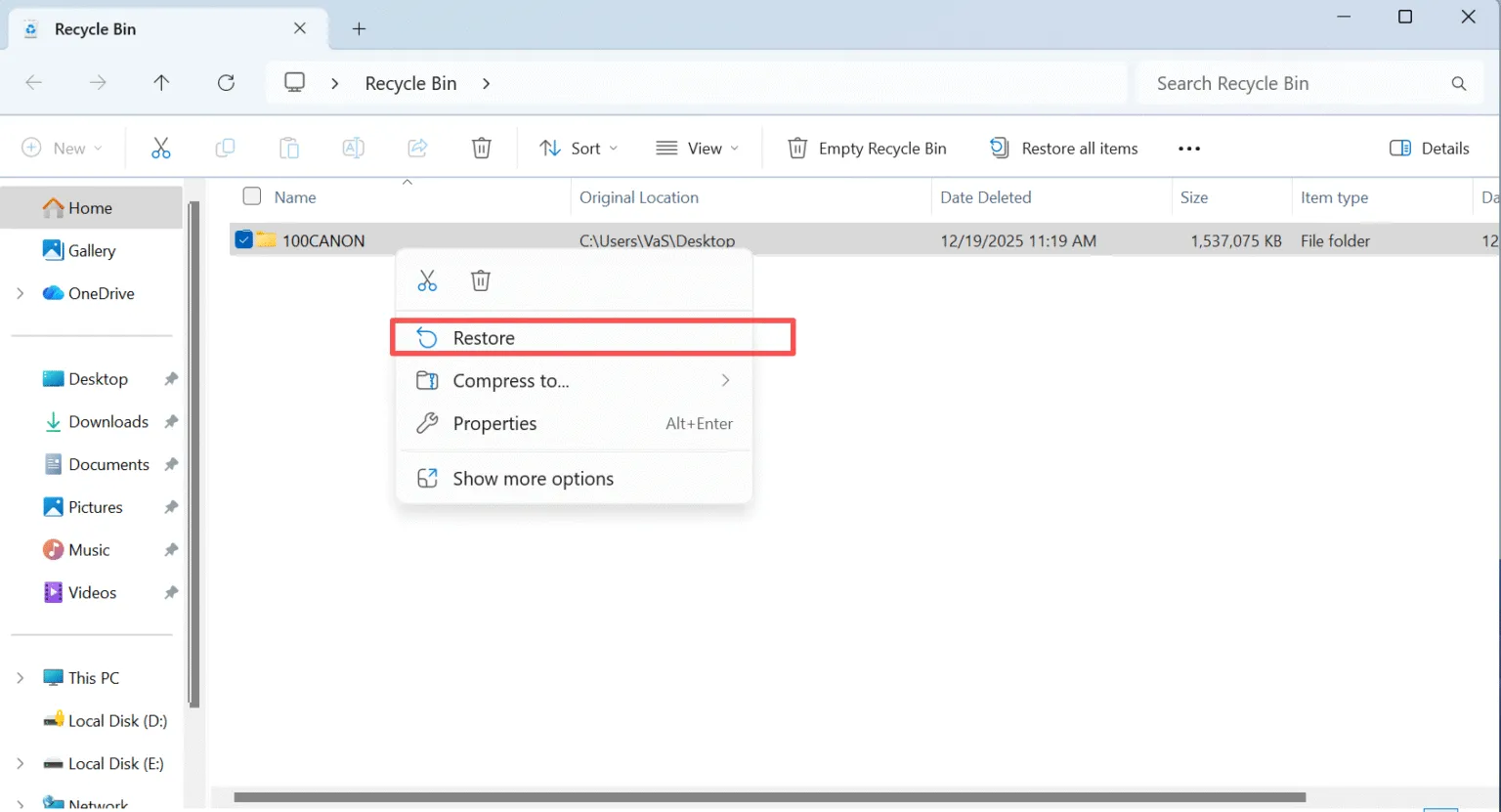
Recover Deleted Data from a Hard Drive in Recycle Bin

2. Use Windows Backup or File History

If you’ve set up Windows Backup or File History, you may be able to recover your deleted files from these features. Here’s how you can use them:

  • Windows Backup: Go to the “Backup and Restore” settings and look for a backup that contains your deleted files.
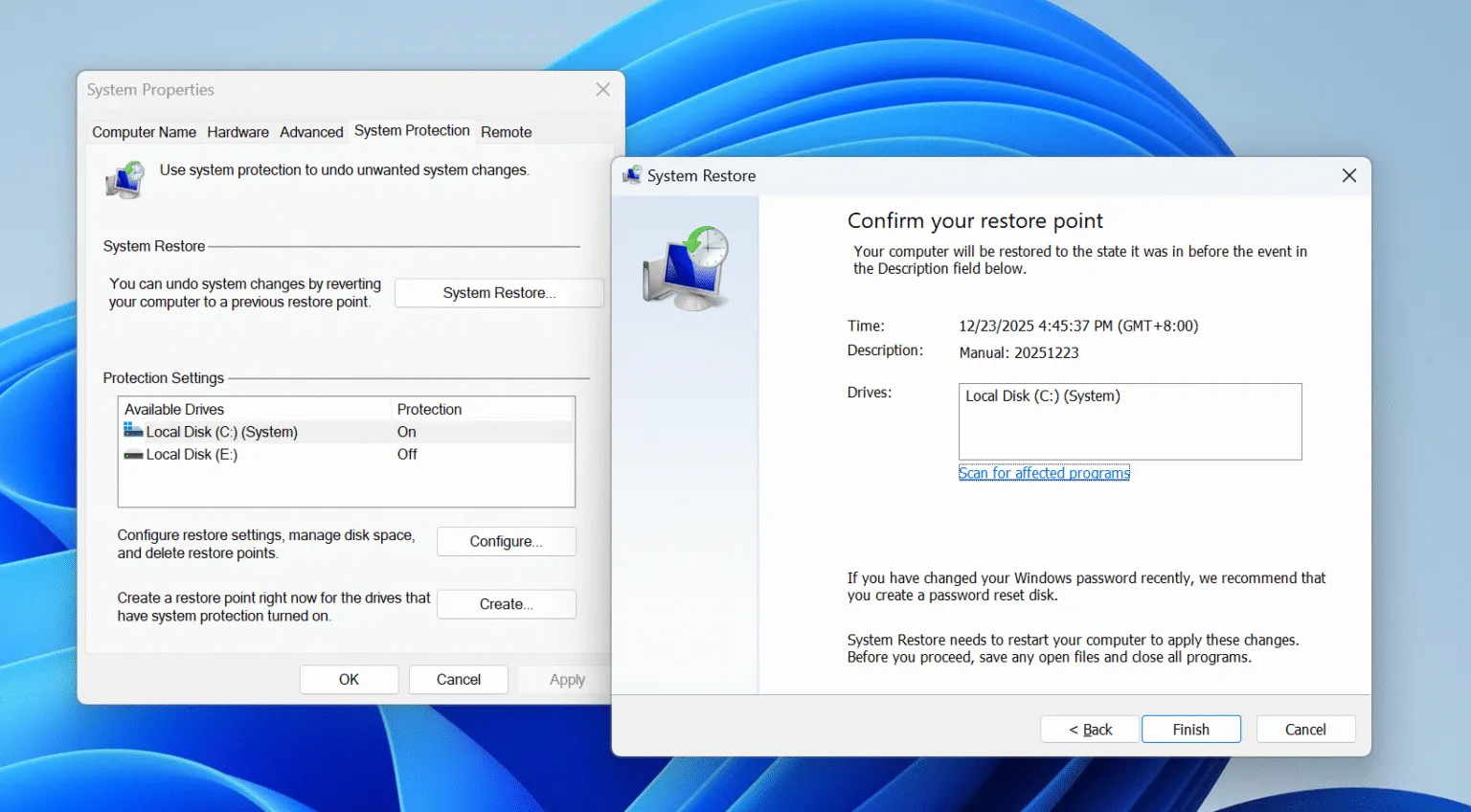
Recover Deleted Data from a Hard Drive by restore point
  • File History: Navigate to the folder where the file was stored, right-click it, and select “Restore previous versions.”
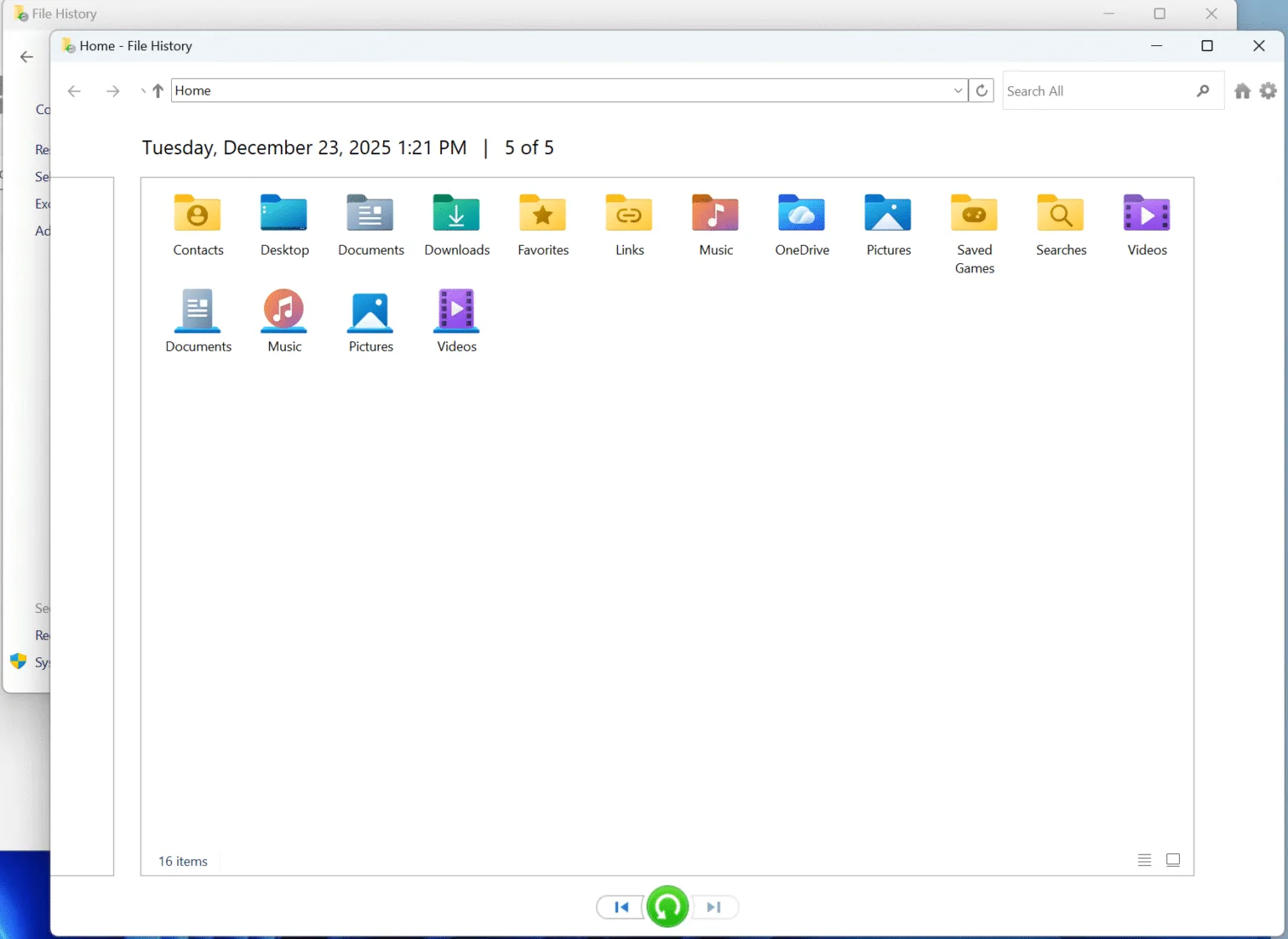
Recover Deleted Data from a Hard Drive from File History

However, if these methods don’t work or you don’t have backups, the next step is using third-party data recovery software.

How to Use Magic Data Recovery to Recover Deleted Data from a Hard Drive

If you can’t find your files using the built-in tools, Magic Data Recovery can help recover deleted data from hard drive. Follow these simple steps to get back your lost data:

Step 1: Download and Install Magic Data Recovery

First, download Magic Data Recovery from the official website and install it on a different drive.
Download Magic Data Recovery

Supports Windows 7/8/10/11 and Windows Server

Step 2: Select the External Hard Drive to Scan

Launch the program and select the drive from which you want to recover data. Choose the hard drive where files were deleted and start the scan.

Magic-Date-Recovery

Step 3: Scan the External Hard Drive for Deleted Files

The software automatically begins an Advanced Scan, scanning the entire drive for deleted files. You’ll see recoverable files as the scan progresses.

Wait-for-the-scan

Step 4: Preview Deleted Files Before Recovery

After the scan is complete, you can use the Preview feature to view the deleted files and check their content. This ensures that you recover only the files you actually need.

Preview-files

Step 5: Recover Files to a Safe Location

Select the files you want to recover and save them to a different drive or storage device. It’s important not to restore the files to the same drive where they were deleted to prevent data corruption.

Recover-Files

Preventing Data Loss in the Future

While recovering deleted files is possible, it’s always better to take preventative measures to avoid losing important data in the first place. Here are some tips to safeguard your files:

  • Regular Backups: Always back up your files using external storage or cloud services, especially for the data on an SSD, as SSD TRIM may make the deleted files unrecoverable.
  • Be Cautious with Deletions: Before deleting any files, ensure you no longer need them.

Conclusion

Recovering deleted data from a hard drive is easier than you might think, especially with the right tools like Magic Data Recovery. By following the steps outlined above, you can quickly and safely retrieve your lost files without any hassle.

If you’re looking for an efficient solution to recover deleted files, Magic Data Recovery offers powerful features that can help you restore your lost data quickly and safely. Download it today and get back your important files!

Download Magic Data Recovery

Supports Windows 7/8/10/11 and Windows Server

Recover Deleted Data from a Hard Drive – FAQ

1.Is it possible to recover deleted data from a hard disk?

Yes, as long as the deleted files have not been overwritten, they can often be recovered using the right tools like Magic Data Recovery.

2.How to recover deleted files from hard drive?

You can use built-in tools like the Recycle Bin or File History, or use data recovery software like Magic Data Recovery for permanent file deletion.

3.Can we recover permanently deleted files from a drive?

Yes, it is possible to recover files that have been permanently deleted from the Recycle Bin, using specialized recovery software like Magic Data Recovery.

4.How do professionals recover data from a hard drive?

Data recovery professionals often use advanced software like Magic Data Recovery or hardware-level recovery tools to retrieve lost data from damaged or deleted files.

5.Are deleted files permanently gone?

No, deleted files can often be recovered if they haven’t been overwritten or physically damaged.

6.Are things deleted from recently deleted gone forever?

In most cases, no. Files from the “recently deleted” folder can still be recovered until they are permanently removed from the system.

7.Where are all the deleted files stored?

Deleted files are usually stored in the Recycle Bin or are marked as deleted in the file system until they are overwritten by new data.
  • How to
  • Magic Data Recovery
Vasilii

Vasilii is a data recovery specialist with around 10 years of hands-on experience in the field. Throughout his career, he has successfully solved thousands of complex cases involving deleted files, formatted drives, lost partitions, and RAW file systems. His expertise covers both manual recovery methods using professional tools like hex editors and advanced automated solutions with recovery software. Vasilii's mission is to make reliable data recovery knowledge accessible to both IT professionals and everyday users, helping them safeguard their valuable digital assets.

文章导航

Previous
Next

Search

Categories

  • Bitlocker Recovery
  • Deleted File Recovery
  • Disk Issue Fix
  • Documents Recovery
  • Format File Recovery
  • Hard Drive Recovery
  • License Key Recovery
  • Lost File Recovery
  • Memory Card Recovery
  • News
  • Password Recovery
  • Photo Recovery
  • SSD Recovery
  • USB Drive Recovery
  • User Guide
  • Video Recovery
  • Wiki
  • Windows Issue Fix

Recent posts

  • What to Do If Your Flash Drive Is Not Recognized (Fixed)
    What to Do If Your Flash Drive Is Not Recognized
  • How to Fix If Computer Not Recognize a Hard Drive
    How to Fix If Computer Not Recognizing Hard Drive
  • Can You Recover Deleted Files in Windows 10 Yes, Here’s How
    Can You Recover Deleted Files in Windows 10? Yes, Here’s How

Tags

CHKDSK and Disk Tools Disk Repair Error Troubleshooting How to Magic Data Recovery Magic Recovery Key WiKi

Related posts

How to Fix If Computer Not Recognize a Hard Drive
Wiki

How to Fix If Computer Not Recognizing Hard Drive

25.12.2025 Vasilii No comments yet

Is your computer not recognizing your hard drive? Whether it’s an internal or external drive, this issue can arise due to various reasons, from simple connection problems to more complex hardware or software failures. Fortunately, in most cases, you can still recover your data from a hard drive that your computer is not recognizing. This […]

Can You Recover Deleted Files in Windows 10 Yes, Here’s How
Deleted File Recovery

Can You Recover Deleted Files in Windows 10? Yes, Here’s How

25.12.2025 Vasilii No comments yet

Accidentally deleting files from your computer can be a nightmare, especially when they’re crucial documents or photos. But don’t panic—deleted files are often recoverable! In this guide, we’ll show you the best methods to recover deleted files in Windows 10, including software solutions like Magic Data Recovery. By following the right steps, you can restore your […]

Recover Deleted Files From Recycle Bin After Empty
Deleted File Recovery

Recover Deleted Files From Recycle Bin After Empty: 2026 Guide

25.12.2025 Smith, Erin No comments yet

We have all experienced that heart-stopping moment. You are tidying up your desktop, swiftly deleting old folders, and instinctively right-clicking to “Empty Recycle Bin.” But seconds later, the realization hits you: you just erased a critical project file, a folder of sentimental photos, or a contract that took weeks to draft. Whether you are a […]

amagicsoft logo icon

Our vision is to become a globally renowned software brand and service provider, delivering top-tier products and services to our users.

Products
  • Magic Data Recovery
  • Magic Recovery Key
Policy
  • Terms
  • Privacy Policy
  • Refund Policy
  • License Agreement
Company
  • About Amagicsoft
  • Contact US
  • Store
Follow Us

Copyright © 2025 Amagicsoft. All Rights Reserved.

  • Terms
  • Privacy Policy