
How to Recover Deleted Files From External Hard Drive
A folder disappears while you are clearing old backups, or a photo collection is removed with Shift + Delete. If you need to recover deleted files from an external hard drive, the first question is whether another copy exists—not which repair tool to run.
Deleted files on a healthy external HDD may remain recoverable until their storage space is overwritten. Emptying the Recycle Bin does not necessarily erase every byte, but new writes can reduce your chances. External SSDs need extra caution because TRIM can make deleted content unavailable even without you copying new files.
Stop saving anything to the affected drive. Start with the Recycle Bin and existing backups, then consider scanning if neither contains the files. This guide covers accidental deletion on Windows; for other device problems, see our external hard drive recovery guidance.
Table of Contents
What to Do Immediately After Files Are Deleted
Protect the source drive before attempting recovery. Pause any backup or sync job that writes to it. Do not download software, create folders, or save recovered files there. Avoid formatting, initialization, CHKDSK, and disk optimization while the missing files are still your priority.
If you are not ready to begin, safely eject the drive. If it clicks, repeatedly disconnects, or has suffered a drop, stop DIY attempts and seek a recovery specialist. A readable, stable HDD and a failing HDD require different decisions.
Quick Answer: Which Recovery Method Fits Your Situation?
To recover deleted files from an external hard drive, first check whether the deletion can be reversed through an existing copy. If there is no copy and the drive remains readable, a recovery scan may help.
What you see | What it means | Start here |
The deleted items appear in the Recycle Bin | Windows retained a direct restore path | Restore the items, then verify them |
A backup contains the missing files | A separate copy is available | Copy or restore it to a healthy drive |
Shift + Delete was used, or the Bin was emptied | No direct Recycle Bin restore remains | Check backups, then consider recovery software |
Files are missing, but no deletion is confirmed | They may have moved or become hidden | Check the original path and Hidden items |
Windows asks to format the drive | This is not a straightforward undelete case | Decline formatting; assess the storage problem first |
The drive clicks or disconnects during reads | Hardware trouble is possible | Stop scanning and get professional advice |
Files Deleted From an External Hard Drive Are Not in the Recycle Bin
An empty Recycle Bin does not prove that the content has been overwritten. Shift + Delete, command-line deletion, and some applications bypass the Bin. Drive classification and Recycle Bin settings also affect whether Windows keeps deleted items there.
Check on the computer and user account that performed the deletion, with the external drive connected. If the files are absent, move to backups rather than repeatedly searching the Bin. Do not reset or delete the drive’s hidden $RECYCLE.BIN folder while trying to retrieve its contents.
Confirm Deletion Before Scanning
If you accidentally deleted files from an external hard drive, follow the recovery methods below. If you only noticed that files are missing, make these low-risk checks first:
- Confirm the drive label and capacity; its letter may have changed.
- Check the original folder and any recent transfer destination.
- Enable Hidden items in File Explorer and look for the missing names.
Finding an existing file means you can copy it to safe storage without an undelete scan. The attrib command changes file attributes; it does not restore deleted data. Broad attribute changes are unnecessary for a confirmed deletion.
Can You Recover Deleted Data From an External Hard Drive?
Yes, sometimes. Ordinary deletion marks storage as available for reuse, so file content may survive after its name disappears. Microsoft explains this behavior in its Windows File Recovery documentation.
This is why it may be possible to recover erased files from an external hard drive after emptying the Recycle Bin. It is also why continuing to use the drive is a problem: a new backup or copied video can reuse that space.
The elapsed time alone cannot tell you whether a file is recoverable. An unused HDD may retain old deleted content, while an actively reused disk may lose it quickly. The file system and remaining metadata also affect whether a scan can reconstruct names and folders.
External SSDs have an additional limit. Microsoft’s explanation of TRIM and Unmap describes how storage can be told that sectors are no longer needed. If the device processes those hints, deleted content may become unavailable to recovery tools. The result depends on the device and storage connection; USB alone does not establish recoverability.
Choose the next method based on what remains available: a retained item, an independent backup, or readable data on the source disk.
How to Recover Deleted Files From an External Hard Drive Without Software
You can avoid installing recovery software when the Recycle Bin or an existing backup holds the files. These methods restore retained content rather than searching disk space for remnants.
Method 1: Restore Deleted Files From the Recycle Bin
Best for: Items deleted normally through File Explorer and still visible in the Bin.
This is the quickest route when the items remain there. It cannot reverse Shift + Delete or recover items after the Bin has been emptied.
- Connect the stable external drive to the computer used for deletion.
- Open the desktop Recycle Bin.
- Check the file name, original location, and deletion date.
- Select the correct items and choose Restore.
- Open the restored files at their original location.
Once verified, make an independent copy. If you still need to recover other permanently deleted files, avoid further writes to the source drive. If the items are missing from the Bin, check an existing backup next.
Method 2: Restore Deleted Files From an External Hard Drive Backup
Best for: Files copied to another disk, NAS, cloud backup, or configured File History backup before deletion.
A valid backup avoids reconstructing deleted content. However, connecting an external disk does not automatically protect all its files. If that disk was only the backup destination, File History did not thereby back up every folder stored on it.
For File History, check that the missing folder was actually included and a saved version exists. Follow Microsoft’s File History restore instructions:
- Connect the separate backup location.
- Right-click the original parent folder and select Restore previous versions.
- Select a version from before deletion and inspect its contents.
- Use Restore to…, where available, to save the needed content to another healthy drive.
For other backups, browse the saved copy and copy the missing items out. If the folder was synced, inspect the service’s online trash or version history; synchronization can also propagate deletions. Check the restored content before proceeding. An empty Previous Versions list does not prove the source data is unrecoverable—it means this restore route has no listed copy.
How to Recover Deleted Files From External Hard Drive on Windows
The following scanning options apply when the files are genuinely deleted, no usable backup remains, and the external drive is stable. Prepare a destination on a different physical disk with enough free space. These Windows methods cover Windows 10 and Windows 11; tool compatibility should be checked before installation.
Method 3: Recover Deleted Files From an External Hard Drive for Free
Best for: Users comfortable with Microsoft’s command-line Windows File Recovery tool.
Install it from Microsoft Store onto the computer, then open it. Identify the source file system through the drive’s Properties.
Source file system and deletion | Mode |
NTFS, recent deletion |
|
NTFS, older deletion |
|
FAT32 or exFAT |
|
For an external source drive E: and a destination D: on another disk, example commands are:
- winfr E: D: /regular /n *.docx /n *.pdf
- winfr E: D: /extensive /n *.jpg /n *.png
Replace the letters and extensions with yours. Confirm the operation and inspect the recovery folder created on the destination. These examples and mode choices follow Microsoft’s Windows File Recovery reference.
The tool cannot guarantee intact results. If Regular mode fails on a stable NTFS disk, try Extensive mode. If you prefer visual selection and previews, consider the next method.
Method 4: Recover Deleted Files With Magic Data Recovery
Best for: Windows users who need a visual way to scan a readable external disk, review found files, and select what to restore.
Magic Data Recovery offers a scan, preview, and recovery workflow for deleted documents, photos, videos, and other files. It also supports recovery scenarios involving formatting and file-system errors, although those require a different diagnosis from simple deletion.
For this task, its useful role is helping you undelete files from an external hard drive when the Recycle Bin and backups cannot supply them. A preview can help identify the right content before recovery; it is not a guarantee that every found file is complete.
The software cannot repair physical damage or recreate overwritten bytes. SSD data made unavailable after TRIM may also be unrecoverable. Before purchasing, check the current recovery allowance and license requirements on the product page and evaluate the results available for your files.
Step 1: Install Away From the Affected Drive
Download Magic Data Recovery from the official website and install it on the computer’s internal drive or another unaffected disk. Keep the installer and all recovery output off the source external drive.
Supports Windows 7/8/10/11 and Windows Server
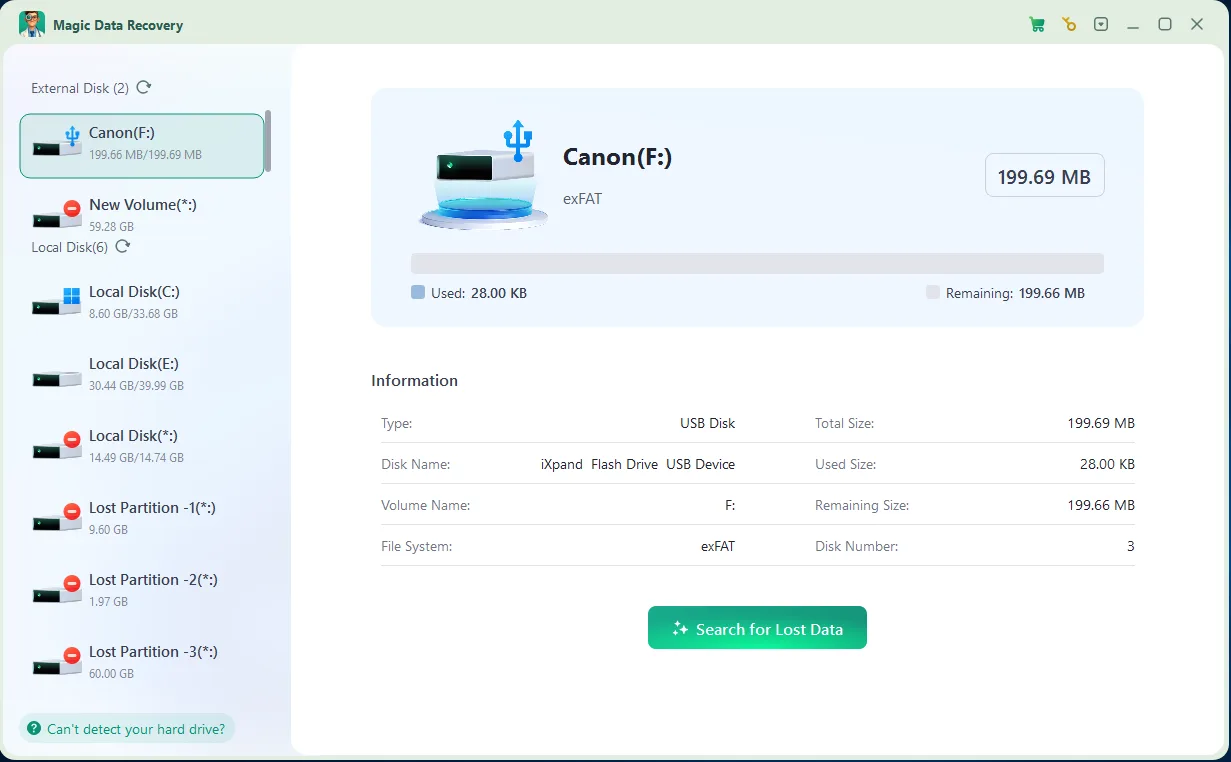
Step 2: Select the Correct External Drive
Launch the program and identify the source by its label, capacity, and drive letter. Choose the location where the deleted files were stored. Similar drive names are a reason to check carefully before starting.
Step 3: Scan for Deleted Files
Start the recovery scan. Let the available scanning stages finish before deciding a file is absent. Scan time depends on capacity, connection speed, and the device’s condition. If reading becomes unstable or the HDD starts making abnormal noises, stop.

Step 4: Find and Preview the Needed Content
Use the available search, file-type, and folder views to narrow the results. If original names are missing, inspect likely files by type and size. Preview supported files, checking the actual content rather than accepting a familiar name as proof of success.

Step 5: Recover to Another Physical Disk
Select the required files and choose a destination on a separate healthy disk. Another partition on the same external drive is not a suitable destination. Recover a small representative selection first, then open those files before saving the remaining selection.

Expected result: Usable copies appear on the destination and open in their normal applications. If the results are absent or damaged, check the source selection and completed scan before repeating anything. A healthy drive may justify another recovery approach; a deteriorating drive does not justify repeated full scans.
How to Recover Deleted Files From an External HDD
For a portable or desktop external HDD that still reads normally, follow the same sequence: retained copies first, then a recovery scan if needed. A USB connection does not change the need to protect the source from new writes.
The important distinction is deletion versus hardware failure. Software can search readable storage for surviving content. It cannot make an unreadable mechanism safe to scan. If the files are irreplaceable and there is no backup, consult a specialist before taking further risks.
Verify Recovered Files Before Reusing the Drive
A list of found names is not the same as successful recovery. Before formatting or reusing the external drive, inspect copies saved on your destination:
File type | What to check |
Documents and PDFs | Open them; inspect pages, text, images, and tables |
Photos | View at full size; check for missing areas or distortion |
Videos | Play sections near the beginning, middle, and end |
ZIP and other archives | Test or extract their contents |
Project files | Open in the original application and check dependencies |
If you recover deleted photos from an external hard drive, check more than the thumbnail. If you recover videos, a working first frame does not establish that the whole recording survived.
A zero-byte result or a file that will not open is not a usable recovery. Compare size and content against another known copy where possible. Keep verified files on separate storage until you have an additional backup.
When to Stop DIY External Hard Drive Recovery
Stop scanning if the HDD clicks, grinds, repeatedly spins up, disconnects during reads, or has suffered water, impact, or electrical damage. Seek professional assessment when the device cannot be read consistently, particularly if it holds the only copy of valuable data.
If Windows asks to format or initialize the disk, decline while the data is still needed. Those actions address storage structures; they do not undo deletion. CHKDSK and broad filesystem changes should not be used as substitutes for deleted-file recovery.
If the files were deleted and the drive was subsequently formatted, this is now a different recovery scenario. Preserve the source and assess what formatting and later use changed before attempting reuse. Avoid expanding a simple undelete attempt into a sequence of repair commands.
Prevent Another Accidental Deletion
Once the recovered files are verified, build a backup routine that survives mistakes on your working drive:
- Keep a separate copy. An external HDD holding the only copy of your photos or projects is storage, not a complete backup. Save another copy on an independent device or service.
- Use versioned backups. Choose a schedule that fits how often files change, and confirm that the folders on your external drive are included. Test restoring a few files rather than assuming the setup works.
- Check before cleanup. Give disks clear labels, confirm the active drive before deleting folders, and inspect the Recycle Bin before emptying it.
- Separate sync from backup. Sync can remove a file across devices. Keep independent history or a backup that retains deleted versions.
- Watch device health. Safely eject drives and replace unreliable cables. If a disk starts disconnecting or producing unusual sounds, protect readable data before another failure occurs.
Conclusion
You may be able to recover deleted files from an external hard drive if their content has survived. Start with the Recycle Bin and an existing backup, because these provide direct copies. Without a copy, scan only when the drive is stable and readable, and save the results to another physical disk.
For a visual Windows workflow, Magic Data Recovery can help you inspect and restore recoverable content. Open the recovered files before deciding the job is finished. A found name alone does not establish that the data is intact.
If the HDD is making abnormal noises or repeatedly dropping its connection, stop and seek professional assessment. If your situation involves formatting, unreadable storage, or another problem beyond deletion, use our external hard drive recovery guidance to choose the appropriate next step.
Supports Windows 7/8/10/11 and Windows Server
FAQs
Where Do Deleted Files From an External Hard Drive Go?
Can I Recover Deleted Files From an External Hard Drive Without Paying?
How Long Do Deleted Files Remain Recoverable on an External HDD?
Can I Restore Deleted Files From an External Hard Drive After Copying New Data?
Can Deleted Files Be Recovered From an External SSD?
Can I Recover Deleted Files From a WD or Seagate External Hard Drive?
Why Is Space Still Occupied After I Delete Files From an External Hard Drive?
Why Are Recovered Files Missing Their Original Names or Folders?

Vasilii is a data recovery specialist with around 10 years of hands-on experience in the field. Throughout his career, he has successfully solved thousands of complex cases involving deleted files, formatted drives, lost partitions, and RAW file systems. His expertise covers both manual recovery methods using professional tools like hex editors and advanced automated solutions with recovery software. Vasilii's mission is to make reliable data recovery knowledge accessible to both IT professionals and everyday users, helping them safeguard their valuable digital assets.