
Can You Recover Deleted Files in Windows 10? Yes, Here’s How
Supports Windows 7/8/10/11 and Windows Server
Wondering if your files can be recovered? Find out in seconds with our quick check below.
Data Recovery Assessment
Answer 3 quick questions to estimate your recovery chances
Table of Contents
How Windows 10 Handles Deleted Files
Why Are My Files Recoverable After Deletion?
When you delete a file in Windows 10, it’s not completely gone right away. Instead, the system marks the space the file occupies as available for new data, but the actual file remains on the hard drive until it’s overwritten. This means that deleted file recovery is often possible, especially if you act quickly. Understanding this concept is essential because it helps you know when and how to recover deleted files in Windows 10.
However, there is a crucial distinction: traditional Hard Disk Drives (HDDs) and modern Solid State Drives (SSDs) handle deleted data very differently.
On an HDD:
Deleting a file only removes its “index” or pointer on a hard disk drive. The actual data sectors remain intact until new information is written over them physically. It’s like tearing out a book’s table of contents—the pages are still there. Therefore, the window for successful data recovery from an HDD is longer, and the success rate is relatively higher.
On an SSD:
The situation is more complex on an SSD. Due to SSD’s write mechanisms and wear leveling technology, the operating system uses a TRIM command to actively inform the SSD which data blocks have been deleted. To improve future write speeds and extend its lifespan, the SSD may preemptively erase these marked blocks in the background.
This means even before new files “overwrite” the old ones, the TRIM process can quickly and permanently invalidate the deleted data. Consequently, the golden time for data recovery from an SSD is extremely short, and the challenge is far greater than with an HDD. Once TRIM has executed, the data is typically unrecoverable.
Key Takeaway & Action Guide: Regardless of your drive type, stopping all new data writes immediately is the number one rule for successful recovery. For SSD users, this urgency is absolutely critical. The possibility of recovery depends entirely on whether the original data has been corrupted or overwritten.
Basic Deleted Files Recovery Methods for Windows 10
Recover Deleted Files from Recycle Bin
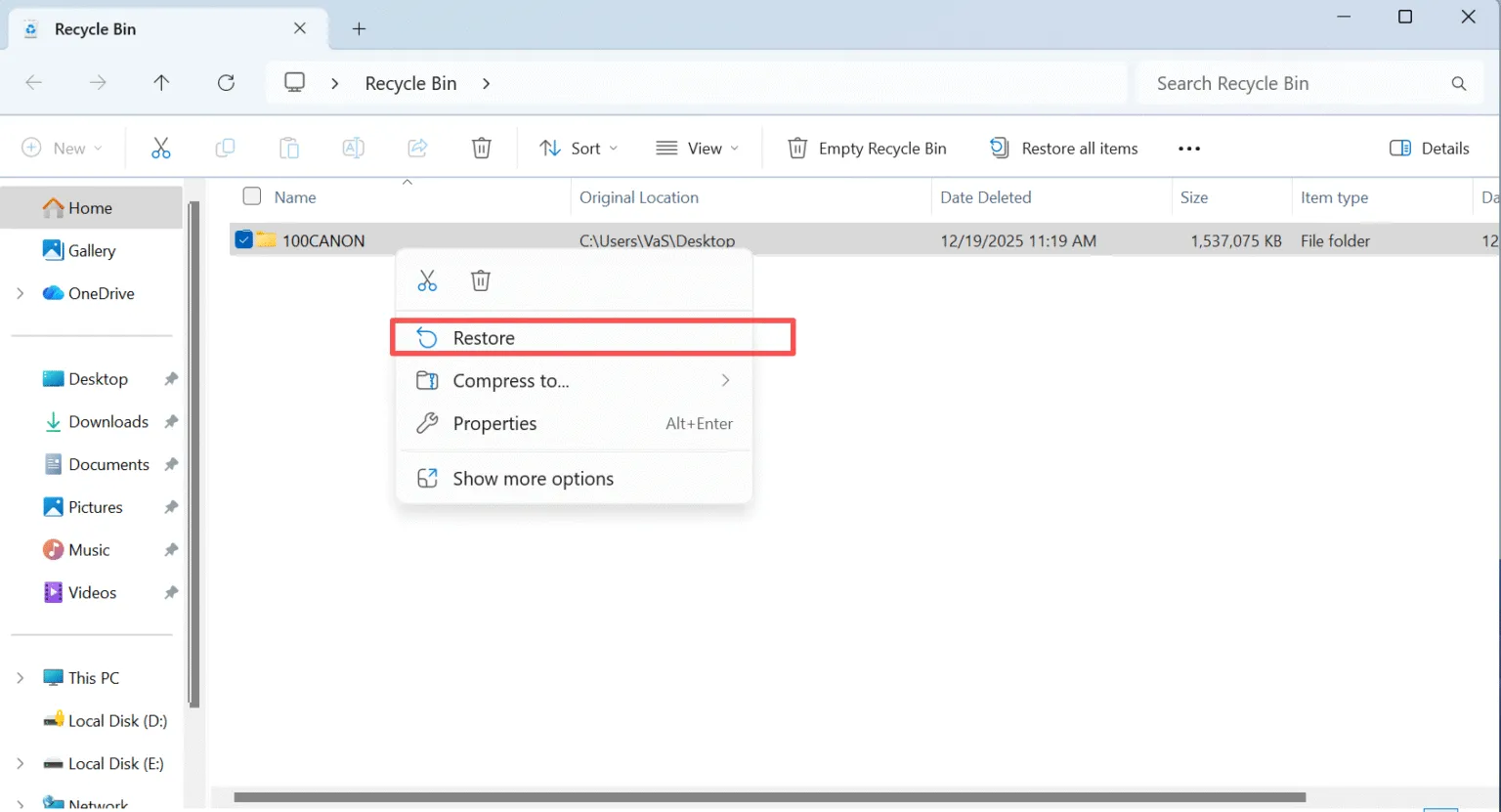
The first place to check when you’ve deleted a file is the Recycle Bin. When you delete a file, it’s temporarily moved to the Recycle Bin, and you can easily restore it by:
1. Double-clicking the Recycle Bin icon on your desktop.
2. Right-clicking the file you want to recover and selecting Restore.
Use File History (If Enabled)
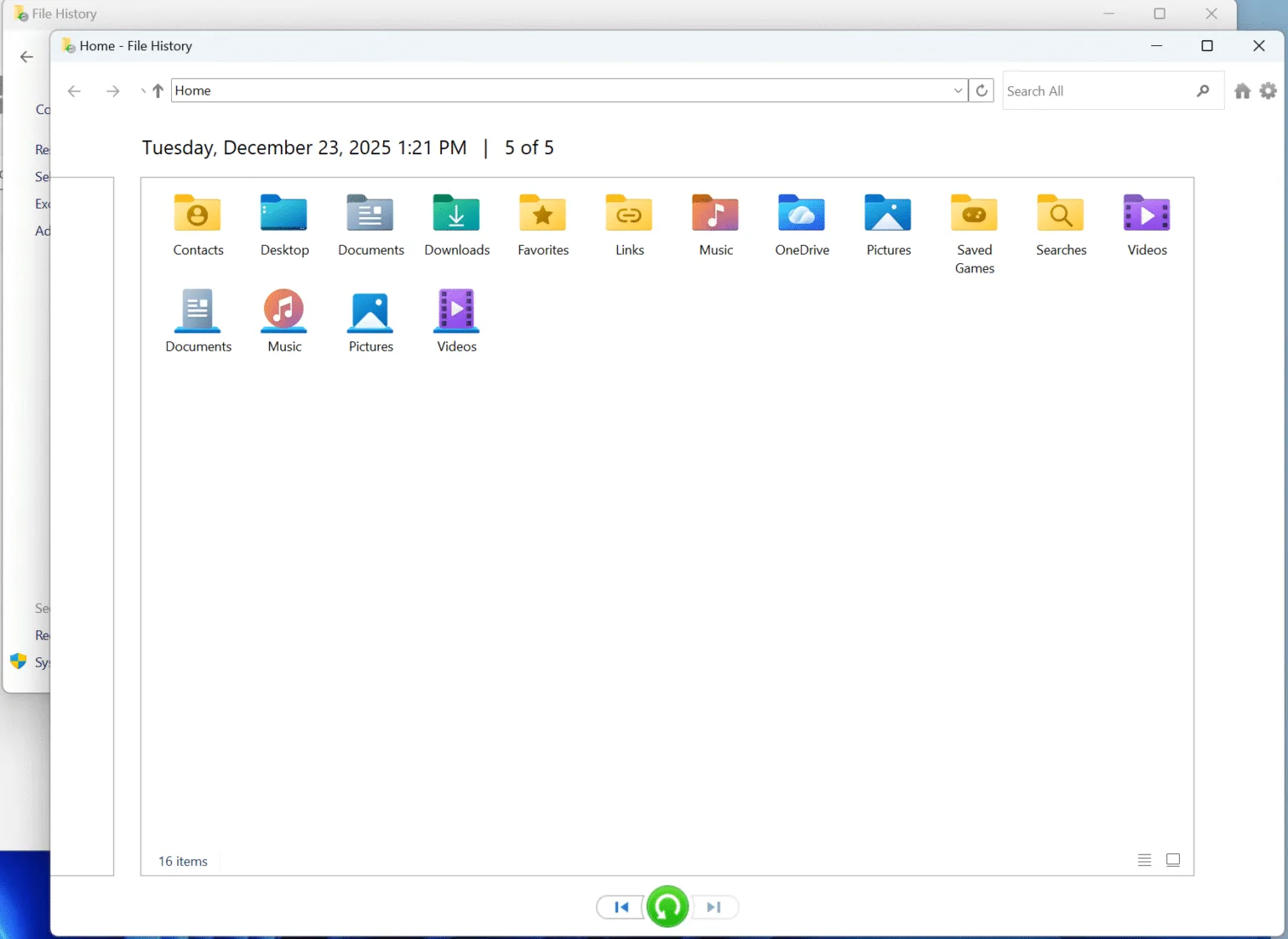
Windows 10 has a built-in feature called File History, which backs up files and allows you to restore previous versions. Here’s how to use this feature:
1. Control Panel — System and Security — File History
2. Browse the list of available files and select the one you want to recover.
Advanced Recovery Options for Deleted Files in Windows 10
If your files are no longer in the Recycle Bin or accessible through File History, it’s time to turn to recovery software. While there are several free undelete software available, Magic Data Recovery is highly recommended for its ease of use and effectiveness.
Steps to Recover Deleted Files on Windows 10 with Magic Data Recovery
Step 1: Download and Install Magic Data Recovery
Start by downloading Magic Data Recovery from the official website and install it on a drive other than the one from which you want to recover files.
Supports Windows 7/8/10/11 and Windows Server
Step 2: Select the Drive to Scan
Launch the program and choose the drive that you want to recover files from. Select your external hard drive or internal drive (where you deleted files) and start the scan.

Step 3: Scan the Drive for Deleted Files
Magic Data Recovery will automatically begin an Advanced Scan, scanning the entire drive to locate any recoverable files. As the scan progresses, you’ll see a list of files that can be restored.

Step 4: Preview Deleted Files Before Recovery
Once the scan completes, use the Preview feature to view deleted files and check their content. This helps ensure that you’re only recovering the files you actually need.

Step 5: Recover Files to a Safe Location
Select the files you want to recover and save them to a different drive or storage device. Avoid restoring the files to the same drive to prevent any potential data corruption.

Conclusion
Supports Windows 7/8/10/11 and Windows Server
Recover Deleted Files in Windows 10 – FAQs
How do I recover permanently deleted files in Windows 10?
How do I recover a file I accidentally deleted?
Can deleted files really be recovered?
How to find deleted files on PC?
Are deleted computer files gone forever?
Can I recover files deleted with Shift+Del?
Is there any way to recover permanently deleted files?
Where to find deleted files if not in Recycle Bin?

Vasilii is a data recovery specialist with around 10 years of hands-on experience in the field. Throughout his career, he has successfully solved thousands of complex cases involving deleted files, formatted drives, lost partitions, and RAW file systems. His expertise covers both manual recovery methods using professional tools like hex editors and advanced automated solutions with recovery software. Vasilii's mission is to make reliable data recovery knowledge accessible to both IT professionals and everyday users, helping them safeguard their valuable digital assets.