
What to Do If Your Flash Drive Is Not Recognized
It’s frustrating when your flash drive is not recognized by your computer. Whether you’re trying to access important files or simply looking to use it for a quick transfer, a flash drive that won’t be detected can feel like a major inconvenience. The good news is, in most cases, the problem can be resolved with a few straightforward steps. In this guide, we’ll walk you through various troubleshooting methods and solutions to help get your USB drive back in action. Additionally, we’ll show you how to recover your valuable data if the drive appears damaged or corrupted.
Table of Contents
Common Causes of a USB Flash Drive Not Being Recognized
Before jumping into the solutions, it’s helpful to understand the potential reasons why your USB flash drive may not be recognized by your computer:
1. USB Port Issues – Sometimes, the problem lies with the USB port itself. The port may be faulty or not supplying enough power to the drive.
2. Driver Problems – Outdated or corrupted drivers may prevent your computer from recognizing the device.
3. File System Corruption – If the file system on the USB drive becomes corrupted, your computer may fail to read it.
4. Power Management Settings – Some power-saving settings on your computer may disable the USB ports.
5. Physical Damage – The flash drive itself may be damaged due to wear and tear or accidental drops, making it unreadable.
How to Fix If a USB Flash Drive Is Not Recognized
Method 1. Check USB Port and Cable
The first step in troubleshooting a flash drive that isn’t recognized is to check both the USB port and the cable.
- Try a Different USB Port: Plug the flash drive into a different USB port on your computer to rule out a faulty port.
- Check the Cable (if applicable): If you’re using a USB cable (e.g., for a USB external drive), ensure it is in good condition and securely connected. Try swapping cables if you have a spare.
Method 2. Test on Another Computer
Plugging your USB drive into another computer helps determine if the issue is with the drive or the computer itself. If the drive works on another computer, the problem lies with your computer’s settings or hardware.
Method 3. Update USB Drivers
Outdated or corrupt drivers can lead to recognition issues. To update the drivers for your USB device:
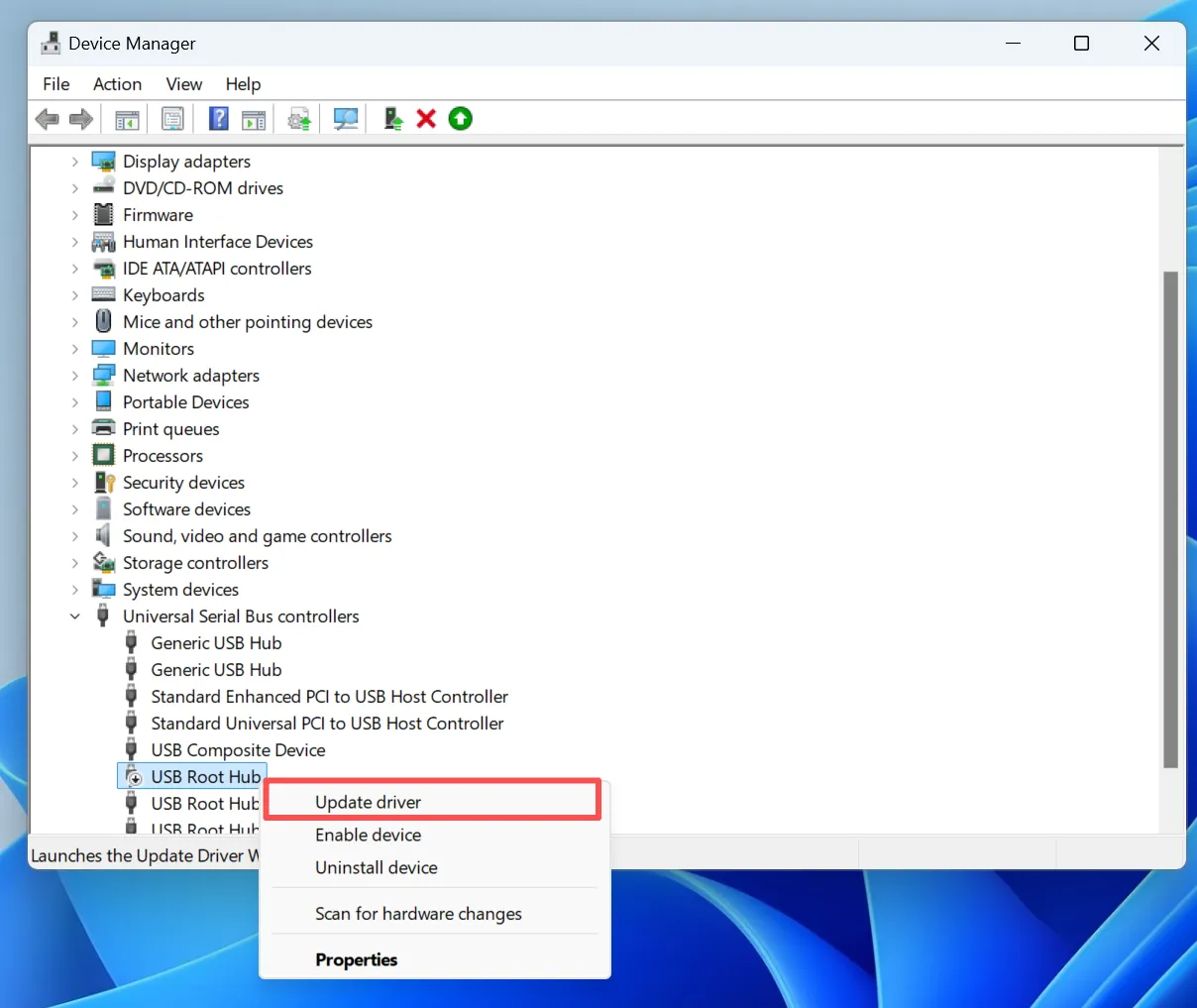
1. Open Device Manager (you can search for it in the Start Menu).
2. Locate Universal Serial Bus controllers and expand it.
3. Right-click the USB device in question and select Update driver.
4. Follow the prompts to search for and install any available updates.
Method 4. Run CHKDSK to Fix File System Errors
If your flash drive is still not recognized, there may be file system errors preventing access. The CHKDSK command can scan and repair file system issues. Here’s how to run it:
1. Open Command Prompt (search for it in the Start Menu).
2. Type chkdsk [drive letter]: /f (replace [drive letter] with the actual letter of the USB drive).
3. Press Enter to start the process. The system will check for errors and attempt to fix them.
Method 5. Disable Power Management Settings
In some cases, Windows might disable your USB device to save power. To turn off these settings:
1. Open Device Manager.
2. Right-click on each USB Root Hub entry and choose Properties.
3. Go to the Power Management tab and uncheck the option that says, “Allow the computer to turn off this device to save power.”
4. Click OK to apply the changes.

Method 6. Format the USB Drive (if possible)
If the flash drive is still not recognized, it could be due to corruption in the file system. If you can access the drive but just can’t open it, formatting it might solve the issue.
To format the drive:
1. Right-click on the drive in File Explorer and select Format.
2. Choose the file system (e.g., NTFS or FAT32) and click Start.
Caution: Formatting will erase all data on the drive, so make sure to recover your files first with a professional software like Magic Data Recovery.
When to Seek Professional Help
If your flash drive is physically damaged or you’re unable to recover your files using software, it may be time to seek professional data recovery services. Companies like Geek Squad charge fees for data recovery, which can vary depending on the severity of the issue and the required recovery procedures. As it charges much more than a software, it is recommanded only when you have important files and the flash drive is not recognized due to critical physical issue. For logical problems, professional software like Magic Data Recovery is the first choice and it provide the professional solution for usb flash drive.
Conclusion
A USB flash drive not being recognized can be frustrating, but with the right troubleshooting steps, you can often fix the problem yourself. If all else fails, professional recovery tools like Magic Data Recovery can help you retrieve lost files. Remember to back up your data regularly to prevent loss in the future, and be cautious when using USB drives across different devices to avoid unnecessary risks. Download Magic Data Recovery and restore your important files from a USB flash drive with ease and confidence.
Supports Windows 7/8/10/11 and Windows Server
Flash Drive Not Recognized – FAQs
How to fix an unreadable USB flash drive?
How do I force my computer to recognize a USB?
Do USB flash drives go bad?
How do I get my computer to read a flash drive?
How to fix an undetected USB flash drive?
How much does Geek Squad charge for data recovery?
Why is my computer not recognizing my flash drive?
Why is my USB stick suddenly unreadable?

Vasilii is a data recovery specialist with around 10 years of hands-on experience in the field. Throughout his career, he has successfully solved thousands of complex cases involving deleted files, formatted drives, lost partitions, and RAW file systems. His expertise covers both manual recovery methods using professional tools like hex editors and advanced automated solutions with recovery software. Vasilii's mission is to make reliable data recovery knowledge accessible to both IT professionals and everyday users, helping them safeguard their valuable digital assets.