
Controlador de dispositivo
Los problemas de controladores son los primeros que ven los usuarios
Los sistemas rara vez fallan sin previo aviso.
Un disco USB de copia de seguridad deja de aparecer, una nueva tarjeta gráfica provoca pantallazos azules o un adaptador Wi-Fi se desconecta cada hora.
En muchos casos, el hardware sigue funcionando correctamente.
El verdadero problema radica en la capa de software que conecta Windows a cada dispositivo: el controlador de dispositivo.
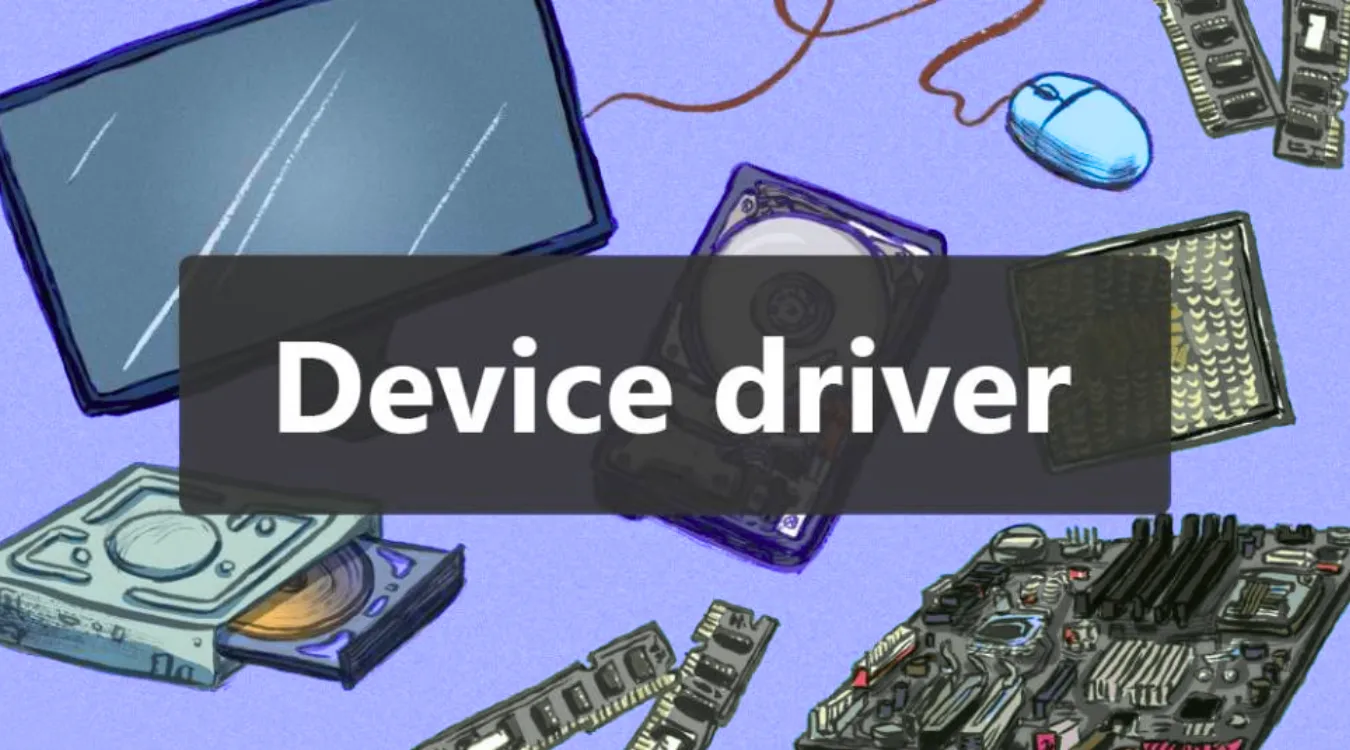
Capa de software entre Windows y el hardware
Un controlador de dispositivo es un software especializado que entiende un componente de hardware o una familia de dispositivos similares.
Windows llama al controlador, y el controlador habla con el controlador de hardware con comandos de bajo nivel.
Un conductor típico:
Recibe peticiones de E/S de alto nivel del sistema operativo
Los traduce en comandos y secuencias de dispositivos
Gestión de colas, tiempos de espera y códigos de error
Informa de las capacidades y el estado al sistema operativo
Este diseño permite que Windows admita miles de dispositivos sin necesidad de incorporar una lógica personalizada para cada modelo.
Integración de los conductores en el sistema
En los sistemas Windows modernos, los controladores se cargan durante el arranque o al conectar el hardware.
Se registran como servicios e interactúan estrechamente con el núcleo y el gestor de E/S.
Elementos importantes:
Controladores binarios en C:WindowsSistema32Conductores y caminos relacionados
Entradas de registro que describen los servicios del controlador y el comportamiento de inicio
Administrador de dispositivos, que expone el estado y la configuración de los controladores
Actualización de Windows y herramientas de proveedores, que suministran nuevas versiones de controladores
Directorios del sistema como C:Windows forman el núcleo de esta estructura y deben permanecer intactos.
Categorías de controladores que influyen en la estabilidad y los datos
No todos los conductores tienen el mismo impacto.
Algunos sólo afectan al rendimiento, mientras que otros se sitúan directamente en la ruta de datos.
| Clase de conductor | Ejemplo de hardware | Riesgo típico cuando es defectuoso |
|---|---|---|
| Controlador de almacenamiento | SATA, NVMe, adaptadores RAID | Corrupción del sistema de archivos, fallos de arranque |
| Disco y volumen | Discos duros, unidades SSD, unidades USB | Errores de lectura/escritura, volúmenes RAW |
| Mostrar | GPU, gráficos externos | Fallos, artefactos visuales, rendimiento |
| Red | Adaptadores Ethernet, Wi-Fi, VPN | Caídas, transferencias lentas, pérdida de conexión |
| Entrada y HID | Teclados, ratones, touchpads | Retraso, pérdida de control, entrada fallida |
Para el trabajo de recuperación de datos, los controladores de almacenamiento y de disco son los más importantes, porque controlan cómo llegan los sectores al sistema de archivos.
Reconocimiento de fallos relacionados con el conductor
Los problemas de los conductores siguen patrones repetidos que pueden detectarse a tiempo.
Signos comunes:
Signos de exclamación amarillos junto a los dispositivos en Administrador de dispositivos
Pantallas azules que mencionan módulos de almacenamiento, red o gráficos
Dispositivos que aparecen y desaparecen, especialmente a través de USB
Unidades que se convierten en RAW o solicitan el formateo tras un fallo
Cuando aparecen estos síntomas, el uso intensivo y continuado del sistema aumenta el riesgo de pérdida de datos en los discos afectados.
Inspección de los controladores instalados en Windows
Puedes revisar los controladores sospechosos antes de cambiar nada.
Abrir Administrador de dispositivos del Inicio menú o Win + X menú.
Amplíe la categoría del dispositivo problemático (por ejemplo, Unidades de disco o Adaptadores de red).
Abrir Propiedades y revise el Conductor para la versión, el proveedor y la fecha.
Compruebe el Eventos cuando esté disponible para ver las acciones recientes relacionadas con los controladores.
Esta inspección le ayuda a distinguir entre fallos del controlador y fallos del hardware.
Enfoques seguros de las actualizaciones y reversiones de controladores
Las actualizaciones de controladores deben seguir un proceso controlado, especialmente en sistemas que almacenan datos importantes.
Actualizar los controladores con cuidado
Haga una copia de seguridad de los archivos críticos o cree un punto de restauración.
En Administrador de dispositivos, haga clic con el botón derecho en el dispositivo y seleccione Actualizar controlador.
Prefiera Búsqueda automática de controladores o un paquete de vendedor oficial.
Reinicie el sistema y compruebe que el dispositivo funciona bajo carga.
Anulación de actualizaciones problemáticas
Si un nuevo conductor empeora la estabilidad:
Volver a la página Administrador de dispositivos y abra el dispositivo Propiedades.
En el Conductor seleccione Roll Back Driver si aparece la opción.
Reinicie y pruebe de nuevo con cargas de trabajo típicas.
Evite las herramientas “limpiadoras” de controladores aleatorias; a menudo eliminan paquetes que Windows aún necesita.
Prevención de daños en caso de avería del conductor
Los problemas con los controladores de almacenamiento pueden interrumpir las operaciones de escritura en mitad del proceso y dejar los sistemas de archivos en un estado incoherente.
Cuando sospeche de un problema de controladores en un disco que contiene datos importantes, debe reducir el riesgo.
Pasos recomendados:
Ponga en pausa tareas intensivas como copias de archivos de gran tamaño o cargas de trabajo de máquinas virtuales.
Evite los formatos rápidos y las herramientas genéricas de “reparación” que se ejecutan directamente en el volumen problemático.
Traslade el trabajo no esencial a otro sistema mientras investiga
Si ya se ha producido la corrupción, hay que centrarse primero en salvar los datos antes que en perfeccionar la pila de controladores.
Flujo de trabajo de recuperación de datos tras una corrupción de controladores
Cuando una unidad se convierte en RAW, desaparece o arroja errores de E/S tras un fallo del controlador, el software de recuperación se convierte en algo esencial.
Amagicsoft Recuperación de datos ayuda en este escenario escaneando los discos en modo de sólo lectura y restaurando los archivos en otra ubicación.
Paso 1: Estabilizar el hardware
Apague el sistema inestable limpiamente.
Extraiga el disco afectado si es posible y conéctelo a una máquina Windows diferente y estable.
Utilice cables, puertos o adaptadores conocidos.
Confirme que Gestión de discos al menos detecta la unidad, aunque el sistema de archivos parezca dañado.
Paso 2: Instalar y ejecutar Amagicsoft Data Recovery
En el sistema estable, instale Amagicsoft Recuperación de datos en una unidad interna o externa en buen estado.
Inicio Amagicsoft Recuperación de datos y deja que enumere los discos y particiones disponibles.
Paso 3: Analizar la unidad dañada
Seleccione el disco o partición afectados como origen.
Ejecute un escaneo profundo si el volumen aparece como RAW o después de un fallo grave.
Espere a que termine el escaneado; evite las multitareas que estresan la misma máquina.
Paso 4: Seleccionar y exportar los datos recuperados
Filtra por tipo de archivo y explora carpetas reconstruidas como Usuarios.
Previsualice los archivos clave siempre que sea posible para confirmar su contenido.
Recupere los datos seleccionados en un disco físico distinto, no en el dañado.
Abra varios elementos recuperados para verificar el éxito.
Después de asegurar tus datos, puedes reinicializar la unidad original y reconstruir la pila de controladores de forma segura.
Reflexiones finales sobre la gestión de conductores
Los controladores de dispositivos definen cómo cooperan el sistema operativo y el hardware.
Los controladores bien mantenidos mantienen los sistemas estables, protegen el almacenamiento y reducen la probabilidad de grandes pérdidas de datos.
Cuando aparecen problemas, la inspección cuidadosa, las actualizaciones controladas y la recuperación temprana de los datos reducen los daños.
Una combinación de controladores verificados y herramientas como Amagicsoft Recuperación de datos ofrece a los usuarios una vía práctica para recuperar un sistema fiable y operativo.
