
Formateo rápido: Cómo funciona, recuperación de datos y buenas prácticas
Formatear una unidad es una tarea habitual cuando se prepara el almacenamiento para su reutilización. Sin embargo, muchos usuarios eligen accidentalmente Formato rápido sin comprender plenamente sus consecuencias. Como resultado, archivos importantes pueden parecer perdidos permanentemente en cuestión de segundos.
En este artículo, aprenderá cómo funciona esta opción de formato, en qué se diferencia de un Formato completo, si los datos siguen siendo recuperables, y cómo restaurar archivos perdidos de forma segura. Si se enfrenta a la pérdida de datos después de formatear, este artículo también explica por qué Magic Data Recovery es una solución fiable.
Índice
Qué es Formato rápido?
Es una opción de formateo disponible en Windows, macOS y muchas herramientas de gestión de discos. Prepara un dispositivo de almacenamiento -como un disco duro, SSD, USB o tarjeta SD- para reutilizarlo reconstruyendo la estructura del sistema de archivos.
A diferencia de otros métodos de formateo más exhaustivos, este proceso de formateo rápido se completa en segundos, ya que no explora la superficie del disco ni borra los bloques de datos existentes.
Escenarios comunes en los que se utiliza esta opción de formato
Los usuarios suelen aplicar este método de formateo cuando:
- Reinstalar Windows o macOS
- Preparar una unidad USB para la transferencia de archivos
- Reiniciar un disco duro externo
- Corrección de errores menores del sistema de archivos
- Configurar una nueva partición
Aunque es cómodo, la rapidez de este método suele crear la falsa impresión de que los datos se borran por completo.
Cómo Formato rápido Obras: El principio técnico
Para entender la recuperación de datos después de formatear, es esencial saber qué ocurre realmente durante el proceso.
Qué ocurre durante el proceso
Cuando realice una Formato rápido, el sistema:
- Elimina los metadatos del sistema de archivos (como la tabla de asignación de archivos o MFT).
- Marca el espacio en disco como disponible
- Crea una nueva estructura de sistema de archivos vacía
Lo que no ocurre
Sin embargo, esta opción no lo hace:
- Sobrescribir datos de archivo existentes
- Buscar sectores defectuosos
- Borrar contenidos de forma segura
En la práctica, tus archivos siguen existiendo en el disco hasta que nuevos datos los sobrescriben.
Cómo realizar una Formato en Windows (Paso a Paso)
Comprender el proceso ayuda a reducir el riesgo de pérdida accidental de datos.
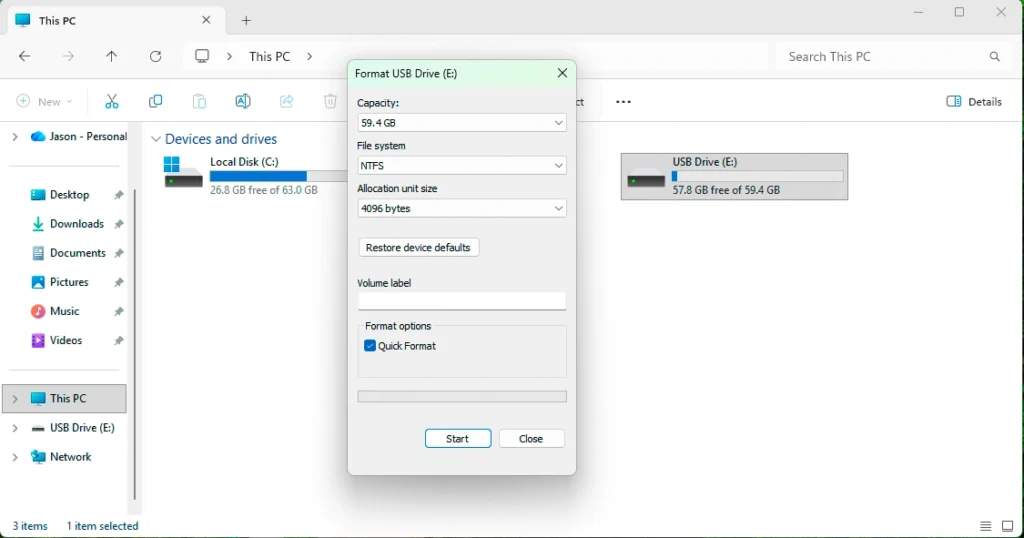
Uso del Explorador de archivos de Windows
- Abrir este PC
- Haga clic con el botón derecho en la unidad de destino
- Seleccionar formato
- Consulte Formato rápido
- Elige un sistema de archivos (NTFS, FAT32, o exFAT)
- Haga clic en Inicio
Uso de la gestión de discos
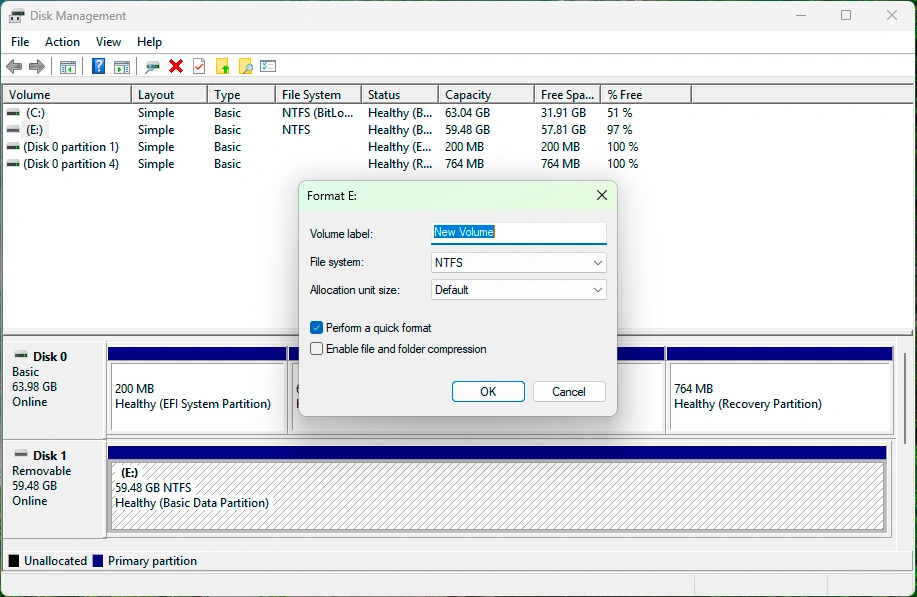
- Pulse Win + X → Gestión de discos
- Haga clic con el botón derecho en la partición
- Seleccionar formato
- Activar la opción de formato rápido
- Confirme la operación
Un mensaje de confirmación advierte de la pérdida de datos, pero no explica la posibilidad de recuperarlos.
Formato rápido vs Formato completo: Principales diferencias
Elegir entre estos dos métodos tiene implicaciones a largo plazo para la seguridad y la recuperación de los datos.
Característica | Formato rápido | Formato completo |
Tiempo necesario | Segundos | De minutos a horas |
Elimina el sistema de archivos | Sí | Sí |
Sobrescribe datos | No | Sí |
Búsqueda de sectores defectuosos | No | Sí |
Datos recuperables | Alta | Muy bajo |
Se recomienda su reutilización | Limitado | Sí |
Cuándo es adecuada cada opción
- Formato rápido: Problemas menores, reutilización rápida, limpieza temporal
- Formato completo: Venta de una unidad, problemas de seguridad, comprobación exhaustiva de errores
¿Se pueden recuperar los datos después de formatear?
Sí, en la mayoría de los casos, recuperación de datos tras un rápido proceso de formateo es muy posible.
Por qué funciona la recuperación
Dado que este método sólo elimina las referencias a los archivos, el software de recuperación puede:
- Escanear sectores de disco sin procesar
- Identificar firmas de archivos
- Reconstruir archivos borrados
Cuando la recuperación puede fracasar
El éxito de la recuperación disminuye si:
- Se escriben nuevos datos en la unidad
- A Formato completo se realiza después
- TRIM está activado en las unidades SSD
- El disco sufre daños físicos
Para obtener mejores resultados, deje de utilizar la unidad inmediatamente después de formatearla.
Cómo recuperar datos después de formatear
La recuperación de datos requiere una herramienta que pueda escanear más allá del sistema de archivos.
Solución recomendada: Magic Data Recovery
Magic Data Recovery está diseñado para restaurar archivos perdidos por formateo, borrado accidental, y pérdida de partición.
Compatible con Windows 7/8/10/11 y Windows Server
Principales puntos débiles que resuelve
- Faltan archivos después de formatear
- Particiones inaccesibles
- Fotos perdidas, Documentos y vídeos
- Recuperación de unidades USB y externas
Por qué Magic Data Recovery es una opción fiable
En lugar de reclamos comerciales, el valor de Magic Data Recovery radica en el rendimiento práctico de la recuperación.
Principales ventajas
- Tecnología de escaneado profundo que evita los sistemas de archivos eliminados
- Compatibilidad con NTFS, FAT32, exFAT, etc.
- Compatible con discos duros, unidades SSD, unidades USB y tarjetas SD
- Exploración de sólo lectura para evitar la sobrescritura de datos
Casos prácticos reales
Es frecuente que los usuarios formateen una unidad USB para solucionar un error del sistema de archivos. Tras utilizar la opción de formateo rápido, los archivos desaparecen. Magic Data Recovery puede escanear el dispositivo, localizar los archivos recuperables y previsualizarlos antes de restaurarlos.
Por qué es más fiable que los métodos manuales
Los intentos manuales de recuperación, como CHKDSK o reformatear de nuevo, suelen reducir las tasas de éxito. En cambio, Magic Data Recovery conserva el contenido original del disco mientras realiza análisis avanzados.
Buenas prácticas para evitar la pérdida de datos
La prevención sigue siendo la estrategia más eficaz.
Consejos prácticos
- Haz siempre una copia de seguridad de los archivos importantes antes de formatearlos
- Compruebe dos veces las opciones de formato antes de confirmar
- Evite formatear unidades con errores desconocidos
- Deje de utilizar la unidad inmediatamente si se produce una pérdida de datos
Estos hábitos reducen significativamente la necesidad de recuperación.
Conclusión
Formato rápido es rápido y cómodo, pero a menudo se malinterpreta. Aunque elimina el acceso al sistema de archivos, no borra inmediatamente los datos. Esto hace posible la recuperación, siempre que no se produzcan más escrituras.
En los archivos se pierden después de formatear, Una solución profesional como Magic Data Recovery ofrece una forma segura, eficaz y probada de restaurar datos valiosos sin causar más daños. Si está buscando una solución de recuperación fiable después de formatear, Magic Data Recovery ofrece una combinación equilibrada de fiabilidad, facilidad de uso y profundidad técnica adecuada para la mayoría de los usuarios.
Compatible con Windows 7/8/10/11 y Windows Server
Preguntas frecuentes
¿Es suficiente el formato rápido para USB?
¿Por qué es más beneficioso un formato completo que una opción rápida?
¿Debo formatear la PS3 de forma rápida o completa?
¿Es mejor dar formato rápido o formato completo a una unidad USB?
¿Hay algún inconveniente en utilizar exFAT?
¿Merece la pena el formato completo?
¿Qué formato debo utilizar para mi SSD?

Erin Smith es reconocida como una de las redactoras más profesionales de Amagicsoft. Ha perfeccionado continuamente sus habilidades de escritura durante los últimos 10 años y ha ayudado a millones de lectores a resolver sus problemas tecnológicos.