
Cómo encontrar contraseñas guardadas en Safari
Índice
Ver contraseñas guardadas en Safari (Mac)
Safari para macOS proporciona acceso directo a las credenciales almacenadas. Solo tienes que seguir estos pasos:
1. Abra Safari en tu Mac
2. Haga clic en Safari > Preferencias
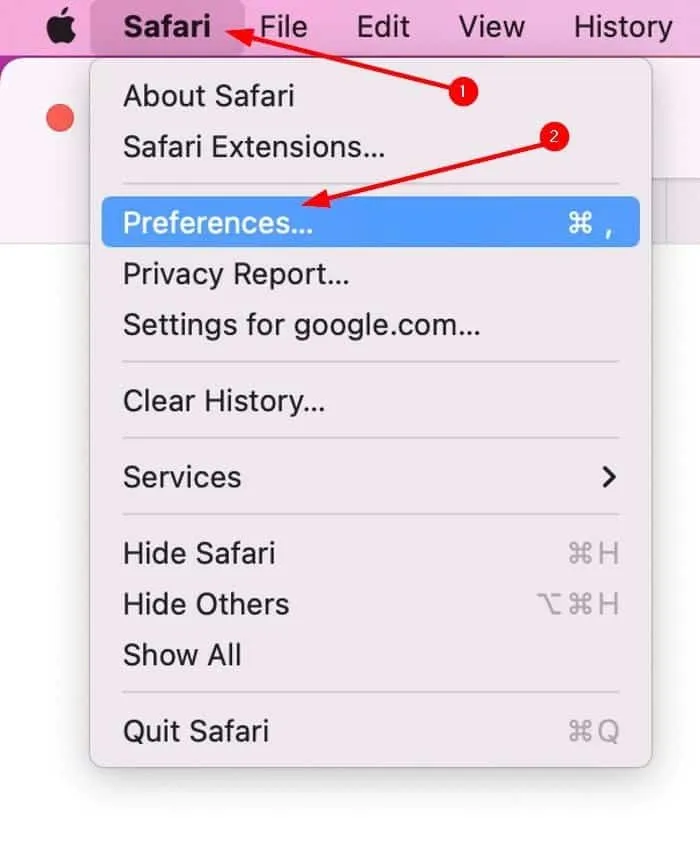
3. Navegue hasta el Contraseñas tab
4. Introduzca su Contraseña de inicio de sesión de macOS / Touch ID para desbloquear el acceso con contraseña
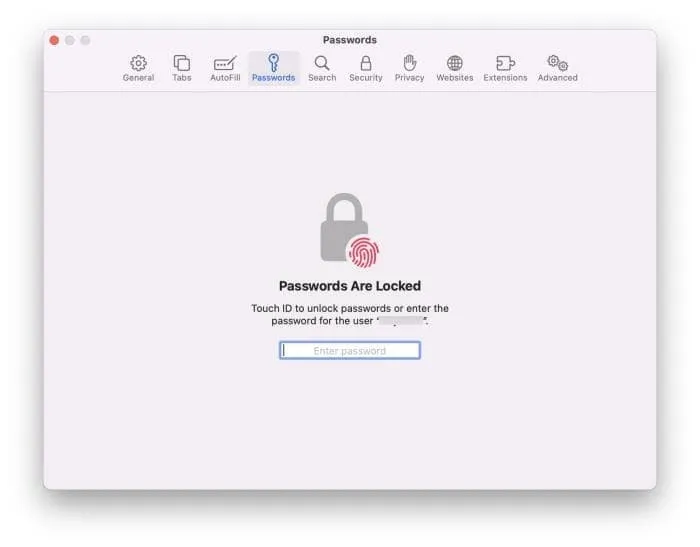
5. Visualice la lista de cuentas almacenadas y haga clic en Mostrar contraseña revelar detalles
Si la sección “Contraseñas” está en blanco o el autocompletado ya no funciona, puede indicar que el llavero de iCloud está desactivado o que la base de datos de contraseñas está dañada. En ese caso, sigue leyendo para conocer las opciones de solución.
Ver contraseñas guardadas en Safari (iPhone / iPad)
Encontrar contraseñas guardadas en iOS es igual de sencillo:
1. Abra Ajustes > Contraseñas
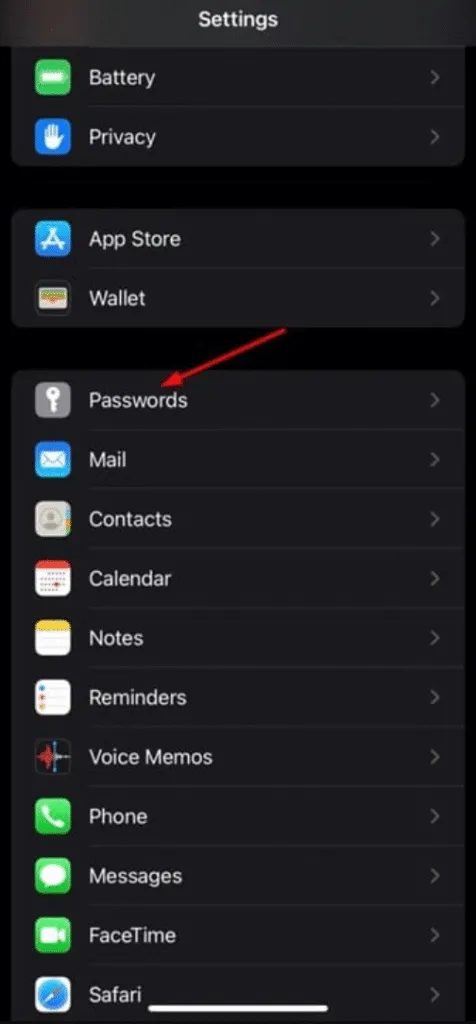
2. Autenticación mediante Face ID / Touch ID
3. Buscar el nombre de la cuenta de acceso o el sitio web
4. Pulse para mostrar el contraseña y nombre de usuario guardados
Si las contraseñas desaparecen tras una actualización de iOS, suele deberse a la sincronización con iCloud. Asegúrate de que Ajustes > ID de Apple > iCloud > Contraseñas y llavero está activado para todos los dispositivos.
Solución de problemas: Por qué a veces no se muestran las contraseñas de Safari
Incluso cuando Safari AutoFill funciona normalmente, las contraseñas almacenadas pueden permanecer inaccesibles debido a..:
Posible causa | Explicación |
Sincronización del llavero de iCloud desactivada | Contraseñas almacenadas sólo localmente en otro dispositivo |
Utilizar diferentes ID de Apple en Mac y iPhone | Las contraseñas no se sincronizan entre cuentas |
Corrupción de llaveros | La base de datos de contraseñas se vuelve ilegible |
Perfil de Safari borrado accidentalmente | Contraseñas eliminadas junto con el perfil |
Estos problemas son comunes, especialmente entre los usuarios que recientemente cambiaron de dispositivo o actualizaron macOS/iOS. La pérdida de datos puede resultar estresante, pero la mayoría de los problemas pueden solucionarse reconfigurando la sincronización de iCloud o restaurando el llavero con tus credenciales de inicio de sesión.
Cuando no se pueden recuperar las contraseñas de Safari - Solución alternativa en Windows
A veces, las contraseñas de Safari no se pueden recuperar incluso después de sincronizar y solucionar problemas. Por ejemplo:
- El Mac antiguo se vendió o formateó
- El iPhone se restableció sin copia de seguridad
- Se ha olvidado la contraseña de acceso al Llavero
- El perfil de Safari se borró accidentalmente
Aunque es imposible recuperar las contraseñas de Safari sin acceder a los archivos originales de Apple Keychain, muchos usuarios siguen necesitando las credenciales almacenadas en otros navegadores, especialmente cuando utilizan ocasionalmente Cromo, Edge o Firefox en Windows para trabajar o jugar.
En estas situaciones, una potente herramienta de recuperación de contraseñas de Windows resulta muy valiosa.
Recupera de forma segura contraseñas perdidas de navegadores en Windows con Magic Recovery Key
En Magic Recovery Key no puede extraer contraseñas directamente de Safari, es extremadamente eficaz para recuperar credenciales de inicio de sesión perdidas de navegadores basados en Windows. Analiza las bases de datos de credenciales cifradas en Windows y reconstruye la información de inicio de sesión guardada como:
- Direcciones de correo electrónico
- Nombres de usuario
- Contraseñas
- Entradas de acceso a sitios web / aplicaciones
La herramienta puede utilizarse de forma segura en ordenadores personales, y todas las tareas de recuperación se ejecutan localmente. No se carga ningún dato de la cuenta, lo que da tranquilidad a los usuarios, especialmente cuando se recuperan contraseñas relacionadas con cuentas de trabajo o financieras.
Esto resulta especialmente útil para las personas que:
- Cambio de Mac a Windows
- Pérdida de acceso a una antigua cuenta de Windows
- Contraseñas olvidadas guardadas en Chrome o Edge
- Reiniciar el navegador y perder los datos de inicio de sesión de autorrelleno
Cuando Safari no puede ofrecerte lo que necesitas, Magic Recovery Key te ayuda a llenar el vacío del lado de Windows.
Reflexiones finales
El almacenamiento de contraseñas integrado en Safari es seguro y cómodo, pero cuando acceder a las credenciales guardadas resulta difícil, es importante seguir los pasos adecuados. recuperación de contraseña camino:
Dispositivo | Método recomendado |
Mac / iPhone / iPad | Ver contraseñas a través de los ajustes de Safari o el panel de contraseñas de iOS |
No se puede sincronizar el llavero | Volver a activar las contraseñas y el llavero de iCloud |
Pérdida de contraseñas en navegadores Windows | Utilice Magic Recovery Key para recuperar los datos de inicio de sesión cifrados |
Con las herramientas y los pasos adecuados, no tienes por qué alarmarte por la pérdida de contraseñas. Empieza con las funciones integradas de Apple, y si tus inicios de sesión perdidos implican navegadores Windows, Magic Recovery Key ofrece una vía fiable para recuperar el acceso.
Compatible con Windows 7/8/10/11 y Windows Server
PREGUNTAS FRECUENTES
¿Cómo puedo ver todas mis contraseñas guardadas en Safari?
¿Cómo encuentro mi lista de contraseñas guardadas?
¿Guarda Safari las contraseñas en el iPhone?
¿Cómo encuentro las contraseñas guardadas en mi iPhone?
¿Tiene Safari un gestor de contraseñas integrado?
¿Cómo puedo ver mi lista de contraseñas en Keychain en Mac?
¿Dónde se guardan las contraseñas en un iPad?
¿Cómo puedo recordar todas mis contraseñas?

Vasilii es un especialista en recuperación de datos con unos 10 años de experiencia práctica en este campo. A lo largo de su carrera, ha resuelto con éxito miles de casos complejos relacionados con archivos borrados, unidades formateadas, particiones perdidas y sistemas de archivos RAW. Su experiencia abarca tanto métodos de recuperación manual con herramientas profesionales como editores hexadecimales como soluciones automatizadas avanzadas con software de recuperación. La misión de Vasilii es poner los conocimientos sobre recuperación de datos al alcance tanto de los profesionales informáticos como de los usuarios de a pie, ayudándoles a salvaguardar sus valiosos activos digitales.