
How To Find Saved Passwords on Safari
Table of Contents
Viewing Saved Passwords on Safari (Mac)
Safari for macOS provides direct access to stored credentials. Simply follow these steps:
1. Open Safari on your Mac
2. Click Safari > Preferences
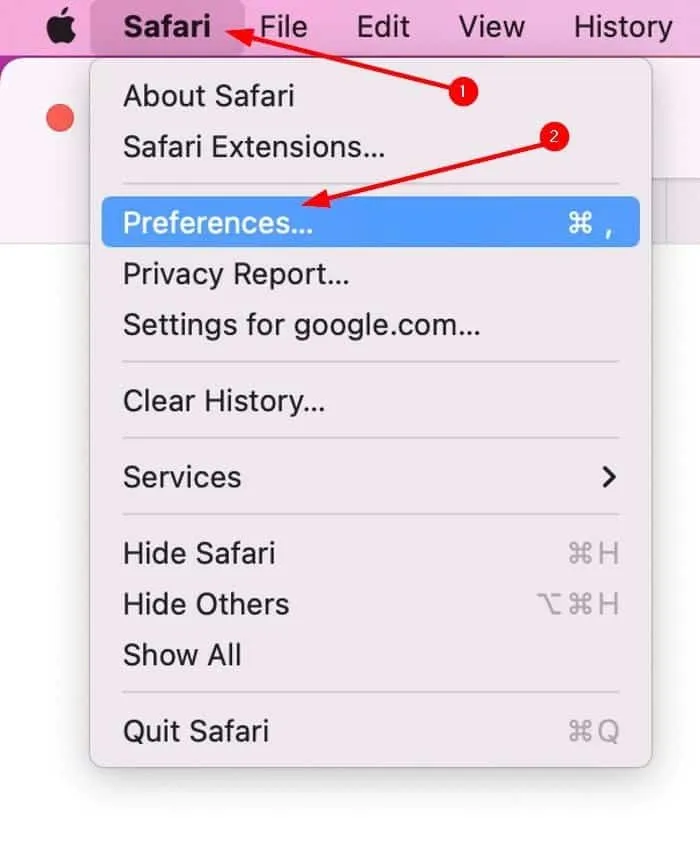
3. Navigate to the Passwords tab
4. Enter your macOS login password / Touch ID to unlock password access
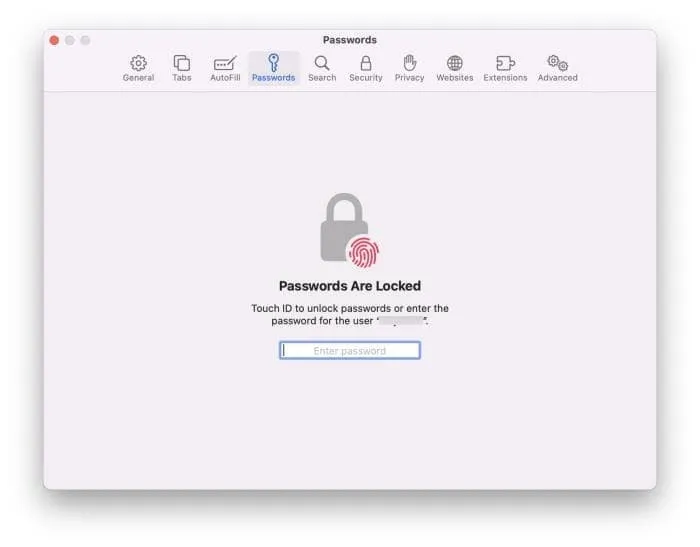
5. View the list of stored accounts and click Show Password to reveal details
If the “Passwords” section is blank or auto-fill no longer works, it may indicate disabled iCloud Keychain or password database corruption. In that case, continue reading for troubleshooting options.
Viewing Saved Passwords on Safari (iPhone / iPad)
Finding saved passwords on iOS is equally straightforward:
1. Open Settings > Passwords
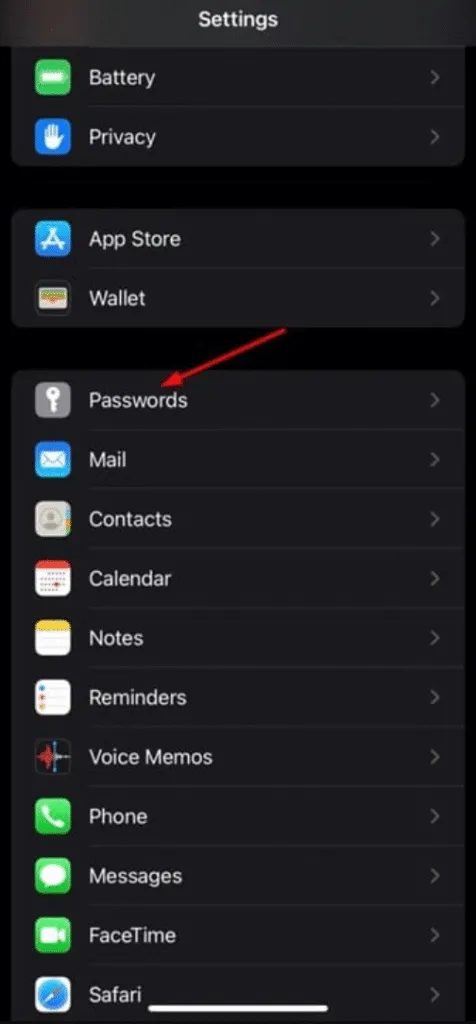
2. Authenticate via Face ID / Touch ID
3. Search the login account name or website
4. Tap to reveal the saved password and username
If passwords disappear after an iOS update, it’s often due to iCloud sync. Make sure Settings > Apple ID > iCloud > Passwords & Keychain is turned on for all devices.
Troubleshooting: Why Safari Passwords Sometimes Don’t Show
Even when Safari AutoFill is working normally, the actual stored passwords may remain inaccessible due to:
Possible Cause | Explanation |
iCloud Keychain sync disabled | Passwords stored only locally on another device |
Using different Apple IDs on Mac and iPhone | Passwords do not sync across accounts |
Keychain corruption | Password database becomes unreadable |
Safari profile deleted accidentally | Passwords removed together with the profile |
These issues are common, especially among users who recently switched devices or upgraded macOS/iOS. Data loss can feel stressful, but most issues can be fixed by reconfiguring iCloud sync or restoring the Keychain with your login credentials.
When Safari Passwords Cannot Be Recovered — Alternative Solution on Windows
Sometimes, Safari passwords are not recoverable even after syncing and troubleshooting. For example:
- The old Mac was sold or formatted
- The iPhone was reset without backup
- The Keychain login password was forgotten
- The Safari profile was deleted accidentally
Although it’s impossible to recover Safari passwords without access to the original Apple Keychain files, many users still need credentials stored in other browsers—especially when they occasionally use Chrome, Edge, or Firefox on Windows for work or gaming.
In these situations, a powerful Windows password recovery tool becomes valuable.
Securely Recover Lost Browser Passwords on Windows with Magic Recovery Key
While Magic Recovery Key cannot extract passwords directly from Safari, it is extremely effective at recovering lost login credentials from Windows-based browsers. It scans the encrypted credential databases on Windows and reconstructs saved login information such as:
- Email addresses
- Usernames
- Passwords
- Website / App login entries
The tool can be used safely on personal computers, and all recovery tasks are executed locally. No account data is uploaded, giving users peace of mind—especially when recovering passwords related to work or finance accounts.
This becomes particularly useful for people who:
- Switched from Mac to Windows
- Lost access to an old Windows account
- Forgot passwords saved in Chrome or Edge
- Reset the browser and lost auto-fill login data
When Safari cannot provide what you need, Magic Recovery Key helps fill the gap on the Windows side.
Final Thoughts
Safari’s built-in password storage is secure and convenient, but when accessing saved credentials becomes difficult, it’s important to follow the right password recovery path:
Device | Recommended Method |
Mac / iPhone / iPad | View passwords via Safari settings or iOS Passwords panel |
Cannot sync Keychain | Re-enable iCloud Passwords & Keychain |
Lost passwords on Windows browsers | Use Magic Recovery Key to recover encrypted login data |
With the right tools and steps, you don’t need to panic about lost passwords. Start with Apple’s built-in features, and if your missing logins involve Windows browsers, Magic Recovery Key offers a reliable path to regain access.
Supports Windows 7/8/10/11 and Windows Server
FAQ
How do I see all my saved passwords on Safari?
How do I find my list of saved passwords?
Does Safari save passwords on iPhone?
How do I find saved passwords on my iPhone?
Does Safari have a built-in password manager?
How do I see my list of passwords in Keychain on Mac?
Where are passwords stored on an iPad?
How can I remember all my passwords?

Vasilii is a data recovery specialist with around 10 years of hands-on experience in the field. Throughout his career, he has successfully solved thousands of complex cases involving deleted files, formatted drives, lost partitions, and RAW file systems. His expertise covers both manual recovery methods using professional tools like hex editors and advanced automated solutions with recovery software. Vasilii's mission is to make reliable data recovery knowledge accessible to both IT professionals and everyday users, helping them safeguard their valuable digital assets.