
Vérifier l'absence d'erreurs sur le disque : Détecter et résoudre les problèmes de disque
“Vérifier l'absence d'erreurs sur le disque”L'expression "scanner" fait référence au processus de balayage d'un dispositif de stockage, tel qu'un disque dur. disque dur (HDD), lecteur à état solide (SSD), une clé USB ou un disque dur externe, pour détecter et corriger les incohérences du système de fichiers logiques. Sur les systèmes Windows, cette fonction est le plus souvent exécutée à l'aide de la fonction CHKDSK (Vérification du disque), CHKDSK est un utilitaire de diagnostic intégré fourni par Microsoft. CHKDSK examine les métadonnées du système de fichiers, les structures de répertoires, les tables d'allocation et, éventuellement, les secteurs de la surface du disque afin d'identifier les altérations susceptibles de provoquer des pannes, des échecs de démarrage ou des erreurs d'accès aux données.
Ce processus porte sur erreurs logiques, et non des dommages physiques. Les problèmes logiques comprennent les enregistrements de fichiers corrompus, les fichiers liés entre eux, les descripteurs de sécurité non valides et les décomptes d'espace libre incorrects. D'après le Documentation Microsoft, CHKDSK opère au niveau du système de fichiers (par ex, NTFS ou FAT32), en vérifiant la cohérence interne plutôt qu'en réparant le matériel.
Table des matières
Quand vérifier l'absence d'erreurs sur le disque
Il est recommandé d'effectuer une vérification du disque lorsque vous rencontrez des problèmes :
- Crashs répétés du système ou erreurs de l'écran bleu
- Les dossiers ne s'ouvrent pas ou disparaissent inopinément
- Un lecteur qui devient soudainement RAW ou illisible
- Ralentissement des performances dû à des incohérences dans le système de fichiers
- Messages d'erreur tels que “Windows a détecté un problème de disque dur”.”
La bonne nouvelle est que ces symptômes indiquent souvent corruption logique, qui peut généralement être résolu sans perte de données s'il est traité correctement.
Fonctionnement de la vérification des erreurs de disque
Lorsque vous recherchez des erreurs sur un disque, le système d'exploitation effectue plusieurs étapes de vérification :
1. Validation de la structure du système de fichiers - Assure la cohérence des entrées de répertoire de la Master File Table (MFT) ou de la FAT.
2. Vérification de l'index et du répertoire - Confirme que les hiérarchies de dossiers et les références de fichiers sont intactes.
3. Contrôle des descripteurs de sécurité - Vérifie les autorisations de fichiers et les listes de contrôle d'accès.
4. Balayage sectoriel optionnel - Identifie les secteurs illisibles et tente de les isoler de toute utilisation future.
Il est important de comprendre que les outils de réparation du système de fichiers modifient les métadonnées. Une mauvaise utilisation, en particulier sur des disques instables, peut augmenter le risque de perte permanente de données.
Comment vérifier la présence d'erreurs sur le disque à l'aide de CHKDSK ?
Suivez attentivement ces étapes. Ne paniquez pas : il s'agit d'une opération de maintenance contrôlée et largement utilisée.
Méthode 1 : Utilisation de l'invite de commande
1. Appuyer sur Fenêtres + S, type cmd, et sélectionnez Exécuter en tant qu'administrateur.
2. Entrer commande chkdsk /f comme suit :
chkdsk X : /f
Remplacer X : avec la lettre du lecteur cible.

3. Si vous êtes invité à planifier l'analyse au prochain redémarrage, tapez Y et redémarrez votre système.
Les /f corrige les erreurs du système de fichiers logiques. Pour inclure une analyse de surface, utilisez :
chkdsk X : /f /r
Il convient de noter que /r prend beaucoup plus de temps et doit être utilisé avec prudence sur les disques vieillissants.

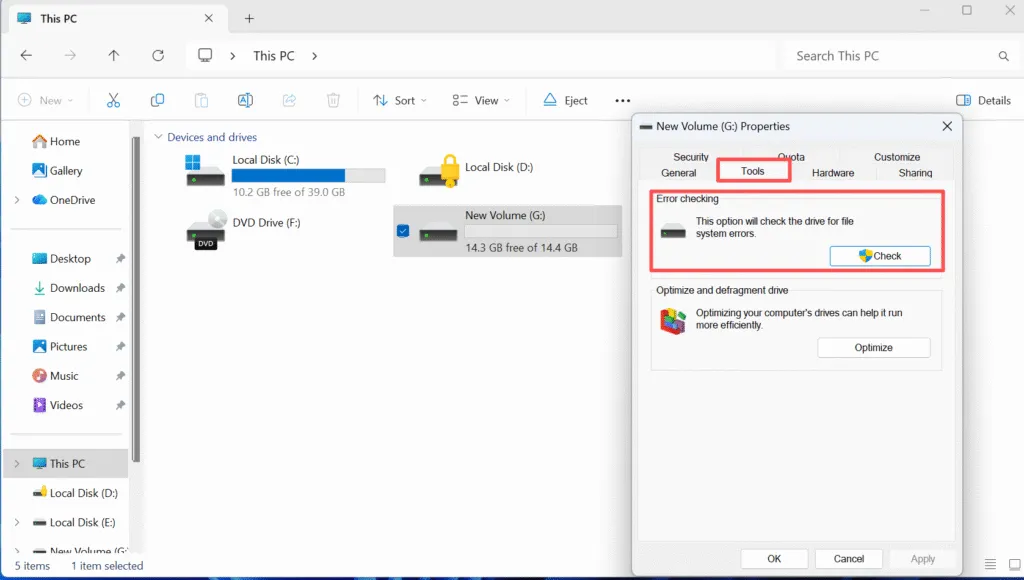
Méthode 2 : Utilisation de l'explorateur de fichiers
1. Ouvrir Ce PC.
2. Cliquez avec le bouton droit de la souris sur le lecteur cible et sélectionnez Propriétés.
3. Naviguez jusqu'à l'écran Outils tabulation.
4. Cliquez sur Vérifier sous Contrôle des erreurs.
Précautions importantes à prendre avant de réparer les erreurs de disque
Avant d'effectuer une réparation de disque :
- Sauvegardez d'abord les données critiques. Les réparations du système de fichiers modifient les structures des métadonnées.
- Évitez d'utiliser CHKDSK sur les disques qui font des bruits inhabituels ou qui se déconnectent par intermittence.
- N'interrompez pas le processus une fois qu'il a commencé.
Si le disque contient des données irremplaçables, une approche de récupération en lecture seule est fortement recommandé avant de procéder à des réparations.
Récupération des données avant de vérifier les erreurs de disque
Dans les cas où la corruption est grave, la recherche d'erreurs sur le disque peut masquer ou supprimer des entrées de fichiers endommagés. Des outils de récupération professionnels tels que Magic Data Recovery sont conçus pour fonctionner en mode lecture seule, vous permettant d'extraire les fichiers en toute sécurité avant toute tentative de réparation.
Magic Data Recovery permet de récupérer NTFS, FAT32, exFAT, et Partitions RAW et peut analyser les disques qui ne satisfont pas aux vérifications standard du système de fichiers. Cette approche fournit un chemin de récupération contrôlé et réduit le risque de perte permanente de données.
Conclusion
Vérification de l'absence d'erreurs sur un disque est une tâche de maintenance fondamentale qui permet de rétablir la stabilité du système de fichiers et de prévenir les défaillances en cascade. Lorsqu'ils sont utilisés correctement, des outils tels que CHKDSK peut résoudre de nombreux problèmes questions logiques. Toutefois, la prudence et la préparation sont essentielles. Évaluez toujours l'état du disque, sécurisez d'abord les données importantes et effectuez les réparations de manière méthodique. Télécharger Magic Data Recovery pour récupérer vos fichiers en toute sécurité avant de réparer les erreurs de disque et garder un contrôle total sur le processus de restauration de vos données.
Prise en charge de Windows 7/8/10/11 et Windows Server
FAQ : Vérifier les erreurs sur le disque
Comment vérifier que le disque ne contient pas d'erreurs ?
Le disque de contrôle corrige-t-il les erreurs ?
Quel est le meilleur choix, CHKDSK /f ou /r ?
Comment détecter les problèmes de disque ?
Dois-je exécuter CHKDSK ou SFC ?
Comment scanner un PC à l'aide de cmd ?
CHKDSK corrige-t-il les fichiers corrompus ?
Les erreurs de disque peuvent-elles être réparées ?

Vasilii est un spécialiste de la récupération de données qui possède une dizaine d'années d'expérience pratique dans ce domaine. Tout au long de sa carrière, il a résolu avec succès des milliers de cas complexes impliquant des fichiers supprimés, des disques formatés, des partitions perdues et des systèmes de fichiers RAW. Son expertise couvre à la fois les méthodes de récupération manuelle à l'aide d'outils professionnels tels que les éditeurs hexagonaux et les solutions automatisées avancées à l'aide de logiciels de récupération. La mission de Vasilii est de rendre accessible aux professionnels de l'informatique et aux utilisateurs quotidiens des connaissances fiables en matière de récupération de données, afin de les aider à sauvegarder leurs précieuses ressources numériques.