
Controllare gli errori del disco: Rilevare e risolvere i problemi delle unità
“Verificare la presenza di errori sul disco” si riferisce al processo di scansione di un dispositivo di archiviazione, come ad esempio un disco rigido (HDD), unità a stato solido (SSD), unità flash USB o disco rigido esterno per rilevare e correggere le incoerenze del file system logico. Sui sistemi Windows, questa funzione viene eseguita più comunemente utilizzando CHKDSK (Controllo disco), un'utilità diagnostica integrata fornita da Microsoft. CHKDSK esamina i metadati del file system, le strutture delle directory, le tabelle di allocazione e, facoltativamente, i settori della superficie del disco per identificare i danni che possono causare crash, errori di avvio o di accesso ai dati.
Questo processo affronta errori logici, non danni fisici. I problemi logici includono record di file corrotti, file con collegamenti incrociati, descrittori di sicurezza non validi e conteggi errati dello spazio libero. Secondo Documentazione Microsoft, CHKDSK opera a livello di file system (ad es, NTFS o FAT32), verificando la coerenza interna piuttosto che riparare l'hardware.
Indice dei contenuti
Quando è necessario controllare gli errori del disco
L'esecuzione di un controllo del disco è consigliata quando si verifica un problema:
- Ripetuti arresti anomali del sistema o errori di schermata blu
- Cartelle che non si aprono o scompaiono inaspettatamente
- Un'unità che diventa improvvisamente RAW o illeggibile
- Prestazioni lente causate da inconsistenze del file system
- Messaggi di errore come “Windows ha rilevato un problema del disco rigido”.”
La buona notizia è che questi sintomi spesso indicano corruzione logica, che di solito possono essere risolti senza perdita di dati se gestiti correttamente.
Come funziona il controllo degli errori del disco
Quando si controlla il disco alla ricerca di errori, il sistema operativo esegue diverse fasi di verifica:
1. Convalida della struttura del file system - Assicura la coerenza delle voci della Master File Table (MFT) o della directory FAT.
2. Verifica dell'indice e della directory - Conferma che le gerarchie di cartelle e i riferimenti ai file sono intatti.
3. Controlli dei descrittori di sicurezza - Verifica le autorizzazioni dei file e gli elenchi di controllo degli accessi.
4. Scansione settoriale opzionale - Identifica i settori illeggibili e cerca di isolarli dall'uso futuro.
È importante capire che gli strumenti di riparazione del file system modificano i metadati. Un uso improprio, soprattutto su unità instabili, può aumentare il rischio di perdita permanente dei dati.
Come verificare la presenza di errori sul disco con CHKDSK
Seguite attentamente questi passaggi. Non fatevi prendere dal panico: si tratta di un'operazione di manutenzione controllata e ampiamente utilizzata.
Metodo 1: Utilizzo del prompt dei comandi
1. Premere Windows + S, tipo cmd, e selezionare Eseguire come amministratore.
2. Inserire comando chkdsk /f come segue:
chkdsk X: /f
Sostituire X: con la lettera dell'unità di destinazione.

3. Se viene richiesto di pianificare la scansione al prossimo riavvio, digitare Y e riavviare il sistema.
Il /f risolve gli errori del file system logico. Per includere una scansione superficiale, utilizzare:
chkdsk X: /f /r
Si noti che /r richiede tempi significativamente più lunghi e deve essere usato con cautela sulle unità obsolete.

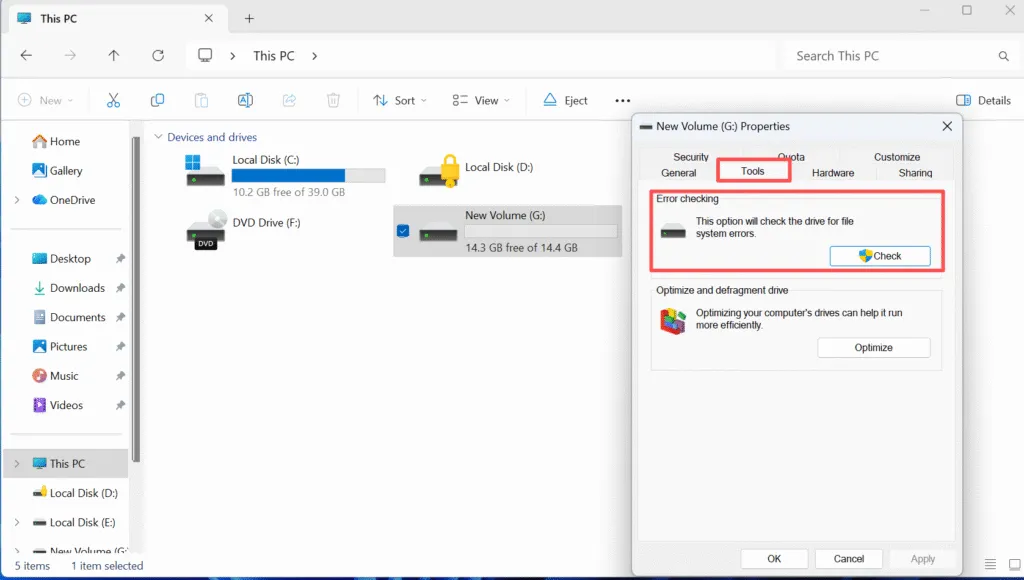
Metodo 2: Utilizzo di Esplora file
1. Aprire Questo PC.
2. Fare clic con il pulsante destro del mouse sull'unità di destinazione e selezionare Proprietà.
3. Andare alla voce Strumenti scheda.
4. Fare clic su Controllo in Controllo errori.
Precauzioni importanti prima di riparare gli errori del disco
Prima di eseguire la riparazione del disco:
- Eseguite prima il backup dei dati critici. Le riparazioni del file system modificano le strutture dei metadati.
- Evitare di utilizzare CHKDSK sulle unità che producono rumori insoliti o si scollegano a intermittenza.
- Non interrompere il processo una volta avviato.
Se l'unità contiene dati insostituibili, un approccio di recupero in sola lettura è fortemente raccomandato prima di tentare la riparazione.
Recupero dei dati prima di verificare gli errori del disco
Negli scenari in cui la corruzione è grave, il controllo del disco alla ricerca di errori può nascondere o rimuovere le voci dei file danneggiati. Strumenti di recupero professionali come Magic Data Recovery sono progettati per operare in modalità di sola lettura, consentendo di estrarre i file in modo sicuro prima di qualsiasi tentativo di riparazione.
Magic Data Recovery supporta il recupero da NTFS, FAT32, exFAT, e Partizioni RAW e può eseguire la scansione di dischi che non superano i controlli standard del file system. Questo approccio offre un percorso di ripristino controllato e riduce il rischio di perdita permanente dei dati.
Conclusione
Verifica della presenza di errori su un disco è un'attività di manutenzione fondamentale che aiuta a ripristinare la stabilità del file system e a prevenire guasti a cascata. Se usati correttamente, strumenti come CHKDSK può risolvere molti problemi comuni problemi logici. Tuttavia, la cautela e la preparazione sono essenziali. Valutare sempre le condizioni dell'unità, proteggere prima i dati importanti e applicare le riparazioni con metodo. Scarica Magic Data Recovery per recuperare i file in modo sicuro prima di riparare gli errori del disco e mantenere il pieno controllo sul processo di ripristino dei dati.
Supporta Windows 7/8/10/11 e Windows Server
FAQ: Controllare gli errori del disco
Come verificare la presenza di errori sul disco?
Il disco di controllo risolve gli errori?
Cosa è meglio, CHKDSK /f o /r?
Come rilevare i problemi del disco?
Devo eseguire CHKDSK o SFC?
Come eseguire la scansione di un PC utilizzando cmd?
CHKDSK risolve i file danneggiati?
Gli errori del disco possono essere riparati?

Vasilii è uno specialista del recupero dati con circa 10 anni di esperienza pratica nel settore. Nel corso della sua carriera, ha risolto con successo migliaia di casi complessi riguardanti file cancellati, unità formattate, partizioni perse e file system RAW. La sua esperienza copre sia i metodi di recupero manuale utilizzando strumenti professionali come gli editor esadecimali, sia le soluzioni automatiche avanzate con i software di recupero. La missione di Vasilii è quella di rendere accessibile la conoscenza del recupero dati affidabile sia ai professionisti IT che agli utenti di tutti i giorni, aiutandoli a salvaguardare i loro preziosi beni digitali.