
디스크에 오류가 있는지 확인합니다: 드라이브 문제 감지 및 수정
“디스크에 오류가 있는지 확인”는 저장 장치를 스캔하는 프로세스(예 하드 디스크 드라이브(HDD), SSD(솔리드 스테이트 드라이브), 를 사용하여 논리 파일 시스템 불일치를 감지하고 수정할 수 있습니다. Windows 시스템에서 이 기능은 가장 일반적으로 다음을 사용하여 수행됩니다. CHKDSK(디스크 확인), 를 사용하여 Microsoft에서 제공하는 기본 제공 진단 유틸리티입니다. CHKDSK는 파일 시스템 메타데이터, 디렉터리 구조, 할당 테이블 및 선택 사항으로 디스크 표면 섹터를 검사하여 충돌, 부팅 실패 또는 데이터 액세스 오류를 일으킬 수 있는 손상을 식별합니다.
이 프로세스는 다음을 해결합니다. 논리적 오류, 물리적 손상이 아닙니다. 논리적 문제에는 손상된 파일 레코드, 교차 연결된 파일, 잘못된 보안 설명자, 잘못된 여유 공간 수 등이 있습니다. 에 따르면 Microsoft 문서, CHKDSK 는 파일 시스템 수준에서 작동합니다(예, NTFS 또는 FAT32), 하드웨어 수리보다는 내부 일관성을 확인합니다.
목차
디스크 오류를 확인해야 하는 경우
문제가 발생하면 디스크 검사를 실행하는 것이 좋습니다:
- 반복되는 시스템 충돌 또는 블루스크린 오류
- 예기치 않게 열리지 않거나 사라지는 폴더
- 갑자기 RAW가 되는 드라이브 또는 읽을 수 없음
- 파일 시스템 불일치로 인한 성능 저하
- “Windows에서 하드 디스크 문제를 감지했습니다”와 같은 오류 메시지”
좋은 소식은 이러한 증상이 종종 다음과 같은 것을 나타낸다는 것입니다. 논리적 손상, 일반적으로 올바르게 처리하면 데이터 손실 없이 해결할 수 있습니다.
디스크 오류 검사 작동 방식
디스크에서 오류를 확인할 때 운영 체제는 몇 가지 확인 단계를 수행합니다:
1. 파일 시스템 구조 유효성 검사 - MFT(마스터 파일 테이블) 또는 FAT 디렉터리 항목이 일관성을 유지합니다.
2. 인덱스 및 디렉토리 확인 - 폴더 계층 구조와 파일 참조가 손상되지 않았는지 확인합니다.
3. 보안 설명자 검사 - 파일 권한 및 액세스 제어 목록을 확인합니다.
4. 섹터 스캔 옵션 - 읽을 수 없는 섹터를 식별하고 향후 사용으로부터 격리하려고 시도합니다.
파일 시스템 복구 도구는 메타데이터를 수정한다는 점을 이해하는 것이 중요합니다. 특히 불안정한 드라이브에서 부적절하게 사용하면 영구적인 데이터 손실의 위험이 높아질 수 있습니다.
CHKDSK를 사용하여 디스크 오류를 확인하는 방법
다음 단계를 주의 깊게 따르세요. 당황하지 마세요. 이 작업은 통제되고 널리 사용되는 유지 관리 작업입니다.
방법 1: 명령 프롬프트 사용
1. 1. Windows + S, 유형 cmd, 을 클릭하고 관리자 권한으로 실행.
2. 2. chkdsk /f 명령 를 다음과 같이 설정합니다:
chkdsk X: /f
교체 X: 를 대상 드라이브 문자로 대체합니다.

3. 다음 재부팅 시 스캔을 예약하라는 메시지가 표시되면 다음을 입력합니다. Y 를 클릭하고 시스템을 다시 시작하세요.
그리고 /f 매개변수는 논리 파일 시스템 오류를 수정합니다. 표면 스캔을 포함하려면
chkdsk X: /f /r
참고 /r 는 시간이 훨씬 오래 걸리므로 노후화된 드라이브에서는 신중하게 사용해야 합니다.

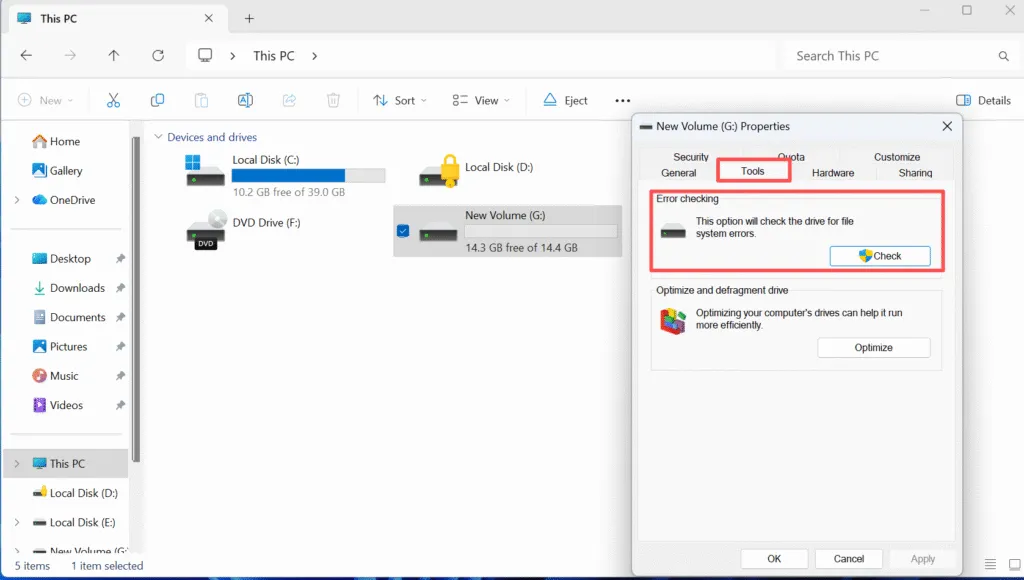
방법 2: 파일 탐색기 사용
1. 열기 이 PC.
2. 대상 드라이브를 마우스 오른쪽 버튼으로 클릭하고 속성.
3. 3. 도구 탭을 클릭합니다.
4. 4. 확인 오류 확인 아래에 있습니다.
디스크 오류 복구 전 중요 주의 사항
디스크 복구를 실행하기 전에
- 중요한 데이터부터 백업하세요. 파일 시스템 복구는 메타데이터 구조를 수정합니다.
- 다음을 사용하지 마십시오. CHKDSK 드라이브에서 비정상적인 소음이 발생하거나 간헐적으로 연결이 끊어지는 경우.
- 프로세스가 시작되면 중단하지 마세요.
드라이브에 대체할 수 없는 데이터가 포함된 경우, 읽기 전용 복구 접근 방식 를 사용하여 수리를 시도하는 것이 좋습니다.
디스크 오류를 확인하기 전에 데이터 복구하기
손상이 심한 경우에는 디스크에서 오류를 확인하면 손상된 파일 항목이 숨겨지거나 제거될 수 있습니다. 다음과 같은 전문 복구 도구 Magic Data Recovery 에서 작동하도록 설계되었습니다. 읽기 전용 모드, 를 사용하여 복구 시도 전에 파일을 안전하게 추출할 수 있습니다.
Magic Data Recovery는 다음에서 복구를 지원합니다. NTFS, FAT32, exFAT, 및 RAW 파티션 표준 파일 시스템 검사에 실패한 디스크를 스캔할 수 있습니다. 이 접근 방식은 제어된 복구 경로를 제공하고 영구적인 데이터 손실의 위험을 줄여줍니다.
결론
디스크에 오류가 있는지 확인 는 파일 시스템의 안정성을 복원하고 연쇄적인 장애를 방지하는 데 도움이 되는 기본적인 유지 관리 작업입니다. 올바르게 사용하면 다음과 같은 도구를 사용할 수 있습니다. CHKDSK 는 많은 일반적인 논리적 문제. 하지만 주의와 준비가 필수적입니다. 항상 드라이브의 상태를 평가하고 중요한 데이터를 먼저 보호하며 체계적으로 수리를 진행하세요. 다운로드 Magic Data Recovery 를 사용하여 디스크 오류를 복구하기 전에 파일을 안전하게 복구하고 데이터 복원 프로세스를 완벽하게 제어할 수 있습니다.
Windows 7/8/10/11 및 Windows Server 지원
FAQ: 디스크 오류 확인
디스크에 오류가 있는지 확인하는 방법은 무엇인가요?
디스크 확인으로 오류가 수정되나요?
CHKDSK /f 또는 /r 중 어느 것이 더 낫나요?
디스크 문제를 감지하는 방법은 무엇인가요?
CHKDSK 또는 SFC를 실행해야 하나요?
cmd를 사용하여 PC를 스캔하는 방법은 무엇인가요?
CHKDSK는 손상된 파일을 수정하나요?
디스크 오류를 복구할 수 있나요?

바실리는 이 분야에서 약 10년간 실무 경험을 쌓은 데이터 복구 전문가입니다. 그는 경력 전반에 걸쳐 삭제된 파일, 포맷된 드라이브, 손실된 파티션 및 RAW 파일 시스템과 관련된 수천 건의 복잡한 사례를 성공적으로 해결했습니다. 그의 전문 지식은 헥스 에디터와 같은 전문 도구를 사용한 수동 복구 방법과 복구 소프트웨어를 사용한 고급 자동화 솔루션을 모두 다룹니다. 바실리의 사명은 IT 전문가와 일반 사용자 모두에게 신뢰할 수 있는 데이터 복구 지식을 제공하여 소중한 디지털 자산을 보호할 수 있도록 돕는 것입니다.