
Festplatte auf Fehler prüfen: Laufwerksprobleme erkennen und beheben
“Festplatte auf Fehler prüfen” bezieht sich auf den Prozess des Scannens eines Speichermediums - z. B. einer Festplattenlaufwerk (HDD), Solid-State-Laufwerk (SSD), USB-Flash-Laufwerk oder externe Festplatte, um Inkonsistenzen im logischen Dateisystem zu erkennen und zu korrigieren. Auf Windows-Systemen wird diese Funktion in der Regel mit CHKDSK (Datenträger prüfen), ein integriertes Diagnoseprogramm von Microsoft. CHKDSK untersucht Metadaten des Dateisystems, Verzeichnisstrukturen, Zuordnungstabellen und - optional - Sektoren der Festplattenoberfläche, um Beschädigungen zu erkennen, die zu Abstürzen, Bootfehlern oder Datenzugriffsfehlern führen können.
Dieser Prozess betrifft logische Fehler, und keine physischen Schäden. Zu den logischen Problemen gehören beschädigte Dateidatensätze, vernetzte Dateien, ungültige Sicherheitsdeskriptoren und falsche Zählungen des freien Speicherplatzes. Laut Microsoft-Dokumentation, CHKDSK arbeitet auf der Ebene des Dateisystems (z. B., NTFS oder FAT32), um die interne Konsistenz zu überprüfen, anstatt die Hardware zu reparieren.
Inhaltsübersicht
Wann Sie die Festplatte auf Fehler prüfen sollten
Es wird empfohlen, eine Festplattenprüfung durchzuführen, wenn Sie Probleme haben:
- Wiederholte Systemabstürze oder Blue-Screen-Fehler
- Ordner, die sich nicht öffnen lassen oder unerwartet verschwinden
- Ein Laufwerk, das plötzlich zu RAW wird oder unleserlich
- Langsame Leistung aufgrund von Inkonsistenzen im Dateisystem
- Fehlermeldungen wie “Windows hat ein Festplattenproblem festgestellt”.”
Die gute Nachricht ist, dass diese Symptome oft auf Folgendes hinweisen logische Verfälschung, die bei richtiger Handhabung in der Regel ohne Datenverlust behoben werden können.
Wie die Festplattenfehlerprüfung funktioniert
Wenn Sie die Festplatte auf Fehler prüfen, führt das Betriebssystem mehrere Prüfschritte durch:
1. Validierung der Dateisystemstruktur - Stellt sicher, dass die Master File Table (MFT) oder FAT-Verzeichniseinträge konsistent sind.
2. Überprüfung von Index und Verzeichnis - Bestätigt, dass die Ordnerhierarchien und Dateiverweise intakt sind.
3. Überprüfung der Sicherheitsbeschreibungen - Überprüft Dateiberechtigungen und Zugriffskontrolllisten.
4. Optionale Sektorabtastung - Identifiziert unlesbare Sektoren und versucht, sie von der zukünftigen Verwendung zu isolieren.
Es ist wichtig zu wissen, dass Werkzeuge zur Reparatur von Dateisystemen Metadaten verändern. Eine unsachgemäße Verwendung - insbesondere auf instabilen Laufwerken - kann das Risiko eines dauerhaften Datenverlusts erhöhen.
So überprüfen Sie die Festplatte mit CHKDSK auf Fehler
Befolgen Sie diese Schritte sorgfältig. Keine Panik - dies ist eine kontrollierte und weit verbreitete Wartungsmaßnahme.
Methode 1: Verwendung der Eingabeaufforderung
1. Drücken Sie . Fenster + S, Typ cmd, und wählen Sie Als Administrator ausführen.
2. Geben Sie ein. Befehl chkdsk /f wie folgt:
chkdsk X: /f
Ersetzen Sie X: mit dem Buchstaben des Ziellaufwerks.

3. Wenn Sie aufgefordert werden, den Scan beim nächsten Neustart zu planen, geben Sie Y und starten Sie Ihr System neu.
Die /f Parameter behebt logische Dateisystemfehler. Um eine Oberflächenprüfung einzuschließen, verwenden Sie:
chkdsk X: /f /r
Beachten Sie, dass /r dauert deutlich länger und sollte bei alternden Laufwerken mit Vorsicht eingesetzt werden.

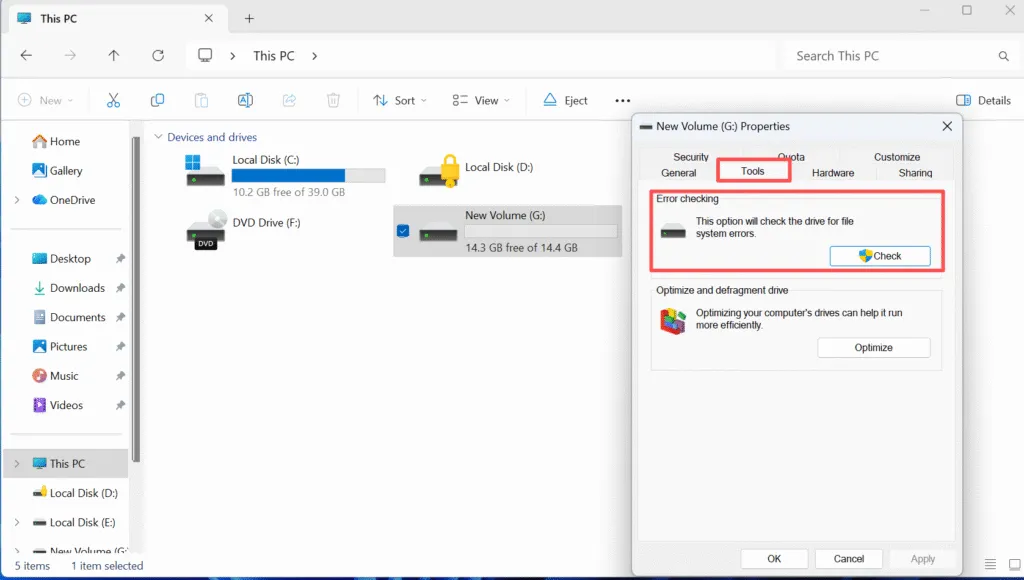
Methode 2: Verwendung des Datei-Explorers
1. Öffnen Sie Dieser PC.
2. Klicken Sie mit der rechten Maustaste auf das Ziellaufwerk und wählen Sie Eigenschaften.
3. Navigieren Sie zum Werkzeuge tab.
4. Klicken Sie auf . Siehe unter Fehlerprüfung.
Wichtige Vorsichtsmaßnahmen vor der Reparatur von Festplattenfehlern
Bevor Sie eine Festplattenreparatur durchführen:
- Sichern Sie zunächst wichtige Daten. Reparaturen am Dateisystem verändern die Metadatenstrukturen.
- Vermeiden Sie die Verwendung von CHKDSK bei Laufwerken, die ungewöhnliche Geräusche von sich geben oder die Verbindung zeitweise unterbrechen.
- Unterbrechen Sie den Prozess nicht, sobald er begonnen hat.
Wenn das Laufwerk unersetzliche Daten enthält, ein Nur-Lese-Wiederherstellungskonzept wird dringend empfohlen, bevor eine Reparatur durchgeführt wird.
Wiederherstellung von Daten vor der Überprüfung von Festplattenfehlern
Bei schwerwiegenden Beschädigungen kann die Überprüfung des Datenträgers auf Fehler dazu führen, dass beschädigte Dateieinträge verborgen oder entfernt werden. Professionelle Wiederherstellungstools wie Magic Data Recovery sind konzipiert für den Betrieb in Nur-Lese-Modus, und ermöglicht es Ihnen, Dateien vor einem Reparaturversuch sicher zu extrahieren.
Magic Data Recovery unterstützt die Wiederherstellung von NTFS, FAT32, exFAT, und RAW-Partitionen und kann Festplatten scannen, die die Standarddateisystemprüfungen nicht bestehen. Dieser Ansatz bietet einen kontrollierten Wiederherstellungspfad und verringert das Risiko eines dauerhaften Datenverlusts.
Schlussfolgerung
Prüfen einer Festplatte auf Fehler ist eine grundlegende Wartungsaufgabe, die dazu beiträgt, die Stabilität des Dateisystems wiederherzustellen und kaskadierende Ausfälle zu verhindern. Bei richtiger Anwendung können Werkzeuge wie CHKDSK kann viele gängige Probleme lösen logische Fragen. Vorsicht und Vorbereitung sind jedoch unerlässlich. Beurteilen Sie immer den Zustand des Laufwerks, sichern Sie zuerst wichtige Daten und führen Sie Reparaturen methodisch durch. Herunterladen Magic Data Recovery um Ihre Dateien vor der Reparatur von Festplattenfehlern sicher wiederherzustellen und die volle Kontrolle über Ihren Datenwiederherstellungsprozess zu behalten.
Unterstützt Windows 7/8/10/11 und Windows Server
FAQ: Festplatte auf Fehler prüfen
Wie kann man die Festplatte auf Fehler überprüfen?
Kann die Festplatte Fehler beheben?
Was ist besser, CHKDSK /f oder /r?
Wie lassen sich Festplattenprobleme erkennen?
Soll ich CHKDSK oder SFC ausführen?
Wie scanne ich einen PC mit cmd?
Kann CHKDSK beschädigte Dateien reparieren?
Können Festplattenfehler repariert werden?

Vasilii ist ein Datenrettungsspezialist mit rund 10 Jahren praktischer Erfahrung in diesem Bereich. Im Laufe seiner Karriere hat er Tausende von komplexen Fällen mit gelöschten Dateien, formatierten Laufwerken, verlorenen Partitionen und RAW-Dateisystemen erfolgreich gelöst. Sein Fachwissen umfasst sowohl manuelle Wiederherstellungsmethoden mit professionellen Tools wie Hex-Editoren als auch fortschrittliche automatische Lösungen mit Wiederherstellungssoftware. Vasilii hat es sich zur Aufgabe gemacht, zuverlässiges Wissen zur Datenwiederherstellung sowohl IT-Fachleuten als auch normalen Nutzern zugänglich zu machen und ihnen dabei zu helfen, ihre wertvollen digitalen Ressourcen zu schützen.