Skip to content
amagicsoft logo icon
  • Home
  • Products
    • Magic Data Recovery
    • Magic Recovery Key
  • Store
  • Blog
  • More
    • About Amagicsoft
    • Contact US
    • Privacy Policy
    • Terms
    • License Agreement
    • Refund Policy
  • English
    • 日本語
    • 한국어
    • Deutsch
    • Français
    • 繁體中文
Disk Issue Fix

Check Disk for Errors: Detect and Fix Drive Problems
21.12.2025 Vasilii No comments yet
Check Disk for Errors Detect and Fix Drive Problems

“Check disk for errors” refers to the process of scanning a storage device—such as a hard disk drive (HDD), solid-state drive (SSD), USB flash drive, or external hard drive—to detect and correct logical file system inconsistencies. On Windows systems, this function is most commonly performed using CHKDSK (Check Disk), a built-in diagnostic utility provided by Microsoft. CHKDSK examines file system metadata, directory structures, allocation tables, and—optionally—disk surface sectors to identify corruption that may cause crashes, boot failures, or data access errors.

This process addresses logical errors, not physical damage. Logical issues include corrupted file records, cross-linked files, invalid security descriptors, and incorrect free-space counts. According to Microsoft documentation, CHKDSK operates at the file system level (e.g., NTFS or FAT32), verifying internal consistency rather than repairing hardware.

Table of Contents

When You Should Check Disk for Errors

Running a disk check is recommended when you experience:

  • Repeated system crashes or Blue Screen errors
  • Folders that fail to open or disappear unexpectedly
  • A drive that suddenly becomes RAW or unreadable
  • Slow performance caused by file system inconsistencies
  • Error messages such as “Windows detected a hard disk problem”

The good news is that these symptoms often indicate logical corruption, which can usually be resolved without data loss if handled correctly.

How Disk Error Checking Works

When you check disk for errors, the operating system performs several verification stages:

1. File system structure validation – Ensures the Master File Table (MFT) or FAT directory entries are consistent.

2. Index and directory verification – Confirms folder hierarchies and file references are intact.

3. Security descriptor checks – Verifies file permissions and access control lists.

4. Optional sector scanning – Identifies unreadable sectors and attempts to isolate them from future use.

It is important to understand that file system repair tools modify metadata. Improper use—especially on unstable drives—can increase the risk of permanent data loss.

How to Check Disk for Errors Using CHKDSK

Follow these steps carefully. Do not panic—this is a controlled and widely used maintenance operation.

Method 1: Using Command Prompt

1. Press Windows + S, type cmd, and select Run as administrator.

2. Enter chkdsk /f command as following:

chkdsk X: /f

Replace X: with the target drive letter.

check disk for errors with chkdsk /f

3. If prompted to schedule the scan at next reboot, type Y and restart your system.

The /f parameter fixes logical file system errors. To include a surface scan, use:

chkdsk X: /f /r

Note that /r takes significantly longer and should be used cautiously on aging drives.

check disk for errors with chkdsk /f /r

Method 2: Using File Explorer

1. Open This PC.

2. Right-click the target drive and select Properties.

3. Navigate to the Tools tab.

4. Click Check under Error checking.
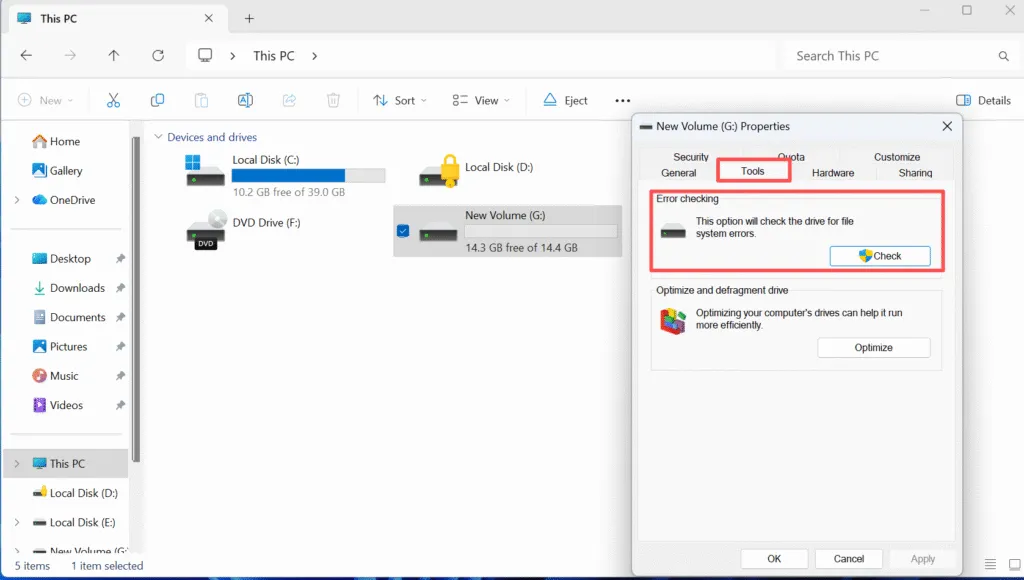
error checking
This method provides a simplified interface but relies on the same underlying CHKDSK engine to check disk for errors.

Important Precautions Before Repairing Disk Errors

Before running any disk repair:

  • Back up critical data first. File system repairs modify metadata structures.
  • Avoid using CHKDSK on drives making unusual noises or disconnecting intermittently.
  • Do not interrupt the process once it has started.

If the drive contains irreplaceable data, a read-only recovery approach is strongly recommended before attempting repairs.

Recovering Data Before Checking Disk Errors

In scenarios where corruption is severe, checking the disk for errors may hide or remove damaged file entries. Professional recovery tools such as Magic Data Recovery are designed to operate in read-only mode, allowing you to extract files safely before any repair attempt.

Magic Data Recovery supports recovery from NTFS, FAT32, exFAT, and RAW partitions and can scan disks that fail standard file system checks. This approach provides a controlled recovery path and reduces the risk of permanent data loss.

Conclusion

Checking a disk for errors is a fundamental maintenance task that helps restore file system stability and prevent cascading failures. When used correctly, tools like CHKDSK can resolve many common logical issues. However, caution and preparation are essential. Always assess the condition of the drive, secure important data first, and apply repairs methodically. Download Magic Data Recovery to recover your files safely before repairing disk errors and maintain full control over your data restoration process.

Download Magic Data Recovery

Supports Windows 7/8/10/11 and Windows Server

FAQ: Check Disk for Errors

1.How to check disk for errors?

You can check a disk drive for errors using Windows’ built-in CHKDSK utility. Open Command Prompt as an administrator and run chkdsk X: /f, replacing X: with the target drive letter. Alternatively, use File Explorer by right-clicking the drive, selecting Properties > Tools > Check. Both methods scan the file system for logical inconsistencies.

2.Does check disk fix errors?

Yes, CHKDSK can fix logical file system errors, such as corrupted directory entries, incorrect file allocation records, and metadata inconsistencies. However, it does not repair physical hardware damage. If physical failure is suspected, data recovery should be performed before running repairs.

3.Which is better, CHKDSK /f or /r?

Neither option is universally “better”—they serve different purposes. • /f fixes logical file system errors and is faster. • /r locates bad sectors and attempts data recovery from readable areas, which takes much longer. For routine checks, /f is usually sufficient. Use /r only when you suspect sector-level issues.

4.How to detect disk problems?

Common signs of disk problems include frequent crashes, slow file access, missing files, read/write errors, and SMART warnings. Running CHKDSK, reviewing Event Viewer logs, and monitoring disk health tools can help confirm logical or structural disk issues.

5.Should I run CHKDSK or SFC?

These tools serve different purposes. CHKDSK checks disk structure and file system integrity, while SFC (System File Checker) verifies Windows system files. If you suspect drive corruption, run CHKDSK first. If Windows components are malfunctioning, follow up with SFC.

6.How to scan a PC using cmd?

To scan a PC using Command Prompt, open CMD as administrator and enter diagnostic commands such as chkdsk, sfc /scannow, or DISM. These tools allow low-level system and disk verification without third-party software.

7.Does CHKDSK fix corrupted files?

CHKDSK may repair file system references associated with corrupted files, but it cannot always restore the file’s original content. In some cases, files may be moved to a recovery folder or become inaccessible. For important data, recovery software should be used before running CHKDSK.

8.Can disk errors be repaired?

Many disk errors caused by file system corruption can be repaired using CHKDSK. However, errors caused by failing hardware are not repairable through software. In such cases, recovering data with a read-only tool like Magic Data Recovery before attempting repairs is strongly recommended.
  • WiKi
Vasilii

Vasilii is a data recovery specialist with around 10 years of hands-on experience in the field. Throughout his career, he has successfully solved thousands of complex cases involving deleted files, formatted drives, lost partitions, and RAW file systems. His expertise covers both manual recovery methods using professional tools like hex editors and advanced automated solutions with recovery software. Vasilii's mission is to make reliable data recovery knowledge accessible to both IT professionals and everyday users, helping them safeguard their valuable digital assets.

文章导航

Previous
Next

Search

Categories

  • Bitlocker Recovery
  • Deleted File Recovery
  • Disk Issue Fix
  • Format File Recovery
  • Hard Drive Recovery
  • License Key Recovery
  • Lost File Recovery
  • Memory Card Recovery
  • News
  • Password Recovery
  • Photo Recovery
  • SSD Recovery
  • USB Drive Recovery
  • User Guide
  • Video Recovery
  • Wiki
  • Windows Issue Fix

Recent posts

  • CHKDSK stuck on Windows
    CHKDSK Stuck on Windows? Complete Fix Guide for All Scenarios
  • How to Recover Deleted Photos on Samsung SSD
    How to Recover Deleted Photos on Samsung SSD?
  • Check Disk for Errors Detect and Fix Drive Problems
    Check Disk for Errors: Detect and Fix Drive Problems

Tags

CHKDSK and Disk Tools Disk Repair Error Troubleshooting How to Magic Data Recovery Magic Recovery Key WiKi

Related posts

Disk Write Error Causes and Fixes
Disk Issue Fix

Disk Write Error: Causes and Fixes

19.12.2025 Vasilii Comments Off on Disk Write Error: Causes and Fixes

A disk write error occurs when an operating system or application fails to save data to a storage device. This error indicates that the system attempted to write data but was blocked by hardware issues, file system corruption, permission restrictions, or logical inconsistencies within the storage structure. Disk write errors can appear on HDDs, SSDs, […]

CHKDSK RAW Drive How to Fix a Corrupted Drive
Disk Issue Fix

CHKDSK RAW Drive: How to Fix a Corrupted Drive

19.12.2025 Vasilii Comments Off on CHKDSK RAW Drive: How to Fix a Corrupted Drive

Seeing the message “The type of the file system is RAW. CHKDSK is not available for RAW drives” can be alarming, especially when the affected device is an external hard drive containing important files. The failure of running CHKDSK on a RAW drive indicates that Windows can no longer recognize the file system on the drive, […]

chkdsk bad sectors
Wiki

CHKDSK Bad Sectors: How to Check and Repair Disk Errors Safely

18.12.2025 Smith, Erin Comments Off on CHKDSK Bad Sectors: How to Check and Repair Disk Errors Safely

Table of Contents When Bad Sectors Make Your Data Suddenly Inaccessible Hard drive errors often appear without warning. One day your system works normally, and the next day Windows refuses to open files, freezes during startup, or reports disk read errors. In many cases, CHKDSK bad sectors are the hidden cause behind these issues. Microsoft […]

amagicsoft logo icon

Our vision is to become a globally renowned software brand and service provider, delivering top-tier products and services to our users.

Products
  • Magic Data Recovery
  • Magic Recovery Key
Policy
  • Terms
  • Privacy Policy
  • Refund Policy
  • License Agreement
Company
  • About Amagicsoft
  • Contact US
  • Store
Follow Us

Copyright © 2025 Amagicsoft. All Rights Reserved.

  • Terms
  • Privacy Policy
