
Il computer non riconosce il disco rigido esterno Guida
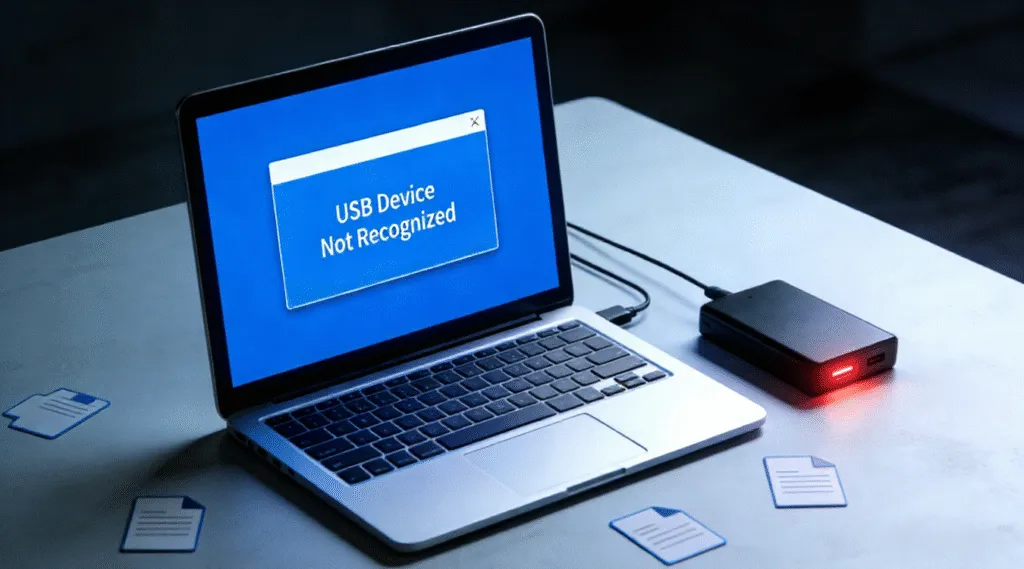
Quando Il computer non riconosce un'unità disco rigido esterna, può essere allarmante, soprattutto se il dispositivo contiene file importanti. La buona notizia è che in molti casi i dati non vanno persi. Questo problema è spesso causato da problemi di connessione, conflitti di driver, errori del file system, o problemi di partizione piuttosto che un guasto fisico dell'unità.
Comprensione Soluzioni per dischi rigidi esterni consente di risolvere il problema in modo metodico e di ridurre il rischio di perdita permanente dei dati.
Indice dei contenuti
Motivi comuni per cui un computer non riconosce un'unità disco esterna
Diversi fattori tecnici possono impedire la visualizzazione di un disco rigido esterno sul computer:
- Problemi con la porta o il cavo USB: Cavi difettosi o porte USB instabili possono interrompere l'alimentazione o la trasmissione dei dati.
- Driver mancanti o danneggiati: Driver USB o del disco obsoleti o danneggiati possono impedire al sistema di identificare il dispositivo.
- Disco non inizializzato o non allocato: Un'unità nuova o danneggiata potrebbe non avere una tabella delle partizioni riconoscibile (MBR o GPT).
- File system non supportato o RAW: Se il file system è danneggiato, il sistema operativo potrebbe non montare l'unità.
- Limiti dell'alimentazione: Alcuni dischi rigidi esterni richiedono una potenza superiore a quella che può fornire una singola porta USB.
Queste cause sono logiche e reversibili in molte situazioni.
Come risolvere il problema del mancato riconoscimento di un disco rigido esterno da parte del computer
Seguire attentamente questi passaggi. Non formato l'unità, a meno che il recupero dei dati non sia più necessario.
Fase 1: controllare le connessioni fisiche se il computer non riconosce un'unità disco esterna
- Provare con un cavo e una porta USB diversi.
- Collegare l'unità direttamente al computer anziché tramite un hub USB.
- Testate l'unità su un altro computer per escludere problemi specifici del sistema.
Passo 2: Controllare Gestione disco (Windows)
1. Premere Windows + X e selezionare Gestione del disco.
2. Cercate l'unità esterna elencata come Non allocato, Non in linea, o senza lettera di unità.
3. Se visibile, assegnare una lettera di unità. Non inizializzare o formattare se i dati sono importanti.
Passo 3: Aggiornare o reinstallare i driver
- Aperto Gestione dispositivi.
- Espandi Unità disco e Controllori Universal Serial Bus.
- Disinstallare il dispositivo dell'unità esterna, quindi riavviare il computer per reinstallare automaticamente i driver.
Passo 4: Eseguire i controlli degli errori del disco
Se l'unità appare ma non è possibile accedervi, errori del file system possono essere presenti. Nella maggior parte dei casi, i problemi logici possono essere risolti con Comando CHKDSK.
1. Premere Vincere + S, tipo cmd, quindi fare clic con il tasto destro del mouse su Prompt dei comandi e selezionare Eseguire come amministratore.
2. Identificare la lettera di unità assegnata all'unità esterna (ad esempio, E: o F:).
3. Immettere il seguente comando:
chkdsk G: /f /r
Sostituire G: con la lettera di unità corretta.
4. Premere Entrare e attendere il completamento della scansione.

Se non riesce, l'unità potrebbe essere danneggiata in modo critico. Non ripetere il processo nel caso in cui la situazione peggiori. In questa situazione, software di recupero dati prima di tentare altre riparazioni.
Recupero dei dati quando il computer non riconosce un disco rigido esterno
Se l'unità non è accessibile ma è ancora riconosciuta a livello hardware, software di recupero dati professionale può scansionare il disco in modalità di sola lettura ed estrarre i file recuperabili.
Magic Data Recovery è stato progettato per gestire scenari che coinvolgono dischi rigidi esterni non rilevati o inaccessibili. Supporta il recupero di unità RAW, partizioni mancanti e file system danneggiati senza modificare i dati originali, riducendo al minimo i rischi e preservando l'integrità del disco originale.
Consigli per la prevenzione
- Espellere sempre in modo sicuro le unità esterne prima di scollegarle.
- Evitare interruzioni improvvise dell'alimentazione durante il trasferimento dei dati.
- Eseguite regolarmente il backup dei file importanti in più posizioni.
- Monitorare lo stato di salute delle unità, soprattutto per i dispositivi più vecchi.
Conclusione
Quando un Il computer non riconosce un disco rigido esterno, Il problema è spesso causato da problemi di connessione, errori del driver o danni al file system, non da un guasto hardware immediato. Controllando l'unità in Gestione disco e risolvendo prima i problemi di base del sistema, è spesso possibile ripristinare l'accesso senza rischiare i dati. Se l'unità rimane inaccessibile, evitare la formattazione e utilizzare invece un approccio di recupero in sola lettura. Scarica Magic Data Recovery per scansionare in modo sicuro i file non riconosciuti disco rigido esterno e ripristinare i file in tutta sicurezza, per poi eseguire le operazioni di riparazione senza alcun rischio.
Supporta Windows 7/8/10/11 e Windows Server
Il computer non riconosce il disco rigido esterno - Domande e risposte
Perché il computer non rileva il mio disco rigido esterno?
Come recuperare un disco rigido non rilevato?
Come scoprire il disco rigido esterno sul PC?
Perché il mio computer non rileva altri dischi rigidi?
Come posso forzare il computer a riconoscere la mia USB?
Qual è la durata di vita di un disco rigido esterno?
Come posso forzare il rilevamento del disco rigido?
Come risolvere un disco rigido esterno non rilevato?

Vasilii è uno specialista del recupero dati con circa 10 anni di esperienza pratica nel settore. Nel corso della sua carriera, ha risolto con successo migliaia di casi complessi riguardanti file cancellati, unità formattate, partizioni perse e file system RAW. La sua esperienza copre sia i metodi di recupero manuale utilizzando strumenti professionali come gli editor esadecimali, sia le soluzioni automatiche avanzate con i software di recupero. La missione di Vasilii è quella di rendere accessibile la conoscenza del recupero dati affidabile sia ai professionisti IT che agli utenti di tutti i giorni, aiutandoli a salvaguardare i loro preziosi beni digitali.