
CHKDSK Unità esterna: Come riparare un'unità danneggiata con CMD
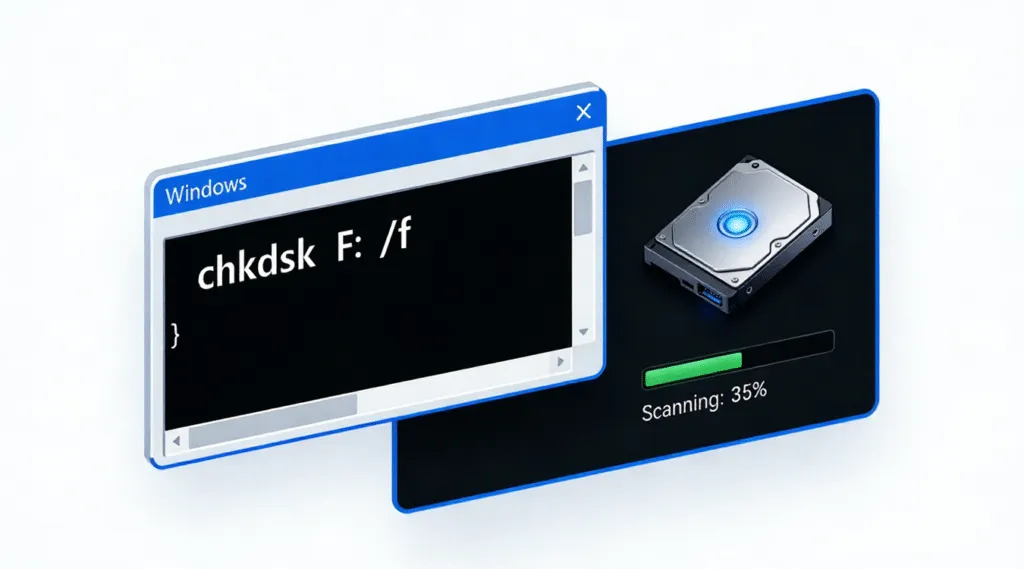
Un disco rigido esterno può guastarsi senza preavviso e i problemi relativi a chkdsk unità esterna Le riparazioni sono tra le preoccupazioni più comuni che gli utenti cercano quando ciò accade. Un attimo prima si apre normalmente e un attimo dopo Windows riporta errori del file system, chiede di formattare l'unità o si rifiuta del tutto di leggerla. In queste situazioni, molti utenti si preoccupano immediatamente della perdita permanente dei dati.
La buona notizia è che non tutti gli errori delle unità esterne indicano un danno fisico. In molti casi, il problema è causato da corruzione del file system logico, che spesso possono essere riparati in modo sicuro utilizzando il sistema integrato di Windows. CHKDSK utilità. Se applicato correttamente, CHKDSK può ripristinare l'accesso a un'unità esterna senza cancellare i dati esistenti.
Questa guida spiega cosa fa CHKDSK su un'unità esterna e quando è sicuro da usare, come eseguire CHKDSK correttamente utilizzando il Prompt dei comandi e quali sono i passi da compiere se CHKDSK non è in grado di risolvere il problema.
Indice dei contenuti
Cosa significa CHKDSK per un'unità esterna?
CHKDSK (Controllo disco) è un'utilità integrata in Windows progettata per la scansione dei dispositivi di archiviazione alla ricerca di errori del file system logico e problemi fisici del disco. Quando viene utilizzato su un'unità esterna, come una chiavetta USB, un HDD esterno o un SSD esterno, CHKDSK analizza la struttura del file system (NTFS, FAT32, o exFAT) e tenta di riparare le incongruenze rilevate.
Da un punto di vista tecnico, CHKDSK verifica i metadati come la Master File Table (MFT) sui volumi NTFS, gli indici delle directory, i descrittori di sicurezza e i record di allocazione dei file. Secondo la documentazione Microsoft, CHKDSK opera a livello di file system, non a livello di contenuto dei file. Questa distinzione è importante: CHKDSK può riparare i danni strutturali, ma non recupera i file cancellati o persi.
La buona notizia è che, in molti casi, un'unità esterna che sembra danneggiata o illeggibile contiene ancora dati intatti. Errori logici spesso impediscono a Windows di montare correttamente il volume, ed è proprio qui che CHKDSK può aiutare.
Quando eseguire CHKDSK su un'unità esterna?
CHKDSK è appropriato quando un'unità esterna mostra segni di corruzione logica, ad esempio:
- Windows richiede di scansionare e riparare l'unità.
- L'unità si apre lentamente o si blocca durante l'accesso
- I nomi dei file appaiono confusi o inaccessibili
- Messaggi di errore come “Il file o la directory sono danneggiati e illeggibili”.”
- L'unità diventa improvvisamente RAW
Tuttavia, se l'unità emette rumori di scatto, si disconnette in modo casuale o non viene rilevata dal BIOS o da Gestione disco, il problema potrebbe essere di natura hardware. In queste situazioni, CHKDSK non è consigliato e potrebbe peggiorare il danno.
Come eseguire CHKDSK su un'unità esterna utilizzando il prompt dei comandi
Prima di procedere, non fatevi prendere dal panico. L'esecuzione di CHKDSK è un processo di lettura e riparazione che riguarda le strutture del file system e non direttamente i file utente. Detto questo, qualsiasi operazione di riparazione comporta un certo rischio se il danneggiamento è grave.
Istruzioni passo dopo passo
1. Collegare l'unità esterna al PC Windows.
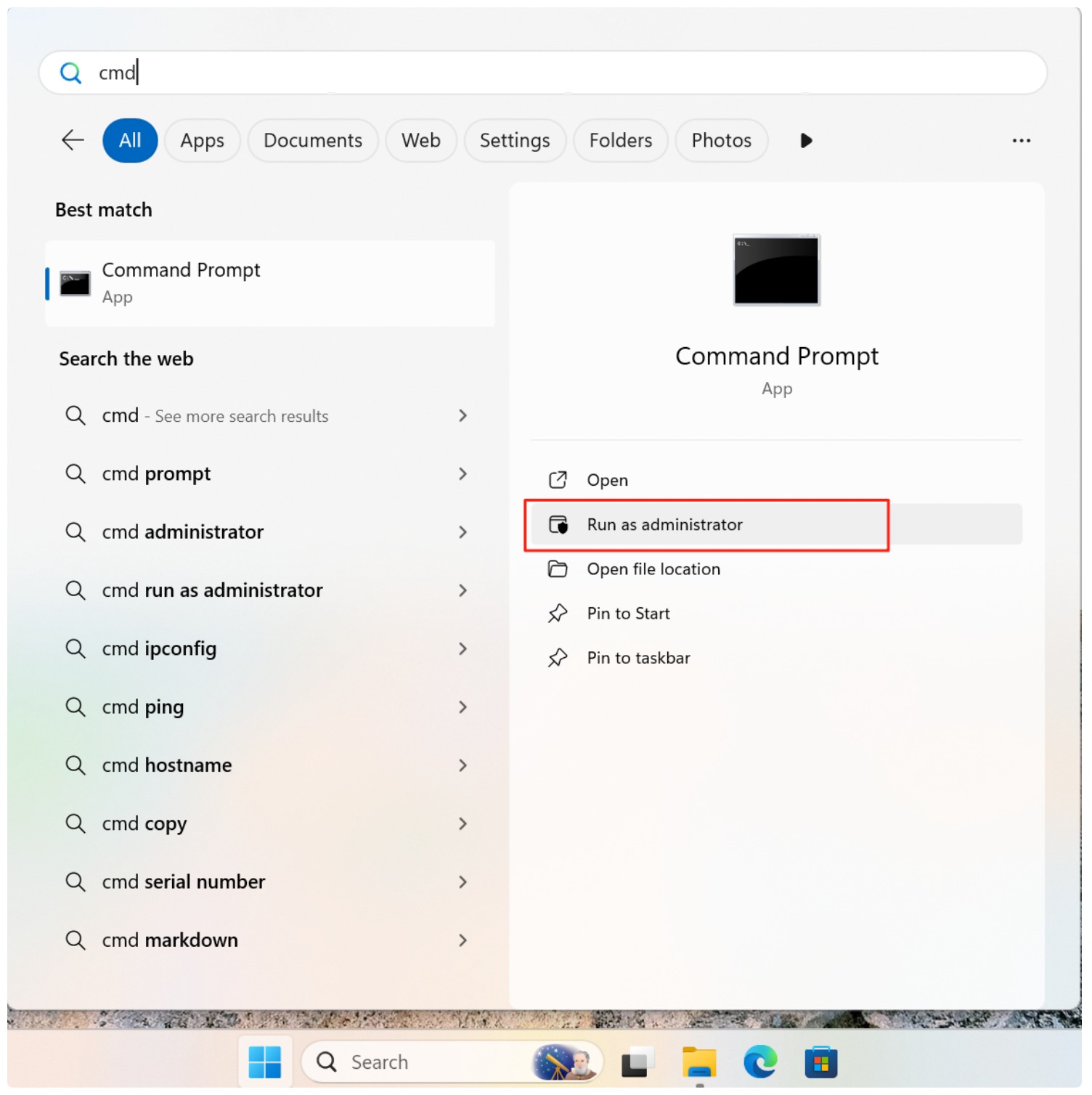
2. Premere Vincere + S, tipo cmd, quindi fare clic con il tasto destro del mouse su Prompt dei comandi e selezionare Eseguire come amministratore.
3. Identificare la lettera di unità assegnata all'unità esterna (ad esempio, E: o F:).
4. Immettere il seguente comando:
chkdsk G: /f /r
Sostituire G: con la lettera di unità corretta.
5. Premere Entrare e attendere il completamento della scansione.

CHKDSK /F vs /R: qual è il migliore?
La scelta del parametro corretto è essenziale:
- /F risolve gli errori del file system logico, come record di file errati o problemi di directory.
- /R individua settori danneggiati e tenta di recuperare i dati leggibili implicando anche /F.
Per la maggior parte dei problemi delle unità esterne, /F è la prima opzione più sicura. È più veloce e meno aggressiva. /R dovrebbe essere usato solo se si sospetta un degrado fisico del disco, poiché esegue una scansione settore per settore che può richiedere ore su unità di grandi dimensioni.
Dal punto di vista del recupero dati professionale, l'esecuzione /R su un'unità in avaria può accelerare il guasto dell'hardware. Utilizzatela con cautela.
Cosa succede se il CHKDSK fallisce o l'unità non viene letta?
Se CHKDSK segnala errori che non può risolvere o se l'unità esterna rimane inaccessibile dopo la scansione, interrompere ulteriori tentativi di riparazione. Ripetute riparazioni da riga di comando possono causare ulteriori perdite di metadati.
In questa fase, la priorità passa dalla riparazione al recupero dei dati. Professionale Soluzioni per il recupero di unità esterne come Magic Data Recovery è in grado di scansionare le unità esterne in modalità di sola lettura, di estrarre i file da file system danneggiati, ed evitare di alterare la struttura originale del disco.
Questo approccio è in linea con le migliori pratiche di digital forensics: recuperare prima i dati, quindi considerare la riformattazione o la sostituzione dell'unità.
Le migliori pratiche prima di usare CHKDSK su unità esterne
- Evitare di scollegare l'unità durante la scansione
- Non eseguire più strumenti di riparazione contemporaneamente
- Fermarsi immediatamente in caso di rumori insoliti o disconnessioni.
- Recuperare i dati critici prima di tentare riparazioni avanzate
Mantenere il controllo e procedere con metodo riduce notevolmente il rischio di perdita permanente dei dati.
Conclusione
Supporta Windows 7/8/10/11 e Windows Server
FAQ
Come si ripara un disco rigido esterno danneggiato?
Come usare CHKDSK per riparare un'unità USB?
Come riparare un disco rigido esterno utilizzando CMD?
È meglio CHKDSK F o R?
Come risolvere un disco rigido esterno che non viene letto?
Esiste un software gratuito per riparare un disco rigido esterno danneggiato?
CHKDSK può risolvere i problemi del disco rigido esterno?
Come eseguire CHKDSK su un disco esterno?

Vasilii è uno specialista del recupero dati con circa 10 anni di esperienza pratica nel settore. Nel corso della sua carriera, ha risolto con successo migliaia di casi complessi riguardanti file cancellati, unità formattate, partizioni perse e file system RAW. La sua esperienza copre sia i metodi di recupero manuale utilizzando strumenti professionali come gli editor esadecimali, sia le soluzioni automatiche avanzate con i software di recupero. La missione di Vasilii è quella di rendere accessibile la conoscenza del recupero dati affidabile sia ai professionisti IT che agli utenti di tutti i giorni, aiutandoli a salvaguardare i loro preziosi beni digitali.